How to Access the BIOS on a Compaq Notebook
Solved
LaCamille76
Posted messages
144
Registration date
Status
Member
Last intervention
-
LaCamille76 Posted messages 144 Registration date Status Member Last intervention -
LaCamille76 Posted messages 144 Registration date Status Member Last intervention -
Hello everyone,
Configuration: Windows 10/ Firefox 46.0
It's me again, but I think this is the last question I'll have for a long time, barring any issues of course.
This morning I reformatted my recovery USB drive (previously Windows 8.1) to boot Windows 10 if it becomes unresponsive.
Then I created my recovery drive. Everything is fine so far.
But to boot the computer, it needs to be configured to start from the USB drive.
I searched for the answer in the HP Forum (because of the Compaq) which uses technical jargon beyond my capabilities - I asked Cortana who directed me to the settings page. Indeed, it clearly states how to start with a USB drive, etc.
But if the computer doesn't boot, I don't think I have access to the settings.... So how should I proceed, please? Thank you in advance.
9 questions asked - 8 resolved. Bravo and thank you all.
Configuration: Windows 10/ Firefox 46.0
It's me again, but I think this is the last question I'll have for a long time, barring any issues of course.
This morning I reformatted my recovery USB drive (previously Windows 8.1) to boot Windows 10 if it becomes unresponsive.
Then I created my recovery drive. Everything is fine so far.
But to boot the computer, it needs to be configured to start from the USB drive.
I searched for the answer in the HP Forum (because of the Compaq) which uses technical jargon beyond my capabilities - I asked Cortana who directed me to the settings page. Indeed, it clearly states how to start with a USB drive, etc.
But if the computer doesn't boot, I don't think I have access to the settings.... So how should I proceed, please? Thank you in advance.
9 questions asked - 8 resolved. Bravo and thank you all.
17 answers
-
Hi,
Fortunately, Spark is here to state the facts on this subject. The rest is nonsense. Let's summarize:
BIOS = old internal software that allows the initial functioning of a PC (< 2013-2014)
UEFI = new version of this same firmware, more efficient and often graphical (>= 2014).
Your PC is a Compaq, a sub-brand of HP. So, in principle, we find the same operational keys at startup:
F2 or F10 for accessing BIOS/UEFI
F9 for the boot menu
F11 to launch the recovery partition.
On some models, there may be a few variations. To boot from an external medium, as long as it's well done, you tap F9 at startup. A menu appears and you choose the line corresponding to USB boot in UEFI. No need to switch to CSM (to my knowledge, only one case of BIOS used by Asus imposes this) or any hard drive disassembly.
Finally, if fast boot is enabled and UEFI is inaccessible at startup, you can restart your Windows in advanced mode and disable this fast boot to regain all your options.
In short, before tinkering with anything, try it as is, and at worst, consult the PC's documentation which is often available online on the manufacturer's US site. -
vieu bison boiteu Posted messages 44334 Registration date Status Contributor Last intervention Ambassador 3 592
Hello LaCamille76
On a laptop running Windows 10, the function keys are disabled
You need to unplug (remove) the hard drive
Press the "Delete" key and turn on the laptop
Set the boot order
- CD-ROM (if there is a combo)
- USBs
- hard drive
See you later
--
No links on the webpage in English, I already steal enough on my own -
pistouri Posted messages 19010 Registration date Status Contributor Last intervention Ambassador 8 732
we're not talking about installation but about repair in this topic
--
scalpel -
The BIOS is independent of Windows. Whether it's 8.1 or 10, it's the same BIOS; it's actually a microprogram that loads before Windows.
To be able to choose a USB device at startup, you need to go to the boot menu and find the boot sequence (boot sequence or boot priority).
There you have a list of devices and their order of reading at startup.
You select USB device and move it to the top of the list.
Exit the BIOS by pressing F10.
Your PC will restart from your recovery drive. -
pistouri Posted messages 19010 Registration date Status Contributor Last intervention Ambassador 8 732
Hello everyone,
a photo of LaCamille's BIOS would be welcome to clarify things
for Harlow, do you really know what a UEFI BIOS is?
LaCamille is on HP and the manipulations are not the same
for her BIOS or all HP BIOS it’s F10 or F11 depending on the models to access
F11 should be forgotten... we're not talking about restoration on the subject but indeed how to boot from a repair USB key
look on Google for how to boot from USB with a UEFI BIOS.
we don’t just tap any key.
--
pistouri -
Re
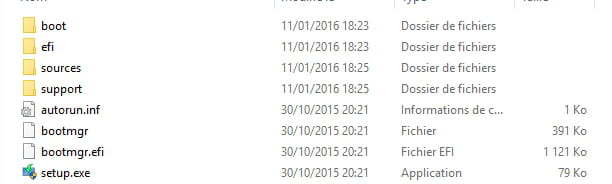
Camille, you are missing an essential file on your boot USB, the setup.exe; that’s why it cannot boot automatically.

--
Computing is just a tool, like a paintbrush or a pencil.
Avoid those so-called repair free software; they are of no major use. The best companions are Dos and Powershell..-
-
To properly create your bootable USB, you need to download the tool from this page a little further down. Plug in your USB key formatted to FAT beforehand and download directly to your key here >>https://www.microsoft.com/fr-fr/software-download/windows10
You will be asked to create your ISO image for another PC on USB
Use an Ethernet connection for everything to go smoothly. -
Formatted in FAT? I thought it had to be formatted in NTFS? Or NFTS, I’m not checking, you see what I mean... (and it’s Mr. Bébert who told me, na na na... ;-)).
Here, the tutorial I followed:
https://forums.cnetfrance.fr/tutoriels-windows-10/505831-windows-10-creer-une-cle-usb-de-recuperation-pour-depannage -
I checked your link; it’s about reinstallation. The key I created was meant in my mind solely to help with starting up in case of a Windows failure. It’s not the same thing. I took care of the most urgent issue. Just needed to be able to restart.
I’ll look into making a backup CD later.
You scared me a little... -
-
-
Hi
To enter the BIOS of a PC, you need to press a certain key right at the beginning of the startup. It's often briefly indicated on the screen, for example, F2 to enter setup.
The most common access keys are:
Esc, Del, F1, F2, F10
There may be others, like key combinations, but that's rare.
Turn on your PC and immediately tap the key (F10, for example) repeatedly until you reach the BIOS screen.
If that doesn't work and Windows starts, you will need to try again with a different key. -
pistouri Posted messages 19010 Registration date Status Contributor Last intervention Ambassador 8 732
Good evening,
okay for the spark solution... but... if your BIOS is in UEFI
you'll need to change some settings specifically to boot from the USB key or a DVD... like CSM or Legacy if you see it in the BIOS... and fast boot should be disabled...
it depends on your BIOS...
--
pistouri -
pistouri Posted messages 19010 Registration date Status Contributor Last intervention Ambassador 8 732
It's very simple to understand
if you have a Windows 8 or 8.1 PC and of course 10, then the BIOS is in UEFI
this means that the boot is faster
the fast boot function is clearly indicated in the BIOS (boot tab)
by disabling it, it allows you to boot from a USB stick or DVD (to avoid booting into Windows)
but also there is the CMS or Legacy to disable as well or to configure (or the memory options in the CMS).. each BIOS is different.. just look to see if you see these words that don't mean anything to you
--
pistouri -
pistouri Posted messages 19010 Registration date Status Contributor Last intervention Ambassador 8 732
Installing and repairing are not the same thing, it seems to me.
Look at this YouTube video if I'm not clear enough.
https://www.youtube.com/watch?v=16sIBUPrPAk
stab -
Please, friends, don’t quarrel... I will get through this thanks to the three of you, Spak, Pistouri, and Harlow, whom I have read carefully and almost understood everything the first time. I will come back to it.
For now, here is the photo requested by Pistouri (almost, anyway, as I don't see how to take a photo of the BIOS if Windows hasn't started (and F10 is inactive when it has started)
It is indeed a UEFI BIOS:
http://www.cjoint.com/data3/FEhkgfOLZEo_Capture.PNG-7-mai.PNG
I will reread everything and ask questions corresponding to the question marks I still have in my head.
Thank you anyway to the three of you for the attention you are giving to others. -
pistouri Posted messages 19010 Registration date Status Contributor Last intervention Ambassador 8 732
It's rather the photo of the BIOS accessible by F2 that I would have liked to see
a lively debate on your topic, everyone defending their ideas
scalpel -
Hello everyone
I'm going to add my two cents.
Your UEFI BIOS standard configuration doesn't need any modifications to boot from a USB drive or DVD; just plug in your USB drive or insert the DVD and restart your PC.
When your PC restarts, press either the F9 key for my part or another key like F2, F11, or a combination of Esc + F11, depending on the model, and it will boot directly from your USB drive or DVD (a menu may appear to choose which device to boot from first).
That said, your BIOS should have the latest update for your model and be configured in standard and default mode, and everything will go smoothly.
Best regards
Computing is just a tool, like a brush or a pencil.
Avoid these so-called free repair software, etc.; they are of no major use. The best companions are DOS and PowerShell...-
Ah hello Bébert, I was surprised not to have run into you yet, you whom I see so often. Thank you for being here once again.
So I access my BIOS by F10
F2 does nothing (to answer Pisrouri)
the arrow keys do nothing
I've just noted the others (I didn’t dare touch them):
F5 and F6 / Change values
Enter select / Submenu
F9 / Setup defaults
F10 save and exit.
So I suppose I should press F9 to be sure of the default configuration then F10 Save and exit.
And try: plug in the USB stick and start with F10. And let it be.
Is that good?
-
-
Well... It's starting to get messy in this post!
Too many participants here. It wasn't necessary.
I'm leaving you. Good luck Lacamille76.-
So, I access my BIOS through F10
F2 does nothing (in response to Pisrouri)
the arrow keys don't do anything
I just noted the others (I didn't dare touch them):
F5 and F6 /Change values
Enter select /Submenu
F9 / Setup defaults
F10 save and exit.
Insert your USB drive into the PC, access your BIOS, and take a picture of the boot tab so we can see once and for all what is offered in this situation. Otherwise, we won't get anywhere.- Hello Harlow, and thank you for being so patient. You will have more reasons to be so.
Because I couldn't find in the BIOS how to take a picture (since I don't see the tool (screenshot). Is there another way?
Just to clarify, I can only access the BIOS through F10 during startup. Once Windows has started, F10 is not functional. I assume that's normal?
However, I took a picture of the recovery key (see below)
http://www.cjoint.com/data3/FEhoAhZ4kro_Photo-cl%C3%A9-de-r%C3%A9cup%C3%A9ration.PNG
And I've noted a page from the BIOS: "system configuration "
Language / English
Virtualization Technology / disabled
Action keys mode / enabled
USB mode / USB 2.0
Boot options / (far right column) / Set boot order, device boot capability and accessibility options:
I assume I should go further? Is there any risk? (I am a bit timid)
A little while later:
The hand of God is sometimes upon me: wanting to go further, I arrived directly at
Boot Manager:
I noted
Boot option menu
OS boot manager *USB Hard Drive (UEFI) - Sandisk Cruzer Facet (the brand of my key)
Boot from EFI File
Move up or down to change option - Enter to select an option
Press F10 for BIOS setup option. Esc to exit.
-
-
vieu bison boiteu Posted messages 44334 Registration date Status Contributor Last intervention Ambassador 3 592
On my laptop, I couldn't boot from a bootable USB drive???
--
no link on the webpage in English, I’m already flying solo enough.-
With a USB drive in NTFS; it cannot boot in UEFI. This explains why F9 does not detect it. As mentioned earlier, you need a USB drive in FAT32.
However, the setup.exe file is not essential for it to run. You have what you need on your USB drive.
Once the USB drive is created, in this list,
Boot option menu
OS boot manager
USB Hard Drive (UEFI)
Sandisk Cruzer Facet (the brand of my drive)
Boot from EFI File
Use the up or down arrows to change option - Enter to select an option
Press F10 for BIOS setup option. Esc to exit.
You will need to move the USB drive to the top of the list. Then it will start. -
key in FAT32, I know
my BIOS has been set from the start = CD-ROM - USB - hard drive
and on a UEFI BIOS, the function keys are disabled on Windows 10 on a laptop
and there's no way to access the SETUP with the "Delete" key to change the order
and this has been the case since the last Build
with a bootable CD/DVD, you can still boot from it
hence the interest in making a DVD of 10 when you have a combo -
-
-
-
-
pistouri Posted messages 19010 Registration date Status Contributor Last intervention Ambassador 8 732
I’m also stepping back from the topic before it turns into a novel.
--
pistouri -
Nice to see the self-sufficiency of those who know in front of someone who knows nothing...
If I understood correctly (not sure), I could have started on my 8.1 key? So you who knew, you should have said it from the beginning, because I clearly stated it. And not drag yourselves and me into this long story...-
It should be noted that Microsoft does not release its Windows ISO file for OEM manufacturer PCs -> license tied to hardware.
For example, with a pre-installed OEM Windows 8, you will only have access to the Windows 8.1 upgrade.
For the moment, you will have access to the Windows 10 upgrade "a limited-time offer."
You formatted the recovery drive of Windows 8.x, so the copy of the recovery partition Compaq after the upgrade to Windows 10, why?
You created a recovery drive after the upgrade to Windows 10, why?
You created media under Windows 10, okay, nothing to say.
Why try to boot from it?
You have access to your desktop.
A) create a recovery drive for Windows 8 or 8.1 after purchasing the machine.
B) create a system image and a repair disk after purchasing the machine.
C) take advantage of the offer Microsoft is currently providing to upgrade to Windows 10.
Installation from the notification or from the Windows 10 ISO.
Create Windows 10 media.
I have a Windows 8 or 8.1 recovery drive.
I have a system image and a repair disk for Windows 8 or 8.1.
I have Windows 10 media.
I want to reinstall Windows 8 or 8.1, I really don't want to reconfigure the machine.
I go through the repair disk to get the system image.
I'm not in a hurry, I go through the recovery drive, finalize Windows from updates, and reinstall my backup and my programs.
I like Windows 10, I quickly get rid of Windows 8 or 8.1 with the Windows 10 esd-iso, no worries, I have a Windows 8 or 8.1 recovery drive and better yet, a Windows 8 or 8.1 system image.- Hello Easy, and thank you for trying again...
My level in computing: OEM? What's that? Google to the rescue: manufacturer of spare parts, so... HP thanks Google.
You say:
You formatted...
You created a drive...
To me, it’s the same thing, one not going without the other: I first formatted the USB stick to erase W 8.1 and replace it with W 10.
Why? Because I wanted a way to boot if Windows wouldn’t start. I only recently (thanks to Harlow I think (1)) discovered that the BIOS is placed before Windows and that it allows, if configured correctly, to boot from a recovery USB stick - that’s what I did. (I still have no idea how to start Windows without a USB stick using the recovery partition present on the hard drive... but that's not the subject.
So I created a recovery drive for W 10 - I was wrong it seems? since I already had a USB stick for 8.1. Well, personally I’m not unhappy to have replaced it because I always had a question mark about it (which neither CCM nor HP support ever cleared up: let me explain, when I created that stick over a year ago, I had just changed computers and thus changed systems (from XP to 8.1) and it was a bit laborious... I must have made a mistake when creating the stick and simply made a backup (?) rather than a bootable media - plus I was only allowed one copy since I had to give my license number - so I didn’t redo it. But the fact that its creation took 13 hours instead of the announced 30 minutes always puzzled me, even today, but that no longer matters.
Today, I am on W.10 and I plan to stay (I only have two days left to go back to 8.1). I have a recovery drive, this time well made (at least I think so). What’s the problem?
Why boot it, you ask? To see if it works, just to see if it works. I operate on experience, not on knowledge... It’s a shame but it’s a bit late for me to dive into advanced computing without having learned the basic concepts at school like you all did, which I obviously lack. I should probably have bought Windows for Dummies if it still exists. If that’s the case, it must have gotten considerably thicker...
For the rest, starting from A) and what follows I’ll drop it.
In summary, I’m on Windows 10 and I’m staying. I created a recovery drive (initially for simple booting) revised as per Bébert's reasonable advice to both boot and have a copy of the W.10 system.
It's quite simple. I’m not questioning the partitions and others? What’s wrong with that?
And thank you all anyway for spending a lot of time because of me (but admit that it’s not entirely my fault... CCM is also there for the clueless, I believe ;-))
(1) no, it’s spark, upon verification.
-