HP ENVY 5032 Installation impossible, Win10.
Solved
Samdelta
Posted messages
57
Registration date
Status
Member
Last intervention
-
jmarion3 Posted messages 49489 Registration date Status Contributor Last intervention -
jmarion3 Posted messages 49489 Registration date Status Contributor Last intervention -
Hello.
Problem in the title.
Equipment: ASUS VivoBook, updated Win 10 pro; "all in one" printer ENVY 5032, WiFi. The printer is installed and works perfectly on another ASUS Notebook P1504F (corporate PC, provided by the company), on the same home network.
I can't install this printer. I've been at it for a week. I've done everything I could think of, from repairing Windows to as "clean" installations/uninstallations as possible, in a row, and with the various drivers and, forgive me, the different nonsense offered by HP, and its "help" which reads 1 word out of 10 and doesn't understand the questions.
I still end up with the printer not connecting, even when I select the port, on the printer's TCP/IP port, address entered manually. (Livebox), the same as on the corporate PC. No printer icon, nor scanner icon. I print from Word or PDF, but that's it. Scanner completely inaccessible.
It appears (but not in the device manager) as an IPP Class driver, with a generic Microsoft driver from 2006!!!
I'm really at the end of my rope, and I NEED to work with this PC.
Thank you for helping me. I'm cracking up here!
Sam.
Problem in the title.
Equipment: ASUS VivoBook, updated Win 10 pro; "all in one" printer ENVY 5032, WiFi. The printer is installed and works perfectly on another ASUS Notebook P1504F (corporate PC, provided by the company), on the same home network.
I can't install this printer. I've been at it for a week. I've done everything I could think of, from repairing Windows to as "clean" installations/uninstallations as possible, in a row, and with the various drivers and, forgive me, the different nonsense offered by HP, and its "help" which reads 1 word out of 10 and doesn't understand the questions.
I still end up with the printer not connecting, even when I select the port, on the printer's TCP/IP port, address entered manually. (Livebox), the same as on the corporate PC. No printer icon, nor scanner icon. I print from Word or PDF, but that's it. Scanner completely inaccessible.
It appears (but not in the device manager) as an IPP Class driver, with a generic Microsoft driver from 2006!!!
I'm really at the end of my rope, and I NEED to work with this PC.
Thank you for helping me. I'm cracking up here!
Sam.
13 answers
-
Hello,
During the initial setup, even using Wi-Fi, it needs to be connected via USB.
Have you followed the installation protocol?
--
A+
Mike-31
I am responsible for what I say, not for what you understand... -
Hello,
I completely agree with Max31, first connect via USB and then follow the installation protocol.
I've done dozens of Wi-Fi printer installations, and there's nothing worse than that. Once you've installed it via USB, everything is preconfigured.
Furthermore, if it's a business PC, you should have professional support, right? Who knows if a spooler service is pre-installed. -
Hello,
I have already had issues installing printers on Win 10, and sometimes what works best is to uninstall everything related to the printer, then go through Windows Update, optional updates → drivers.
Best regards. -
Thank you for your replies.
- Regarding the Windows update, it didn't yield any results...
- I didn't use a USB connection (I don't even know if I have a cable!). For the "other" Asus PC, I'm sure I didn't use USB. I uninstalled the various printers that had been connected to the office, and I simply used the HP "Full WebPack" software and it worked without any issues, with printer and scanner shortcuts on the desktop, all functioning perfectly....
-
Hello everyone.
My problem hasn't progressed one bit, even though I've looked for solutions everywhere and tried everything that's been suggested. I've also checked the various connection settings. The printer is connected via Wi-Fi to the livebox (just like the PC). Printer IP 192.168.1.14 and box 192.168.1.1
So I'm presenting my current situation after having removed everything that resembles "HP," then after installing the driver provided on the HP website, and adding the printer, in a few screenshots:
- device manager (1)
- printer properties, installed first with the software provided by HP: Full_Webpack-44.9.2759._EN5000_Full_Webpack, then by adding a printer and scanner. (3)
- device connection. (1)
Hoping you can help me make progress. Thank you.


-
Hello,
find yourself a USB cord as already recommended and in that case, follow HP's advice
https://support.hp.com/fr-fr/drivers/selfservice/hp-envy-5000-all-in-one-printer-series/14095644/model/14095657
-
-
Good evening.
Done. Result below.
No indication on the error.
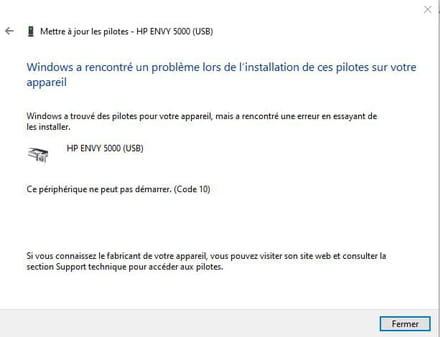
-
Hello everyone .....
I don't know if this is the miracle solution I'm proposing, but HP tends to sometimes leave well-hidden traces that prevent reinstallation ....
✅Download Revo Uninstaller by clicking the link below
Here
✅Run Revo Uninstaller and search for everything related to the printer in question, then click uninstall (at the top)
✅Download and install Windows CleanUp Utility from the link below ► Here or Here as CCM seems to have removed it, but it works perfectly even on Windows 11
✅Edit ► If you have problems with CleanUp Utility, you can do it with Microsoft Fixit ►Here ► Launch the tool ► Uninstall option
✅Run this tool and search and remove by "Remove" all lines related to the printer and only those
(There may be lines with strange names such as for example (Don't forget to scroll this list from top to bottom to target all lines (If problems: Take screenshots of these lines before deletion and attach these images to the Forum)
" AIO_CDB_product context C 82.0.242.000
" AIO_CDB_software 82.0242.000
" AIO_scan C 82.0242.000
[AllUsers]Trayapp .....
Which are also old traces of HP files to remove
✅Open the registry by typing Regedit in the search bar at the bottom left near the Windows logo >> Launch Regedit and browse the following keys
✅ Open the HKEY_CURRENT_USER key and scroll to find the line concerning HP (printer) and delete this line and only this one
✅Open the HKEY_LOCAL_MACHINE key and do the same as the previous key
✅Open hidden Windows files and explore all folders and delete all traces related to the printer
✅Restart the machine >> Disconnect all connections between the printer and the computer if USB
✅Reinstall the printer via the HP website ► Here
See you later
Regards -
Good evening.
Thank you for your responses. I followed jmarion3's instructions to clean up the old attempts, and I must admit there were traces everywhere. A real garage sale. Then, I reinstalled it (following the HP step-by-step guide) using the various tips you provided. The queue is empty.
The problem remains unchanged. The drivers are still the Microsoft ones (2006), and the scan is still unavailable. Moreover, when using smart thing, the printer is offline. USB connection didn't work either.
On top of that, the printer works fine with direct wifi, but it is not recognized by the computer.
I don't know if this is related, but I saw on a US site that a Windows 10 update from around September 2021 was causing issues, with a method to remove it that is beyond my skills. Sorry, I saw that late last night, and I didn't note the references...
Anyway, in practice, not much has improved.
See you. Regards. Sam-
Hello ....
One thing I don't quite understand...The problem remains unresolved. The drivers are still those from Microsoft (2006), and the scan remains unavailable. Additionally, when going through smart thingy, the printer is offline. USB still has no success.
The drivers are still those from Microsoft (2006) ► What does that mean??
Is this printer old?
Have you uninstalled this printer using Revo Uninstaller to remove all installation attempts
Do not use HP's smart thingy, which does not always work with older printers ► Install the printer's basic drivers directly
See you later
-
-
Hello.
Some screenshots.
- for the drivers, then for the error.
Then, for the error I discovered: I had forgotten to remove the base driver of the printer.
So:
-Revo Uninstaller before: yes, in "on" mode
- I used the "full webpack"
- the printer is about 2 years old.


-
Hello ......
While browsing the Web, I noticed that this type of printer seems to have installation issues under W10 as you are not the only one facing this situation unless I am mistaken...
For example ► Here - Here - Here
In your first post, you mentioned that this printer works perfectly on another Windows 10 PC ► What version? ► Is it the same as the one on your PC?
Question ► Has this printer ever been installed on this PC and did it work before you wanted to do a new installation?
I suggest doing a clean uninstallation step by step following what is noted in post #11 from 30/06
Before doing a new installation ► Thoroughly check the PC to ensure that there are no traces of this printer still present... check in the control panel if it's still there... if so, uninstall the device!- If you are certain ► Restart the PC and install the printer from the HP site ► Here ► Download Software & Utilities

If it still doesn't work ► Download from the HP site at the same link as above the diagnostic tool meant to solve installation and driver issues
A+
-
-
Re.
I followed all the procedures closely according to the instructions. Failure.
I did everything again, using the "basic drivers," failure, even though the shortcuts for scan; printer; and the inevitable consumables purchase prompt were installed on the desktop (but connection failed, even after installing the printer - recognized - via the control panel and "devices and printers"). The connection does not work, neither by IP address nor by printer name.
BUT: on the PC where the installation works, the version of Win 10 (both are Win Pro) is 21H1, from 02/22/2021, version 19044.1766, while on this PC, it's the latest version 21H2 from 06/26/2022, version 19044.1806. This seems to corroborate something I caught a glimpse of (late at night) on a US forum mentioning a problematic update...
What to do? I don't mind reverting to the old version if it can be done without data loss compared to the current state.
A+-
Thank you for the feedback ....
This thing is incomprehensible, and as you suggested, uninstalling the latest W10 update is worth a try to check if that is indeed the cause of the problem..
By uninstalling the latest W10 update, you will lose absolutely nothing ... and if by miracle the printer comes back to life, you should block that update so it doesn’t reinstall while waiting for the next one..
Personally, I no longer have W10 but W11 ► What was the number of the last W10 update ► KB......? (I think it's KB5014666 but I'm not certain...)
Question ► Do you have a USB cable on hand to do a test instead of Wifi because as you describe the installation, the printer would be recognized by W10 but doesn’t want to cooperate via Wifi if I understand correctly?
Talk to you later- Edit .....Curious by nature and a bit persistent, I just saw that you had already asked for help ► Here ... and that you did not follow up ?? (the username is slightly different but .....) ► Same here
I also read on the same topic that you had managed to install the printer via a link that was communicated to you, and that the printer was working except for the scanner ....? so that's already progress
However, the famous link does not work because it is inactive or dead ► Here ► Strange that you managed with this link ??
On the other hand, I just simulated a test by downloading the driver I mentioned earlier on the HP site ► I launched the executable and the printer seems to install well....but I can't go any further because I can't connect anything since I don't have this printer at home .....

In my opinion, the problem lies elsewhere ► Your Windows or others...but you need to be in front of it and have the material in sight because it's difficult from a distance ......
I also just saw that Revo Uninstaller, which is a recognized tool, does not completely uninstall the printer because there are still traces in the registry and in the programs....that need to be manually deleted ....
A+
-
-
Your real name is Sherlock Holmes?? ;-)
Exactly regarding the questions about the Crab. The slight difference in username is simply due to a typo during registration, which I was too lazy to correct. As you may have noticed, my second attempt didn’t yield any results. That’s why I posted simultaneously on CCM.
Concerning the link that was provided to me, which is dead on your end, it worked perfectly for me and I was able to download the basic drivers "HP-ENVY-5032-Basic-Drivers-for-windows-7-8-8.1-10-64-bit", file version 1.4.1926.0, size 66.7 MB. It was the use of this driver that made the shortcuts reappear on the desktop.
On my PC, the last update installed on 06/27 is KB4023057. KB5014666 should be included in the cumulative KB5014699 from 06/15/2022.
Finally, when I said the printer was working, I was mistaken in that only printing worked from a PDF or ODT file, or DOC, but using the Windows driver from 2006, and not a specific HP driver.
The installation from "Full Web etc" yielded nothing, but I admit that this was before I deleted the old base driver. It dated back to who knows when. I will attempt another installation with a clean PC (I confirm that HP leaves leftovers everywhere, and Revo leaves some behind too. One needs to clean up afterward).
I could then switch to USB. I found an old cable.
I’ll keep you posted in... "some time," as Fernand Raynaud used to say about the cooling of his cannon! Time to do yet another cleaning and reinstallation...-
Your real name is Sherlock Holmes?? ;-)
But no ... it was while searching for a possible cause for your issue on the Web that I "stumbled" upon your post on Le Crabe..... in my opinion, nothing beats a link provided by the manufacturer rather than one from a less known and often unreliable site... proof is, all the links are dead 15 days later ??
You need to clean up well, remove all traces of HP, ensure that the same version is running on this W10 as on the one where the same printer works well, and do a USB installation again, and I think that should work....
Catch you later for the results
Regards
-
-
I understood perfectly, for the research !! ;-)
So, in the end, after all the trials, I switched to USB, and there, in 3 minutes, it was done. Everything works wonderfully, with the basic drivers. I prefer that, because it frees me from all the plug-ins that HP generously distributes. The urgent issue is therefore resolved.
Now I will need to switch back to Wi-Fi, because having wires all over what serves as my desk doesn't please everyone!
And it’s clearly the Wi-Fi that is causing the issue. Whether I manually enter the IP address or the printer name, the printer is not recognized on THIS PC. If I let the software find the TCP/IP port, it tries to connect to ENVY 5032 PCL-3 and doesn't find the "real" port: HP893845 printer, and the IP address: 192.168.1.14. In conclusion, it doesn’t work.
My livebox (fiber) works perfectly, TV, internet, etc..., and it is indeed on it that the printer is connected. So there’s something odd to figure out.
Is this a lead? With the Microsoft install and uninstall program, with which I cleaned up what Revo left behind, there’s a program that cannot be installed or uninstalled titled: "Name not available," which shows, when hovering the mouse over it: {9AC08E99-230B-47e8-2721-4577B7F124EA}.
Thank you for allowing me to retrieve my equipment (medical documents to pull for Monday). If we can continue towards the Wi-Fi solution...
See you!-
Thank you for the feedback ......
So everything is going well or almost .... except for the Wi-Fi that I personally abandoned a long time ago because there were often issues and nothing beats a good USB cable that can easily be hidden if you are using a desktop PC ...... but I believe that is not the case for you ..
As for the Wi-Fi, it's not really my thing because you have to be next to the equipment ... but you can check the FAQ for this printer on the HP website ► Here ...Troubleshooting section ► Select the Wireless - Network & Internet section ...where several solutions are proposed
I'm not quite sure what the "Name Not Available" program you found is ► is it in Programs or Programs (86)? the {9AC08E99-230B-47e8-2721-4577B7F124EA} is a registry key
You might want to post a new message in the Virus/Security section reporting this program so that a security contributor can analyze your PC just in case???
A+
-
-
Hello.
I apologize for the delayed response. I was tied up with medical issues.
After thinking it over, I’ll stick to a wired connection. I’ve camouflaged the cable, and apparently, it’s discreet enough! Everything is working perfectly, and that’s what matters.
So a thousand thanks for the solution, and especially for the links to clean up everything HP leaves on the disk, even after uninstallation, since I think that was what was causing the blockage. We’re doing just fine without Wi-Fi for that!
Again, thank you for your help.
Best of luck.
See you. Best regards, Sam.