No lines when printing.
Solved
Hello,
Following the acquisition of a new computer, one week ago, it runs on Windows 10.
The previous one was on Windows 8.
I'm encountering some problems that I am gradually resolving....
However, I can't find a solution for the following ....:
I renewed a panel (a grid) of 7 columns and 60 rows, over 4 pages which contain data to track year after year.
The result was impeccable until the moment I printed the 4 pages.
Everything is there except for the vertical and horizontal lines.
My question: How can I solve this problem in the simplest way possible?
Thank you in advance for any advice that is as simple as possible.
Configuration: PC: ACER - Aspire 7
Windows 10 - Mozilla Firefox - OpenOffice 4.1.5
Internet Explorer (rarely used)
Antivirus: Norton
--
..................................................................................................
Have a good day, good evening, or good night!
begonie
Following the acquisition of a new computer, one week ago, it runs on Windows 10.
The previous one was on Windows 8.
I'm encountering some problems that I am gradually resolving....
However, I can't find a solution for the following ....:
I renewed a panel (a grid) of 7 columns and 60 rows, over 4 pages which contain data to track year after year.
The result was impeccable until the moment I printed the 4 pages.
Everything is there except for the vertical and horizontal lines.
My question: How can I solve this problem in the simplest way possible?
Thank you in advance for any advice that is as simple as possible.
Configuration: PC: ACER - Aspire 7
Windows 10 - Mozilla Firefox - OpenOffice 4.1.5
Internet Explorer (rarely used)
Antivirus: Norton
--
..................................................................................................
Have a good day, good evening, or good night!
begonie
9 answers
-
So you're using Open Office's word processor and you have the latest version.
I don't know Open Office's word processor; I imagine there's a setting to see if the lines in the table are just "virtual" or if they should be printed, but I confess I don't know where.
What is the make and model of your printer? We need to check if the printer driver has been properly installed for Windows 10.
--
One can find happiness by accepting things that cannot be changed.
Absence of responses from 5-6 PM, thank you for your understanding :) -
Hello Begonie,
What program was the table created with?
Excel, Word, etc...?
And when you preview before printing, do you see the lines?
Best regards
--
We can find happiness by accepting things we cannot change.
No responses will be provided after 5-6 PM, thank you for your understanding :) -
Hi Bego, and sorry for the delay ;-)
So it's a table that was created using the "Insert" → "Table" → "Insert Table" option, I suppose? Or was it with the "Spreadsheet" option?
If it's via the Insert option, there shouldn't be any reason for the rows not to be printed since the rows are printed by default, if it's like in Word, of course ;-)
On the other hand, with the spreadsheet option, when the document is open, you could check the "Cell Border:" option located at the bottom right of the page. If I'm not mistaken, it's set to "No Border" by default.
Here, I couldn't test the printing because I haven't filled in the table, and the preview is also not visible as long as there's nothing in the table, even with the "All Borders" setting selected.
That's it, I hope I'm right; if not, we’ll look into the other table option in "Text."
Best regards ;-)
--> NO PROBLEMS, ONLY SOLUTIONS <--
What is fidelity? It's just a lack of opportunities ;-) -
Hello auntelise.
No idea, probably Word.
I have OpenOffice 4.1.5 - Open Office Writer
When I previewed, the lines were there.
..................................................................................................
Have a nice day, good evening or good night!
begonia -
Hi Bego,
I will try to make some progress a bit ;-)
When you right-click on the document without opening it and then click on properties, you should see which program this document was created with, that would be a small step forward ;-)
I just installed Open 4.1.5 on my PC, I know there are many similarities between Word and Open, I only use Word but maybe I could see which settings need to be changed in Open to print the lines of the table.
For example, with Word, when I print a document with a table, the lines are printed by default and I know I can make the table lines disappear while keeping the layout intact, the text remains in place but without the lines, the reverse process is also possible.
Best regards ;-)
--
--> NO PROBLEMS, ONLY SOLUTIONS <--
What is fidelity? It's just a lack of opportunities ;-) -
Hello STARGATE43
Thank you for your message that I just read right now and with great pleasure.
I discover this:
File type: OpenDocument Text (odt)
Opens with: OpenOffice Writer
--
..................................................................................................
Have a good day, good evening, or good night!
begonie -
Big Thank You STARGATE for this help that I tested right away.
I indeed created this grid via the Spreadsheet.
I have now conducted several tests using OpenOffice 4.1.5 - Text - Table - Insertion ...... with conclusive results!
BIG THANK YOU :)
And if I want to create a horizontal table ... what manipulation should I do in this case?
--
..................................................................................................
Have a good day, good evening, or good night!
begonie -
You're welcome, with great pleasure ;-)
Oops, I was gone for a "little while" ;-)
What do you mean by "horizontal table"? And still with "spreadsheet," I suppose? Or with word processing?
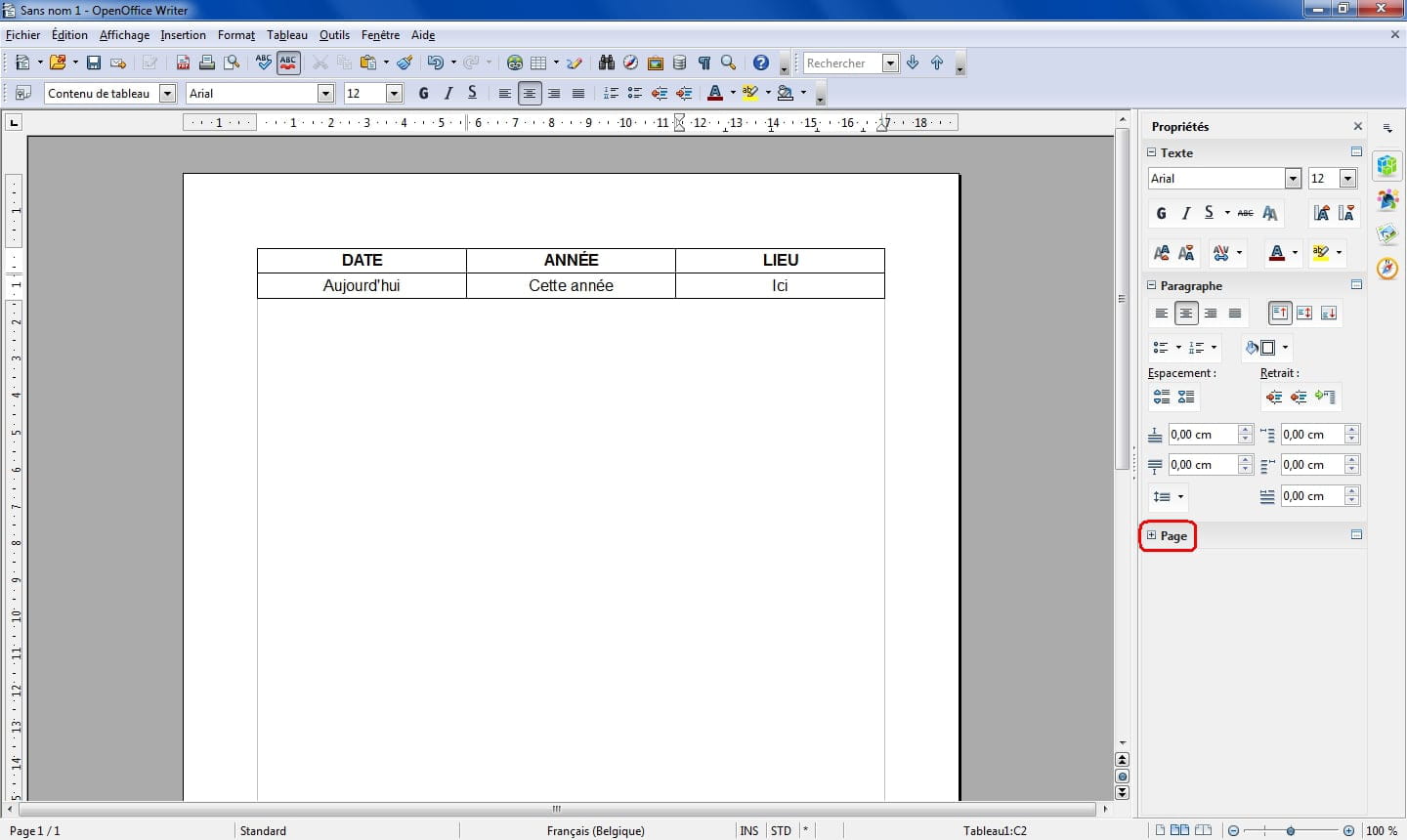
If it's with word processing, when Office is open, at the bottom right of the page, there is "Page" preceded by a small "+," you click on the small "+" and a dialog window appears, with 4 buttons available: Orientation - Margin - Size - Column.
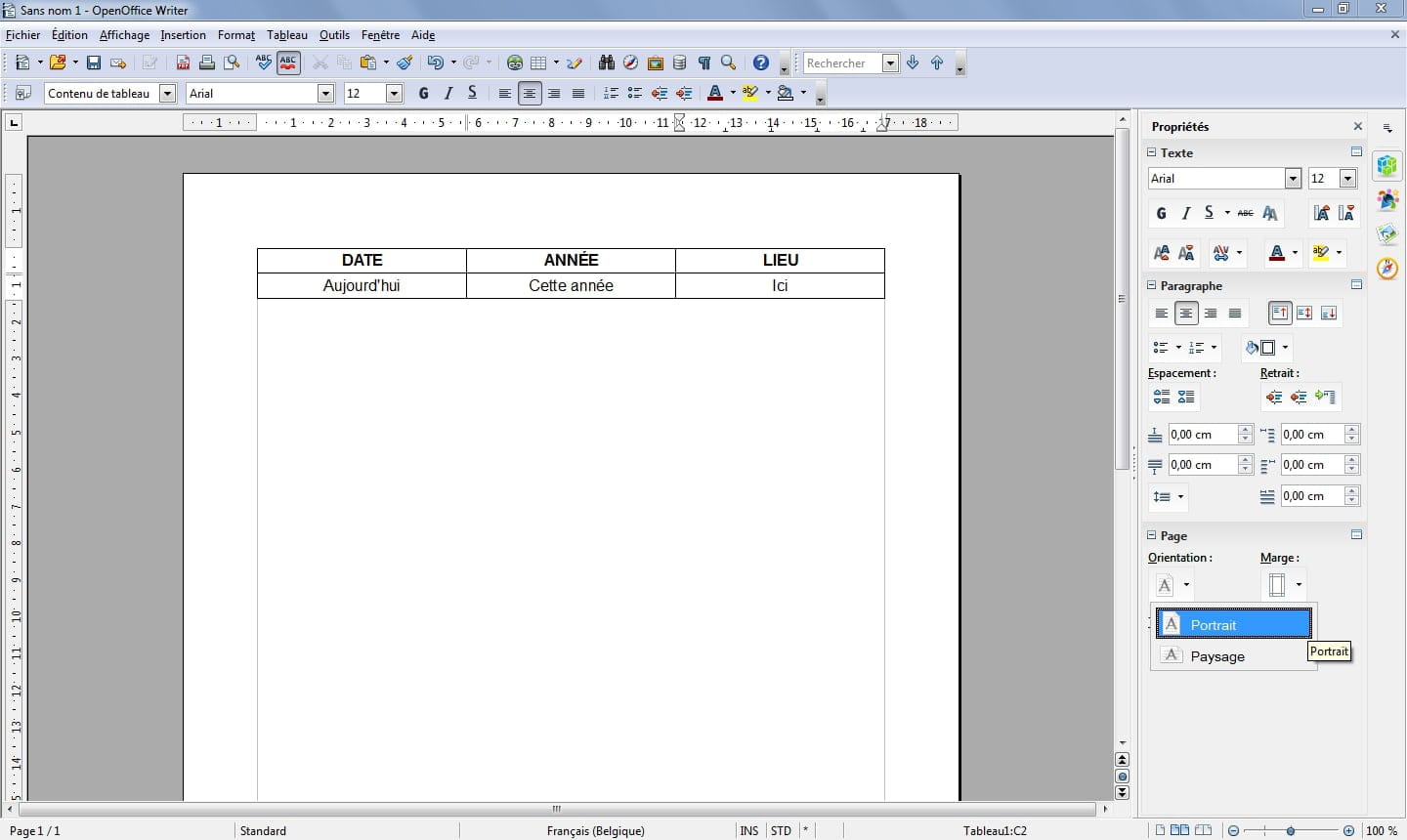
You click on "Orientation" and a choice is offered to you: Portrait (Vertical) and Landscape (Horizontal), you click on "Landscape" and your page is set to horizontal along with all its content.
Some screenshots:
1) Opening Office with the default vertical page and inserting a table with 3 columns and 2 rows
2) Opening the "Page" dialog window after clicking on the small "+"
3) Clicking on the "Orientation" button and viewing the choice
4) Clicking while choosing the desired orientation, here landscape (horizontal)
The table has also rotated and taken up the full size of the page.
In this result, if you want to decrease or increase the dimensions of the columns, just place your mouse cursor on the vertical line of the column and move it either to the right or to the left.
There you go, I hope that was what you wanted ;-)
PS: I've never worked with Open, but I see there are a lot of similarities between Open and Word, the layout options and others are not organized in the same way, but I find my way around fairly easily, this is the very first time I've used Open ;-)
--> NO PROBLEMS, ONLY SOLUTIONS <--
What is fidelity? It's just a lack of opportunities;-) -
Hello Stargate.
That's perfect! ..... What a joy to be able to manage this action again :))
A big thank you for your clarity in the texts documented with screenshot
( there I go, I've also enriched my vocabulary ).
And to think that I spent hours trying to find a solution before asking my question.
PS: I found the " Page " in " Format ".
All of this with OpenOffice
..................................................................................................
Have a good day, good evening or good night!
begonie