Clone your operating system without a CD drive.
Solved
Zenon-Denon
Posted messages
21
Registration date
Status
Member
Last intervention
-
Anonymous user -
Anonymous user -
Hello everyone,
I bought an SSD for my Acer Aspire One 751h (Intel Atom, 1.33 GHz, 2 GB RAM) to replace my internal HDD. How can I clone my operating system without a CD drive so that I can swap the two hard drives?
Additionally, if you think it's useful, I would like to create a partition on the SSD to separate the operating system from my programs, files, etc.
Note: if it can help with a process, I have a Dell XPS 520 laptop (i7, 2.8 GHz, 6 GB RAM, Windows 7) that has a CD/DVD burner.
Thanks in advance for your help.
Have a nice day,
Zenon
Configuration: Windows XP / Firefox 41.0
I bought an SSD for my Acer Aspire One 751h (Intel Atom, 1.33 GHz, 2 GB RAM) to replace my internal HDD. How can I clone my operating system without a CD drive so that I can swap the two hard drives?
Additionally, if you think it's useful, I would like to create a partition on the SSD to separate the operating system from my programs, files, etc.
Note: if it can help with a process, I have a Dell XPS 520 laptop (i7, 2.8 GHz, 6 GB RAM, Windows 7) that has a CD/DVD burner.
Thanks in advance for your help.
Have a nice day,
Zenon
Configuration: Windows XP / Firefox 41.0
4 answers
-
Hi,
you need to connect the SSD hard drive via USB to the PC. For that, you can use an empty hard drive enclosure or an adapter like this one:
USB 2.0 adapter for 2.5''/3.5'' IDE/SATA hard drives
Then, for the cloning itself, you can use the software easeus todo backup in its free version, which allows you to do that.
As for the partitions, they need to be created before cloning, using Windows utility (Disk Management) or with third-party software, easeus should have one as well. The main partition must be at least as large as the space occupied on the current hard drive; otherwise, cloning won't be possible.
In my opinion, a dedicated partition for programs is not necessary.
++-
Hi MaxGix,
Thank you for your response.
Do I need to format the new SSD before cloning?
I tried using the manufacturer's program - Transcend - to perform the cloning, but when I select my SSD as the cloning destination, it automatically checks the "only clone OS" option and I can't uncheck it. However, I want to clone my OS + the rest of the content from my HDD.
Additionally, it offers an "Extend Disk" option which "will extend the last partition to include the remaining SSD space after the clone process is complete. If left unchecked, there will be unallocated disk space after the last partition". Should I check it or not?
Thank you again for your help!
Have a good afternoon,
Zénon -
No, I don't think it's necessary to format the disk beforehand; the cloning utility should take care of everything.
As for the Transcend utility, I've never used it, but the checked box wouldn't be Clone OS partition only? Apparently, that's the case, so only the partition containing the operating system will be cloned, along with everything it contains. If there are other partitions, they will need to be moved manually.
The Extend disk box allows you to extend the cloned partition to the rest of the hard drive;
For example, if your system partition is 60 GB and you want to clone it to a hard drive that is 128 GB, instead of creating just a 60 GB partition, the cloning will extend across the entire 128 GB available. -
Sure. Should I just clone the OS and then move everything manually, or can the EaseUS Todo Backup software that I've installed do both at once?
As for extending the disk, that's probably not necessary, right? It's better for the OS to be on a small partition and for me to use the rest of the memory for my files?
Thanks again for your help.
Zénon -
You can always check with EaseUS if it allows you to move everything at once, since it’s free, it’s worth testing. If it can’t do it either, it might be that your SSD is smaller than your current hard drive, in which case you will have to do the OS partition first and then the rest manually, just copy and paste while making sure that each partition has the same letters as on the old hard drive.
For the extend disk, if you want multiple partitions on your SSD, no, you should not check that box. -
-
-
What do you mean by the link? Should I insert the images here?
-
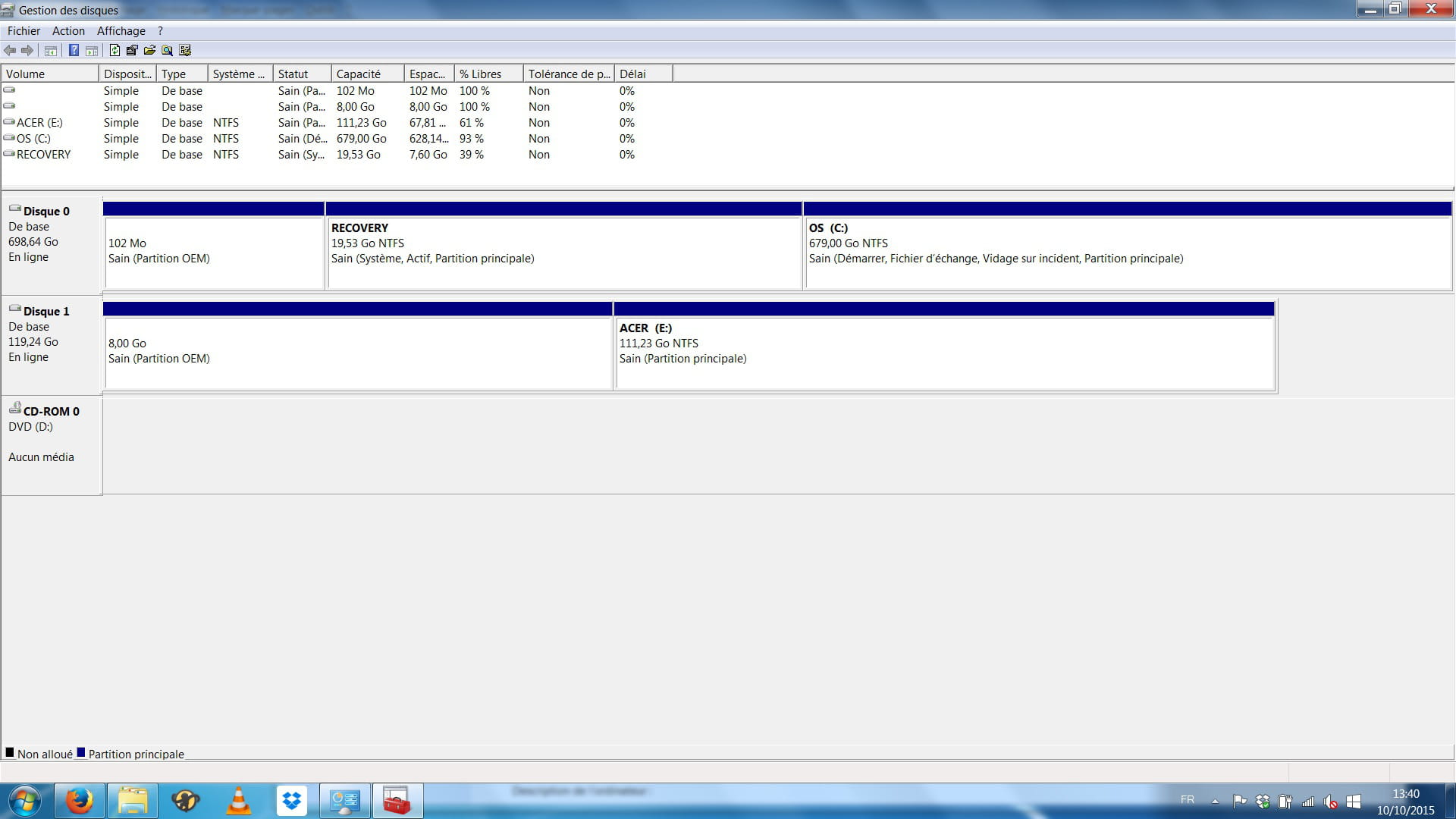
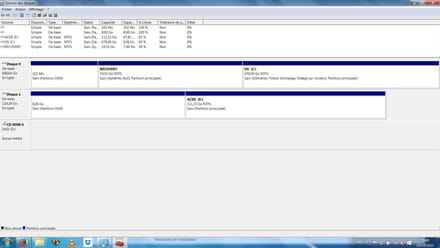
The screenshot on my DELL: we can see the SSD
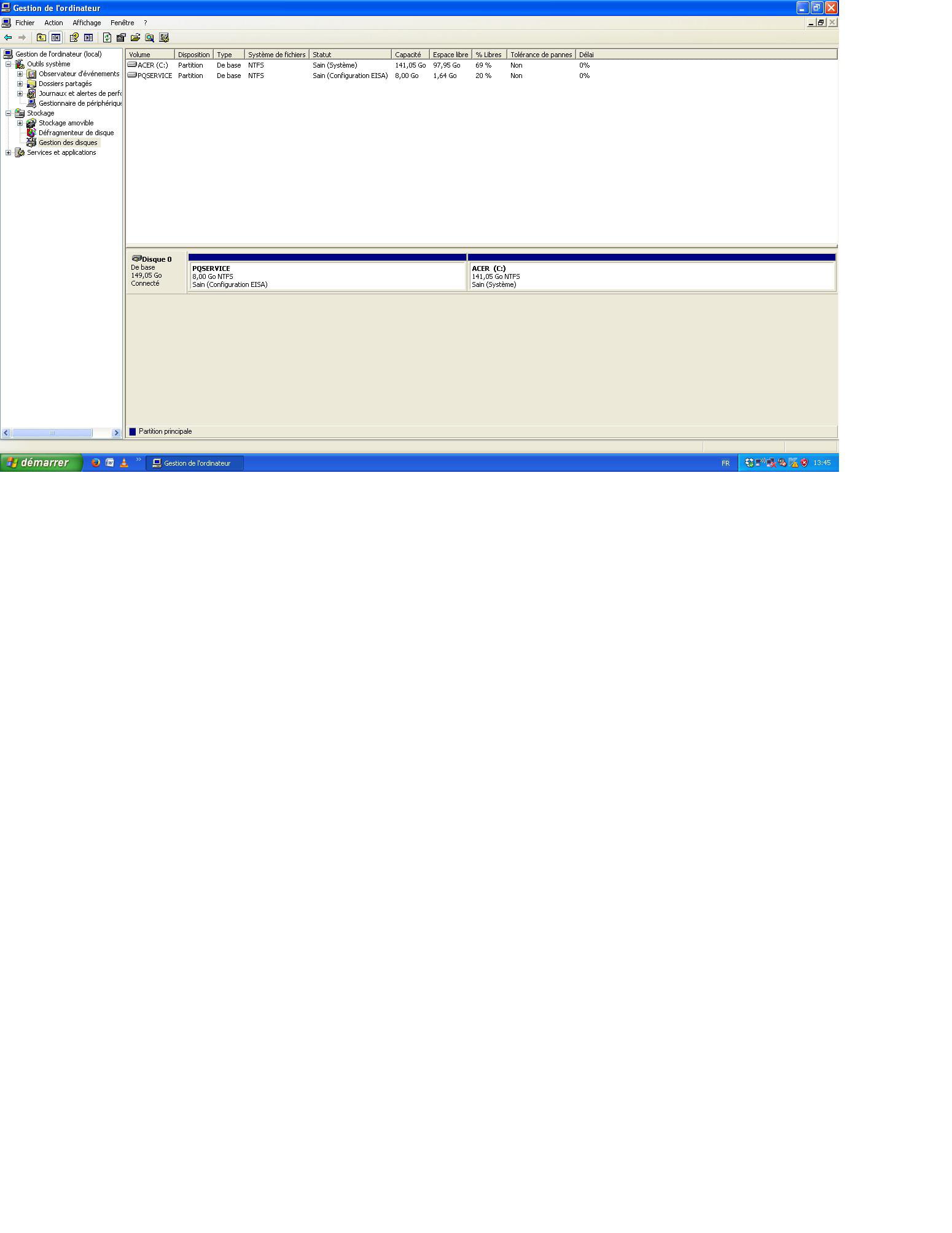
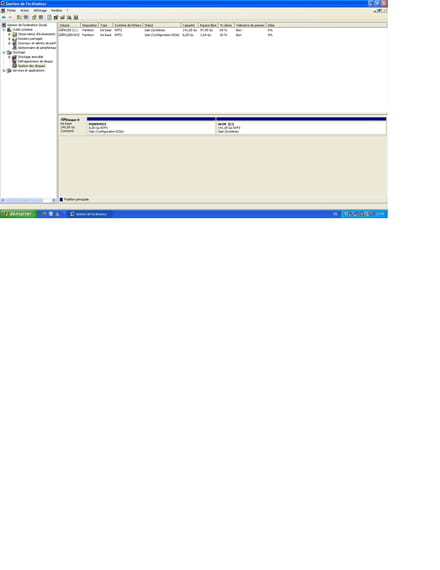
The screenshot on my ACER: we can see my original partitions
-
Yes, no message appeared, here is the result:

-
-
It works, that's great, thank you very much! Upon first startup, the computer recognized a new component, downloaded a driver, and then asked for a restart. Now everything is fine.
The startup is about 2 times faster. However, I don't feel like using the PC is any smoother (opening documents, etc.). But hey, the main thing is that it works well! -
-
-
-