Windows 11 - System tray icon grouping
Solved
brucine Posted messages 25338 Registration date Status Member Last intervention -
Hello everyone,
I recently upgraded my computer from Windows 10 to 11 and I have a little issue with the new layout of the system tray.
The icons for battery, sound, and internet connection have all been merged into one, and I don't find it convenient when I just want to adjust the sound or internet connection.
Is there a way to separate these icons like in Windows 10?
Thank you for your help and have a great day,
Naudhiz
3 answers
-
Hello,
I'm not sure what you mean by "grouping."
Windows 11 will by default group everything that exceeds under a small arrow.
You can choose in the settings to show or hide certain icons (generally excluding these "system" icons) or drag them from their position under this arrow in the taskbar to individualize them.
https://www.mediaforma.com/windows-11-gestion-des-icones-des-applications-affichees-dans-la-partie-droite-de-la-barre-des-taches/-
Hello,
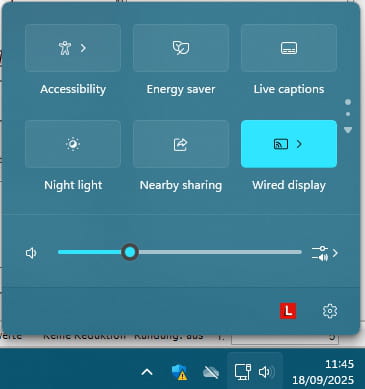
As shown in the image below, when we click on the sound icon, it opens up a whole unnecessary panel. On Windows 10 (and previous versions), when we clicked on the sound icon, we just had the sound menu. The same goes for connectivity, battery...
So, I would like to know if we can get back the Windows 10 layout for the taskbar.
Thank you
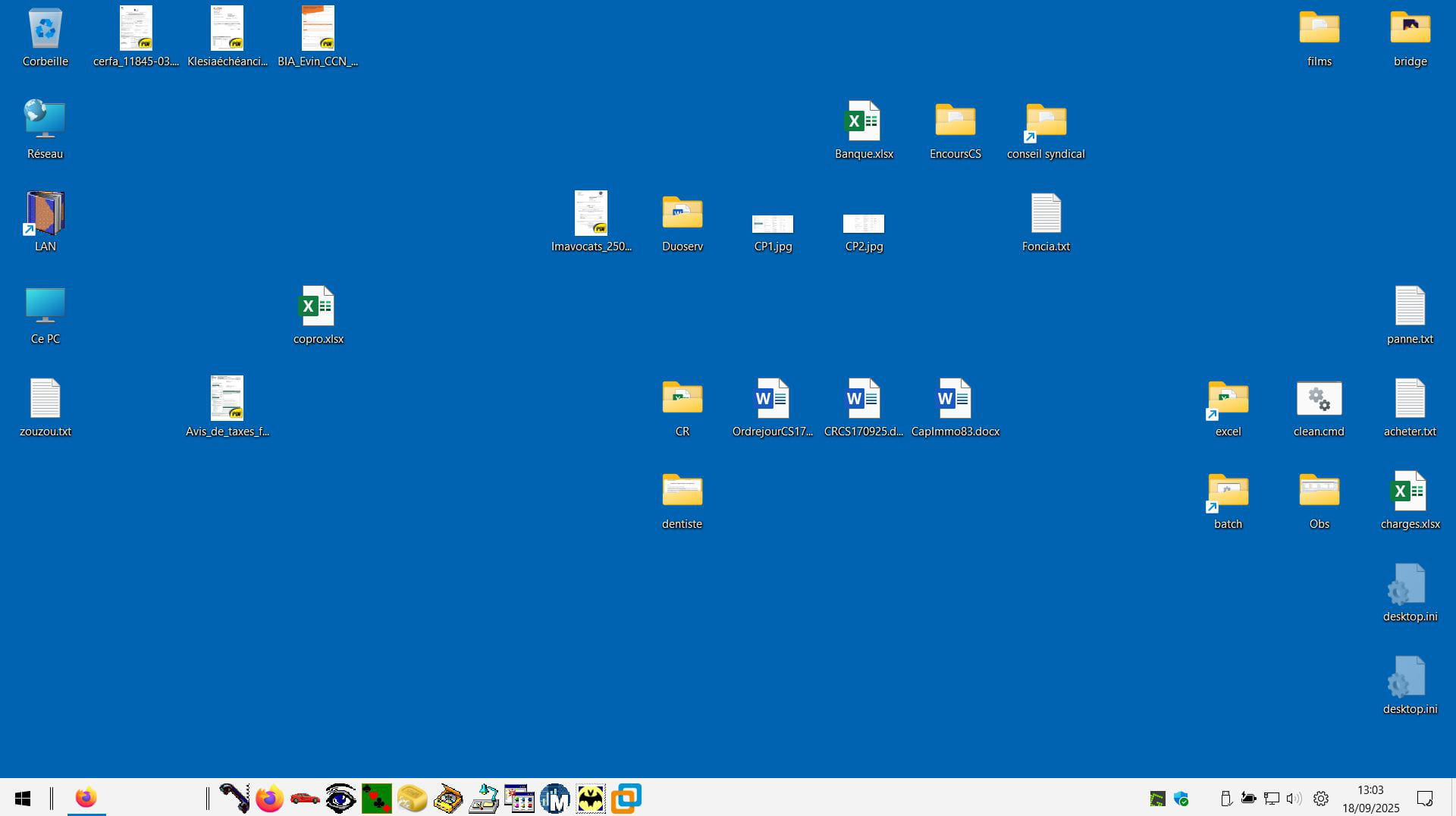
The network icon is apparently present and separate; isn't the battery icon under the small arrow?
I suspect your computer brand starts its own manager at startup (by the way, why in English?) instead of the default Windows items. Let's see if we can remove it from the start menu or change its service to manual in services.msc and stop it.
Personally, I have something like that, but it's not gospel; I use Open Shell/Explorer Patcher, which I don't believe has an impact on this front. It seems to me that I also had something like yours that I removed when I bought the PC (in my case, HP software).
Good evening,
Sorry for the late reply.
The first screenshot comes from my work computer which is why it's in English.
Below, the same screenshot from my personal PC. The issue is not having the icons but having them separated as was the case in previous versions of Windows.
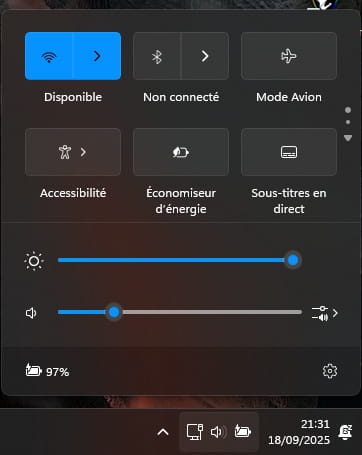
I want to be able to click on the sound and just have the sound menu. Not this big, inconvenient panel.
Have a good evening
Hello,
You may have noticed in my screenshot in <3> that I don't have this issue; it only appears when I left-click on the gear icon (control center set up by Explorer Patcher, but I don't have to use it since I have the icons separated).
As I said, I'm not sure that the behavior you mentioned can be due to pre-installed bloatware on the PC that would need to be disabled.
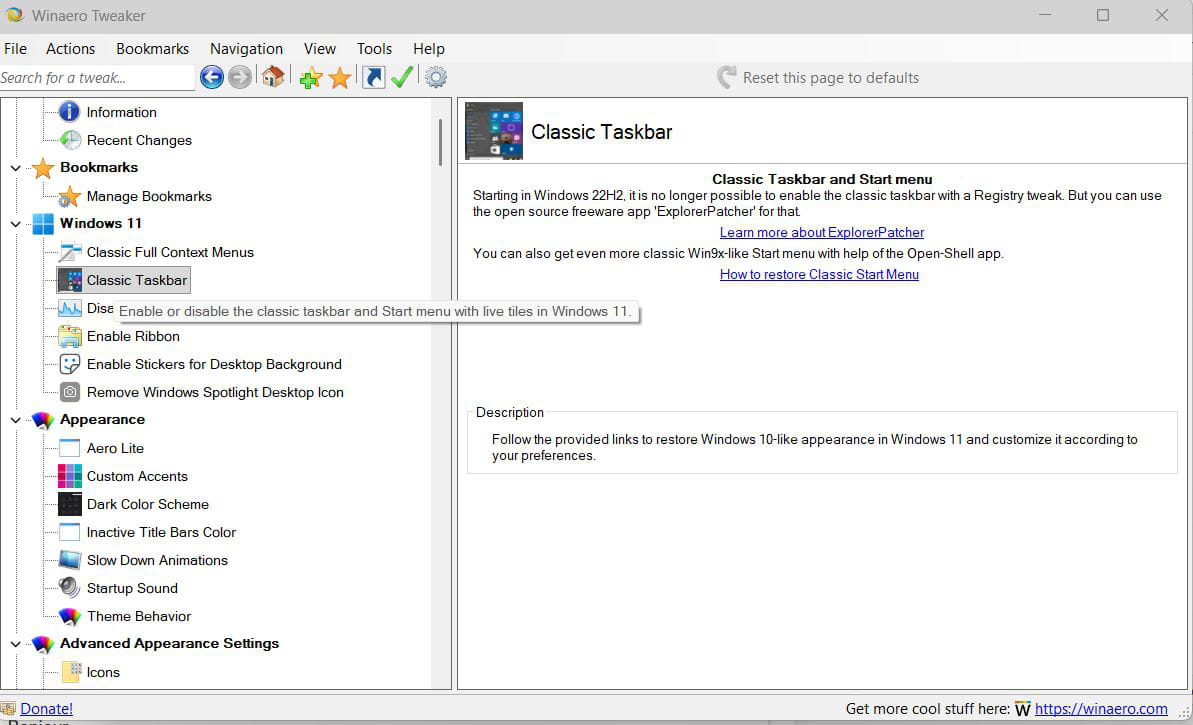
Otherwise, as I also mentioned, I use a number of settings via Winaero Tweaker, Open Shell, and Explorer Patcher.
Most of these settings pertain to the Start menu itself and not the taskbar, but who knows; specifically, Explorer Patcher is configured for the taskbar in Windows 10 mode, which may lead to the result.
Winaero Tweaker gives a bit of an overview of the situation; the part of the article describing the tweak that allows restoring the option to display system icons in Windows settings is interesting (see Restore the clock...) without it being clear that it's applicable to the latest versions of Windows 11.
https://winaero.com/how-to-restore-classic-start-menu-in-windows-11-and-get-back-live-tiles/#Classic_Start_Menu?utm_source=software&utm_medium=in-app&utm_campaign=winaerotweaker&utm_content=win11classiclook-inpage
Hello.....
If I'm not mistaken, you can't modify much in this part of the taskbar because these are the system icons that are displayed ......
However, if you want to access the old volume control of W10, I suggest you do what is noted below (the old volume control of W10 is hidden)
1 ► Press Win + R (the Windows key on the keyboard + R)
2- A window opens ► You copy/paste sndvol.exe ► The W10 settings window opens ► You have its icon on your taskbar below ► You right-click on it and select Pin to taskbar, and you will just need to click on it to open it later
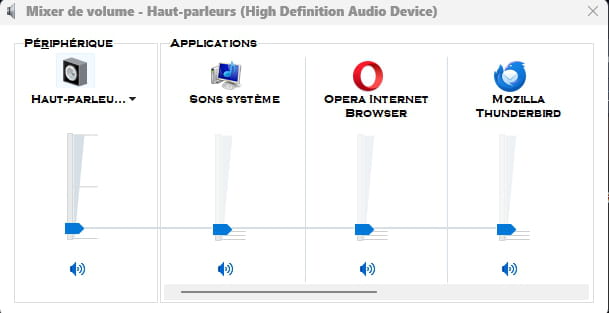
Cheers
See you+
Hello
Through the menus, it should take 8 or 10 steps; Windows 11 is a disaster for settings.
Normally, it's the default setting (grouped).
* You can try to navigate the menus as follows:
Windows + I
Taskbar settings
Personalization
Taskbar << (sometimes found in a submenu)
Taskbar behaviors
More options << (sometimes found in a submenu)
Combine taskbar buttons and hide labels
Never << (might be set to "always" or "when the taskbar is full")
* Hide labels << [try both positions]
* If nothing happens in the following seconds, restart the PC.
* May only apply to the main screen if there are multiple; repeat for each screen.
* May require a change in group policies, which take precedence over user settings.<< [At work, it's probably the IT department that manages them]
* Could be modified by a Windows or BIOS update, or OEM configurations.-
Hello,
I have tried everything in the settings but nothing works. It's quite frustrating that today we cannot choose the layout that suits us.
On the office computer, I can't do anything without the IT technician's approval.
On my personal one, I will try to follow the winareo method suggested by brucine.
Good evening
-