
File extension display issue
Solvedtahiti17 Posted messages 38 Status Member -
Hello everyone!
For the past few days, I've been having a little display issue in my Windows Explorer: file extensions (.pdf, .docx, etc.) are showing up spontaneously, and no matter how many times I click the "File name extensions" checkbox in the "View" tab, it doesn't work. Sometimes it works, but only for a little while, and then the problem reappears, or it doesn't work at all, and the box doesn't get unchecked.
Does anyone have an explanation for this strange phenomenon?
Thank you in advance for your help.
Best regards,
Valérie
10 answers
-
Hello,
The options in this menu are often buggy, nothing happens when you (de)click.
Set it at the source, instead of showing the 3 little dots, options, display: hide file extensions of known types.
But I wouldn't recommend it, it's one of the ways to protect yourself from certain errors and to distinguish some extensions that may be false or duplicated (viruses). -
Hello and thank you for your response.
I am aware of the risk, but displaying these extensions makes reading file names less clear and causes problems when trying to rename them because if the extension is accidentally selected, you get the message "If you change the extension of a file, the file might become unusable." And it's not always easy to change your habits!
In any case, I checked the box "Hide extensions for known file types," but that doesn't work either! :-(
-
As a last resort, try using the command prompt (in administrator mode) or the registry (in the latter case the value is of course 1), restart Windows just in case, otherwise I don't know.
https://www.malekal.com/windows10-comment-afficher-les-extensions-de-fichiers/
-
-
OK thanks, butI don't think I'm experienced enough to go changing settings in the registry! Well, it's not a big deal, either I'll manage with it, or I'll find another solution. Have a good day. Valérie
-
In the Start menu, open PowerShell and copy and paste this; we will see the current value first.
Get-ItemProperty "HKCU:\SOFTWARE\Microsoft\Windows\CurrentVersion\Explorer\Advanced\" -Name HideIcons
For your information, 0 disables and 1 enables the file extension view.
.
PowerShell opened as administrator. just copy and paste
.
To disable:
Set-ItemProperty "HKCU:\SOFTWARE\Microsoft\Windows\CurrentVersion\Explorer\Advanced\" -Name "HideIcons" -Value 0
To enable:
Set-ItemProperty "HKCU:\SOFTWARE\Microsoft\Windows\CurrentVersion\Explorer\Advanced\" -Name "HideIcons" -Value 1
-
-
Hello and thank you!
I have just one issue, I followed the procedure recommended by Brucine, which was to change the value of HideIcons from 0 to 1, and since then all my shortcuts have disappeared from my desktop! I changed the value back to 0, and they still don't reappear! I also can't create new ones. I imagine they are still there but not visible... can you please help me?
-
But normally it's just about the extensions?
For the desktop icons, just right-click and select display, then show desktop items.
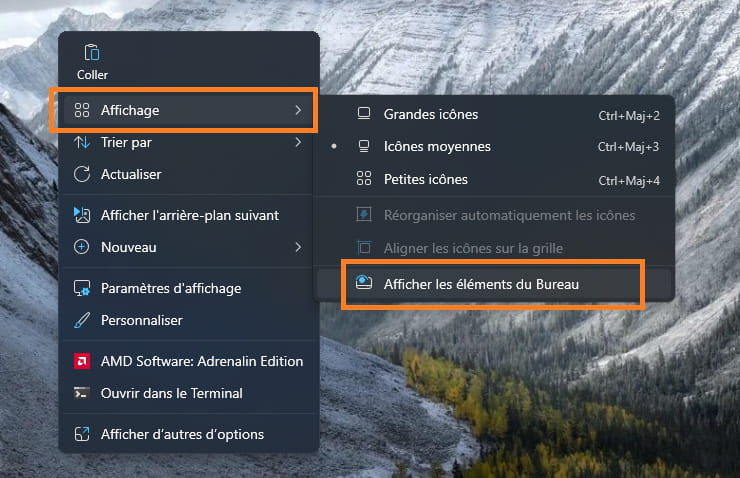
I stupidly posted the link without even reading it more than skimming, HideIcons does what it's supposed to do, it hides the desktop content.
Right-click in any free space on the desktop (they're all free...), View, Show desktop icons.
If you want to hide the extensions, of course, it's the value HideFileExt.
If you want to proceed with the mouse as you did without using the command line, still check this one at the bottom of the link, navigate through the registry to the appropriate place and set the value to 1 (for me, it's at 0 on purpose):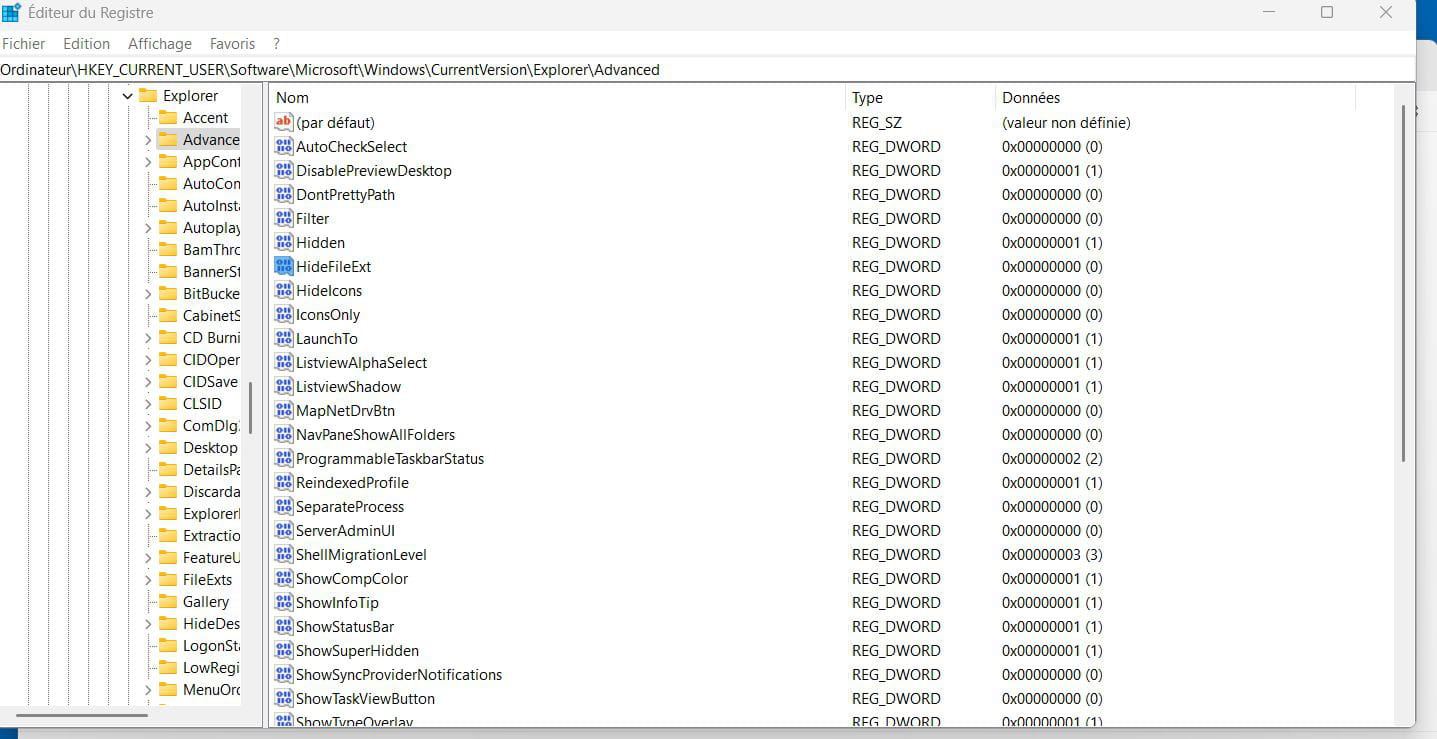
Just a little clarification: I went back to the registry, set HideIcons to 0, restarted my PC and nothing happens. When I go back to HideIcons, it has returned to 1!
Hello,
I read between the lines that you lost your shortcuts due to a registry mishap.
If Shadow Explorer can come to the rescue to back up your shortcutsDownload Shadow Explorer 0.9 Portable here:
https://www.shadowexplorer.com/downloads.html
Extract the entire folder somewhere, and run ShadowExplorerPortable.exe
Select your C:\ drive if you haven't done so already.
Choose a date when the files were there.
Navigate to Users > Your name > Desktop
Right-click on the folder or file and click on Export
Choose a destination...
Great, thank you very much Steph810!! And yes, it's indeed a problem with extensions appearing in Windows Explorer for the past few days. When I click in the "File name extensions" checkbox in the "View" tab, it doesn't do anything, at least most of the time.
Thanks Fabul, I solved the problem with the help of Steph810!
Ok, I deliberately displayed my extensions,
In my registry it'sWindows Registry Editor Version 5.00
[HKEY_CURRENT_USER\Software\Microsoft\Windows\CurrentVersion\Explorer\Advanced]
"HideFileExt"=dword:00000000
"HideIcons"=dword:00000000
Because I find it more convenient to see with my own eyes the type, rather than having a Type column in the explorer that is useless when the file names aren't too long and you can easily see the extension.
But if you want to hide them, it is indeed
Windows Registry Editor Version 5.00[HKEY_CURRENT_USER\Software\Microsoft\Windows\CurrentVersion\Explorer\Advanced]
"HideFileExt"=dword:00000001
Shadow Explorer may be useful another time.
Have a good evening.
@+Great, thank you very much for your help, I will try that tomorrow!
Have a good evening as well.
Valérie
-

