
Windows 7 won't boot on my PC after cloning to an SSD.
Solved
Lassissie
Posted messages
35
Status
Member
-
jeannets Posted messages 28459 Registration date Status Contributor Last intervention -
jeannets Posted messages 28459 Registration date Status Contributor Last intervention -
Hello,
Planning to migrate from Windows 7 to Windows 10, since I have an 11-year-old PC (tower) and a hard drive that was quite filled, I followed the advice from the forums and bought a Crucial 480 GB SSD.
Using the Crucial software, I cloned my HDD to the SSD.
Then (this might be a mistake), as I started to review the partitions of the SSD using AOMEI, the partitions of the HDD and SSD ended up being different except for the system reserved folder and the C: drive, which are identical on both disks (with different letters).
After following the installation procedure from CRUCIAL, I wanted to do what was recommended: disconnect the HDD to have Windows 7 boot from the SSD.
Failure! Windows does not manage to boot.
I had to reconnect the HDD, it works but now my PC runs on HDD and my SSD is of no use.
What can I do to have the SSD recognized as the default boot for Windows?
Will migrating to Windows 10 help solve this problem (for example by allowing me to choose the SSD in the process)?
Thank you in advance for your help.
Planning to migrate from Windows 7 to Windows 10, since I have an 11-year-old PC (tower) and a hard drive that was quite filled, I followed the advice from the forums and bought a Crucial 480 GB SSD.
Using the Crucial software, I cloned my HDD to the SSD.
Then (this might be a mistake), as I started to review the partitions of the SSD using AOMEI, the partitions of the HDD and SSD ended up being different except for the system reserved folder and the C: drive, which are identical on both disks (with different letters).
After following the installation procedure from CRUCIAL, I wanted to do what was recommended: disconnect the HDD to have Windows 7 boot from the SSD.
Failure! Windows does not manage to boot.
I had to reconnect the HDD, it works but now my PC runs on HDD and my SSD is of no use.
What can I do to have the SSD recognized as the default boot for Windows?
Will migrating to Windows 10 help solve this problem (for example by allowing me to choose the SSD in the process)?
Thank you in advance for your help.
31 answers
- 1
- 2
Next
-
jeannets Posted messages 28459 Registration date Status Contributor Last intervention Ambassador 6 618
OK, OK... Is there perhaps a commercial interest behind this...!!!
There's no need for planned obsolescence or not... releasing a Windows 12 would do the trick.
Of course, slower PCs are eliminated... because customers are conditioned to want the newest, the fastest... But it’s useless since Microsoft will consume all its new energy anyway...
To compare like with like, we should put both systems side by side on identical PCs... So XP next to Windows 7 or Windows 10 on two AMD quad-core PCs... or Ryzen
And not the test software made by Microsoft...
Anyway. -
jeannets Posted messages 28459 Registration date Status Contributor Last intervention Ambassador 6 618
Personally, this is just my opinion... I don't find it dangerous... and currently, there are millions of PCs still running on Win 7... including a few at my place.
Support is stopping for security updates... However, go read this https://lecrabeinfo.net/windows-7-recevoir-les-mises-a-jour-de-securite-jusquen-2023.html
-- PCs will not stop functioning... they will remain in their current state... There are indeed people who drive used cars..
-- Installed software will continue to work and it will even remain possible to install quite a few more....
-- For security, it is still possible to install your Antivirus and especially to install ad blockers and other trackers on the Internet browser (preferably FireFox) as many enter through there.
-- Block ports on the BOX... be cautious about downloads and videos... Make weekly backups of "My Documents" automatically with Syncback https://www.commentcamarche.net/telecharger/securite/21477-syncback/
and a monthly (or quarterly) backup of the Windows system with "Acronis true image" https://www.commentcamarche.net/telecharger/securite/2465-acronis-true-image/
In case of a major crash or a hacker or ransomware... you can restore everything in less than an hour (for me in 8 minutes) and it works again...
In these cases, Windows 10 is also vulnerable to threats despite all its updates.
So that's my response about Win 7 still being operational and the precautions to adopt. -
Thank you for these tips and information, it's reassuring. At least I will be able to keep the laptop running Windows 7.
Thank you for your help, I know I can count on competent people to inform me on this forum.
This is not necessarily the case on other forums where the answers go in all directions and where even those who don't know share their opinions.
At least with you, it's clearer.
The CCM site is really well designed, informative, and you can find a lot of tips there.
I wish you an excellent day.
Best regards -
jeannets Posted messages 28459 Registration date Status Contributor Last intervention Ambassador 6 618
Hello,
Your SSD will become the Windows system drive for this PC and then the HDD will become a slave drive.
-- For your PC to boot from the SSD, you need to go into the BIOS... in the "Boot devices" menu... it will show your HDD which was already the previous choice.... You need to set your new choice of SSD in its place; it should be before your HDD in the list...
--- You save and exit... often it's F10 and the PC restarts...
There you go, make sure to check this before anything else.-
Thank you for these quick responses.
In fact, I restarted by going into the BIOS and selected the SSD drive, and Windows started up correctly.
But I read that this procedure only checks if the SSD drive works and is recognized by the computer, and that additional steps are needed to ensure Windows launches automatically from the SSD by default.
You mentioned registering and moving in the list. I didn't see this option displayed...
I'll restart to see....
Well, I just restarted using the F12 key like earlier, but instead of opening the BIOS, it asked me if I wanted to boot with WINDOWS 7.... So, I clicked OK, but I didn't have access to the list of drives...
How can I know if the SSD is now the default for Windows and also for writing to the drive?
I can check by unplugging the HDD, but is there another way to find out?
I should add that when I go into the AOMEI app and view my drives, I see the Windows logo next to the C: drive on the HDD, which is not the case with the SSD.
If I migrate to WINDOWS 10, will it go smoothly given my configuration? -
OK, so the F12 key is for a one-time launch.
I finally found how to enter the BIOS with "comma" and "DELETE".
I was able to identify my SSD, which is designated as a slave, while the HDD is the master.
Initially, I was able to change the order (I don't remember how), and I tried to restart, but nothing changed; the PC always starts from the HDD.
The BIOS seems very complicated to me, and I don't dare to modify much.
Could you tell me exactly how to proceed, which functions to use to sort this out?
In the BIOS, I have in "CMOS Setup Utility
1. Ch3 S. : CT480BX500SSD1
2. Bootable Add-in Cards
The first is my SSD, the second I don't know....
Here’s what I see at startup (after the motherboard image):
Sec. Master Disk : None
Sec. Slave Disk : None
DDR2 and DIMM : 1 2
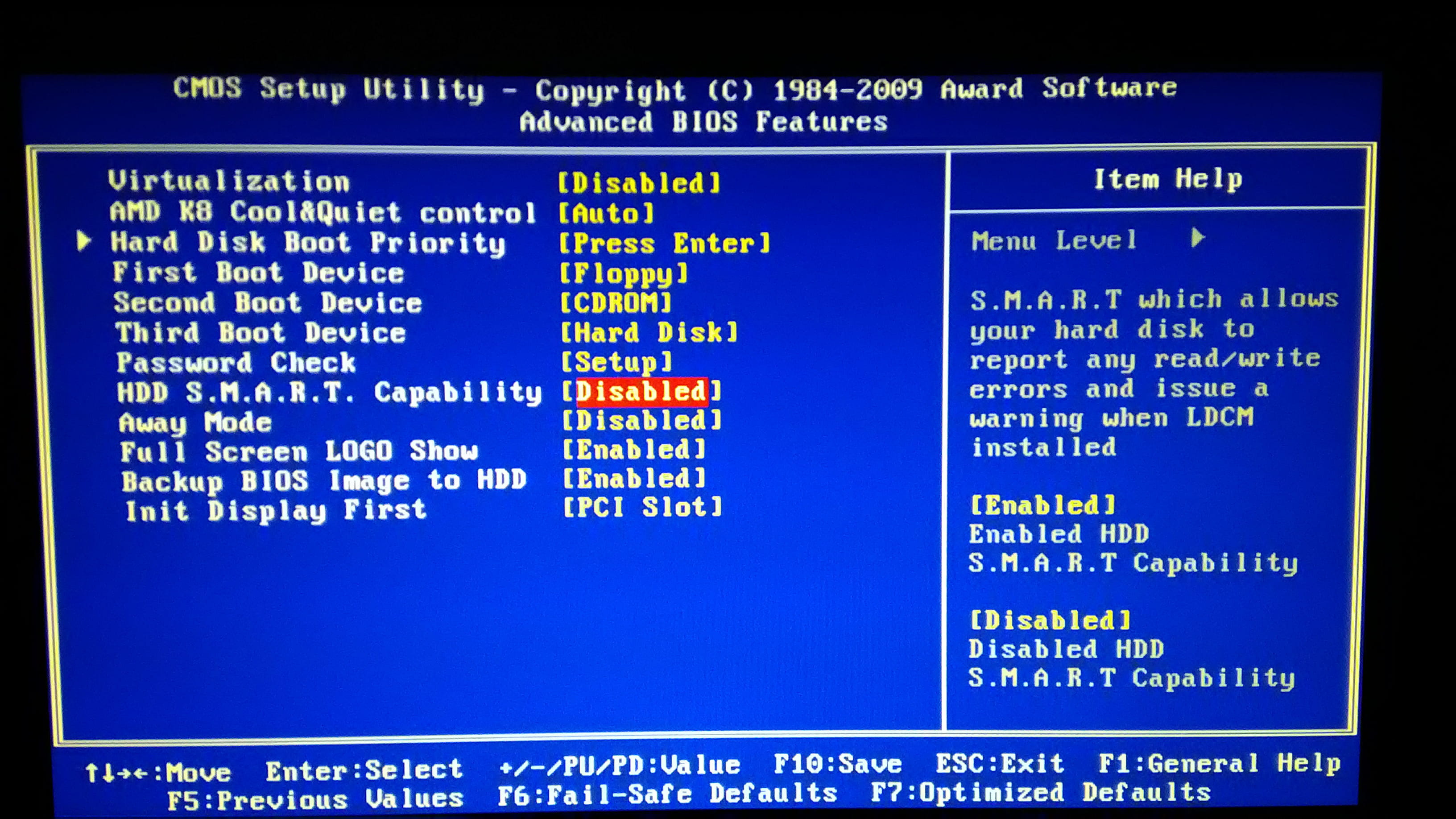
IDE Channel 3. Slave Disk HDD S.M.A.R.T. Capability......Disabled
Then, the PCI Devices Listing...
I admit I'm lost. Can you help me?
Thanks in advance.
-
-
Hello.
Check in the BIOS if the SSD is present. If so, set it as the first in the list. -
jeannets Posted messages 28459 Registration date Status Contributor Last intervention Ambassador 6 618
No, it's not about migrating; whether you are on Windows XP or Linux, it's the same. You have to go into the BIOS to change the boot disk... It's not the same as pressing F12, which is temporary...
-- I don't know the brand and model of your PC; that should have been mentioned in the first post. The key to enter the BIOS is different depending on the model of the PC or its motherboard. Often, it's the Delete key (Del) or F2 that needs to be pressed immediately when starting the PC... before the manufacturer's logo finishes, to access the BIOS menu.
It's usually a summary page where you have to use the arrow keys to navigate... Recent models may use the mouse, but that's not always the case...
So, that's where you need to go... Do you maybe have the manual for your PC...? Does it mention the BIOS Setup...? -
jeannets Posted messages 28459 Registration date Status Contributor Last intervention Ambassador 6 618
Alright, in this case, it's the brand of the motherboard and the model within that brand..
And so there is a manual for the motherboard, which serves as a reference.
I had expressed it though.. in the BIOS is different depending on the model of the PC or its motherboard
Nevertheless, you could try the keys mentioned in the text.. -
jeannets Posted messages 28459 Registration date Status Contributor Last intervention Ambassador 6 618
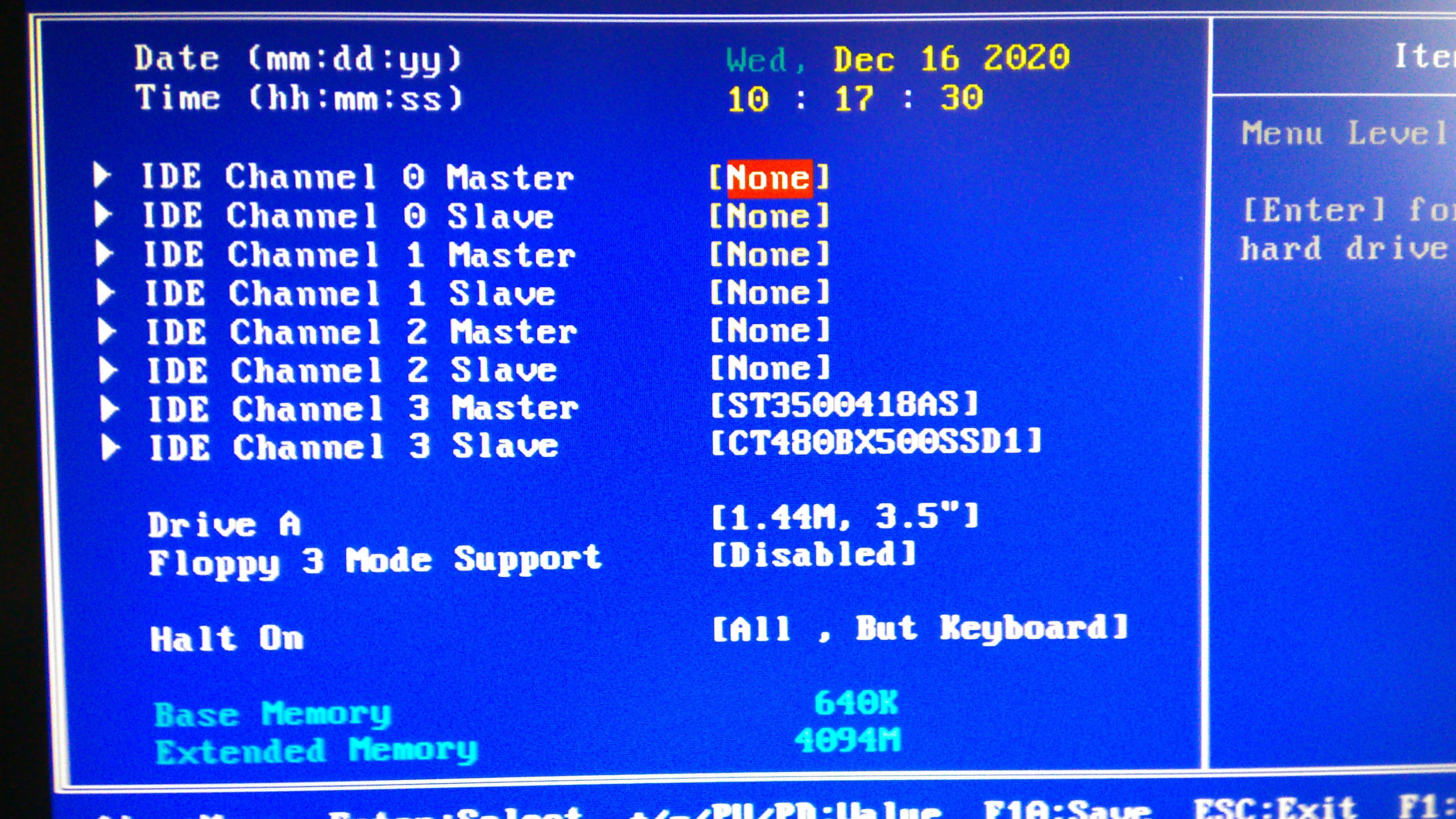
You should take clear photos and paste them here... So we can understand each other...
Photos of your BIOS screens.
Because I see IDE drives = no........===> and that doesn't exist anymore...
But I also see CT480BX500SSD1, that's a "Crucial BX500 480GB 2.5-inch SATA 3D NAND" SSD, so it does exist and is recognized by the PC
So it should be in first place, and I believe that is the case...
It's on Channel 3 master CT480BX500SSD1
IDE Channel 3. Slave Disk HDD S.M.A.R.T. Capability......Disabled
What is concerning is that your SSD is on a SATA interface
While your HDD is indicated as IDE... which is quite old, and I'm not sure about their coexistence...???
-- It is still possible that the duplication is not good and that the boot is being done from the old disk...
-- To check this, I suggest disconnecting the old disk... and starting the PC... if the cloning is good, Windows should boot from the SSD... let's wait and see...?
Photos and the model of the motherboard are still awaited.. -
Hello,
You are really nice and patient with me, thank you.
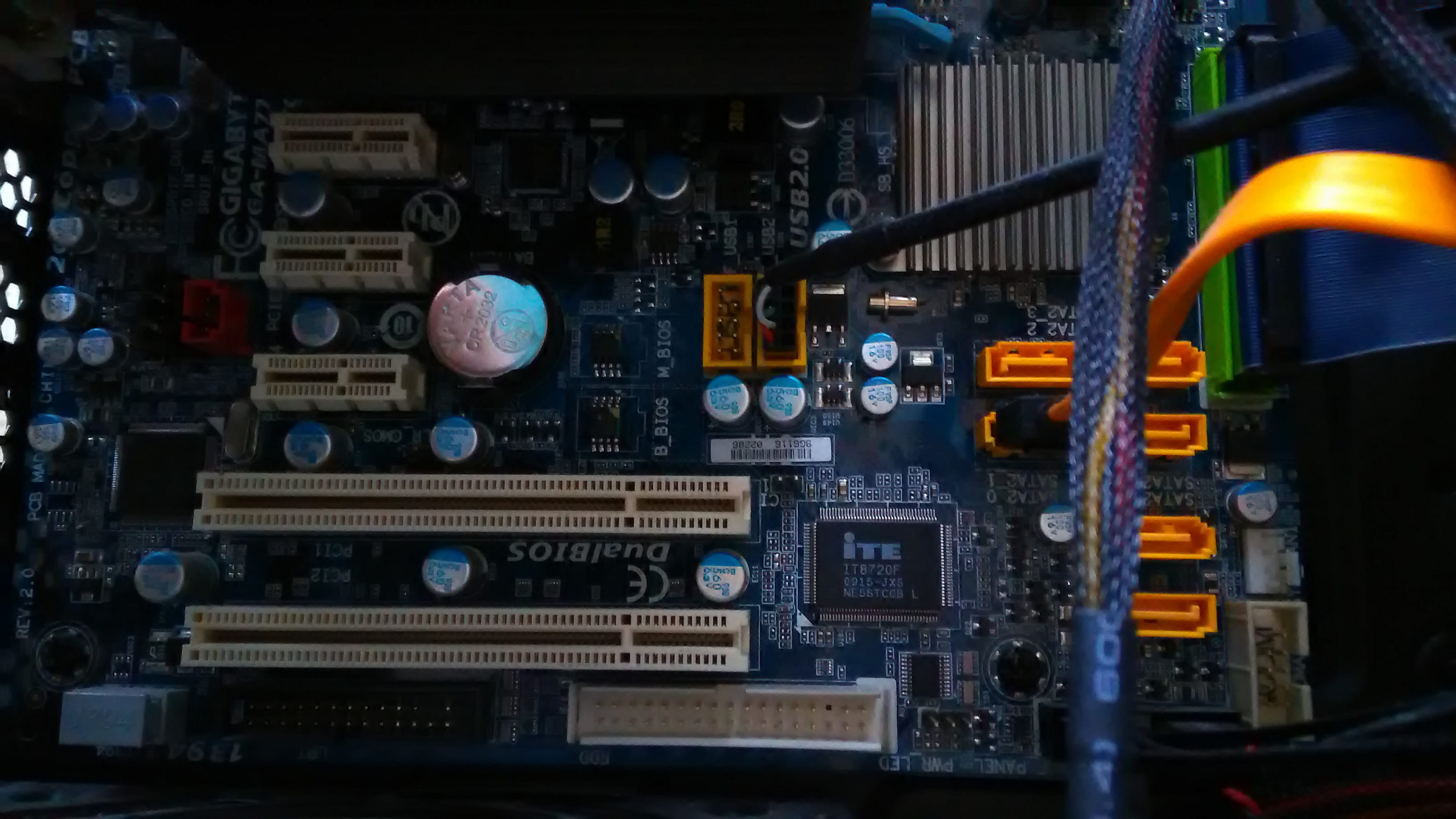
So, I found the manual for my motherboard: Bygabyte Ultra Durable 3 GA-MA770-UD3 Socket AM3. It's all in English.
I want to mention that I have tried several times to disconnect the HDD so that Windows starts on the SSD, but I always get an error message from Windows saying it cannot find the necessary device... so failure!
I will try to post the photos I took.
First, the motherboard:

-
-
jeannets Posted messages 28459 Registration date Status Contributor Last intervention Ambassador 6 618
Yes, these photos help a little better.
1° It's clear that these two disks are SATA even though they are labeled as IDE... On the motherboard, there are also SATA connectors, so that's good.
2° The boot order in "Hard disk Boot Priority" is indeed in the correct order.
3° Error with the only SSD means that Windows was not cloned correctly or completely.
-- During your cloning with the Crucial tool, you should have booted your PC from this SSD immediately. After verifying this boot, you could have thought about reviewing your partitions... Because it should clone exactly if you already had partitions on the old one.
-- I don't know the Crucial software... it might have created a partition that is not active, for example...
Could you please attach a screenshot of the disk manager, with both disks in place and functioning on the HDD... You press the Windows key + R and in the box, you type or copydiskmgmt.msc
you will get the image of your disks... take a screenshot of this screen and paste it here. Widen the view if needed, so we can clearly see everything up to the CD drive.
There is a capture tool "SnippingTool" in the Accessories folder. It's better than a photo.
It's to see if something is wrong... and what... otherwise, I'm thinking of redoing the cloning... and if that doesn't work, with another software...
If I guess correctly, you installed the cloning software on your old hard drive... then you cloned this "System" disk by cloning the clone itself...??? -
Ah, thanks for these tips.
In fact, to clone, I used the procedure indicated in the CRUCIAL video.
Then I repartitioned the SSD with AOMEI... maybe that's something I shouldn't have done. It was because I was afraid there wouldn't be enough space on the main drive to install Windows 10, so I resized and merged some volumes and allocated space to the main drive.
There is a size difference in the content between drive C: (the HDD) which contains Windows and "its clone" drive G: (the SSD) because there have been some Windows updates since then.
I also want to clarify that there are Windows folders located in C that are not present in G.
They are listed as: "$WINDOWS.~BT" and "$Windows.~WS"
What are they about?
"If I'm guessing right, you installed the cloning software on your old hard drive... then you cloned that "System" drive by cloning the clone itself???
I don't remember if I installed AOMEI on the HDD and if it got cloned along with the SSD, but it's quite possible!
I couldn't find the "Snipping Tool" accessory, not even with "search" on this site... I'll have to do it another way... -
jeannets Posted messages 28459 Registration date Status Contributor Last intervention Ambassador 6 618
It's also called "Screenshot"
The Windows files "$WINDOWS.~BT" and "$Windows.~WS" are "system" folders, possibly temporary or for updates..? You should wait before deleting them.. and not run two risks at the same time. -
I specify that these 2 files were not present at the time of cloning. I think they appeared after changing the order of the disks in the BIOS;
On the other hand, as I mentioned, previously I see a Windows logo next to the C: drive of the HDD under AOMEI while it is not found on its copy on the SSD. -
jeannets Posted messages 28459 Registration date Status Contributor Last intervention Ambassador 6 618
There is a mix-up with your disks... The letters are not sorted properly, but that's quite normal. I think they get redistributed when you only have one disk in place.
-- However, the small 100MB partition is for starting Windows... and I notice that your functioning Windows is on Disk Zero (I assume the HDD), and it is the 100MB partition of the SSD (Disk 1) that is the "System" partition of the other disk that is doing the booting...??? So the Windows that is on C: of the SSD is not good.
-- If, at startup, you press F12 to choose... and you select your SSD, does Windows start...??? Or not..?? And what is the error message..??
--- You will need to back up your two partitions with photos and other personal stuff, just in case we need to consider re-cloning.
-- Before that, we can consider repairing the boot of the SSD, if you have a Windows installation DVD (Vista 64, Win 7 or 8) or a USB installation key as well.
It's for the next episode. -
-- If at startup, you press F12 to choose... and you select your SSD, does Windows start...??? or not?? And what is the error message??
I get this:
"Windows Boot Manager
Choose an operating system or press TAB to select a tool ":
WINDOWS 7
To specify an advanced option for this selection, press F8.
Tools:
Windows Memory Diagnostics."
So I click on the WINDOWS 7 entry and it starts normally.
- " You need to back up both partitions with photos and other personal files, just in case you need to consider re-cloning"
I've already backed up the docs and photos to an external HDD. So it is possible to redo the cloning from scratch.
- "Before that, we can consider repairing the SSD boot, if you have a Windows installation DVD (Vista 64, Win 7 or 8) or a bootable USB installation key as well",
I created a Windows 7 recovery USB.
I tried to use it by starting with only the SSD connected.
The USB that was supposed to be "bootable" in configuration was not booted by the PC and did not help me start or repair Windows. -
jeannets Posted messages 28459 Registration date Status Contributor Last intervention Ambassador 6 618
OK,
-- "Windows Startup Manager" so in the advanced options you only have the memory test... and nothing else...
-- The Windows 7 entry starts normally... Which disk is it from..?? the HDD or the SSD..?
-- Does your bootable USB drive contain what it takes to install Windows..??
I believe the BIOS is not set to boot from a USB drive... You should plug it into the PC and then start and click F12 to be able to boot from USB, it might show up as a disk...
If you manage to boot, proceed as if it were to install Windows.... screen with three boxes for the language. ===> next.... Then go to the bottom left and choose repair... you need to follow the menus for "Repair Startup"
This is the process explained on this site
https://www.lecoindunet.com/reparer-windows-7-grace-aux-outils-recuperation-1753
But of course, you need to manage to boot first... Do you have any install DVDs..??-
Hello Jeannets,
You ask a good question: does Windows 7 boot from the HDD or the SSD?
In fact, since Windows does not start when I unplug the HDD, I think the proper boot is done from the HDD.
Regarding my bootable USB drive, I created it with the Windows image.
However, it does not boot at startup, even when selected.
You mentioned that my BIOS might not be set for that.
So how do I install Windows from my USB drive in that case?
I found my Windows installation CD.
However, it is Windows Vista.... I must have migrated to 7 afterwards.
I cannot downgrade the PC!
The other day, I also created a Windows system repair disk using the system tool on the PC.
Nevertheless, you say there may be Windows errors on my hard drive.
So, can I use this CD to repair Windows?
Maybe the source for creating this disk does not come from my PC but directly from Windows... in that case, it would be fine, right?
Another question: if I boot with a USB drive or a repair CD, do I need to restore the HDD disk as the first in the list beforehand?
I think that if I repair Windows on the HDD disk, I could then start a clean cloning process to my SSD....
All these thoughts after your remarks...
Thank you in advance -
-
-
jeannets Posted messages 28459 Registration date Status Contributor Last intervention Ambassador 6 618
Do you have these menus in your BIOS..??

Yet, I do recognize the same brand and year... as it seems there are several versions... I don't believe there is a huge difference... But in these menus, I see there are three boot options; so we could set:
1° Bootable USB drive
2° CD/DVD
3° Hard drive
Whereas your menus don't seem to present these options...???
Otherwise, of course, concerning cloning, it doesn't change anything... -
To respond to your last message, I am sending you photos.
First, the photo of the BIOS

-
Hello,
Regarding your original question about migrating from Windows 7 to Windows 10, I'm not sure it will work because your PC is quite old and there are no Windows 10 drivers for your motherboard (see manufacturer).
https://www.gigabyte.com/Motherboard/GA-MA770-UD3-rev-20/support#support-dl-driver
For your SSD: check this in your BIOS:
"OnChip SATA Controller"
Enable or disable the integrated SATA controller. (Default: enabled) --> check if it's set to "enabled".
Then in:
"SATA OnChip Type (SATA2_0 ~ SATA2_3 connectors)"
Configure the mode of operation of the integrated SATA controller.
Native IDE allows the SATA controller to operate in native IDE mode. (Default)
Enable native IDE mode if you wish to install operating systems that support native mode.
RAID enables RAID for the SATA controller.
AHCI configures the SATA controller in AHCI mode. Advanced Host Controller
Interface (AHCI) is an interface specification that allows the storage driver to
enable advanced Serial ATA features such as native command queuing
and hot plug. ---> it must be set to AHCI

Then save the BIOS with F10 and restart, leaving only your SSD connected (connect it where it is in the picture).
And let us know what happens in the BIOS, then you'll need to change the boot priorities.
See you later!-
Hello Macbernic,
Thank you for your interest in my question.
Indeed, on the manufacturer's website, it seems that the motherboard would not support Windows 10!!!
I admit that the procedures you are asking me to perform in the BIOS to "check my SSD" scare me a bit, especially since I don't quite understand what these modifications will change.
Is it to activate the SSD?
If so, in that case, since it seems that Windows is not properly cloned onto the SSD, isn't it dangerous to boot from this disk?
Thank you for explaining it to me, please.
-







- 1
- 2
Next