
Use 3 RAM sticks
-
Hello,
I have a defective memory slot 1. So, the PC only uses 2 sticks of 2 GB, which work in dual channel, even though a 3rd stick is present in the 3rd functional slot.
I would still like to recover 6 GB of usable RAM, even if I have to give up dual channel, but I haven't found out how to do it despite my extensive research.
When I turn on the computer, I get the following message:

So the BIOS only recognizes 4 GB and the message suggesting to swap the sticks in slots 3 and 4 seems ridiculous since they are identical sticks. I did it anyway, but I still get this message.
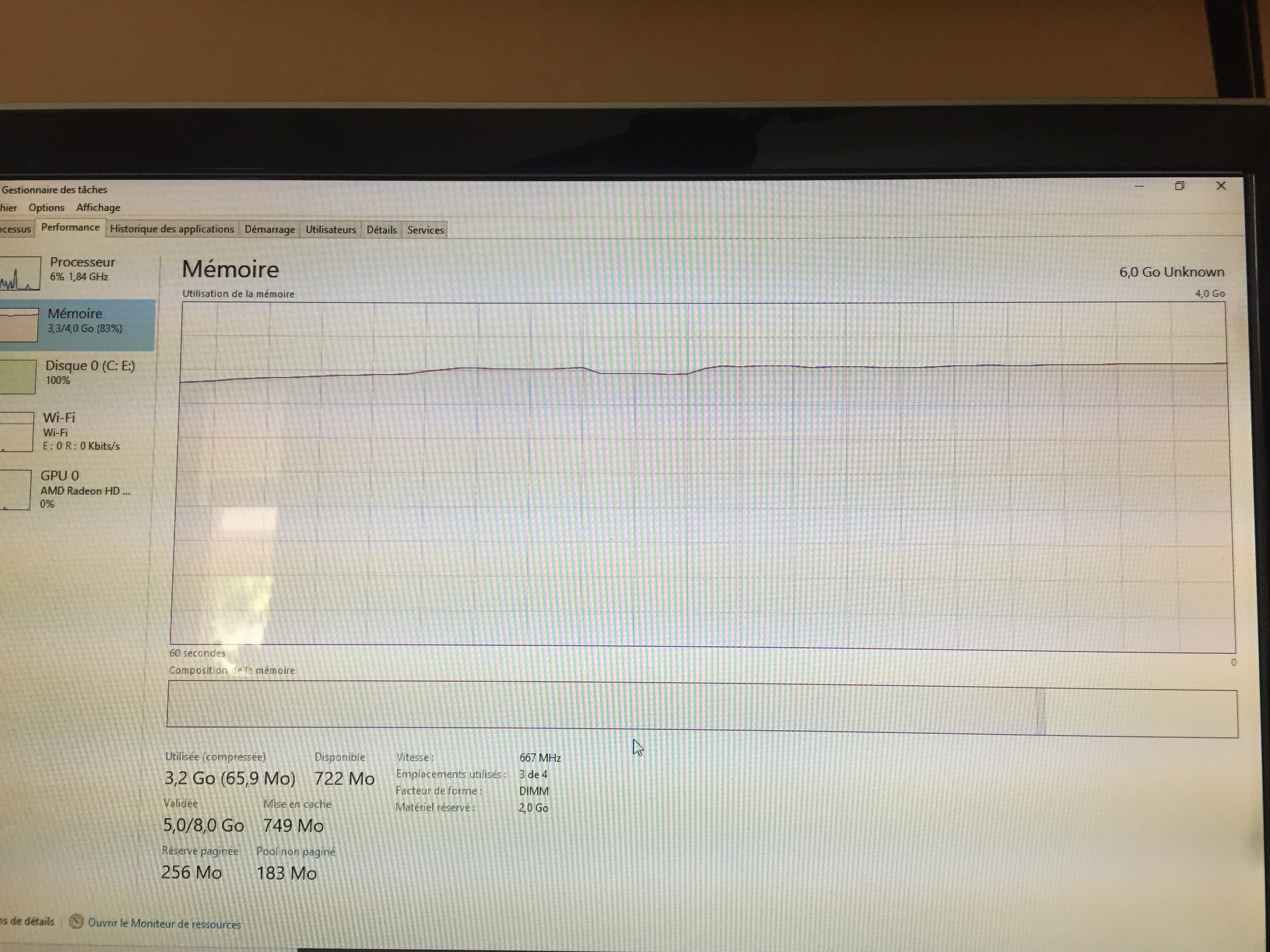
Windows tells me I have 6 GB but only 3.98 usable. In the task manager, it seems to only use 4 GB, although if I open many apps, it displays 5 GB or more of validated memory:

I moved the sticks so that the motherboard wouldn't activate dual channel: 2 different sticks in slots 3 and 4 plus another in slot 2.
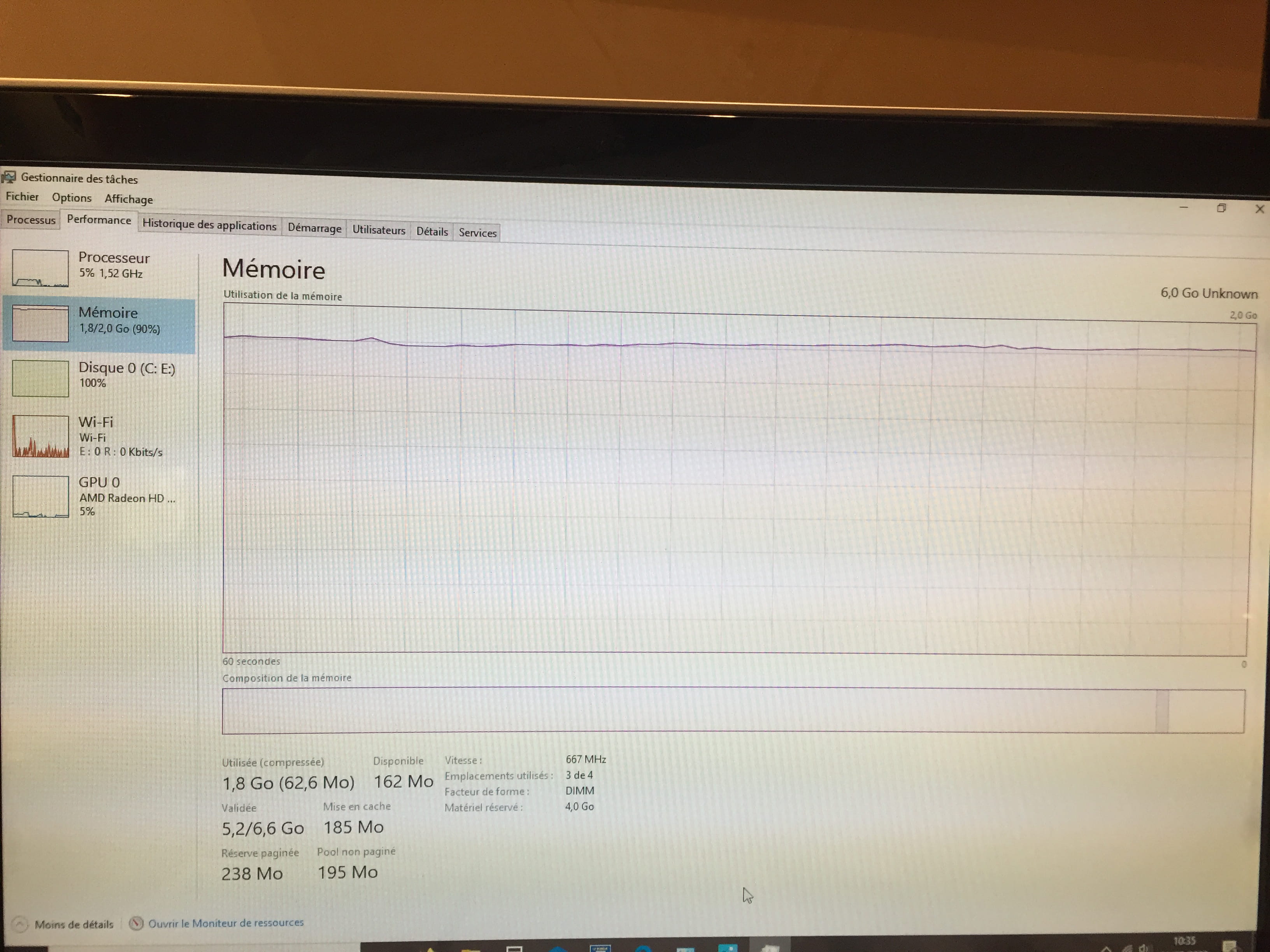
Surprise! Windows still recognizes 6 GB but only 1.98 usable. The same in the task manager, although again it can show more than 2 GB validated:

I put the two identical sticks back in slots 3 and 4 and recovered my 4 GB.
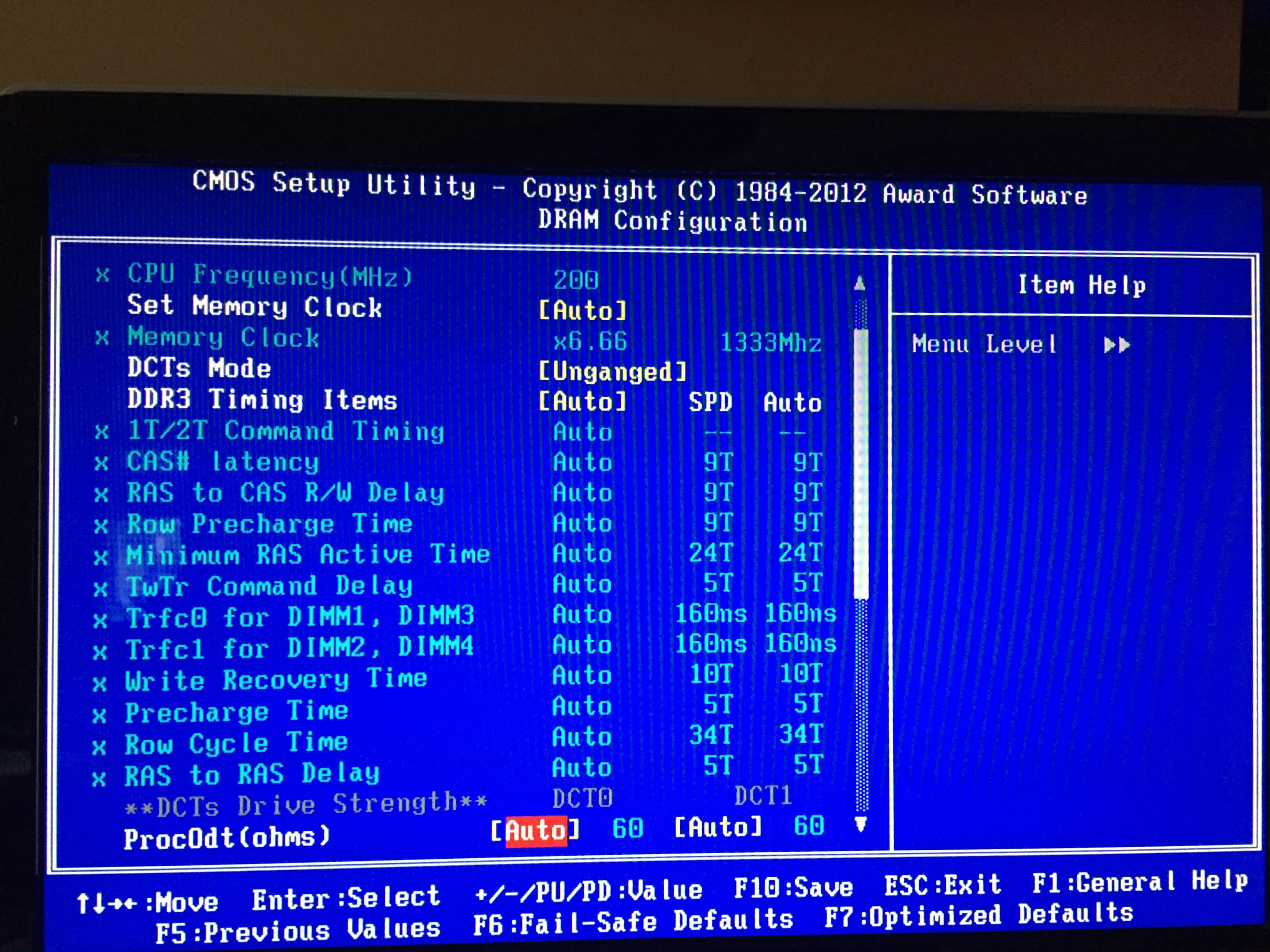
I tried to disable dual channel in the BIOS by changing the DCTs mode (DC for Dual Channel?) (see image below) parameter from Unganged to Ganged, which changed nothing.

I switched back to Unganged and changed the Channel interleaving parameter to Disabled.

Still no success.
CPU-Z still finds the 3 sticks of 6 GB and displays them correctly in single channel when I mix the sticks or set Channel interleaving to Disabled (I can't remember with Unganged).
Maybe I need to change both parameters at the same time?
Any suggestions for me to operate with 6 GB are welcome.
Some will tell me to just buy 2 sticks of 4 GB and get rid of my current sticks.
That’s probably what I would do as a last resort, but besides the cost, I don’t like to admit defeat before trying everything and understanding why.
Thank you in advance.
I have a defective memory slot 1. So, the PC only uses 2 sticks of 2 GB, which work in dual channel, even though a 3rd stick is present in the 3rd functional slot.
I would still like to recover 6 GB of usable RAM, even if I have to give up dual channel, but I haven't found out how to do it despite my extensive research.
When I turn on the computer, I get the following message:

So the BIOS only recognizes 4 GB and the message suggesting to swap the sticks in slots 3 and 4 seems ridiculous since they are identical sticks. I did it anyway, but I still get this message.
Windows tells me I have 6 GB but only 3.98 usable. In the task manager, it seems to only use 4 GB, although if I open many apps, it displays 5 GB or more of validated memory:
I moved the sticks so that the motherboard wouldn't activate dual channel: 2 different sticks in slots 3 and 4 plus another in slot 2.
Surprise! Windows still recognizes 6 GB but only 1.98 usable. The same in the task manager, although again it can show more than 2 GB validated:
I put the two identical sticks back in slots 3 and 4 and recovered my 4 GB.
I tried to disable dual channel in the BIOS by changing the DCTs mode (DC for Dual Channel?) (see image below) parameter from Unganged to Ganged, which changed nothing.

I switched back to Unganged and changed the Channel interleaving parameter to Disabled.
Still no success.
CPU-Z still finds the 3 sticks of 6 GB and displays them correctly in single channel when I mix the sticks or set Channel interleaving to Disabled (I can't remember with Unganged).
Maybe I need to change both parameters at the same time?
Any suggestions for me to operate with 6 GB are welcome.
Some will tell me to just buy 2 sticks of 4 GB and get rid of my current sticks.
That’s probably what I would do as a last resort, but besides the cost, I don’t like to admit defeat before trying everything and understanding why.
Thank you in advance.
1 answer
-
Contributor AmbassadorHello
And if you put a clip back in 1, what does it do?
Isn't it rather one of the clips that’s faulty?
--
Signature
Euskadi Ta Askatasuna-
ModeratorHi,
I would say that in my opinion one or two RAM sticks are defective... Or worse, that one of the slots is dead and that the other has damaged the memory stick... :-))
Winning combo, and to make things right, on the slots that form the second dual-channel in question...
Otherwise, we could try a ClearCMOS with the RAMs in place, you never know... sometimes it works wonders... -
Sorry for my late reply.
I'm sure I replied on the same day, but I can't find my response! I must have made a wrong move.
I'm sure that slot 1 is defective. It had 2 bent pins that came off when I tried to straighten them.
And all my RAM sticks work because when I put them in one by one, the PC starts normally with 2 GB.
I've done more tests by changing another BIOS setting called bank interleaving. With the other two parameters and the changing of RAM slots, there are a lot of combinations. I haven't seen any difference (if someone can explain what these 3 parameters do, I'd be interested).
In summary, if I put in 3 RAM sticks, regardless of their position, I have 4 GB recognized by the BIOS but 6 GB recognized by Windows and CPU-Z, and only 4 GB usable, all in single channel.
If I only put in 2 identical sticks in the matching slots (3 and 4), I have 4 GB recognized and usable but in dual channel. So it's better for me to run like that.
What frustrates me and makes me think there must be a solution is that Windows does indeed recognize 6 GB. So why does it only use 4?
Why do the motherboard or Windows refuse to work in flex (2 sticks in dual channel and one in single) or in single channel but using 6 GB?
I've read somewhere that for some motherboards, there was a Memory remap setting to enable when changing the memory configuration, but those are old posts and I haven't found anything like that in my BIOS.
My motherboard is a Gigabyte GA-990FXA-D3 (rev. 1.x).
Otherwise, I could still try a ClearCMOS with the RAMs in place, you never know... sometimes it works miracles...
Reply
I did it through the BIOS, but that may not be enough?
Thank you in advance for your replies if you're still following my post. -
Contributor Ambassador@yadd
I am sure that slot 1 is defective. It had 2 bent contacts that broke off when I tried to straighten them.
If you had provided this info from the start, we would have taken a different direction; it is likely that the affected channel is dead because there may be damage to the slot's connectors.
In my opinion, it’s simple: either you disable the affected channel, which means both slots 1 and 2, and make do with what you have, or you change the motherboard... -
@flo88My post started with "Slot 1 is faulty" but it's true that I should have explained why.
When you say that the channel is dead, do you mean for the paired slots 1 and 2?
Yet when I put a single stick in slot 2, the PC starts up without a problem.
-

