Built-in webcam not recognized by Ubuntu
Solved
Rengoku
-
Rengoku -
Rengoku -
Hello,
My built-in webcam is not recognized by Ubuntu. The webcam is indeed enabled in my BIOS, and it works on my Windows (I am dual booting).
I tried to read and apply what is recommended on this page: https://doc.ubuntu-fr.org/webcam
But nothing works. When I launch Cheese from the terminal, I get the following errors:
Other errors follow that stem from the webcam not being detected. The same issue occurs with camorama.
Here's the output of the command lsusb:
The Logitech line corresponds to my mouse. I have absolutely no idea what the other lines mean. I don't have the impression that the webcam is detected at all.
Thanks in advance!
Laurent
Configuration:
ASUS R752L laptop (sometimes referred to as X751LX, I'm not sure why there are 2 names anyway).
Dual Boot Ubuntu 18.04.4 LTS / Windows 10
64-bit OS
My built-in webcam is not recognized by Ubuntu. The webcam is indeed enabled in my BIOS, and it works on my Windows (I am dual booting).
I tried to read and apply what is recommended on this page: https://doc.ubuntu-fr.org/webcam
But nothing works. When I launch Cheese from the terminal, I get the following errors:
(cheese:5042): Gtk-WARNING **: 13:23:21.980: Theme parsing error: cheese.css:7:35: The style property GtkScrollbar:min-slider-length is deprecated and shouldn't be used anymore. It will be removed in a future version
- Message: 13:23:22.141: cheese-application.vala:211: Error during camera setup: No device detected
Other errors follow that stem from the webcam not being detected. The same issue occurs with camorama.
Here's the output of the command lsusb:
Bus 002 Device 001: ID 1d6b:0003 Linux Foundation 3.0 root hub
Bus 001 Device 004: ID 0bda:b722 Realtek Semiconductor Corp.
Bus 001 Device 003: ID 0bda:57bc Realtek Semiconductor Corp.
Bus 001 Device 002: ID 046d:c52b Logitech, Inc. Unifying Receiver
Bus 001 Device 001: ID 1d6b:0002 Linux Foundation 2.0 root hub
The Logitech line corresponds to my mouse. I have absolutely no idea what the other lines mean. I don't have the impression that the webcam is detected at all.
Thanks in advance!
Laurent
Configuration:
ASUS R752L laptop (sometimes referred to as X751LX, I'm not sure why there are 2 names anyway).
Dual Boot Ubuntu 18.04.4 LTS / Windows 10
64-bit OS
16 answers
-
Hi,
Check if the packagev4l-utils
is installed on your system. If it isn't, install it.sudo apt install v4l-utils
Then type the command:v4l2-ctl --list-devices
Here's what it returns for me:$ v4l2-ctl --list-devices
HD WebCam: HD WebCam (usb-0000:00:14.0-7):
/dev/video0
/dev/video1
For your information, the commandlsusb
also doesn't return anything regarding the webcam, which seems normal to me since it's integrated ;-\
--
_______________________________ ☯ Zen my nuggets ☮ _____________________________
Do something for the environment, close your windows, and adopt a penguin… ???? -
Alright. I still tried
sudo modprobe -r uvcvideo && sudo modprobe -a uvcvideo
It didn't display anything, and cheese and guvcview still don't work.-
-
No worries, thanks for taking the time!
It's an ASUS bought 5 years ago. The label says R752L but sometimes, like in the Linux command, it says X751LX. I don't understand why there are 2 names?
In any case, I searched for my model number on the various links at the top of the page: https://doc.ubuntu-fr.org/webcam
But I couldn't find any information matching my PC.. -
-
-
-
-
Thank you for the reply,
I installed the package; here is my feedback:
laurent@laurent-X751LX:~$ v4l2-ctl --list-devices
USB Camera (usb-1-3):
 /dev/video0
So my webcam is indeed detected by Ubuntu? How can I make it work with the software?-
Ok.
Install the following 2 packages (usbview and hwinfo):sudo apt install usbview hwinfo
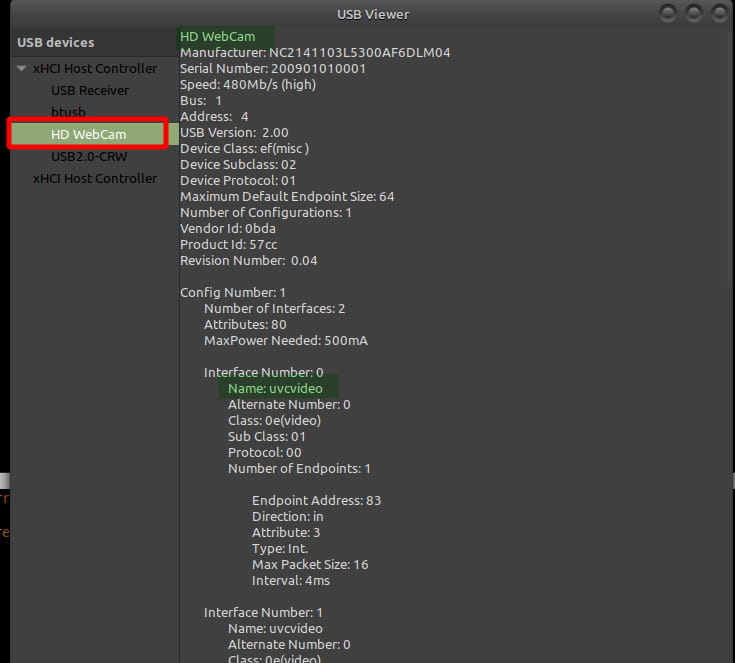
The first one is graphical and must be launched by: sudo usbview and gives this:
The second one, type:sudo hwinfo --usb
and returns among other things:sudo hwinfo --usb
[…]
05: USB 00.0: 0000 Unclassified device
[Created at usb.122]
Unique ID: X7GA.yPhsi8SBikE
Parent ID: k4bc.2DFUsyrieMD
SysFS ID: /devices/pci0000:00/0000:00:14.0/usb1/1-7/1-7:1.0
SysFS BusID: 1-7:1.0
Hardware Class: unknown
Model: "Realtek HD WebCam"
Hotplug: USB
Vendor: usb 0x0bda "Realtek Semiconductor Corp."
Device: usb 0x57cc "HD WebCam"
Revision: "0.04"
Serial ID: "200901010001"
Driver: "uvcvideo"
Driver Modules: "uvcvideo"
Device File: /dev/input/event16
Device Files: /dev/input/event16, /dev/input/by-id/usb-NC2141103L5300AF6DLM04_HD_WebCam_200901010001-event-if00, /dev/input/by-path/pci-0000:00:14.0-usb-0:7:1.0-event
Device Number: char 13:80
Speed: 480 Mbps
Module Alias: "usb:v0BDAp57CCd0004dcEFdsc02dp01ic0Eisc01ip00in00"
Driver Info #0:
Driver Status: uvcvideo is active
Driver Activation Cmd: "modprobe uvcvideo"
Config Status: cfg=new, avail=yes, need=no, active=unknown
Attached to: #6 (Hub)
-
-
I encountered errors during the installation of the packages (which are recurring errors). Here is the installation output
laurent@laurent-X751LX:~$ sudo apt install usbview hwinfo
[sudo] laurent’s password:
Reading package lists... Done
Building dependency tree
Reading state information... Done
The following packages were installed automatically and are no longer needed:
 gir1.2-geocodeglib-1.0 icoutils libfwup1 libllvm7 libllvm7:i386 libllvm8
 libllvm8:i386 libwxgtk3.0-gtk3-0v5 linux-headers-4.15.0-88
 linux-headers-4.15.0-88-generic linux-image-4.15.0-88-generic
 linux-modules-4.15.0-88-generic linux-modules-extra-4.15.0-88-generic
 python-wxgtk3.0 python-wxversion python3-evdev ubuntu-web-launchers
Please use “sudo apt autoremove” to remove them.
The following additional packages will be installed:
 libhd21 libx86emu1
The NEW packages will be installed:
 hwinfo libhd21 libx86emu1 usbview
0 upgraded, 4 newly installed, 0 to remove and 13 not upgraded.
2 partially installed or removed.
It is necessary to download 1 003 kB from the archives.
After this operation, 4 521 kB of additional disk space will be used.
Do you want to continue? [Y/n] y
Get:1 http://ca.archive.ubuntu.com/ubuntu/ bionic/universe amd64 libx86emu1 amd64 1.12-1 [48.1 kB]
Get:2 http://ca.archive.ubuntu.com/ubuntu/ bionic/universe amd64 libhd21 amd64 21.52-1 [694 kB]
Get:3 http://ca.archive.ubuntu.com/ubuntu/ bionic/universe amd64 hwinfo amd64 21.52-1 [18.0 kB]
Get:4 http://ca.archive.ubuntu.com/ubuntu/ bionic/universe amd64 usbview amd64 2.0-21-g6fe2f4f-1ubuntu1 [244 kB]
1 003 kB received in 2s (539 kB/s)
Selecting previously deselected package libx86emu1:amd64.
(Reading database... 340096 files and directories already installed.)
Preparing to unpack .../libx86emu1_1.12-1_amd64.deb ...
Unpacking libx86emu1:amd64 (1.12-1) ...
Selecting previously deselected package libhd21:amd64.
Preparing to unpack .../libhd21_21.52-1_amd64.deb ...
Unpacking libhd21:amd64 (21.52-1) ...
Selecting previously deselected package hwinfo.
Preparing to unpack .../hwinfo_21.52-1_amd64.deb ...
Unpacking hwinfo (21.52-1) ...
Selecting previously deselected package usbview.
Preparing to unpack .../usbview_2.0-21-g6fe2f4f-1ubuntu1_amd64.deb ...
Unpacking usbview (2.0-21-g6fe2f4f-1ubuntu1) ...
Setting up libx86emu1:amd64 (1.12-1) ...
Setting up grub-efi-amd64 (2.02-2ubuntu8.15) ...
dpkg: error processing package grub-efi-amd64 (--configure):
 installed grub-efi-amd64 package post-installation script subprocess returned error exit status 127
dpkg: dependency problems prevent configuration of grub-efi-amd64-signed:
 grub-efi-amd64-signed depends on grub-efi-amd64 | grub-pc; however:
 The package grub-efi-amd64 is not configured yet.
 The package grub-pc is not installed.

dpkg: error processing package grub-efi-amd64-signed (--configure):
 dependency problems - left unconfigured
Setting up usbview (2.0-21-g6fe2f4f-1ubuntu1) ...
No report “apport” has been created because the error message indicates an error resulting from a previous failure.
 Setting up libhd21:amd64 (21.52-1) ...
Setting up hwinfo (21.52-1) ...
Processing triggers for libc-bin (2.27-3ubuntu1) ...
Processing triggers for man-db (2.8.3-2ubuntu0.1) ...
Processing triggers for gnome-menus (3.13.3-11ubuntu1.1) ...
Processing triggers for hicolor-icon-theme (0.17-2) ...
Processing triggers for mime-support (3.60ubuntu1) ...
Processing triggers for desktop-file-utils (0.23-1ubuntu3.18.04.2) ...
Processing triggers for bamfdaemon (0.5.3+18.04.20180207.2-0ubuntu1) ...
Rebuilding /usr/share/applications/bamf-2.index...
Errors were encountered during the run:
 grub-efi-amd64
 grub-efi-amd64-signed
E: Sub-process /usr/bin/dpkg returned an error code (1)
So here is whatsudo usbview
returns to me:
https://sd-1.archive-host.com/membres/up/37813468324635938/Capture_du_2020-04-13_22-32-34.png
Regarding the second command, it returns something interesting
03: USB 00.0: 0000 Unclassified device
 [Created at usb.122]
 Unique ID: MtLc.ixbafnyEnFB
 Parent ID: k4bc.2DFUsyrieMD
 SysFS ID: /devices/pci0000:00/0000:00:14.0/usb1/1-6/1-6:1.0
 SysFS BusID: 1-6:1.0
 Hardware Class: unknown
 Model: "Realtek USB Camera"
 Hotplug: USB
 Vendor: usb 0x0bda "Realtek Semiconductor Corp."
 Device: usb 0x57bc "USB Camera"
 Revision: "0.03"
 Serial ID: "200901010001"
 Driver: "usbfs"
 Driver Modules: "usbcore"
 Speed: 480 Mbps
 Module Alias: "usb:v0BDAp57BCd0003dcEFdsc02dp01ic0Eisc01ip00in00"
 Driver Info #0:
 Driver Status: uvcvideo is not active
 Driver Activation Cmd: "modprobe uvcvideo"
 Config Status: cfg=new, avail=yes, need=no, active=unknown
Attached to: #7 (Hub) -
Here is the output of
sudo apt -f install
:laurent@laurent-X751LX:~$ sudo apt -f install
Reading package lists... Done
Building dependency tree
Reading state information... Done
0 upgraded, 0 newly installed, 0 to remove and 13 not upgraded.
2 partially installed or removed.
After this operation, 0 B of additional disk space will be used.
Setting up grub-efi-amd64 (2.02-2ubuntu8.15) ...
dpkg: error processing package grub-efi-amd64 (--configure) :
installed grub-efi-amd64 package post-installation script subprocess returned error exit status 127
dpkg: dependency problems prevent configuration of grub-efi-amd64-signed :
grub-efi-amd64-signed depends on grub-efi-amd64 | grub-pc ; however :
The package grub-efi-amd64 is not configured yet.
The package grub-pc is not installed.
dpkg: error processing package grub-efi-amd64-signed (--configure) :
dependency problems - left unconfigured
No report "apport" was created because the error message indicates an error following a previous failure.
Errors were encountered during execution :
grub-efi-amd64
grub-efi-amd64-signed
E: Sub-process /usr/bin/dpkg returned an error code (1)
And here is the output of the other 3 commands:laurent@laurent-X751LX:~$ groups
laurent adm cdrom sudo dip plugdev lpadmin sambashare
laurent@laurent-X751LX:~$ lsmod | grep 'uvcvideo'
laurent@laurent-X751LX:~$ sudo modprobe uvcvideo
No errors here. Cheese still doesn't work.-
I tried the hwinfo command again, and here is UVC video is now active:
laurent@laurent-X751LX:~$ sudo hwinfo --usb
[sudo] Password for laurent:
03: USB 00.0: 0000 Unclassified device
 [Created at usb.122]
 Unique ID: MtLc.ixbafnyEnFB
 Parent ID: k4bc.2DFUsyrieMD
 SysFS ID: /devices/pci0000:00/0000:00:14.0/usb1/1-6/1-6:1.0
 SysFS BusID: 1-6:1.0
 Hardware Class: unknown
 Model: "Realtek USB Camera"
 Hotplug: USB
 Vendor: usb 0x0bda "Realtek Semiconductor Corp."
 Device: usb 0x57bc "USB Camera"
 Revision: "0.03"
 Serial ID: "200901010001"
 Driver: "usbfs"
 Driver Modules: "usbcore"
 Speed: 480 Mbps
 Module Alias: "usb:v0BDAp57BCd0003dcEFdsc02dp01ic0Eisc01ip00in00"
 Driver Info #0:
 Driver Status: uvcvideo is active
 Driver Activation Cmd: "modprobe uvcvideo"
 Config Status: cfg=new, avail=yes, need=no, active=unknown
 Attached to: #7 (Hub)
However, the "driver" and "driver modules" are not "uvcvideo" like yours. Is that normal?
I also tried lsmod again:laurent@laurent-X751LX:~$ lsmod | grep 'uvcvideo'
uvcvideo 86016 0
videobuf2_vmalloc 16384 1 uvcvideo
videobuf2_v4l2 24576 1 uvcvideo
videobuf2_core 40960 2 videobuf2_v4l2,uvcvideo
videodev 184320 3 videobuf2_core,videobuf2_v4l2,uvcvideo
media 40960 2 videodev,uvcvideo -
Well, we'll see later for the apt problem ;-\
I saw on a forum that the user needs to be part of the group "dialout", so add yourself to that group:sudo adduser username dialout
Then restart for the new group membership to take effect.
Once that's done, check with the commandgroups
.
Then runsudo modprobe -v uvcvideo
followed bylsmod | grep 'uvcvideo'
. -
For your problem with
grub-efi-amd64-signed
, see How to disable secure boot
-
-
Here are the returns
laurent@laurent-X751LX:~$ groups
laurent adm dialout cdrom sudo dip plugdev lpadmin sambashare
laurent@laurent-X751LX:~$ sudo modprobe -v uvcvideo
[sudo] Password for laurent:
insmod /lib/modules/4.15.0-96-generic/kernel/drivers/media/media.ko
insmod /lib/modules/4.15.0-96-generic/kernel/drivers/media/v4l2-core/videodev.ko
insmod /lib/modules/4.15.0-96-generic/kernel/drivers/media/v4l2-core/videobuf2-core.ko
insmod /lib/modules/4.15.0-96-generic/kernel/drivers/media/v4l2-core/videobuf2-v4l2.ko
insmod /lib/modules/4.15.0-96-generic/kernel/drivers/media/v4l2-core/videobuf2-memops.ko
insmod /lib/modules/4.15.0-96-generic/kernel/drivers/media/v4l2-core/videobuf2-vmalloc.ko
insmod /lib/modules/4.15.0-96-generic/kernel/drivers/media/usb/uvc/uvcvideo.ko
laurent@laurent-X751LX:~$ lsmod | grep 'uvcvideo'
uvcvideo 86016 0
videobuf2_vmalloc 16384 1 uvcvideo
videobuf2_v4l2 24576 1 uvcvideo
videobuf2_core 40960 2 videobuf2_v4l2,uvcvideo
videodev 184320 3 videobuf2_core,videobuf2_v4l2,uvcvideo
media 40960 2 videodev,uvcvideo -
I have disabled secure boot and restarted the previous command that had not worked
laurent@laurent-X751LX:~$ sudo apt -f install
Reading package lists... Done
Building dependency tree
Reading state information... Done
0 upgraded, 0 newly installed, 0 to remove and 13 not upgraded.
2 partially installed or removed.
After this operation, 0 B of additional disk space will be used.
Setting up grub-efi-amd64 (2.02-2ubuntu8.15) ...
Installation for the x86_64-efi platform.
Installation completed, no errors.
Sourcing file `/etc/default/grub'
Creating GRUB configuration file…
Linux image found: /boot/vmlinuz-4.15.0-96-generic
Initial RAM image found: /boot/initrd.img-4.15.0-96-generic
Linux image found: /boot/vmlinuz-4.15.0-91-generic
Initial RAM image found: /boot/initrd.img-4.15.0-91-generic
Linux image found: /boot/vmlinuz-4.13.0-26-generic
Initial RAM image found: /boot/initrd.img-4.13.0-26-generic
Linux image found: /boot/vmlinuz-4.4.0-112-generic
Initial RAM image found: /boot/initrd.img-4.4.0-112-generic
Windows Boot Manager found on /dev/sda1@/EFI/Microsoft/Boot/bootmgfw.efi
Adding boot menu entry for EFI firmware configuration
done
Setting up grub-efi-amd64-signed (1.93.16+2.02-2ubuntu8.15) ...
Installation for the x86_64-efi platform.
Installation completed, no errors.
W: APT had planned for dpkg to do more than it reported back (3 vs 7).
 Affected packages: grub-efi-amd64:amd64
I tried to launch cheese again, same error:
laurent@laurent-X751LX:~$ cheese

(cheese:6346): Gtk-WARNING **: 09:36:05.413: Theme parsing error: cheese.css:7:35: The style property GtkScrollbar:min-slider-length is deprecated and shouldn't be used anymore. It will be removed in a future version- Message: 09:36:05.507: cheese-application.vala:211: Error during camera setup: No device detected
-
The camera is still not detected
laurent@laurent-X751LX:~$ guvcview
GUVCVIEW: version 2.0.5
GUVCVIEW: couldn't open /home/laurent/.config/guvcview2/video0 for read: No such file or directory
V4L2CORE: couldn't determine device (/dev/video0) list index
V4L2_CORE: (UVCIOC_CTRL_MAP) Error: Invalid argument
V4L2_CORE: (UVCIOC_CTRL_MAP) Error: Invalid argument
V4L2_CORE: (UVCIOC_CTRL_MAP) Error: Invalid argument
V4L2_CORE: (UVCIOC_CTRL_MAP) Error: Invalid argument
V4L2_CORE: (UVCIOC_CTRL_MAP) Error: Invalid argument
V4L2_CORE: (UVCIOC_CTRL_MAP) Error: Invalid argument
V4L2_CORE: (UVCIOC_CTRL_MAP) Error: Invalid argument
V4L2_CORE: (UVCIOC_CTRL_MAP) Error: Invalid argument
V4L2_CORE: (UVCIOC_CTRL_MAP) Error: Invalid argument
V4L2_CORE: Control 0x80000000 failed to query with error -1
buggy V4L2_CTRL_FLAG_NEXT_CTRL flag implementation (workaround enabled)
V4L2_CORE: (get control values) empty control list
ALSA lib pcm_dsnoop.c:618:(snd_pcm_dsnoop_open) unable to open slave
ALSA lib pcm_dmix.c:1052:(snd_pcm_dmix_open) unable to open slave
ALSA lib pcm.c:2495:(snd_pcm_open_noupdate) Unknown PCM cards.pcm.rear
ALSA lib pcm.c:2495:(snd_pcm_open_noupdate) Unknown PCM cards.pcm.center_lfe
ALSA lib pcm.c:2495:(snd_pcm_open_noupdate) Unknown PCM cards.pcm.side
ALSA lib pcm_dmix.c:1052:(snd_pcm_dmix_open) unable to open slave
Cannot connect to server socket err = No such file or directory
Cannot connect to server request channel
jack server is not running or cannot be started
JackShmReadWritePtr::~JackShmReadWritePtr - Init not done for -1, skipping unlock
JackShmReadWritePtr::~JackShmReadWritePtr - Init not done for -1, skipping unlock
V4L2_CORE: Unable to map buffer: No such device
V4L2_CORE: (VIDIOC_QBUFS) Unable to query buffers: No such device
GUCVIEW: could not set the defined stream format
GUCVIEW: trying first listed stream format
V4L2_CORE: Unable to map buffer: No such device
V4L2_CORE: (VIDIOC_QBUFS) Unable to query buffers: No such device
GUCVIEW: also could not set the first listed stream format
GUVCVIEW: Video capture failed
GUVCVIEW (1): Guvcview error
 could not start a video stream in the device

(guvcview:8400): Gtk-WARNING **: 09:58:01.941: Theme parsing error: <data>:1:17: not a number

(guvcview:8400): Gtk-WARNING **: 09:58:01.941: Theme parsing error: <data>:1:31: Using Pango syntax for the font: style property is deprecated; please use CSS syntax

(guvcview:8400): Gtk-WARNING **: 09:58:01.941: Theme parsing error: <data>:1:17: not a number

(guvcview:8400): Gtk-WARNING **: 09:58:01.941: Theme parsing error: <data>:1:32: Using Pango syntax for the font: style property is deprecated; please use CSS syntax
Gtk-Message: 09:58:01.967: GtkDialog mapped without a transient parent. This is discouraged. -
This returns:
laurent@laurent-X751LX:~$ ls -ltrh /dev/video*
crw-rw-rw- 1 root video 241, 0 April 14 09:31 /dev/video0 -
At least the apt issue is resolved, that's already something! This problem has bothered me a lot in the past, so thank you! :D
So the usbview application is working. I suppose it doesn't provide any additional information at this stage, but here's a screenshot anyway:
https://sd-1.archive-host.com/membres/up/37813468324635938/Capture_du_2020-04-14_10-56-02.png-
There's some improvement then ;-)
So, I suspect the usbcore driver is responsible.
Check if it is loaded and being used by something:lsmod | grep 'usbcore'
.
If it is present and doesn't seem vital, try to unload it:sudo modprobe -r usbcore
.
Unload uvcvideo and reload it:sudo modprobe -r uvcvideo && sudo modprobe -a uvcvideo
.
And restart cheese or guvcview… -
-
-
I remember testing several things from the following documentation in "frequent problems": https://doc.ubuntu-fr.org/webcam
Notably the following command:sudo mknod /dev/video0 c 81 0
sudo chmod 666 /dev/video0
sudo ln -s /dev/video0 /dev/video
Could this have impacted my file? -
I downloaded usbview in the live environment to compare with usbview on my current Linux. For reference, the webcam works in the live environment but not in my current Linux.
Here is the text from the "USB camera" tab in the live environment:
USB Camera
Manufacturer: 04081-00092200F654XM
Serial Number: 200901010001
Speed: 480Mb/s (high)
USB Version: 2.00
Device Class: ef(misc )
Device Subclass: 02
Device Protocol: 01
Maximum Default Endpoint Size: 64
Number of Configurations: 1
Vendor Id: 0bda
Product Id: 57bc
Revision Number: 0.03

Config Number: 1
 Number of Interfaces: 2
 Attributes: 80
 MaxPower Needed: 500mA

 Interface Number: 0
 Name: uvcvideo
 Alternate Number: 0
 Class: 0e(video)
 Sub Class: 01
 Protocol: 00
 Number of Endpoints: 1

 Endpoint Address: 83
 Direction: in
 Attribute: 3
 Type: Int.
 Max Packet Size: 16
 Interval: 4ms

 Interface Number: 1
 Name: uvcvideo
 Alternate Number: 0
 Class: 0e(video)
 Sub Class: 02
 Protocol: 00
 Number of Endpoints: 0

 Interface Number: 1
 Name: uvcvideo
 Alternate Number: 1
 Class: 0e(video)
 Sub Class: 02
 Protocol: 00
 Number of Endpoints: 1

 Endpoint Address: 81
 Direction: in
 Attribute: 5
 Type: Isoc
 Max Packet Size: 128
 Interval: 125us

 Interface Number: 1
 Name: uvcvideo
 Alternate Number: 2
 Class: 0e(video)
 Sub Class: 02
 Protocol: 00
 Number of Endpoints: 1

 Endpoint Address: 81
 Direction: in
 Attribute: 5
 Type: Isoc
 Max Packet Size: 512
 Interval: 125us

 Interface Number: 1
 Name: uvcvideo
 Alternate Number: 3
 Class: 0e(video)
 Sub Class: 02
 Protocol: 00
 Number of Endpoints: 1

 Endpoint Address: 81
 Direction: in
 Attribute: 5
 Type: Isoc
 Max Packet Size: 1024
 Interval: 125us

 Interface Number: 1
 Name: uvcvideo
 Alternate Number: 4
 Class: 0e(video)
 Sub Class: 02
 Protocol: 00
 Number of Endpoints: 1

 Endpoint Address: 81
 Direction: in
 Attribute: 5
 Type: Isoc
 Max Packet Size: 1536
 Interval: 125us

 Interface Number: 1
 Name: uvcvideo
 Alternate Number: 5
 Class: 0e(video)
 Sub Class: 02
 Protocol: 00
 Number of Endpoints: 1

 Endpoint Address: 81
 Direction: in
 Attribute: 5
 Type: Isoc
 Max Packet Size: 2048
 Interval: 125us

 Interface Number: 1
 Name: uvcvideo
 Alternate Number: 6
 Class: 0e(video)
 Sub Class: 02
 Protocol: 00
 Number of Endpoints: 1

 Endpoint Address: 81
 Direction: in
 Attribute: 5
 Type: Isoc
 Max Packet Size: 2688
 Interval: 125us

 Interface Number: 1
 Name: uvcvideo
 Alternate Number: 7
 Class: 0e(video)
 Sub Class: 02
 Protocol: 00
 Number of Endpoints: 1

 Endpoint Address: 81
 Direction: in
 Attribute: 5
 Type: Isoc
 Max Packet Size: 3072
 Interval: 125us
The only notable difference is "uvcvideo" instead of "usbfs" on my current Linux. This might be a lead? -
I also retrieved my configuration file (which usbview is based on) from the live environment. I'm afraid to put it on my current Linux system; is there a risk of damaging my system?
The file in question is /sys/kernel/debug/usb/devices -
I feel like the current driver used by my webcam (usbfs) is outdated. If that's the case, how can I link my webcam to another driver, namely uvcvideo?
As a reminder, Ubuntu Live manages to get my webcam working just fine, and in that case, the driver used is uvcvideo.
I tried to do this by following tutorials that ask to change files in the sys/ folder, but I can't modify anything in that folder, and even if I could, it’s probably not recommended...-
I feel like the current driver used by my webcam (usbfs) is outdated. If that's the case, how can I link my webcam to another driver, namely uvcvideo?
Well, that's the question I've been asking myself from the beginning and I don't have the answer, despite extensive research ;-(- I just encountered the problem today: I hadn't used Skype on my PC for a while.
I launch Skype: no camera detected! Same with Cheese.
A quick press of Fn+F6 (for me on MSI, that's the shortcut for the camera) and the camera works again!
That's why I'm really wondering if the problem doesn't come from the camera being disabled. I don't have Windows so I couldn't test it but I had the same issue with Manjaro.
I suppose I must have inadvertently pressed the key combination while cleaning my keyboard...
-
-
I checked, and in the live USB, uvcvideo is indeed bound to my camera.
In my current Ubuntu, it's usbfs that is bound to my camera..
Also, in my current Linux, the folder /sys/bus/usb/drivers/uvcvideo does not appear unless I manually activate the driver withmodprobe uvcvideo
On the other hand, in the live Ubuntu, uvcvideo is activated from the start. And it is linked to my camera.
Perhaps at the launch of my Linux, since uvcvideo is not loaded, another driver takes over the responsibility of my camera?
I'm struggling :/ -
I did it!
1. I found a file /etc/modprobe.d/uvcvideo.blacklist.conf which contained the single line "blacklist uvcvideo." This explains why the module wasn't loading at startup.
2. I unbound my webcam with usbfs and bound it with uvcvideo, and it works! However, I now have 2 new issues that are coming up:
I created a script that allows me to recreate the links:sudo chmod 666 /sys/bus/usb/drivers/usbfs/unbind
sudo chmod 666 /sys/bus/usb/drivers/uvcvideo/bind
echo "1-6:1.0" > /sys/bus/usb/drivers/usbfs/unbind
echo "1-6:1.1" > /sys/bus/usb/drivers/usbfs/unbind
echo "1-6:1.0" > /sys/bus/usb/drivers/uvcvideo/bind
echo "1-6:1.1" > /sys/bus/usb/drivers/uvcvideo/bind
(this script works when I run it in the command line)
The first problem is that this script needs to be launched at every startup, as /sys regenerates. I tried adding it to startup applications but it doesn't work due to the "sudo." How can I get root rights in this kind of context?
The second issue is that I'm not too fond of this solution because it forces a new binding at every startup and touches the /sys directory. But at least, it works...
Any ideas on how to make all of this work? :)