Black screen on startup and no WinRE from a USB drive
jerome_dje
-
Renardrougeetnoir Posted messages 974 Registration date Status Member Last intervention -
Renardrougeetnoir Posted messages 974 Registration date Status Member Last intervention -
Hello everyone!
A cousin's computer won't start: "Preparing Automatic Repair" keeps running, then it gets stuck on a black screen.
- I created a USB drive with Rufus (I intend to restore it to an earlier date): I booted from USB / UEFI, the logo appears (without the text, so it does boot from the drive), then a black screen, with the hard drive light on.
- I formatted my USB drive and tried again with Rufus just in case, same issue.
- I tested removing the battery, the power cord, pressed Power for 10 seconds, and put everything back but nothing improved.
The hard drive is an SSD.
What bothers me is that even when booting from the USB drive, I can't even start restoring Windows because of the black screen.
I'm planning to burn a DVD of a Windows image to boot from DVD, we'll see.
What do you think if I put the SSD in an external enclosure and try a CHKDSK?
Thanks for your help!
Jérôme
Configuration: Windows / Firefox 70.0
A cousin's computer won't start: "Preparing Automatic Repair" keeps running, then it gets stuck on a black screen.
- I created a USB drive with Rufus (I intend to restore it to an earlier date): I booted from USB / UEFI, the logo appears (without the text, so it does boot from the drive), then a black screen, with the hard drive light on.
- I formatted my USB drive and tried again with Rufus just in case, same issue.
- I tested removing the battery, the power cord, pressed Power for 10 seconds, and put everything back but nothing improved.
The hard drive is an SSD.
What bothers me is that even when booting from the USB drive, I can't even start restoring Windows because of the black screen.
I'm planning to burn a DVD of a Windows image to boot from DVD, we'll see.
What do you think if I put the SSD in an external enclosure and try a CHKDSK?
Thanks for your help!
Jérôme
Configuration: Windows / Firefox 70.0
Related links:
- PC starts but screen remains black and cannot be turned off.
- Graphics driver causes a temporary black screen on startup
- black screen at startup that appears and disappears instantly
- Should SecurityHealth be disabled or not at startup of W10 Pro 64?
- Black screen with cursor on Windows 10 startup
- Black screen on PC startup LENOVO
3 answers
-
Hi
"What do you think if I put the SSD in an external enclosure and try a CHKDSK?"
It doesn't cost anything to try
Otherwise, what brand and model is the PC?-
- your BIOS is not UEFI so with RUFUS set partition to MBR and not GPT
look here the PC manual:
https://dlcdnets.asus.com/pub/ASUS/nb/G551JW/040C_F9399_A.pdf
-
-
-
Hi,
On ASUS, it's usually F2 or ESC.
The best way is to turn off the PC and restart it to avoid fast startup.
On the other hand, if you are in UEFI, you can access the BIOS from the recovery options.
=> Easily access BIOS with Windows 10.
--
Please press a key to continue the disinfection...-
Thank you, I have no trouble accessing the BIOS ????
I just created a DVD to vote from, and I remade a USB stick in UEFI. I'll keep you updated, thanks!- Okay, if you have a system image backup, restore it.
Otherwise, you'll need to reinstall Windows 10 without formatting to avoid losing data.
I'm providing the steps just in case:
The idea is to create a Windows 10 installation USB drive and boot the computer from it to reinstall Windows without formatting so you can keep your data.
Since the computer is frozen, you'll need to create this from another functioning computer.
To create the USB drive:
You need a USB drive of at least 8 GB.- Create a USB drive using Media Creation Tool: Download and create a Windows 10 USB drive with Media Creation Tool
- Boot from it by changing the boot sequence and specifying the USB drive or DVD: How to boot the computer from USB drive
If the USB drive doesn't work, try making another one with Rufus: how to download Rufus.
Download the ISO file for example using Adguard: Download Windows ISO
Launch Rufus and then specify the path of the ISO file
In the partition scheme, choose GPT.
For more details, refer to this tutorial for details: how to create a bootable USB drive for Windows installation
The Windows 10 installer should then start:
Follow this tutorial that explains how to install Windows 10: how to install Windows 10.
All steps are provided from A to Z with tips at the end to secure Windows 10.- Let yourself be guided to install Windows 10.
- Choose customize (not upgrade)
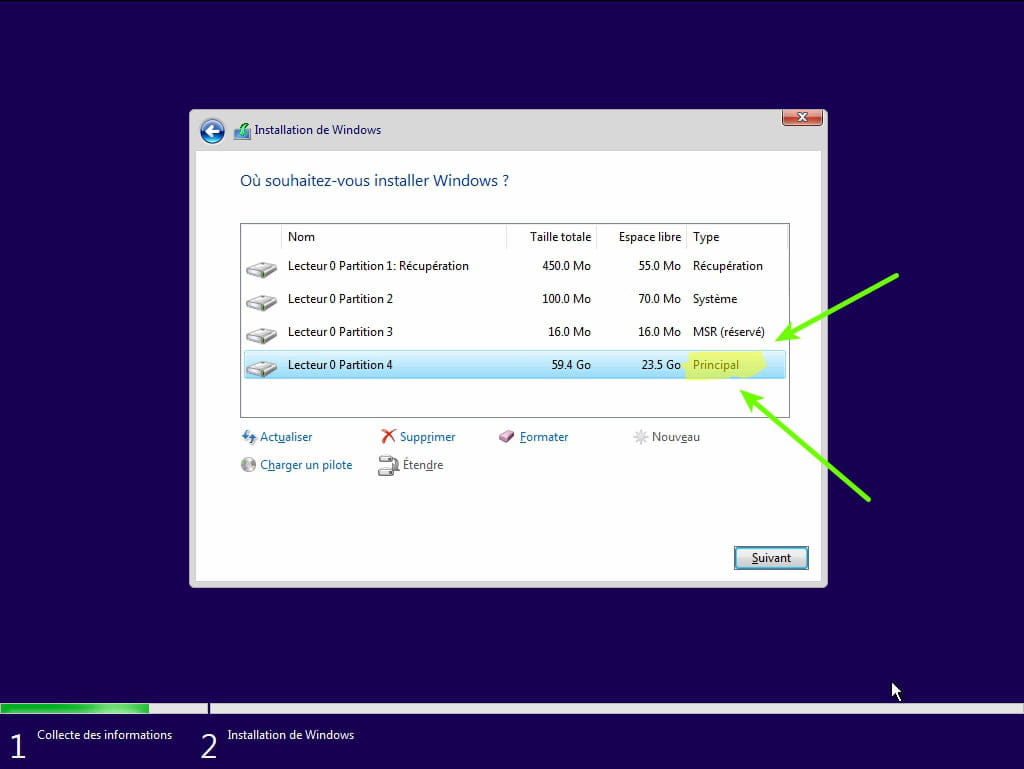
- During the partitioning phase, select the main partition and click next.
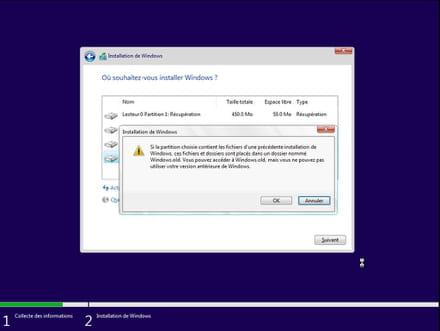
- The installer will tell you that Windows is already present and offer to move it.
- Follow the Windows installation procedure using the tutorial above.
Do not format.
Your user data will be copied to the Windows.old folder.
Once Windows is installed, I recommend following these tips to properly configure and use Windows: Tips after reinstalling Windows.
-
Well, I have my answer. I put the SSD in an external case, and my computer doesn't recognize it (or it shows up as an inaccessible D: drive, and Disk Management doesn't help).
I tried to recover the data with Recuva, but it doesn't work (especially since Windows is already having trouble recognizing the drive...)
Weird, a Kingston (240GB) bought in June 2017 that fails already?
Do you have any alternative ideas to try to recover the data from the SSD?
Thank you for your help :)
-
-
Hello.
In Hiren's Boot, there is TestDisk which allows for data recovery on a RAW disk.
Download Hiren's Boot: https://forums.commentcamarche.net/forum/affich-37585754-hiren-boot-cd-tutoriel
TestDisk tutorial: https://www.malekal.com/testdisk-reparer-les-partitions-de-disque/
List of applications included in Hiren's Boot: https://www.hiren.info/pages/bootcd
You will need to go into the BIOS to set the USB key or DVD as the first boot sequence.