Net Framework 3.5 (2.0 and 3.0 included) - installation cannot be completed
Solved
cyril_4721
Posted messages
7
Status
Member
-
Malekal_morte- Posted messages 178136 Registration date Status Moderator, Security Contributor Last intervention -
Malekal_morte- Posted messages 178136 Registration date Status Moderator, Security Contributor Last intervention -
Good evening,
I am desperately trying to install version 3.5 of the .NET Framework (including 2.0 and 3.0).
I have followed many tutorials online, but each time the installation or download gets stuck. I want to clarify that I am the administrator of the computer (and run the .exe as an administrator (right-click...), and that the Windows Update service is running.
When I go to "Turn Windows features on or off", I check ".NET Framework 3.5 ...", it starts and tells me that I need to download files via Windows Update, which I do. However, once the download starts, it gets stuck and doesn't progress, even after waiting for hours.

I also tried downloading the full version from the Microsoft website, and the same thing happens except that it searches online without finding anything and gets stuck for hours as well...
Additionally, I tried using the DISM command line with the command
DISM /Online /Enable-Feature /FeatureName:NetFx3 /All

And then nothing happened...
Then..., I looked at other proposed solutions. Notably the one using the command line
DISM /Image:C:\test\offline /Enable-Feature /FeatureName:NetFx3 /All /LimitAccess /Source:D:\sources\sxs
From what I understand, the .NET Framework installation file is in the sources\sxs folder. I don't understand why we separate the image from the source since the source folder is also present in the image...
Anyway, I tried creating an image of my Windows 10 disk in .iso format that I placed in a folder called "w10" on one of my drives that I use to store data.
I isolated the source folder containing the .NET Framework cab file on the same drive but in a directory called "sources\sxs" and ran the following command while ensuring that I respected the paths and drive letters on my computer:
DISM /Image:D:\w10 /Enable-Feature /FeatureName:NetFx3 /All /LimitAccess /Source:D:\sources\sxs
Here’s what it displays:

I don’t understand where the error is and I am starting to feel overwhelmed after spending the entire day on this...
I need this version of the .NET Framework to get my 3D software to work.
If you have any clues...
Thank you in advance.
I am desperately trying to install version 3.5 of the .NET Framework (including 2.0 and 3.0).
I have followed many tutorials online, but each time the installation or download gets stuck. I want to clarify that I am the administrator of the computer (and run the .exe as an administrator (right-click...), and that the Windows Update service is running.
When I go to "Turn Windows features on or off", I check ".NET Framework 3.5 ...", it starts and tells me that I need to download files via Windows Update, which I do. However, once the download starts, it gets stuck and doesn't progress, even after waiting for hours.

I also tried downloading the full version from the Microsoft website, and the same thing happens except that it searches online without finding anything and gets stuck for hours as well...
Additionally, I tried using the DISM command line with the command
DISM /Online /Enable-Feature /FeatureName:NetFx3 /All
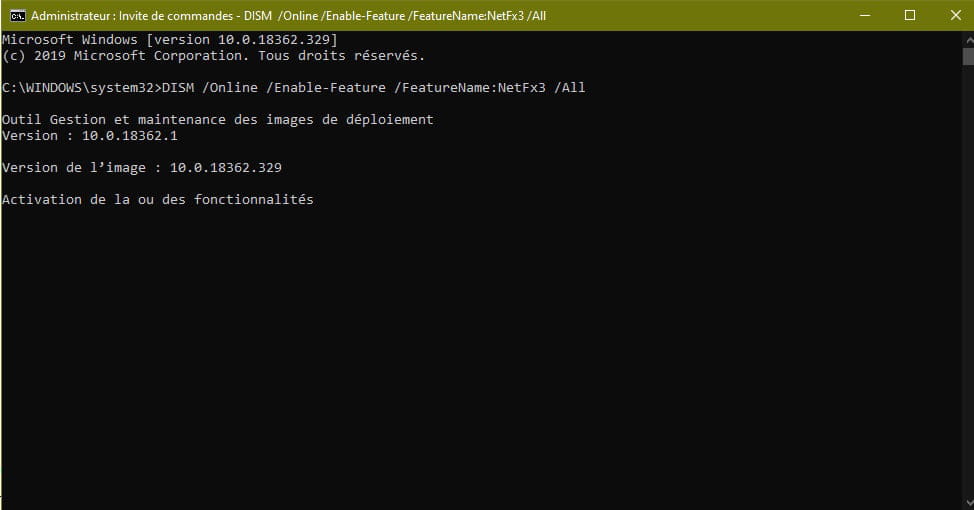
And then nothing happened...
Then..., I looked at other proposed solutions. Notably the one using the command line
DISM /Image:C:\test\offline /Enable-Feature /FeatureName:NetFx3 /All /LimitAccess /Source:D:\sources\sxs
From what I understand, the .NET Framework installation file is in the sources\sxs folder. I don't understand why we separate the image from the source since the source folder is also present in the image...
Anyway, I tried creating an image of my Windows 10 disk in .iso format that I placed in a folder called "w10" on one of my drives that I use to store data.
I isolated the source folder containing the .NET Framework cab file on the same drive but in a directory called "sources\sxs" and ran the following command while ensuring that I respected the paths and drive letters on my computer:
DISM /Image:D:\w10 /Enable-Feature /FeatureName:NetFx3 /All /LimitAccess /Source:D:\sources\sxs
Here’s what it displays:

I don’t understand where the error is and I am starting to feel overwhelmed after spending the entire day on this...
I need this version of the .NET Framework to get my 3D software to work.
If you have any clues...
Thank you in advance.
Related links:
- Unable to install .NET Framework 3.5 (including 2.0 and 3.0) on Win10 (system)
- .NET Framework 4.6 Installation Stuck
- Google Play services keeps stopping
- I cannot install .NET Framework 4.8 on Windows 10
- NET::ERR_CERT_AUTHORITY_INVALID
- Asus ROG Software Pre-Installed: What Are They For? Are They Useful?
3 answers
-
Hello,
I just tried it on a test machine, it works.


Uninstall the antivirus if it's Avast!, Antivir, etc.
Just in case they interfere.
~~
You can run an SFC scan and repair
In the Windows search, type command prompt
On the result, right-click then run as administrator.
In the black window of the command prompt, type sfc /scannow in the window.
See this image: https://www.malekal.com/wp-content/uploads/ouvrir-invite-commandes-administrateur-Windows10.gif
It should tell you that the protection found damaged items that need a restart to fix. At that moment, restart.
Then, run a DISM Repair
Still in the command prompt window, run these two commands one after the other.
DISM /Online /Cleanup-image /Scanhealth
DISM /Online /Cleanup-image /Restorehealth
(note, there is a space in front of each command starting with / /Online /Cleanup-image, etc.)
Make sure the scan and repair complete and no errors are displayed.
--
Please press any key to continue the disinfection...