Hard drive removed but items still present
Solved
Slayouze
Posted messages
17
Status
Member
-
jee pee Posted messages 31977 Registration date Status Moderator Last intervention -
jee pee Posted messages 31977 Registration date Status Moderator Last intervention -
Good evening,
I want to start by letting you know that I don’t really understand computers.
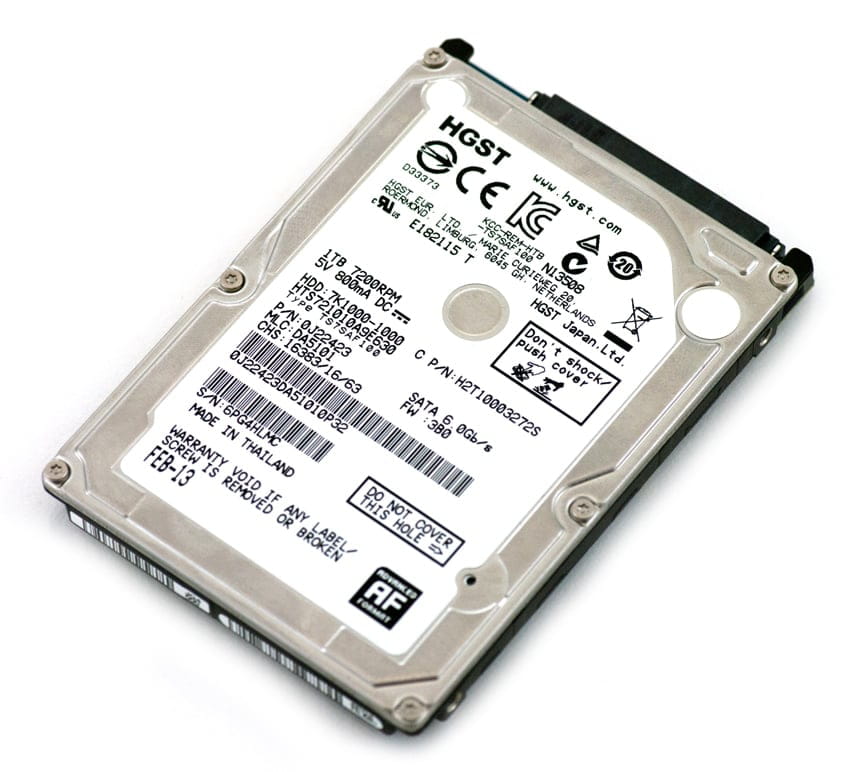
So I have an external hard drive, its name: 7k1000-1000
And my computer is: Cooler Master Storm Trooper
A long time ago, I bought the external hard drive 7k1000-1000 and I inserted it into my computer from the outside since there is a specific slot for external hard drives. However, I am going to change my case and I would like to transfer my files to the new one.
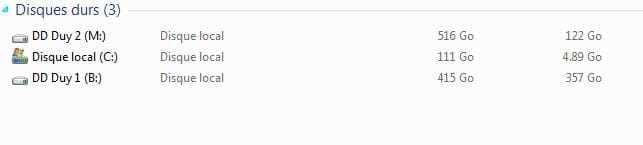
I had divided my hard drive into 2 and renamed them for organization (M:) with a total of 516GB and (B:) with a total of 415GB, and there is the local (C:) with a total of 111GB.
Now the problem is that I turned off the computer and removed the hard drive 7k1000-1000, and I turned the PC back on. But the files are still on the computer. (B:) and (M:).
Is this normal? If not, what should I do to get everything back onto the hard drive so that I can connect it to my new computer?
Thank you for your reply.
I want to start by letting you know that I don’t really understand computers.
So I have an external hard drive, its name: 7k1000-1000
And my computer is: Cooler Master Storm Trooper
A long time ago, I bought the external hard drive 7k1000-1000 and I inserted it into my computer from the outside since there is a specific slot for external hard drives. However, I am going to change my case and I would like to transfer my files to the new one.
I had divided my hard drive into 2 and renamed them for organization (M:) with a total of 516GB and (B:) with a total of 415GB, and there is the local (C:) with a total of 111GB.
Now the problem is that I turned off the computer and removed the hard drive 7k1000-1000, and I turned the PC back on. But the files are still on the computer. (B:) and (M:).
Is this normal? If not, what should I do to get everything back onto the hard drive so that I can connect it to my new computer?
Thank you for your reply.
5 answers
-
Hello,
If after unplugging the external drive, you still see your M and B, it means they are not on the external drive. They should be on the internal drive.
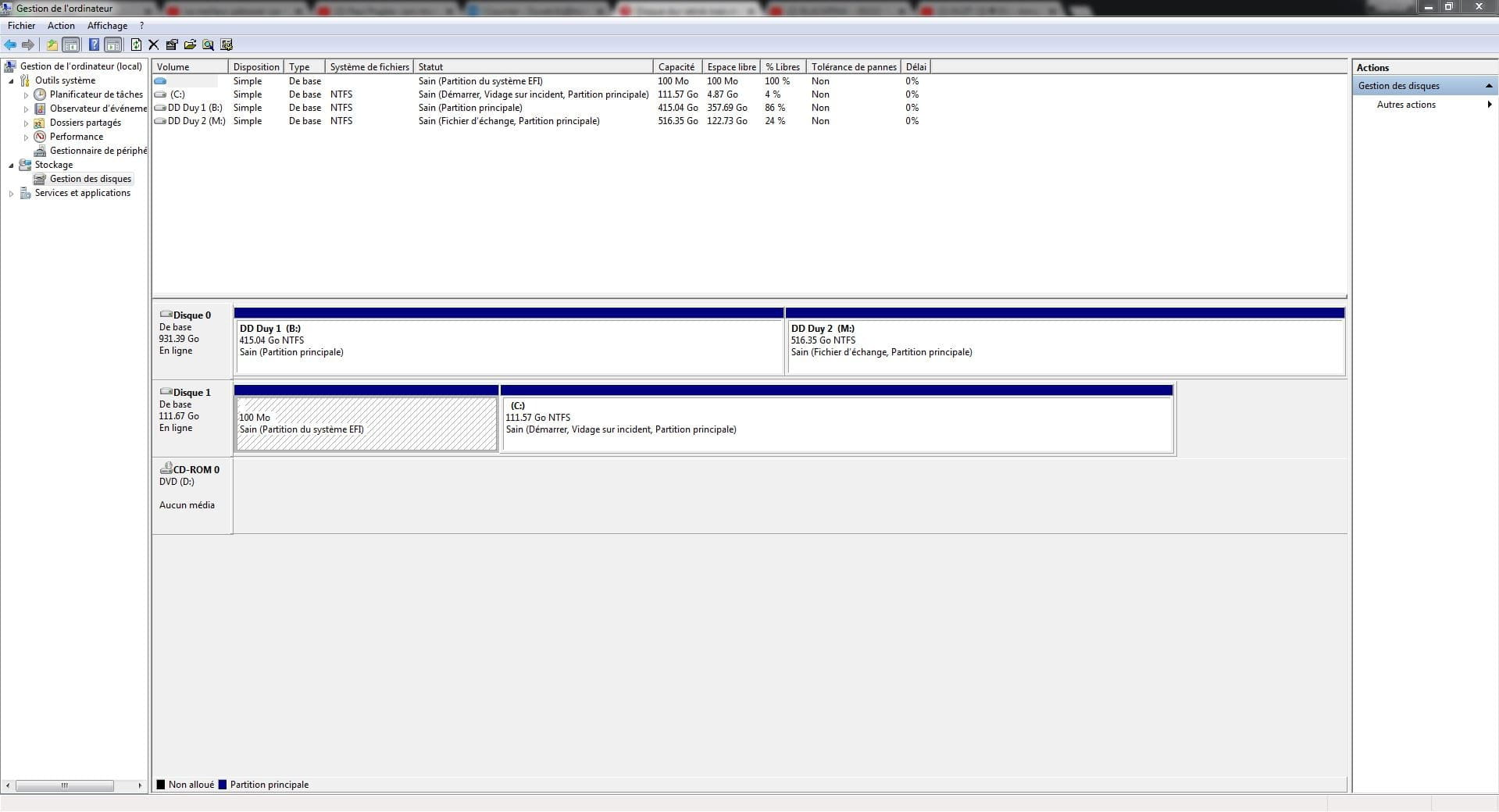
You should send us an image of the disk structure by going to the explorer on your computer + right-click manage then storage/disk management, like this image:
With this, we will be able to assess the situation.
You can even take a first image without the external drive, then connect the external drive and take a new image to see the difference.
-
I just searched for "Cooler Master Storm Trooper," and in fact, it's the name of a PC case. You must have a custom-built PC with different components. And given the size of the case, there can be multiple internal drives.
--
a stranger is a friend we haven't met yet. -
In the image, we can clearly see 2 disks. However, what is surprising is that the external disk does not appear when it is plugged in.
So, when the external disk is disconnected, do you have your files on M and B? ;-)
Is the external disk a disk with a USB connector? (if you know what that is)
-
Yes, when it is unplugged, the files are still on M and B; I tried listening to music and it worked as if the hard drive was plugged in.
For your second question, I doubt I can answer it.
By searching on the internet, I can inform you with this:

Where I’ve marked, that’s where I plug in the hard drive.
And this is my hard drive
-
It's definitely a monstrous PC ;-)
In fact, your port is a dock for SATA connecting a disk directly. It’s really a very particular PC.
Did you connect this disk to the PC while it was off before creating the partition image? Because I don't know if it is supported when connecting it while the PC is on. -
Yes, I did turn it off to make sure it was properly connected. After that, I doubt it's because I plugged it in wrong, as I pushed it in all the way.
At first, I only had the C: drive
then I bought the HDD and did what I said, which is to split it into 2 drives, M: and B: etc. And today I wanted to test if removing it would make the items follow to the HDD, but ultimately they remain on the PC.
In this image I mentioned earlier
Is it normal that M and B say "local disk"? like the C drive? -
The local disk is the standard designation for a SATA-connected disk, whether internal or even removable like yours.
My analysis is that if you still have your files when the removable disk is removed, there must be 2 disks inside the enclosure (I would open the enclosure to check). And if the mounted removable disk does not appear in the storage/disk management image, it means either the disk is not functioning or that there is a specific procedure to activate it when it is mounted. -
Alright, I'm going to test this this weekend and I'll let you know how it goes. I'm not sure how I'm going to do it, but I'll give it a try.
By the way, it says I have 2 internal hard drives, what does that mean? But which one is the C and which one contains B and M?

And just a reminder, do I need to cut the power and remove all the plugs to take out the hard drives? -
The C: drive should be the one marked SSD because we put the system on the fastest one; an SSD is not a mechanical drive, but a memory like a USB stick. The WDC should be the 1TB mechanical drive with M and B.
It is likely that the SSD is the size of your removable drive, and the other one should be larger.
To check the drives, it's better to remove the power cable first. But you just need to open the PC; there's no need to disconnect or remove the drives.
-
-
None of your cables fit.
However, looking at the images, I think there is a free power connector between the 2 disks, to check:

And can you follow the red wire in the case, there might be nothing at the end, because often the data cable is a flat red cable:


--
a stranger is a friend you haven't met yet.-
-
The power cables are connected in series, one behind the other, and there are three sockets for 3 disks. The plastic cable tie is only there to prevent the cables from moving around. If we need the connector, we cut the cable tie.
I don't see any data connector in all this; it's like what we usually see with the 2 disks, almost always a flat cable.
So we shouldn't be able to connect your disk. We need to go back to the sata/usb connector. -
Hi, I looked for a connector following your response and I found this https://www.ldlc.com/fr-ch/fiche/PB00186500.html
Is it compatible with my HDD? Because I don't know the size of my 7k1000-1000, I read the description but it’s a bit vague so I'd prefer to have your confirmation.
Otherwise, for the usage, I need to plug the cable into the HDD and then into the USB port of my tower and then a new hard drive should show up and I transfer everything to it. Is that right? -
Yes, the connector seems to match, can you check that on your removable drive the connector is consistent with that of the cable.
A 2.5 drive is a drive with a size of 2.5 inches, the format used in laptops, the format of your removable drive. There is another format, 3.5 inches, for desktop computers, such as the size of your 1TB internal drive.
We plug the connector into the drive and then the 2 USBs into the PC (there are 2 to provide more electrical power to run the drive if necessary). Your drive should then appear. However, since it may be completely empty, it won't show up; you will then need to create a partition and assign it a letter in Disk Management. -
-