Merge C: drive and Data D: drive
Solved
mbriandv
Posted messages
13
Status
Member
-
Sancho -
Sancho -
Hello,
I am a Windows 10 user and I am facing a problem: I cannot merge the main drive C: with the Data drive D: which is actually a partition of the same disk. A 1 TB HDD.
I tried going to Computer Management > Disk Management, however the actions I can perform are restricted because they are grayed out and therefore inaccessible. I tried formatting and reducing the Data drive D: (which is empty now) but nothing works.


I fear that my problem is related to the fact that from the design of their product, computer manufacturers do not allow users to merge drive C: and drive D:
If anyone could help me...
Thank you :)
I am a Windows 10 user and I am facing a problem: I cannot merge the main drive C: with the Data drive D: which is actually a partition of the same disk. A 1 TB HDD.
I tried going to Computer Management > Disk Management, however the actions I can perform are restricted because they are grayed out and therefore inaccessible. I tried formatting and reducing the Data drive D: (which is empty now) but nothing works.
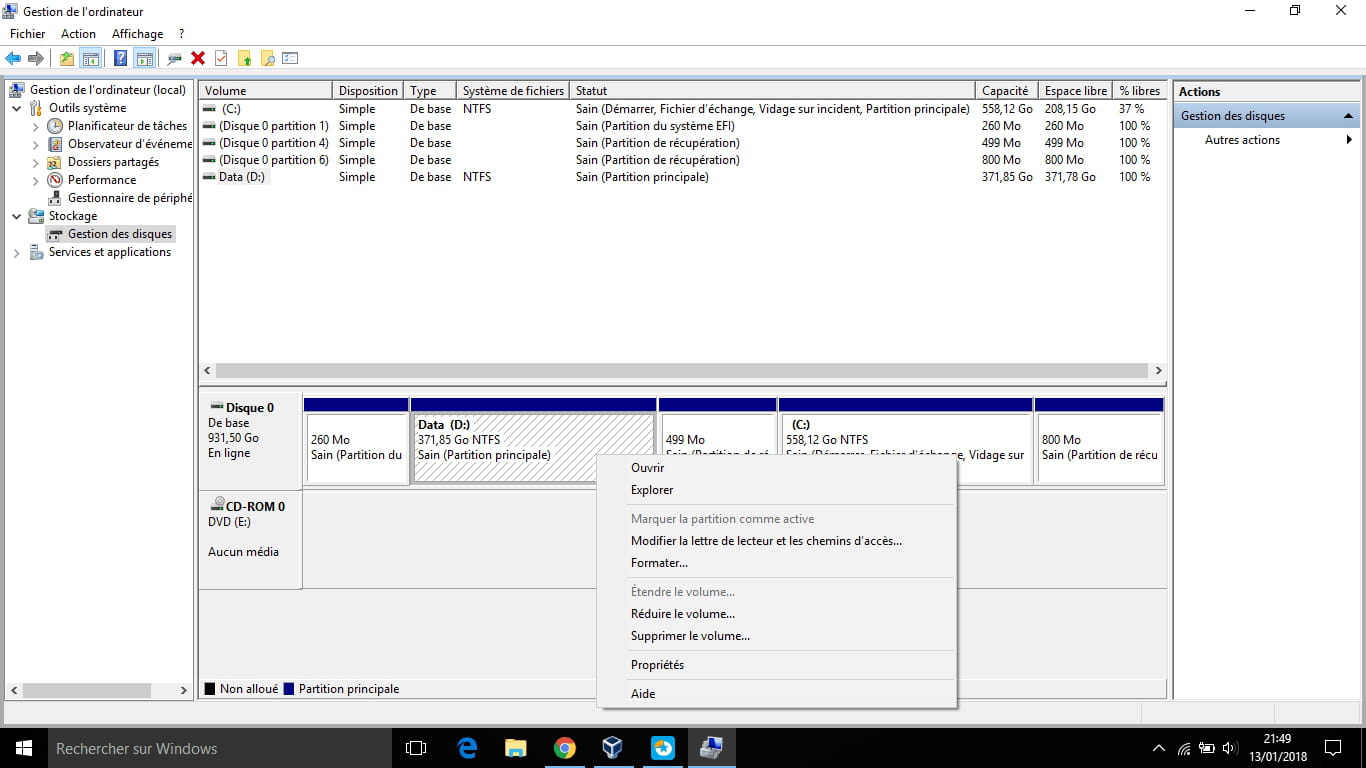

I fear that my problem is related to the fact that from the design of their product, computer manufacturers do not allow users to merge drive C: and drive D:
If anyone could help me...
Thank you :)
4 answers
-
Hello,
Unfortunately, you will not be able to extend your C partition because it is not contiguous to the D partition. The 500 MB between the two is a system recovery partition that you cannot delete.
To address the issue, you would need to reinstall Windows and just before the installation, on the partitioning screen, delete each volume to obtain a single “Unallocated Space” with the full capacity of your hard drive. When you click “New,” the installer will notify you that additional partitions will be created for the system to function properly (these partitions are the 500 MB recovery partition and another partition that contains essential data for booting Windows).-
-
Hello,
Thank you for your response.
It is indeed much clearer! Could it be that C: is a system partition, which is why it cannot be extended?
How is it that I have friends who, on their laptops, managed to merge the two partitions C: and D: using Windows Disk Management because the option wasn't greyed out for them...?
So this means that if I reinstall Windows, I will lose my activation key since Windows 10 has become paid... On Windows 7 it was on a little paper on the computer, but on Windows 10 it is nowhere to be found. Do you know where I can find it?
PS: Sorry, that's a lot of questions in one message ^^
-