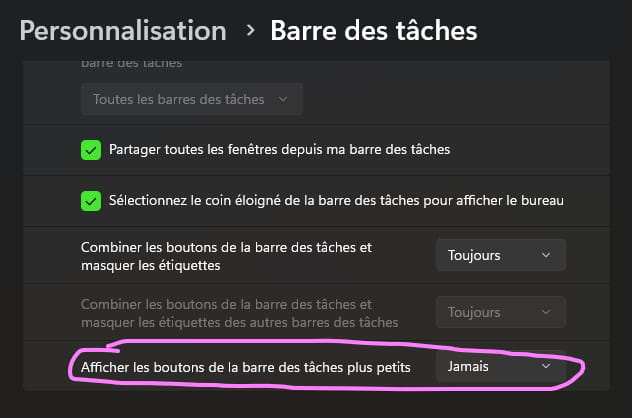
Taskbar that hides
Solved
Domy31 Posted messages 377 Registration date Status Member Last intervention -
Hello,
Since the second-to-last update of Win11, I've been having a little issue. I sent an email to Microcrotte and since there was an update today, I thought it had resolved the problem, but NOPE! Here’s my issue:
The taskbar no longer appears automatically. Why?

Here we can see the taskbar appearing on the left and right, but not on my browser.

In this last capture, the bottom of my screen with the File Explorer is visible, and you can even see the shortcut name of one of my drives, but not the taskbar. On the left, you can see the Windows icon, on the right my recycle bin and the time. If the window covers the bottom of the screen, the taskbar won't show up anymore.
My taskbar is normally set to hide, but before it was enough to move my mouse to the bottom of the screen to see it appear above the windows present on the screen. Does anyone know where to look to restore this handy automatic functionality?
Thanks to you
6 answers
-
Hello,
Here is a suggestion to solve your issue: Restart the taskbar services.
To do this, you need to:
- Press Ctrl + Shift + Esc to open the Task Manager and access the Details tab.
- Locate the task named "explorer.exe" and select it.
- Click on "End Task."
Then check if the taskbar works better after restarting the explorer service.
Ritchi
-
Hello #_Ritchi_
Ah! That's true, I didn't think of that, but I didn't do "End Task" because I know I would lose my wallpaper, etc., so I did "Restart Task", which I suppose is the same thing because someone did this for me 7 or 8 years ago and told me that restarting would close any apps that were inactive or forgotten by the system. Anyway, there were 8 instances of Explorer upon rebooting the first one: flickering of the "Task Manager", and only 2 Explorers remained open, one being the one from my drive that I'm working on and the other must be the one that manages the wallpaper.
And:
And ...
And it seems to have restored the normal functioning of my taskbar.
Bravo _Ritchi_ and thank you, I'm still going to wait a bit to see if everything goes well and I'll come back to mark it as resolved.
Have a good evening
-
Hello everyone,
Here is a new day full of bitterness because when I started my computer this morning I was grumpy:
It Doesn't Work Anymore ....
Indeed, as usual, I come to this excellent Forum to see the news and I go to the bottom of my screen to check and that damned Taskbar doesn't open, in fact, it doesn't reveal itself as long as my cursor is on my browser, so I immediately open a Folder to check with the explorer SAME.
I go to the Task Manager (thanks #_Ritchi for the keyboard shortcut) I right-click on File Explorer I restart it = flickering of my screens, once the display stabilizes I rush my cursor to the bottom of my screen and miracle my Taskbar appears.
Since I don't want to do this every day I check by shutting down my tower and rebooting it after 5 minutes.
I do the same, I click on my browser on my taskbar = Firefox opens normally = I go to the bottom of my display and no appearance of the Taskbar same on my second monitor so to make this bar reappear on my first screen: I click on an empty part in a visible area of my desktop, the bar comes back, but, BUT on my 2nd screen the bar remains hidden whereas it appears on the first screen, so I have to do as in the 1st screen I click an empty spot on the desktop the bar starts functioning normally on that screen too.
Does anyone have an idea why the detection of the bottom of the screen is no longer working normally?
Maybe another idea: There is a feature that allows me to close all the windows displayed on my screens with a single click: normally to the right and at the bottom of the taskbar on the few pixels in the corner, I see "Show Desktop" appear which allows me to clear my screen instantly. So if the bar remains hidden even though the tip of this bar appears when I'm outside the window that hides it, I don't have access to this function, if I click on the visible part of the desktop and move my cursor down the bar appears in its entirety and this last feature too.
Does this give you any ideas for a normal return of this bar?
Thanks in advance
-
Hello everyone
I'm coming back to my persistent problem to ask you a question:
Because I hope it's not just me.
Is it the same for you?
Thank you
-
Hello,
I suggest you try the various solutions proposed in the link below (see the message dated May 29, 2025, 08:50) and particularly solution 3, which concerns display settings when using multiple screens. If the display scaling is not set to 100% or "recommended," then the taskbar may be displayed outside of your screen's visible area.
https://learn.microsoft.com/fr-fr/answers/questions/3877056/probleme-avec-ma-barre-de-taches
Ritchi
-
Hello everyone,
Try this:
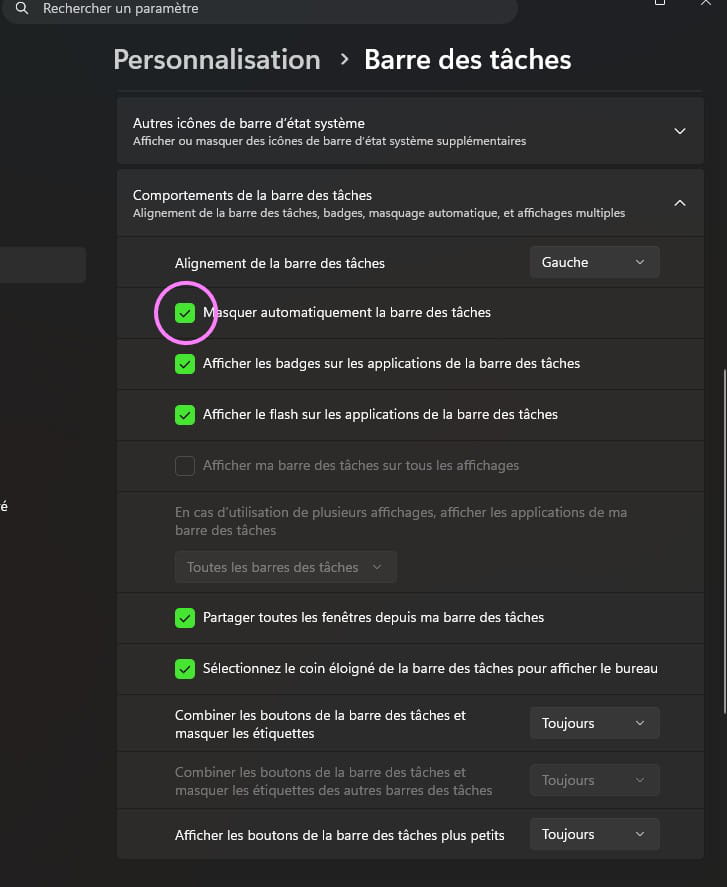
-
Hello and good morning,
Thank you #_Ritchi_ for looking a bit into your link: microsoft.com issue-with-my-taskbar and it explains:
- Adjust display settings
Sometimes, display scaling or the presence of multiple monitors can cause overlay issues.
- Open Settings > System > Display.
- Make sure the scale is set to 100% or to a recommended level.
- If you have multiple monitors, make sure the taskbar is set to display only on the primary screen.
So I did indeed set the scale to 100% on both monitors, and now the taskbar works normally on both screens, even after several reboots.
So the issue with the taskbar appearing above the windows is resolved with the scale at 100%.
Now, I have another issue which is the size of the taskbar I checked the value of TaskbarSi in the Registry which was set to 1 and I changed it to 3, but that didn’t change anything.
I don’t know if with Win11 we can modify this while keeping the normal functionality of appearing at the bottom of the screen. Also, should I open another post for this question?
Thank you to all contributors.
-
Hello,
See if this can help
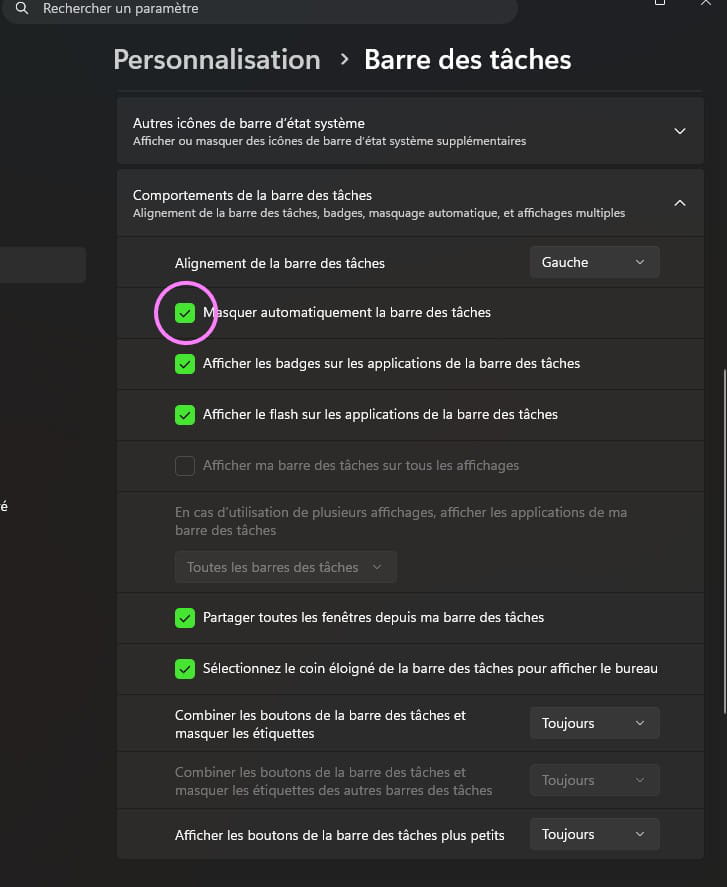
at the bottom, size of the icons.
Thanks #Kori-Kori
You tell me "bottom, icon size. " But I don’t see that information in your illustration, in my "Personalization > Taskbar" either:
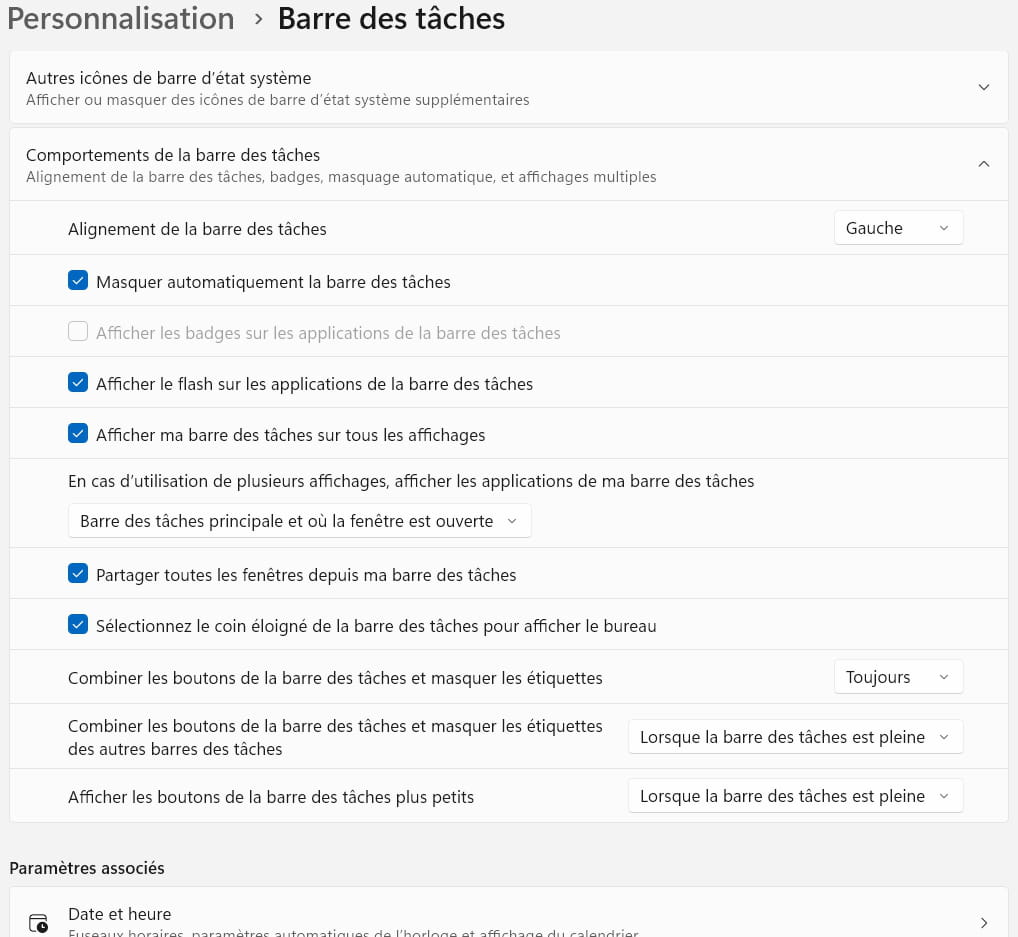
That looks very similar to me, doesn’t it ?
Can you tell me where I can find this information "icon size? Thanks.
- Adjust display settings