Microsoft Word: styles and numbered lists
SolvedNain_Porte_Quoi Posted messages 178 Registration date Status Member Last intervention -
Hello,
I have a Word document where I create a numbered list with a negative indent of 0.8 cm.
I want this list, which includes 3 items, to align with the left margin; to do this, in the Paragraph window, I set the left indent to 0 cm. No problem so far. I then create a new style for my list called "Paragr num-1".
Later in the document, I create a new numbered list. To have the same format as the first one (left indent of 0 cm, negative indent of 0.8 cm), I give it the style "Paragr num-1".
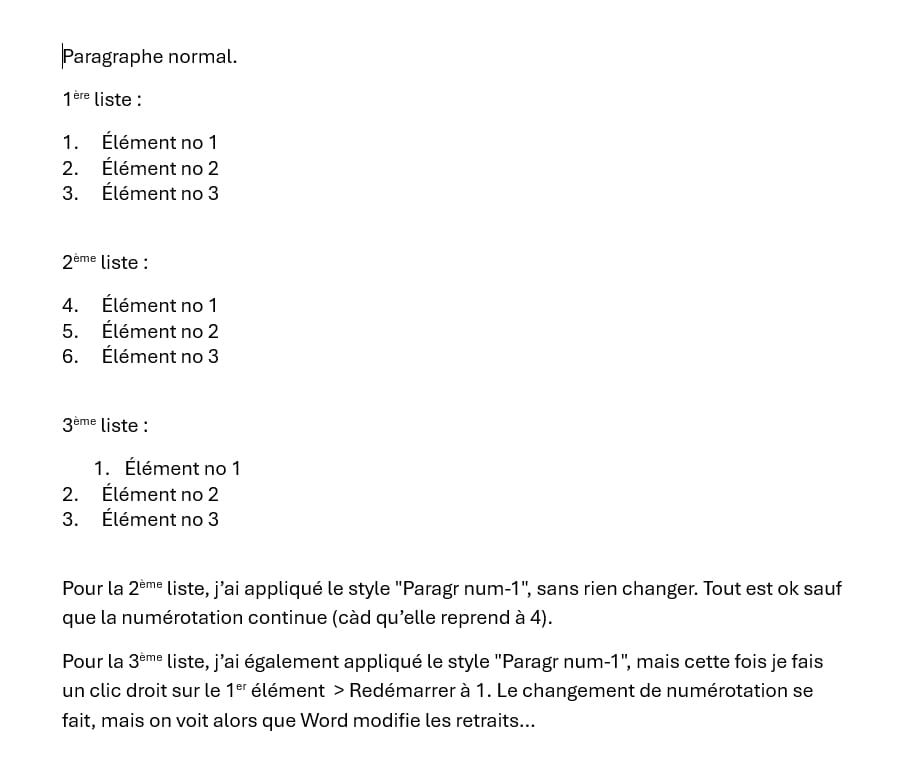
Everything is fine, except that the numbering of this second list starts at 4 (it follows the numbering of the previous list, in fact). To restart the numbering at 1, I right-click on the first item of the list and choose "Restart at 1".
I then notice that the numbering of the second list starts at 1... but I also see that the paragraph format is changed: Word has added a left indent of 0.63 cm (and a negative indent of 0.63 cm) to the first item of the list I just modified. The style associated with this item (this paragraph) is still "Paragr num-1" (and the paragraph format for this style indeed has 0 cm as left indent and 0.8 cm as negative indent). It should be noted that the other items (both from the second list and the first) have kept the correct format (no left indent). The first item of the second list is therefore shifted to the right compared to the following items...
It seems that Word applies to the item whose starting numbering I change the parameters (indents...) of the default style for numbered lists, rather than those of the style I created.
Why does Word do this?
And what can I do to correct this "behavior," so that the parameters (indents) of the style associated with the paragraph remain unchanged when I modify the numbering?
I have modified some settings in Options > Proofing > Autocorrect Options... (for example, by checking/unchecking "List styles", "Automatic numbered lists", and also other options), but it doesn't change the problem.
There you go, sorry for this long message, but I tried to be as clear as possible.
Thank you in any case to all those who could help me solve this problem.
Thierry
16 answers
-
Here it is:
https://cijoint.org/r/41VRt7xe#QLIaqUUePOP24G3cjIoLV6IbuBgYq92vfn8XG3CWrbI=I explain everything in the document.
m@rina
-
You do as you like; but using Word without styles is like using a typewriter...
-
Hello,
but with an attached file, it would be even clearer, and above all it would allow us to provide detailed and precise answers ...
Retirement is great! Especially in the Caribbean ...
Raymond (INSA, AFPA) -
Very good suggestion, indeed ;)
Except that I don't see how to attach a Word file.
But here is a screenshot that shows the problem.
Thierry
-
Hello,
here is a very good article on numbering
https://www.faqword.com/index.php/word/mise-en-forme/les-listes-hierarchiques-dans-les-regles-de-lart
-
Thank you very much. Indeed, this article provides clarity on the links between styles/titles/numbering.
However, the logic described applies to the numbering of titles, which is not what I want to do.
That said, reading the article gave me another simple idea: by clicking on the Numbering button (in the Paragraph group of the Home tab), then clicking on Define New Number Format, I was able to achieve what I was looking for. The numbering now applies with the paragraph format I give it, and I can assign it a style (which I call "Paragr num-1") that I can then apply to all the items I want to number. And if, for a numbered list, the numbering needs to start over at 1, a right-click on the item and then on Restart at 1 no longer changes the paragraph format of that item.
There, it was quite simple, but you had to know it.
Thanks again for your help and suggestions.
Thierry
EDIT: actually no, it doesn't really solve the problem. If I still want to change the paragraph format of the list items (e.g., if I want to add a left margin or increase/decrease the negative indent), these changes do apply to the list... until I click on Restart at 1. At that point, that item (the one that needs to restart at 1, of course) takes on a different paragraph format from the one I had set.
-
Hello,
It's just that you didn't provide the style name for each level. I don't understand why you're not using the heading styles provided by Word, because whether it's a "paragraph," a "section," a "chapter," or whatever you want, they are still "headings" for Word.
Well, now we don't really understand how your document is structured. If you want something more sophisticated, take a look here:
m@rina
-
Thank you m@arina for your response.
Actually, my document is simple: in my example, all the paragraphs have the "Normal" style, except for the numbered paragraphs ("1. Item no. 1", "2. Item no. 2", etc.), to which I have assigned a style that I created and named "Paragr num-1".
Is it a problem to create a new style instead of using an existing one? I don't see why.
I did try assigning the existing "Heading 4" style to my list items (instead of giving them a new style). But in that case, it is impossible to restart a list at "1" (the "Restart at 1" option is not available).
Anyway, I still don't understand anything. My question seems simple: how can I ensure that Word does not reformat the paragraph (i.e., change the indentation values) when I simply request to restart at 1... From my naive user's point of view, it looks like a bug, I think.
Thierry
-
Hello
So, first of all, we never said that Word is easy to use, especially when it comes to lists. Why? Because there are x ways to make lists.
There are already two types of lists: multilevel lists and simple lists.
So here we are talking about multilevel lists. As I explain in my tutorial, you either use the list libraries provided with Word or you create a list style, especially if you want to have a type of list that is not offered in Word.
A list style is made up of:
- the style used for each level
- the style of the list.The style used for each level should be a title style that is made for that with a predefined hierarchical level. Why complicate things with other styles?? This style can be customized to achieve bold, italic, a specific font size, etc., and that’s it.
Absolutely do not use the default "List Paragraph" style for various reasons.The list style will take into account the numbering format, number alignments, indents...
So... when you choose the Title 1 style, you get the first level of the list, with its indent and alignment; when you choose the Title 2 style, you get the second level of the list, and so on.
After this explanation, you can understand that you cannot mix a hierarchical list with a simple list. Therefore, when you use a hierarchical list, you cannot restart at 1, otherwise it wouldn’t be hierarchical. This is simply not the logic of Word.
Now, in the same document, you can very well have several hierarchical lists. In this case, you need to create another series of styles.
So, you have two solutions: the classic one with list styles, and the more sophisticated one via the SEQ or LISTNUM fields.
Otherwise, in a large document, to restart at 1 for each major section or chapter, I explain here: https://faqword.com/index.php/word/mise-en-forme/redemarrer-la-numerotation-dans-un-document-long
m@rina
-
I possibly didn't make myself clear.
First of all, no, I wasn't talking about multi-level lists: my intention was never to use hierarchical lists. I completely understand that you can't "restart at 1" when using headings. That's one of the reasons why I didn't want to use Word's heading styles.
In fact, in the example I'm giving, it's very simple: there are no headings. And there’s no mixture between hierarchical lists and simple lists. There are only paragraphs with the "Normal" style and paragraphs with the "Paragr num-1" style (based on "no style") that I created. Each time, when I choose "Restart at 1" for the first item in a list that I created with this style, there is a change in paragraph formatting for that first item (not for the ones that follow), resulting in something like:
a. Item no1
b. Item no2
c. Item no3
Hence my question: why this untimely change in paragraph formatting when choosing to restart at 1? For me, it remains a bizarre behavior (to say the least).Thierry
-
I don't know how you created your style, I don't know what kind of number or list you are using.
You tell me what is wrong, but you don't say how you do it.
If you want to show me your doc, or a little piece of it, I would understand better.
m@rina
-
I would like to send my doc file, but I can't find how to do it.
Below, I am copying and pasting a Word document in which I try to show, step by step, the problem I am encountering.
-----------------------------------------------
This is a normal paragraph (style "Normal"). I am creating a first list as follows:
Item no 1
Item no 2
Item no 3To add numbering to this list, I select the 3 items, click on Numbering (in the Paragraph tab), and choose a numbering option from the Numbering Library. This results in:
1) Item no 1
2) Item no 2
3) Item no 3I modify the paragraph indents of these 3 items to have 0 cm for the left indent and -0.8 cm for the negative indent. This gives:
1) Item no 1
2) Item no 2
3) Item no 3A bit further in the text, I want to create a new list with the same characteristics. To do this, I copy and paste the list above:
4) Item no 1
5) Item no 2
6) Item no 3But I see that the 1st item starts at 4. I right-click on this 1st item and choose "Restart at 1". This results in:
1) Item no 1
2) Item no 2
3) Item no 3You can see that as soon as I clicked on "Restart at 1", the paragraph format of the item in question was changed.
Note that so far, I haven't created any styles.
I thought that by creating a style that would save the format I want for my numbered list, maybe it would prevent this weird behavior that occurs when I request to "Restart at 1". That’s why I created (by simply using the "Create a Style" option from the Styles tab) a new style that I named "Paragr num-1".
But in fact, I realize that it changes nothing to the problem: whether I create a dedicated style or not, the paragraph format changes as soon as I click on "Restart at 1"...-----------------------------------------------
Now, I’m starting to think that it might be better if I don't use Word's automatic numbering, and that I simply do a manual numbering...
Thank you anyway for trying to understand my problem and for attempting to help me.
Thierry
-
Good evening
You can use the site https://cijoint.org/
for example
Don't forget to provide the link.
m@rina
-
Great! Here's the link:
https://cijoint.org/r/6Uq44Bxu#dua+Bea9ZLCYO5KG3wc1B4I0dZnp+26OuiFcDCeNHXI=
-
In the meantime, I found a solution to my problem by using a command that had escaped me ("Adjust list indents"):
I create a numbered list using the Numbering option in the Paragraph tab. Then, right-click > Adjust list indents... and I enter the values I want. If I now copy this list and choose "Restart at 1"... it works! The paragraph format (indents...) remains as I have defined it.
Phew! It was actually simple. I just had to know...
Thanks anyway for trying to help me.
Thierry
-
Oh, but I use styles: after creating my list, I assign it a new style that I can of course then apply to other paragraphs.
And I can create different kinds of numbered lists in the same document, with different formats, to which I can assign new styles.
All of this works very well.