Transfer photos from my REDMI to my computer
SolvedHelpiOS Posted messages 8474 Registration date Status Moderator Last intervention -
Hello everyone,
Here I am again, but I reassure you that overall I have adapted well to my smartphone and I don’t have any daily issues.
But, alas, there is a "but"—I cannot transfer the photos taken with my smartphone to my computer.
I have properly connected the two devices with the right cable (the one from the phone charger), and there is indeed a sound indicating the connection, but the computer says: "We could not reach your device." I checked on my PC, the REDMI is selected, but it displays "empty folder."
For your information, I had no problem transferring photos from my old "Nokia" to this computer...
Thank you for letting me know what I need to do.
Have a great day and best regards to all
12 answers
-
Good evening Helpi OS,
I followed your procedure step by step:
- I connected my phone to the computer,
- I swiped down from the top of the screen,
- I saw all the buttons to activate or deactivate the functions
- I saw the brightness slider
- and then I arrive at the mention "No notifications"
In short, back to square one.
Understanding that I need to set "USB preference," I searched in the settings and in the "connected devices" section, I checked "on this device" "USB preference" and "file transfer."
I thought I would manage that way, nope, it doesn't work. My device is not detectable as long as I've given consent on that pesky Unfindable Notification:
Sorry for causing you such a search.
Have a good evening
Sincerely
-
jeannets Posted messages 28455 Registration date Status Contributor Last intervention Ambassador 6 618
Hello,
You shouldn't make such comparisons between two different phones and different Android versions..
What is the version of Windows..? What software is used for this photo transfer..?
-
Hello SOSProvidence,
If you are already comfortable with your phone overall, especially for the basic functions, that's what matters most.
To transfer your photos to your PC, you followed the right procedure, but, (yes, there is a but) one step is missing to allow the transfer.
Once connected to the PC, you will see a notification on your phone saying "USB Configuration Mode". Tap on that notification and select the MTP (Media Transfer Protocol) mode.
Then go to the phone's folder in the file explorer on the PC. Your photos and videos will be available in the DCIM folder.
-
Hello,
You have a Redmi, so an Android. When I connect mine (a Sony) to the PC, a bubble appears with a question...
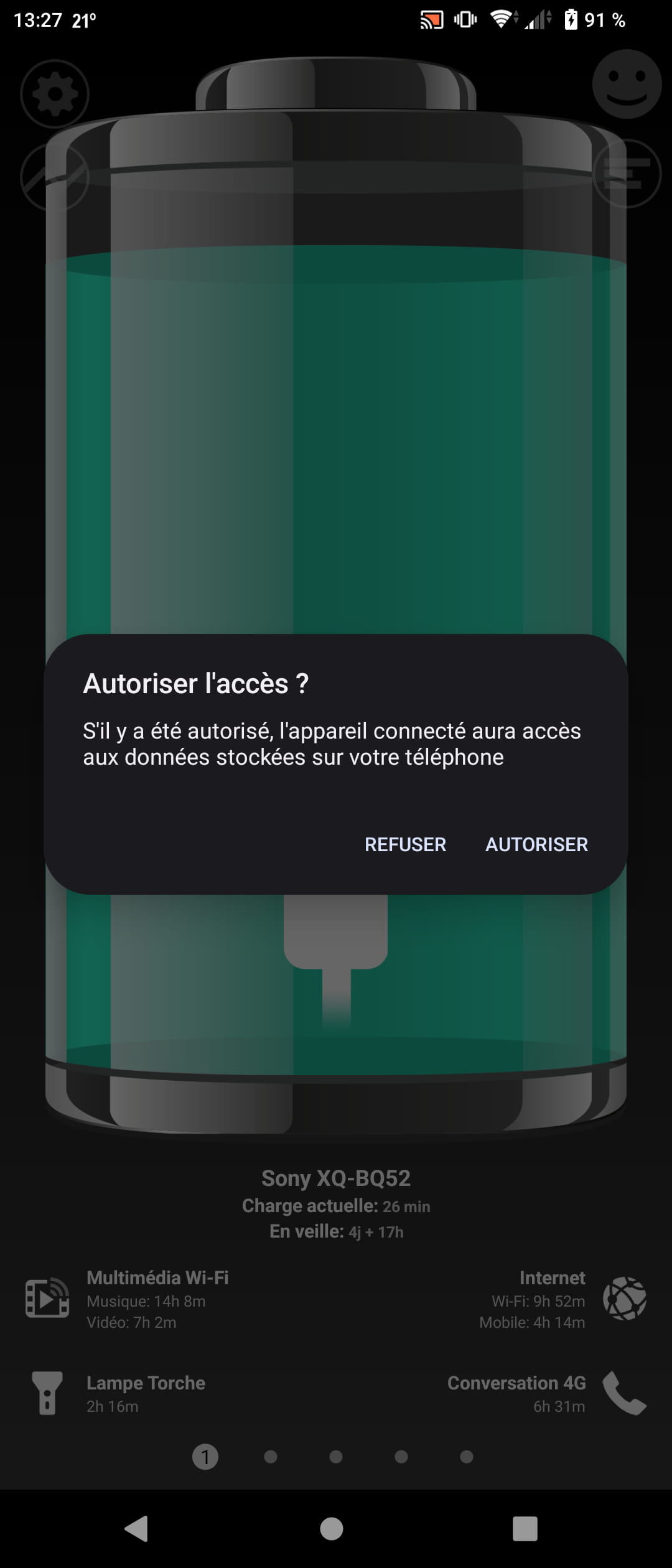
Then, there's no need to install an application to transfer your photos from your smartphone to your PC.
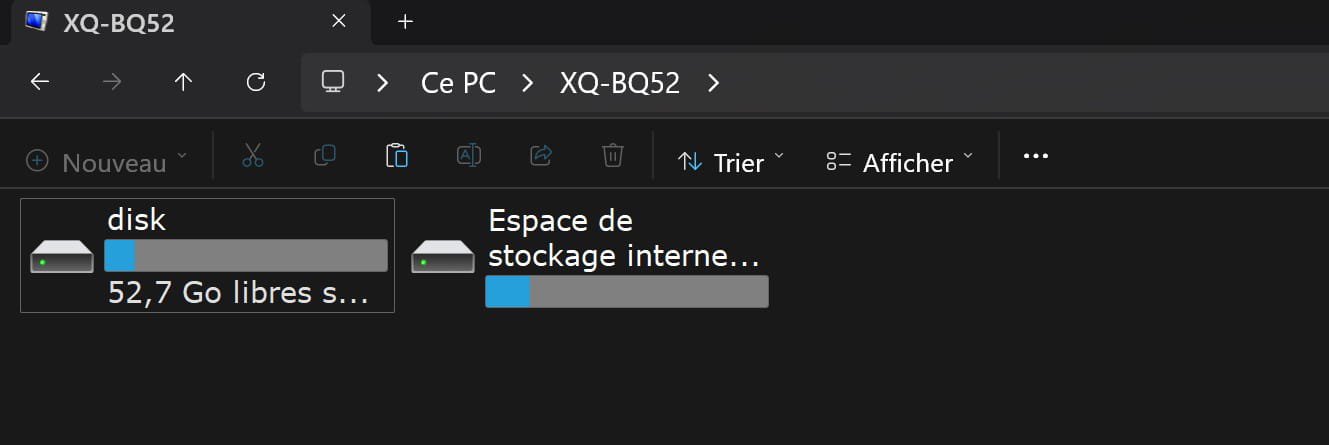
... You can access the Internal storage/Pictures/Screenshots or disk/DCIM previously mentioned by HelpiOS, whom I greet.
P.S.: The 2 screenshots provided represent my smartphone and my PC.
-
Good evening, Helpi OS, Pan33ra, and Jeannets
Seriously, I have gone through the procedure you describe perfectly, unfortunately, I feel like in the tale of "my sister Anne who sees nothing coming" and it drives me crazy... no configuration mode notification for USP appears.
Therefore, I cannot click on this notification since it does not deign to appear! My Redmi is silent. Indeed, I have spent a good part of the afternoon checking all the notifications in the said section. To no avail, I am left checking a bit randomly for fear that one of them should have been checked. To no avail!
I do not get a bubble when I connect my smartphone and computer but a rectangle that initially tells me "import photos from Redmi A3? Open the application (I click, all happy...) then "We could not reach your device." In short, back to square one...
So here I am still at the same point.
As a workaround, I send myself emails with my photos, which is how I retrieve them, but I would prefer (don't be mad Jeannets) to do it like "before" even though I know I shouldn't compare my lovely smartphone with my old Nokia. For both, my computer has Windows 11.
Sorry for being so long and useless (but yes, I admit it)
I wish you a good evening and a good Sunday.
Thank you all, best regards.
-
Hello,
This is a silent notification; it does not automatically appear on the screen. Swipe down from the top of the screen to open the control center and notifications.
You will see a list of options in the form of buttons to turn on and off phone functions (WiFi, mobile data, Bluetooth, etc...). Below that, there is a slider to adjust the screen brightness.
And right after this slider, you will see the notifications. The one we’re interested in is called "USB Configuration Mode" or "Charge via USB" - the name may vary depending on the phone. Select this notification and choose the option for file transfer (MTP).
The notification should normally be at the very bottom of the list.
The phone must be turned on and connected to the computer (and detected) for this notification to be available in the notification center.
Keep us updated.
PS: Hi Panth33ra.
-
Hello Panth33ra, thank you for always thinking of my problem.
My Redmi is an A3.
I informed Helpi OS, who, like you, has the kindness to try to help me with the issue, about what I tried to do following their advice, but I think you can read it above? (You see, I don't know much about computers...).
Both of you don't waste your days with my troubles. To reassure you, I take very few photos and if I need to send one to my loved ones, I first send myself an email with the photo attached and then I "copy" it over to my computer. Alright, that must make the pros laugh, but it makes the old lady that I am happy.
Best regards to both of you.
-
Hello.
Thanks to SOSprovidence and to those who replied. You are my Guardian Angels! I finally found the infamous silent notification... but I'm really struggling to display it (one finger, two fingers..., three or four attempts). Moreover, this authorization is not permanent, and I have to redo it every time! Is there no way for the computer to consistently recognize the Redmi?
-
Hello,
No problem, we will eventually find a solution. The email transfer method is just as simple as it is practical, it's a good idea!
For our issue, try the following:
@JP82, this solution should also interest you.
Go to Settings > About phone, then tap 7 times on Build number until a message appears informing you that you are now a developer.
Return to the previous settings page, and go to System > Developer options. Choose Default USB configuration and set it to File transfer. The developer mode must remain active for the setting to be applied.
This will allow the phone to automatically switch to file transfer mode, without having to confirm the notification.
-
Good evening HelpiOS and JP82
Thank you for the guidance on the steps to follow:
I pressed the build number 7 times
I indicated my code as requested,
The message indicating that I am the developer appeared correctly
I went back to the "systems" page
I chose the default USB configuration
I set "file transfer"
Everything is done, I'm proud of myself and full of hope, I try to transfer my photos and then, here we go again: "we could not reach your device," it tells me.
Good evening nonetheless, let's not lose hope!
-
Hello,
My new phone does this by itself (notification) the old one does not.
In developer mode, I had also activated USB debugging.
It may also be useful to install the adb driver on the phone and its counterpart on the computer.
https://developer.android.com/studio/run/win-usb?hl=frhttps://www.lesnumeriques.com/telecharger/universal-adb-drivers-29840
-
-
Hello
it's actually extremely simple, after connecting via USB, you just have to swipe your finger from the outside of the top edge downwards to get: photo, file, or data transfer
I seem to remember seeing a point surrounded by a circle appear in the top bar on a previous device
On the rnp13, the choice appears automatically as soon as the USB cable is connected -
Hello HelpiOS
Eureka! The night (white!) brings advice, this morning I went through the procedure you so patiently explained to me once again.
This time I stopped at the point where it "got stuck," which is to say
I didn't press the transfer button but went directly to the REDMI section on my computer and this time it displayed "internal shared storage space"
by clicking on that space, I was able to find all my photos in DCMI and then Camera.
I just had to save those photos "to" ...my computer.
There you go, my problem solved thanks to your great kindness, patience, and competence. Thank you very much.
Best regards