
PC Boot Problem
brucine Posted messages 25338 Registration date Status Member Last intervention -
Hello,
My PC running Windows XP won't start anymore. I've tried several things, like safe mode startups, etc., but it's impossible. I can restore it, but only to the way I bought it, and I'll lose everything. The option to revert to a previous point is not selectable.
The PC tells me:
Windows could not start because the following file is missing or corrupt:
\MININT\SYSTEM32\CONFIG\SYSTEM
It is mentioned that I can try to repair it with the installation CD. I have one, and I tried it, but at the blue screen, I pressed R. What command should I type next?
I tried to search for a solution, but I can't find one.
What should I do?
Thank you
9 answers
-
Hello,
Try as follows:
https://www.malekal.com/reparer-windows-xp-2/ -
Thank you, this page is interesting, I will try the first solution without going through the console. If that doesn't work, I will try the other one.
However, it says:
“You must then enter various commands and confirm by pressing the Enter key on the keyboard to perform the desired operations.
The available commands are listed starting from the command help.”I see how to display the command list, but I'm afraid of doing something wrong because I don't know which one to type?
-
You should of course either reinstall XP directly from the CD or from the recovery console on the same CD since the PC won't start and you cannot repair SFC /Scannow from Windows.
Besides SFC, the most commonly used repair options when possible are there (CHKDSK, Registry, boot), otherwise it's back to the other option, reinstalling from the CD.
https://www.pcastuces.com/pratique/windows/xp/console_recuperation/page5.htm
-
-
Okay, thank you, I will take a look.
Regarding the note:
- Note: Do not select R to repair as indicated, otherwise you will end up in recovery console. Choose Install by pressing the Enter key (and yes... with Windows sometimes you have to trick it)
If it works, I won't proceed with data?
-
If I had a direct line to God, I would tell you.
That's the theory.
I haven't done that kind of manipulation under XP for ages, but I recently crashed trying to do the equivalent under Windows 11 where it was impossible to "repair" without reinstalling; I have backups of the programs and data on other partitions and on an external disk, but formally, the risk cannot be ruled out.
-
Okay.
When I insert the Windows CD, it shows in the command line:
C:\MININT> and not:
C:\WINDOWS>
What is that?
-
In your link, I did the manipulations but it doesn't work
I did them with C:/MININT Maybe that's why?
There's just fixing the registry, the commands don't work, I couldn't do them
-
If I don't do R right away in the first proposed solution, I end up on this page by pressing enter as indicated:
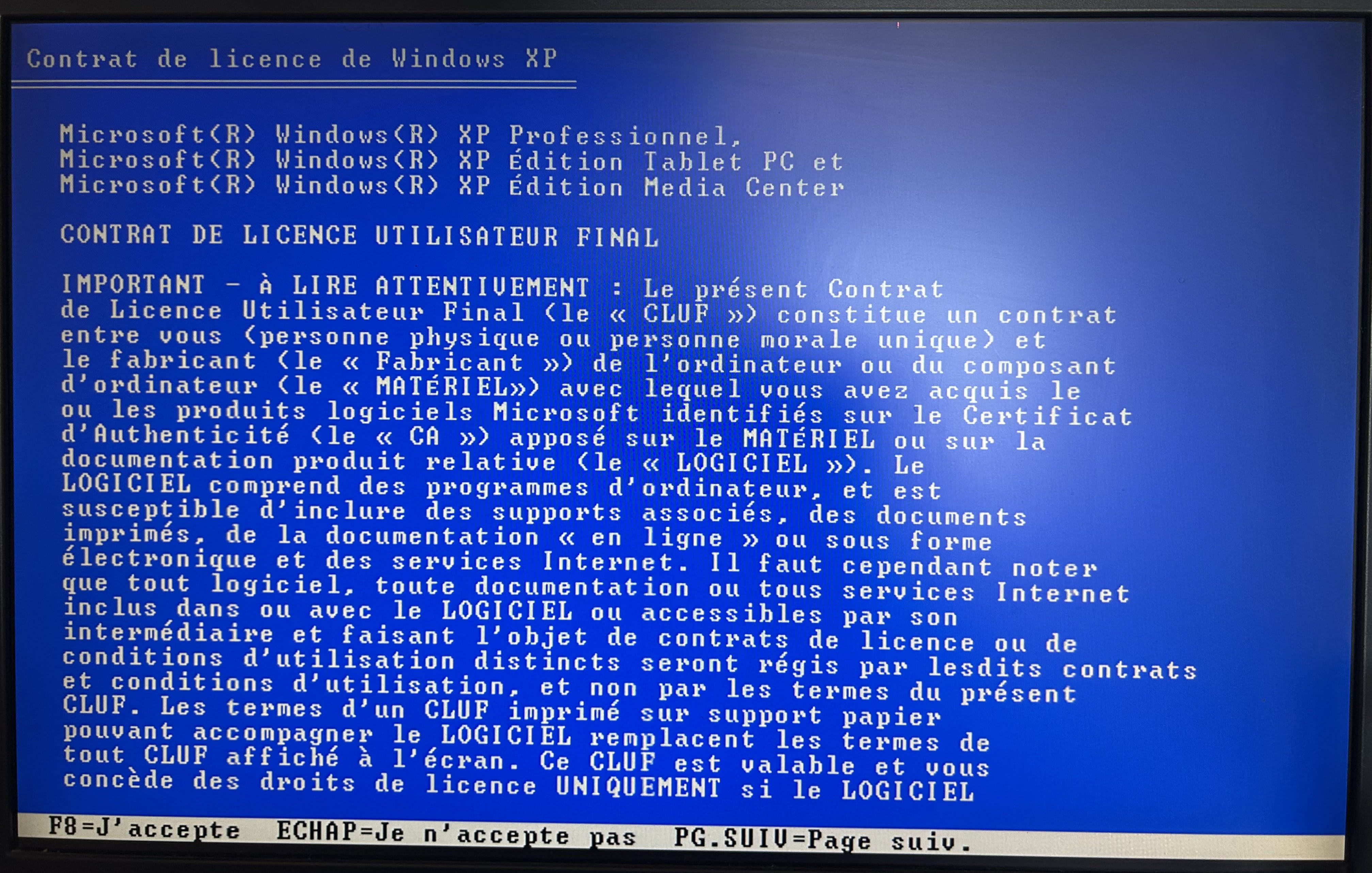
Not finding the R to fix marks on the page, I pressed F8 and I get:
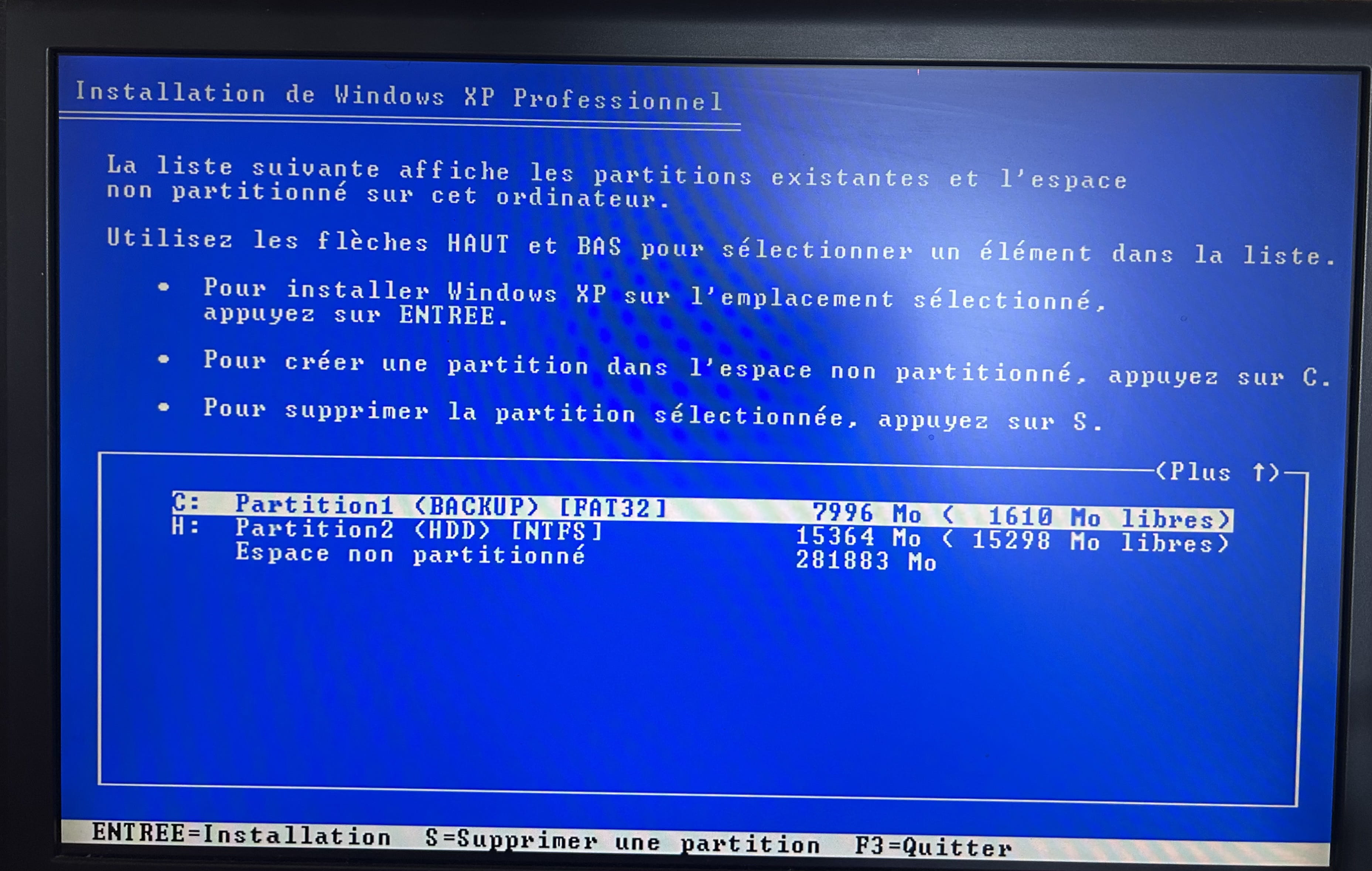
I still can't find R, what should I do please? I'm stopping, I'm afraid of messing everything up.
Thank you
-
The tutorial indicates that the title is misleading and that to repair it, one must choose to install, but again, without a backup, there is no such thing as zero risk.
The MININT folder is the installation folder for XP on the CD; manipulating it in a real DOS mode, and thus in a recovery console, forces the letter C: to the boot media (the CD) and assigns the next available letter to the disk (D:).
To verify this, it is enough at the MININT prompt to do DIR and check what is there; similarly, to verify that you are indeed at the root of the CD, you do CD .. then DIR, and at this root, CD D: then DIR should return the contents of the hard drive.
In order to be able to (for example) execute SFC /Scannow from the command prompt, which implies that this command prompt is located in the folder where this command is placed and that it automatically addresses the disk because you cannot specify a destination drive, and nothing is less certain.
-
-
Thank you.
I didn't understand everything in your last post.
I will redo the manipulations with C:\WINDOWS to see.
What I understood was that we shouldn't repair right away but install and then repair afterwards. But if it’s install, then I will press ENTER on my last screenshot to repair Windows and specifically recover my data.
-
Hello,
The message you are receiving indicates that the Windows XP system registry is corrupted or missing. Fortunately, you have the installation CD, so you can attempt a manual repair. Here are the steps to follow:
1. Boot from the Windows XP installation CD:
- Insert the CD and restart the PC.
- Press any key to boot from the CD.
- When you see the blue installation screen, press R to enter the recovery console.
2. Choose the Windows installation:
- It will ask you which Windows installation you want to log into (generally, type 1 and then press Enter).
- Enter the administrator password if there is one (otherwise, just press Enter).
3. Backup the corrupted files (optional but recommended):
Type the following commands in succession:
md tmp
copy C:\Windows\System32\Config\System C:\Windows\tmp\system.bak
4. Restore a backup copy of the registry:
Now type these commands (one at a time, confirming each time with Enter):
copy C:\Windows\Repair\System C:\Windows\System32\Config\System
If it asks whether to overwrite a file, type Y for "yes".
5. Restart the PC:
After the copy, type:
exit
and press Enter to restart the PC.
6. Result:
If all goes well, Windows XP should start. However, it will be a basic original registry, so some configurations or programs may no longer function correctly.
-
Hello, thank you. In the recovery console, it shows me C:\MININT, I can't switch to C:\WINDOWS?
-
As indicated in <10>, the MININT or I386 folders are on the installation CD; they are only temporarily on the PC during this installation, after which they are deleted.
The CD does not have a Windows folder, and the recovery console assigns the letter C:
from C:\MININT it is therefore not possible to do CD Windows since Windows does not exist.
You need to do CD .. to return to the root, the machine will respond C:\
From there, assuming the hard drive has been pushed to the next letter, you do
CD D:
If there is an error message, you need to try the other letters until you find the correct one, and then check that you haven’t made a mistake by displaying the contents with DIR.
There, you should see the folders XP Documents and Settings, Program Files, Windows... and possibly be able to do CD Windows.
But well, if it’s to install directly, you might as well click on setup.exe at the root of the CD; at the command line (same remark) you need to navigate, depending on the case, via CD in the MININT or I386 folder and enter winnt.exe.
The files in the I386 folder on the CD are compressed; in other words, there is no way to run a Dos command there except from the recovery console, specifying if necessary the target on the hard drive (in D: or whatever you want).Hello,
from C:>MININT if I type CD C: or CD .. I don't see what would prevent me from going back to C:.
The catch is that in this situation, the PC is indeed looking on C: but doesn't say so, and if I want to see it in the next prompt I have to type CD /D C: (and of course hit Enter).
That being said, as illustrated previously, by doing this I will remain on the commands available on the CD (C:) and the recovery console on CD only includes its own tools, not those from Windows or necessarily all DOS commands, SFC, CHKDSK, or FIXMBR if tested without success.
https://www.informatiweb.net/tutoriels/informatique/windows/windows-xp-reparation-du-demarrage.html
If I want to back up at least the data if not the programs before "installation", I need to boot from something that manages them (for example, a Live CD/USB FreeDos) or a graphical interface that allows me to copy this data elsewhere (for example, a Live CD/USB Puppy Linux).
Failing all that, back to square one, blindly trusting the "installation".
-
