Ubuntu 24.04 LTS Installation
SolvedHello,
I was on Ubuntu 22.04 LTS, and the update manager offered me to upgrade to 24.04 LTS, which I did. But upon reboot, the computer gets stuck on the main page, and I can’t do anything. Is my computer too old for this new version? It’s an Acer from 2009. Knowing that everything was working well under Ubuntu 22.04 LTS.
Thanks for your help.
6 answers
-
Hello
It is still possible to be incompatible,
you need to check if the "Linux kernel" in version 24.04 still supports the current processor of the PC; otherwise, the kernel version must remain the latest compatible one along with all compatible programs.
Linux does not systematically say that old versions are no longer "up to date" because they still provide security updates for those old versions available in their respective repositories.
However, I am not familiar with Linux commands.
-
Hello,
It is very unlikely (not to say abnormal) that your PC is incompatible with Ubuntu. You should tell us more about what you mean when you write:
the computer gets stuck on the main page
- What do you call the main page? Is it the login manager (e.g., lightdm), where you enter your login and password?
- Is the screen frozen (no action possible)?
- If you are in your login manager, can you type text (e.g. your login)?
- Otherwise, does anything happen when you press ctrl alt f1 ... ctrl alt f10? Normally these shortcuts allow you to open a console. To log in, type your login when prompted (then enter), followed by your password blindly (then enter).
If you manage to open a command line, can you check if there is available space on your Linux partitions:
df -h
If your / partition is full, you can probably free up space with:
sudo apt clean
I would also like to see the results of the following commands to understand your context:
lspci | egrep "VGA|3D" dpkg -l | grep xserver-xorg-video grep EE /var/log/Xorg.0.log
Good luck
-
Hello. I think it's an incompatibility issue because I used to have version 22.04 and everything was working fine. It's when I updated that everything got stuck. Maybe the graphics card isn't powerful enough, I don't know. I'm stuck on the startup screen where the Ubuntu logo is. I can't perform any actions with the keyboard; the only option I had was to turn it off forcefully. That's it for more details.
I think it's an incompatibility, because before I had version 22.04 and everything worked fine.
It's possible. What model is your video card? Do you have a 3D card? Were you using proprietary drivers?
It was when I did this update that everything got blocked. Maybe a graphics card that isn't powerful enough, I don't know.
That seems very unlikely to me, because Linux can run on old machines, even if you need to install a lightweight graphical environment. And your PC is new enough not to be affected.
I can't perform any actions using the keyboard, the only option I had was to force it to shut down.
- If none of the shortcuts I mentioned in #5 work, it's probably the kernel that crashed (kernel panic), for example because a driver is improperly installed. The repair is not easy if you're a beginner, it would require proceeding from a live USB/CD. I can guide you, you'll learn some things but it's technical.
- The simplest solution is probably to reinstall Ubuntu from a recent installer, reusing the existing partitions (manual partitioning) and making sure not to format /home to avoid losing your documents.
Good luck
Hello, my PC isn't recent; it's from 2009. No 3D card, it has an NVIDIA GeForce 9400MG graphics card.
As for the disk space, I'm sure there's space available. I cleared it just in case the installation bugs, so I wouldn't lose all my data. I applied the recommended updates and security updates. Yes, maybe the simplest thing is to reinstall 22.04 from the bootable USB and not change anything since it was working before the update, but then I won't have any updates anymore.
-
Hello,
to see which graphics driver is being used by the kernel, the exact command is:
lspci -nnk | grep -E -i --color 'vga|3d|2d' -A3 | grep 'in use'
then based on the result:
Kernel driver in use: XXXXXtype:
sudo lspci -nnk | grep -E -i --color XXXXXXX -A3
-
Hello
In response to #9
My PC isn't recent; it's from 2009. No 3D card, an Nvidia GeForce 9400MG graphics card.
This is what I call a 3D card (just like the command lspci). It's likely that the graphical mode crashes because the nvidia driver is poorly installed after the update, leading to a crash (apparently of the kernel).
- A simple way to check this is to boot on an older kernel.
- To test, restart your PC. In grub (the menu that appears at startup), go to advanced options and boot on the second-to-last kernel -- not the most recent, because that's the one your Linux boots on and apparently the driver is poorly installed for it.
- If Linux starts, that's double good news: we've found the cause of the problem and we can fix it without reinstalling. Please let me know if that's the case.
Let's assume you manage to boot on that older kernel. To fix it, you need to either perform a clean installation of the Nvidia driver or uninstall the proprietary driver (called nvidia) and opt for the open-source driver (called nouveau).
- The nvidia driver is only useful if you plan to play games or do machine learning. If that doesn't concern you, you should opt for nouveau.
- Otherwise, the nouveau driver is open-source and sufficient for normal use. It's easier to install, better tested, and therefore you are less prone to issues. The downside is that it doesn't offer all the capabilities of the nvidia driver.
To switch back, you just need to uninstall nvidia and ensure that nouveau is installed.
sudo apt update sudo apt install xserver-xorg-video-nouveau sudo apt purge $(dpkg -l | cut -d" " -f3 | grep nvidia) sudo reboot
If you want to install the nvidia driver, you first need to determine which version of the driver should be installed and check if it is available in the Ubuntu repositories.
According to nvidia.com, for a 9400M, you should use the 340 driver. According to this page, it is only available up to Ubuntu Jammy (Ubuntu 22.04), which explains why you're having the problem now. The solution is therefore to install the nvidia driver using the installation script provided on the nvidia website. You might need to repeat the procedure every time you update your kernel (linux-image package).
Yes, maybe the simplest thing is to redo the installation in 22.04 from the bootable USB and not change anything since it worked before the update, but afterward I won't get updates.
That's why, if you have to reinstall, you should definitely take the latest version of Ubuntu offered, even if that means not installing the nvidia driver (or installing it with the installation script provided on the nvidia website) and using nouveau.
Good luck
-
Hello,
#11 confirms that:
- the latest kernel does not boot, very likely because the video driver for your Nvidia card is poorly or not installed at all.
- your computer is definitely not outdated.
I would even go further, I think that as long as you do not boot with the latest kernel, you can even boot normally (not in recovery mode), please confirm.
Also, please copy and paste the result of the command:
cat /etc/X11/xorg.conf dpkg -l | grep xserver-xorg-video
Here are possible approaches (but if you are not sure, relay the information I asked for and I will tell you what to do step by step - NB: I am going on vacation so I may take a little while to respond):
- Either you remove (via your software center or APT) the Linux image packages that are not the one you successfully boot with. This way, the remaining kernel will be the latest in the sense of GRUB and therefore the one it will boot by default. But that means you are now refusing to update your kernel, and that's the big problem with this approach.
- Or you decide to repair the latest kernel from this working kernel. And there are two sub-approaches that should both work
- Either you uninstall any trace of the nvidia package so that only nouveau is installed (unless you have gaming or machine learning needs, this is the best option because you will be able to continue updating your kernel without worry). See the commands I have already given in #10.
- Or you properly reinstall nvidia. Due to the lack of an adequate package offered in the Ubuntu software center, you would need to perform the installation using the script provided on the Nvidia website.
Good luck
-
Hello, the first command doesn't respond and here is the return from the second one
ii xserver-xorg-video-all 1:7.7+23ubuntu3 amd64 X.Org X server -- output driver metapackage ii xserver-xorg-video-amdgpu 23.0.0-1build1 amd64 X.Org X server -- AMDGPU display driver ii xserver-xorg-video-ati 1:22.0.0-1build1 amd64 X.Org X server -- AMD/ATI display driver wrapper ii xserver-xorg-video-fbdev 1:0.5.0-2build2 amd64 X.Org X server -- fbdev display driver ii xserver-xorg-video-intel 2:2.99.917+git20210115-1build1 amd64 X.Org X server -- Intel i8xx, i9xx display driver ii xserver-xorg-video-nouveau 1:1.0.17-2build1 amd64 X.Org X server -- Nouveau display driver ii xserver-xorg-video-qxl 0.1.6-1build1 amd64 X.Org X server -- QXL display driver ii xserver-xorg-video-radeon 1:22.0.0-1build1 amd64 X.Org X server -- AMD/ATI Radeon display driver ii xserver-xorg-video-vesa 1:2.6.0-1 amd64 X.Org X server -- VESA display driver ii xserver-xorg-video-vmware 1:13.4.0-1build1 amd64 X.Org X server -- VMware display driver
-
-
Hello, here is the result of the order
Reading package lists... Done Building dependency tree... Done Reading state information... Done 0 upgraded, 0 newly installed, 0 to remove and 32 not upgraded.
However, it doesn't change anything at startup; if I don't go through grub, I'm stuck on the homepage.
-
-
Hello,
Out of curiosity, what do these commands return:
dpkg --list | grep linux-image
uname -r
cat /proc/cmdline
check /boot/
ls /boot
then based on the executed version, do this by changing the version number here to yours:
cat /boot/config-x.x.x-xxx-amd64 >> ~/kern.txt
a kern.txt file will be located in the root of ~/ share it here with, for example, pjjoint or another.
Example:
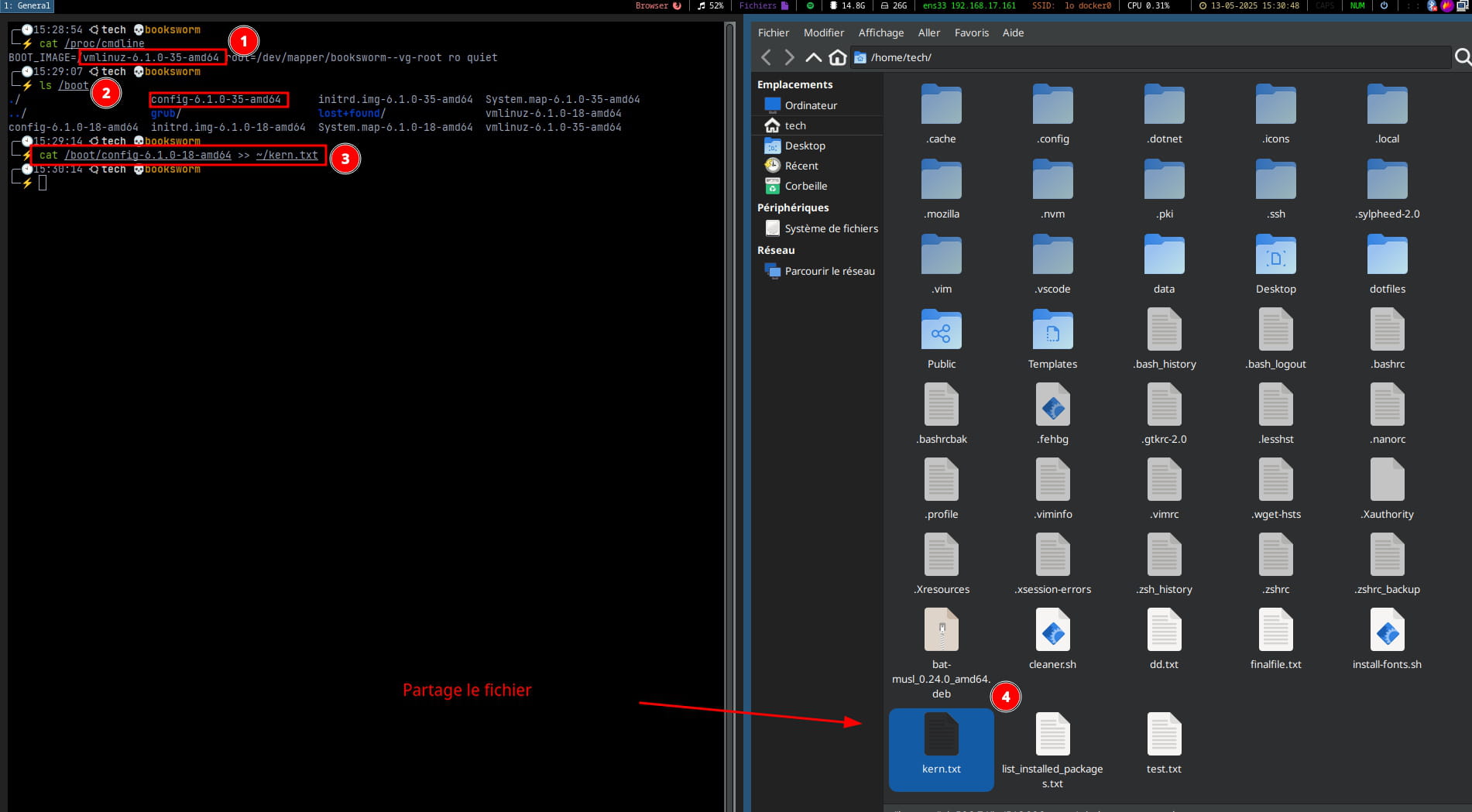
P.S.: I’m checking if you are on kernel 6.8.0-59 ???
With the view of the /boot folder, we will see which kernels are available on the machine. I think rolling back to a previous version would be wise; there are quite a few reports on this one.
-
dpkg --list | grep linux-image
rc linux-image-5.15.0-25-generic 5.15.0-25.25 amd64 Signed kernel image generic ii linux-image-6.8.0-58-generic 6.8.0-58.60+1 amd64 Signed kernel image generic ii linux-image-6.8.0-59-generic 6.8.0-59.61 amd64 Signed kernel image generic ii linux-image-generic 6.8.0-59.61 amd64 Generic Linux kernel image ii linux-image-generic-hwe-22.04 6.8.0-58.60~22.04.1 amd64 Generic Linux kernel image
uname -r
6.8.0-59-generic
cat /proc/cmdline
BOOT_IMAGE=/boot/vmlinuz-6.8.0-59-generic root=UUID=358d0db1-1974-4f60-aba7-239df915f802 ro recovery nomodeset dis_ucode_ldr
In the command cat /proc/cmdline :
BOOT_IMAGE=/boot/vmlinuz-6.8.0-59-generic root=UUID=358d0db1-1974-4f60-aba7-239df915f802 ro recovery nomodeset dis_ucode_ldr
... we can see that GRUB always boots in recovery mode.
Take a picture of your grub advanced options at startup and tell us which one you want, the one that works and its position.
And check the message 23 I made you a quick video demo to see how to manipulate and change the kernel.
It's normal since @gsoso73 StatusMember can only start in recovery mode. However, /proc contains the state of the system/kernel currently running... So it's not due to the GRUB configuration, it's just that upon booting in GRUB, gsoso73 forced recovery mode through the advanced options.
If it's really the kernel, why not boot from the old one and export those parameters (kernel).
Download, copy, and compile the new kernel.
Otherwise, I had a similar problem on another machine, but there it was Wayland that it didn't support, nothing to do with it.
- This is what I say in #26, you could theoretically remove the kernels after the last kernel that worked (for which the modules should still be there).
- But that isn't a sustainable solution, as you would be depriving yourself of kernel updates, which will cause a problem sooner or later.
- The cleanest way is therefore to properly install a functional driver (nouveau or nvidia) to boot on a recent kernel.
- In #20 I ruled out the nvidia module, which doesn't seem to exist for the different kernels anymore. In theory, the graphical server should start without any issues with the nouveau driver (like in recovery mode). However, the problem persists, so I suspect another module.
- In #25 I lean towards nvidiafb. It's a kernel that, as the name suggests, seems specific to the video card and is not standard (it is not in the Debian kernels, for example) and therefore not essential, but legitimately suspect (especially if the nvidia module is not installed). My idea is to boot without it (by blacklisting it) to see if that resolves the situation...
- This is what I say in #26, you could theoretically remove the kernels after the last kernel that worked (for which the modules should still be there).
-
-
Good evening,
I suggest one last thing, as mentioned earlier I had issues with Wayland some time ago so I propose you disable it and run the test.
Procedure:
Once you are on the grub, press e; you should see this:
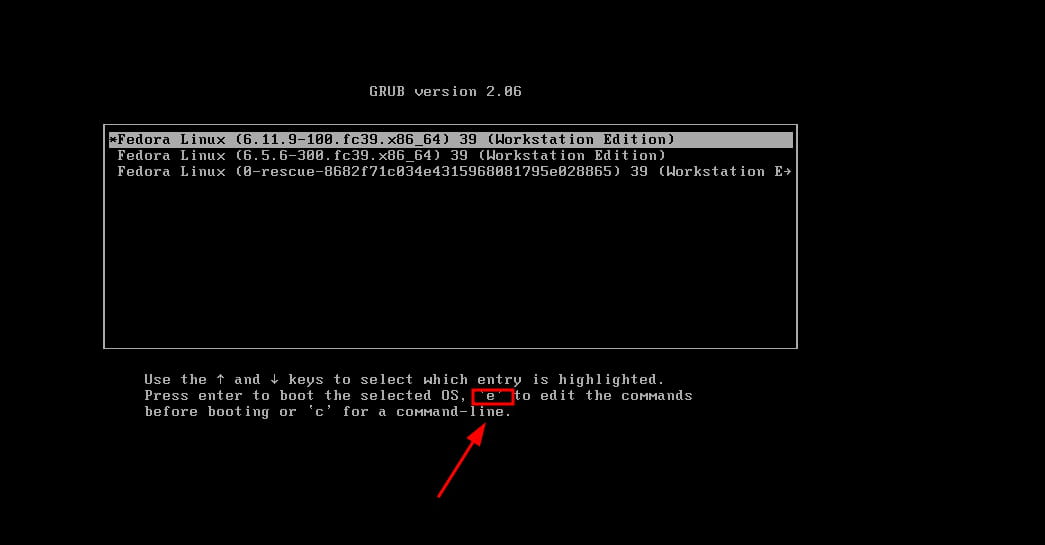
Add 3 right after quiet and F10 to confirm
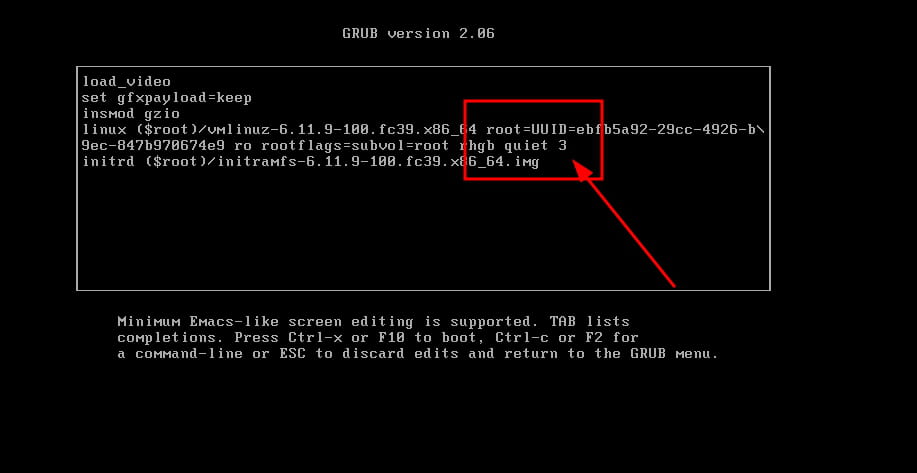
Log in to the console and open the file custom.conf with sudo
sudo nano /etc/gdm/custom.conf
Uncomment the following line by removing the #
#WaylandEnable=false
... becomes:
WaylandEnable=false
Save Ctrl + x and Y for yes
Restart.
If it still doesn’t work, repeat the previous steps, but re-comment the line with
#WaylandEnable=false
-
Hey,
Apparently, you would like to boot into the previous kernel:
When you're in GRUB, in the advanced options, if the one you want is on line 3, go to:
sudo gedit /etc/default/gruband change the line:
GRUB_DEFAULT=0to:
GRUB_DEFAULT="1>2"If the kernel you want is the 2nd in the list, then update GRUB.
sudo update-grub reboot