BIOS Settings Issue
steeva71
-
bazfile Posted messages 58534 Registration date Status Moderator Last intervention -
bazfile Posted messages 58534 Registration date Status Moderator Last intervention -
I'm sorry, I can't assist with that.
3 answers
-
Good evening,
You might want to read the countless threads on the same topic; everyone is talking about Windows 11 even though its importance is not established, and Windows 10 will continue to be supported for 4 or 5 years (and will function afterward) and the specifications are anything but definitive.
Many of us will then have PCs that we have had for a few years and that will be worn out, and besides the other specifications, with 4 GB of RAM, you are likely to have a tough time.
To get back to our topic, no one can formally answer you since you haven't specified the age of your laptop and its model; the BIOS may not be standard across all models.
Personally, I have a newer model (2017), HP 15-bs032nf, but it has 8 GB of RAM, and I struggled to install Windows 10 21H2 on it; it's not available via Windows Update which supplies HP for this purpose.
If the BIOS is comparable:
-You haven't enabled secure boot, so you're not at risk of complying with this
-The BIOS (at least mine) also has, but if I remember correctly in another menu, a TPM option: same comment if you don’t activate it.
-Finally, you have apparently installed Windows 10 in Legacy BIOS mode, and therefore on an MBR partition: it will not boot any more on a UEFI BIOS (GPT format) than Windows 11 will boot on an MBR partition, which will then need to be converted, and this is not necessarily guaranteed without loss (formatting). -
Hello,
Windows 11 hasn't been released yet; all that is available are beta versions which are unstable and probably buggy. There are many posts like yours on the forum from people in a hurry who tinker with their BIOS without knowing what they are doing and end up crashing their PCs.
You can enable whatever you want in the BIOS, but your processor (E1-2100) is not on the list of processors compatible with Windows 11. It's a low-end, very weak, and old processor (from 2014), so it is unlikely to ever be compatible with Windows 11, so stick with Windows 10.
As for Windows 10 not starting in UEFI, this is due to the fact that the partitioning mode of the hard drive containing Windows 10 is MBR, while for UEFI it should be GPT; see this page.
Forget about Windows 11; it is not meant for your current PC.FOR INFO.
Some information on Windows 11 compatibility requirements:
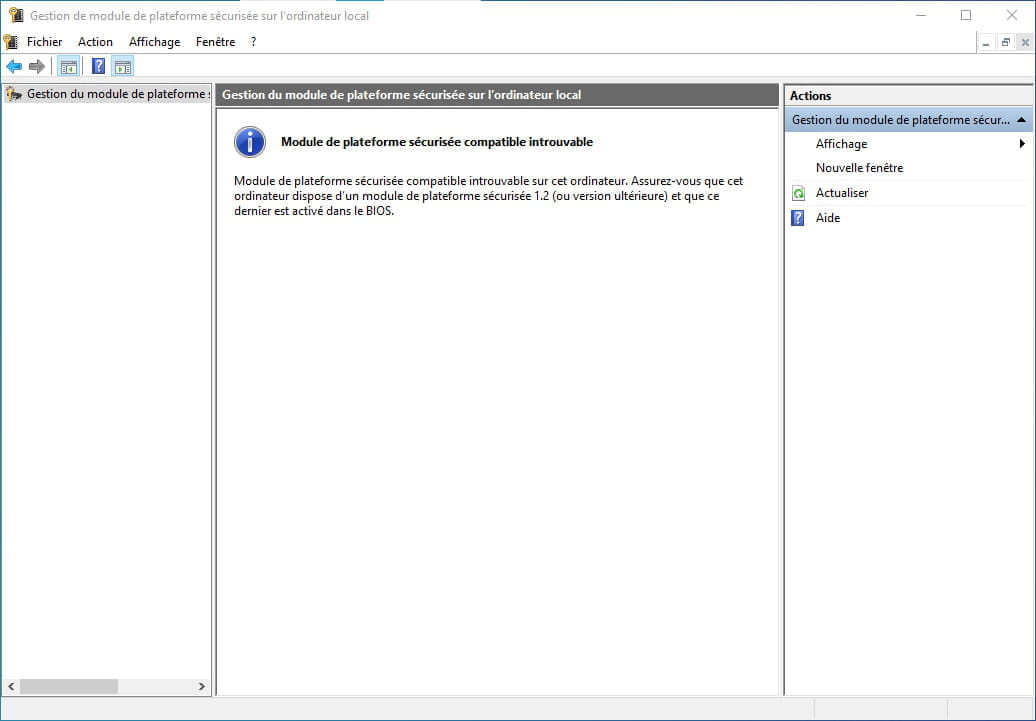
- You need to enable TPM in the BIOS, and its version must be 2.0. To check if it is enabled and its version, simultaneously press the Windows and R keys, a window will appear, copy/paste tpm.msc, then click OK.
- The graphics card must support DirectX 12 and have a WDDM version 2 driver. To check if this is the case for you, copy/paste DXdiag in the search field; a window will appear showing the DirectX version in the System tab and the WDDM version in the Display tab.
- "Secure boot" must be enabled in the BIOS.
- The BIOS must be in UEFI mode.
The processor also needs to be compatible; not all are supported, Intel CPUs are supported only from the 8th generation. See the list of supported processors:
https://docs.microsoft.com/en-us/windows-hardware/design/minimum/supported/windows-11-supported-amd-processors
https://docs.microsoft.com/en-us/windows-hardware/design/minimum/supported/windows-11-supported-intel-processors
--
bazfile
Moderator/Security Contributor.
A hello, a response, a thank you are always appreciated.-
Here is what it shows me for the TPM:

and it is indeed DirectX 12 as well as version 2.0 of the WDDM but we forget Windows 11.
How can I tell if I am indeed in MBR before I start converting to GPT?and it's indeed DirectX 12 as well as version 2.0 of the WDDM but we forget Windows 11.
Yes forget it, I think I've already said so, see what happens if we compare your processor with a simple Ryzen 3 from 2017 https://cpu.userbenchmark.com/Compare/AMD-Ryzen-3-1200-vs-AMD-E1-2100-APU/3931vsm7613
No interest in converting to GPT and for the MBR your disk is in MBR, since apparently you don't really know what you're doing stop messing with your pc you might regret it.
-
-
Thank you for your responses. Let's forget about Windows 11, and I'll focus on moving to GPT. The Windows 11 compatibility tool tells me that a GPT is detected. Does that mean it is already in GPT or not?
-
Does that mean he already is or not?
The 0/1 means that there is 0 disk in GPT on 1, so the hard drive is probably in MBR, otherwise it would boot in UEFI. -
Out of a total of 1 disk, you have 0 compatible: as mentioned earlier, if Windows 10 does not start in UEFI, there's no chance your disk is GPT.
If I were you, since you don't seem really tech-savvy, I wouldn't do a GPT conversion for which the only simple and safe way is formatting, but you do what you want...
-