ASUS ROG STRIX Z490-E GAMING Motherboard, A2 Code
Solved
Marie
-
macbernic Posted messages 2226 Registration date Status Membre Last intervention -
Hello everyone!
I am building a gaming PC for the first time, but I'm running into some issues.
Here is my setup:
https://www.ldlc.com/fiche/PB00337508.html
https://www.ldlc.com/fiche/PB00337274.html
https://www.ldlc.com/fiche/PB00265391.html
https://www.ldlc.com/fiche/PB00269039.html
https://www.ldlc.com/fiche/PB00305684.html
https://www.ldlc.com/fiche/PB00335277.html
And for the graphics card, a friend is lending me an old GTX 660 while I wait for the market for the new RTX 3000 to stabilize :p
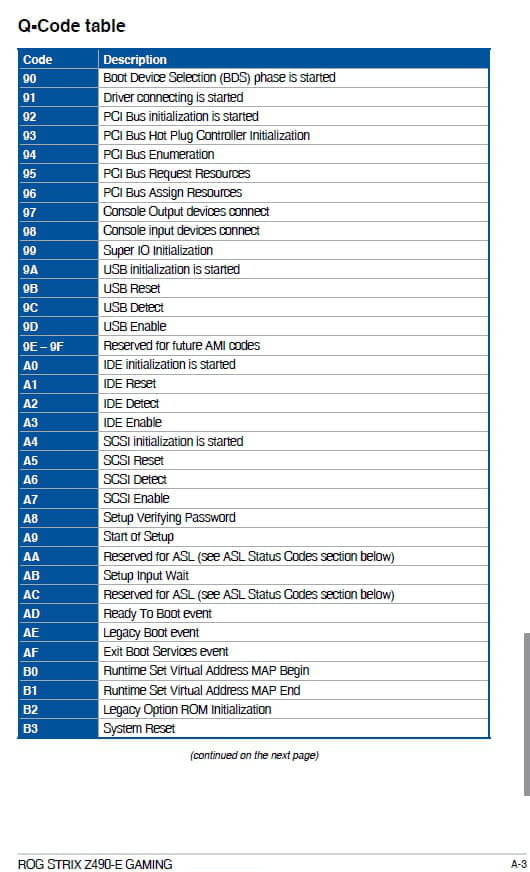
Everything seems compatible. But after assembling the PC, it powers on fine until I encounter an error message "A2" on my motherboard, the "BOOT" LED is lit green and only a black screen stands before me. I can't even access the BIOS.
From what I've understood from my research, it's the motherboard that can't detect any drive.
Now I have a few questions that I'm struggling to find answers to, and I would really appreciate your insights if possible!
- Am I supposed to have access to the BIOS despite the drive not being recognized?
- Could it be just an issue with the M.2 SSD? If so, how can I test it since I don't have another PC that can read it?
- I saw that there is a possibility to update the BIOS for ASUS, but it seems to be done through the BIOS interface. Am I wrong?
Thank you in advance for any help provided and see you soon :)
Marie
I am building a gaming PC for the first time, but I'm running into some issues.
Here is my setup:
https://www.ldlc.com/fiche/PB00337508.html
https://www.ldlc.com/fiche/PB00337274.html
https://www.ldlc.com/fiche/PB00265391.html
https://www.ldlc.com/fiche/PB00269039.html
https://www.ldlc.com/fiche/PB00305684.html
https://www.ldlc.com/fiche/PB00335277.html
And for the graphics card, a friend is lending me an old GTX 660 while I wait for the market for the new RTX 3000 to stabilize :p
Everything seems compatible. But after assembling the PC, it powers on fine until I encounter an error message "A2" on my motherboard, the "BOOT" LED is lit green and only a black screen stands before me. I can't even access the BIOS.
From what I've understood from my research, it's the motherboard that can't detect any drive.
Now I have a few questions that I'm struggling to find answers to, and I would really appreciate your insights if possible!
- Am I supposed to have access to the BIOS despite the drive not being recognized?
- Could it be just an issue with the M.2 SSD? If so, how can I test it since I don't have another PC that can read it?
- I saw that there is a possibility to update the BIOS for ASUS, but it seems to be done through the BIOS interface. Am I wrong?
Thank you in advance for any help provided and see you soon :)
Marie
22 réponses
- 1
- 2
Suivant
flo88
Posted messages
28659
Registration date
Status
Contributeur
Last intervention
Ambassadeur
5 158
Hello
I skimmed through it, so maybe there's already an answer given above.
A2 is as Epango said (in principle)
The fault is directly related to the M.2 SSD, you need to remove it and check if the boot proceeds to the BIOS.
The descriptions of the Asus codes are here:
https://www.asus.com/fr/support/FAQ/1043948/#5
--
Signature
Euskadi Ta Askatasuna
I skimmed through it, so maybe there's already an answer given above.
A2 is as Epango said (in principle)
The fault is directly related to the M.2 SSD, you need to remove it and check if the boot proceeds to the BIOS.
The descriptions of the Asus codes are here:
https://www.asus.com/fr/support/FAQ/1043948/#5
--
Signature
Euskadi Ta Askatasuna
Hello,
A code A2 seems to indicate a problem with the storage devices (SSD / HDD).
Normally, you should be able to access the BIOS in the absence of a SSD / HDD.
However, it may still be an issue with the SSD. Try booting with the SSD in the other M2 slot, and if it still doesn't work, try booting without the SSD.
Otherwise, to update the BIOS, you indeed need to be able to access it.
A code A2 seems to indicate a problem with the storage devices (SSD / HDD).
Normally, you should be able to access the BIOS in the absence of a SSD / HDD.
However, it may still be an issue with the SSD. Try booting with the SSD in the other M2 slot, and if it still doesn't work, try booting without the SSD.
Otherwise, to update the BIOS, you indeed need to be able to access it.
Hello, thank you for your quick response!
Unfortunately, I should have specified, but I have already tried booting with the m.2 in both slots, and the same error occurred. I also tried to boot without any disk inserted, and of course, the same error appeared, no access to the BIOS either.
I also attempted a BIOS reset, but it didn't change anything. (Clear CMOS with a short circuit)
So it's not a BIOS version problem if the update can only be done through it!
Marie
Unfortunately, I should have specified, but I have already tried booting with the m.2 in both slots, and the same error occurred. I also tried to boot without any disk inserted, and of course, the same error appeared, no access to the BIOS either.
I also attempted a BIOS reset, but it didn't change anything. (Clear CMOS with a short circuit)
So it's not a BIOS version problem if the update can only be done through it!
Marie
So the error doesn't seem to come from the SSD itself.
What can prevent access to the BIOS, among other things, is an error from the processor or RAM.
Is the installation of these components correct? No damaged pins on the processor? Are the memory sticks properly seated in the correct slots?
If you start with just one stick of RAM, does it give the same error?
What can prevent access to the BIOS, among other things, is an error from the processor or RAM.
Is the installation of these components correct? No damaged pins on the processor? Are the memory sticks properly seated in the correct slots?
If you start with just one stick of RAM, does it give the same error?
You chose a motherboard that is unnecessarily expensive. With the resources you invested in the motherboard, you should have gone for a Z590-based motherboard that would already be future-proof. It could very well be that the lack of display is due to the graphics card. You should have chosen a CPU with integrated graphics (non-F model) that would have allowed your PC to function while you waited to get a RTX 3000.
Finally, regarding the BIOS update, this motherboard allows for BIOS updates without a CPU or without a functional CPU. You need to use a USB drive. Check the manual to see how to proceed.
--
To misname things is to add to the misery of the world (Albert Camus)
Finally, regarding the BIOS update, this motherboard allows for BIOS updates without a CPU or without a functional CPU. You need to use a USB drive. Check the manual to see how to proceed.
--
To misname things is to add to the misery of the world (Albert Camus)
Hi epango,
I might be confusing it with another Asus motherboard. But if it has Wi-Fi 6 and 2.5 Gbps LAN, it’s not necessarily useless. I agree that maybe the Z590 version would be a better choice. A motherboard is the backbone of a computer; everything is interconnected, especially the licensing. If the VRM of this board is good, Marie can install a 10th or even 11th gen i9, if compatible, without changing the motherboard.
For the RAM, it doesn't change anything. For the CPU, it's going to take me a bit of time, I'll have to take off the water cooling to take a look D:
See you soon
See you soon
Hello!
Well, to see if the processor is well installed and in good condition as AgentMulder pointed out. I just checked, and I don't see any particular issues with this component.
Thank you for these wise tips, a friend helped me with my setup but we're not experts yet :p This is my first build as I mentioned in my first post, so I'm not surprised that it's not perfect ^^ It's true that the Z590 seemed more appropriate.
As for the CPU, that was intentional, I'm not in a hurry for the graphics card, even if I get an entry-level one to upgrade later ^^
In any case, after reassembling everything, I'm still stuck with this infamous A2 error.
Why disassemble the watercooling? Do you think it's not properly installed?
Well, to see if the processor is well installed and in good condition as AgentMulder pointed out. I just checked, and I don't see any particular issues with this component.
You chose an unnecessarily expensive motherboard. With the money you spent on the motherboard, you should have gotten a Z590 motherboard that would already be future-proof. It's possible that the absence of display problem comes from the graphics card. You should have chosen a CPU with an integrated GPU (non-F model) that would have allowed your PC to run while waiting for you to get an RTX 3000.
Also, regarding the BIOS update, this motherboard allows BIOS updates without a CPU or without a functional CPU. You need to use a USB drive. Check the manual to see how to proceed.
Thank you for these wise tips, a friend helped me with my setup but we're not experts yet :p This is my first build as I mentioned in my first post, so I'm not surprised that it's not perfect ^^ It's true that the Z590 seemed more appropriate.
As for the CPU, that was intentional, I'm not in a hurry for the graphics card, even if I get an entry-level one to upgrade later ^^
In any case, after reassembling everything, I'm still stuck with this infamous A2 error.
"the SSD---> or I think he is looking for an OS to continue the boot process.".
Normally no. At the very first boot of a built PC, there is never an OS. If it were looking for the OS before continuing the boot process, it would never start.
However, she can remove the SSD and try to boot without it. There may be an unexplained compatibility issue between the motherboard and the SSD.
Normally no. At the very first boot of a built PC, there is never an OS. If it were looking for the OS before continuing the boot process, it would never start.
However, she can remove the SSD and try to boot without it. There may be an unexplained compatibility issue between the motherboard and the SSD.
yes, it needs to be put in the other one, and cooling must be present even for a small test like this...;) to avoid frying the processor.
you're welcome, everyone contributes their stone to the building ;))
Hello,
I have reinstalled the water cooling after all. ^^
I changed the port for the GPU and... still nothing, I'm still facing the same problem.
So do you suggest I test/change the GPU? The same goes for the SSD?
I have reinstalled the water cooling after all. ^^
I changed the port for the GPU and... still nothing, I'm still facing the same problem.
So do you suggest I test/change the GPU? The same goes for the SSD?
Indeed, the manual states IDE Direct. But what could that possibly mean since we no longer use IDE peripherals? I didn't mention the manual. I found the information in a FAQ on a site discussing ASUS motherboards:
https://www.asus.com/fr/support/FAQ/1043948/
By clicking on Boot up device abnormal, we get advice to try to resolve the issue.
https://www.asus.com/fr/support/FAQ/1043948/
By clicking on Boot up device abnormal, we get advice to try to resolve the issue.
Looking more closely at your photo, I wonder where you plugged in your water cooling since the fans are running and there's nothing plugged into the AIO socket.
Moreover, after testing a similar board (same system Q-code), an A2 code appears when the CPU cooling (fan or otherwise) isn't connected. The A0 code appears when no disk is connected.
Hello!
Um, I had just unplugged the water cooling for the photo, but it is indeed connected to the "AIO_PUMP" socket located in the middle of the motherboard. The fans are connected (in series?) to the "CPU_FAN" socket at the top of the motherboard.
Should I check the connections? How can I test it? What struck me is that the pump was completely silent and also wasn't heating up. Is that normal?
Marie
Um, I had just unplugged the water cooling for the photo, but it is indeed connected to the "AIO_PUMP" socket located in the middle of the motherboard. The fans are connected (in series?) to the "CPU_FAN" socket at the top of the motherboard.
Should I check the connections? How can I test it? What struck me is that the pump was completely silent and also wasn't heating up. Is that normal?
Marie
Hello,
Sorry for the lack of response, I had to delay my PC build a bit ^^
Indeed, I am connected to A+D.
I just tried C+D, no changes. ON THE OTHER HAND, I noticed that the water cooling was connected to 3 molex branches, and upon rereading its manual, they specify that an adapter with 4 pins should be used to connect it if the "motherboard does not provide enough power to the pump."
This adapter is, according to the manual, included with the water cooling, but I'm really not sure which one to use... I only see one that could fit with 4 male molex branches and 4 female molex holes. (It looks a bit like this, with the male connector exposed: https://images-na.ssl-images-amazon.com/images/I/514nG8QK20L._AC_SL1000_.jpg )
I think it makes sense in relation to what you're saying, macbernic, that the problem might come from there! Do you think the adapter (extension?) described above is okay?
Marie
Sorry for the lack of response, I had to delay my PC build a bit ^^
Indeed, I am connected to A+D.
I just tried C+D, no changes. ON THE OTHER HAND, I noticed that the water cooling was connected to 3 molex branches, and upon rereading its manual, they specify that an adapter with 4 pins should be used to connect it if the "motherboard does not provide enough power to the pump."
This adapter is, according to the manual, included with the water cooling, but I'm really not sure which one to use... I only see one that could fit with 4 male molex branches and 4 female molex holes. (It looks a bit like this, with the male connector exposed: https://images-na.ssl-images-amazon.com/images/I/514nG8QK20L._AC_SL1000_.jpg )
I think it makes sense in relation to what you're saying, macbernic, that the problem might come from there! Do you think the adapter (extension?) described above is okay?
Marie
Hello hello!
First of all, thank you for your patience! I'm not very skilled, but we're making progress :D
Next, GOOD NEWS, I no longer have an A2 status code but now an A9 status code! I did as you told me, I connected the water cooling directly to the power supply with the SATA adapter, and the fans to A.
Now the bad news... Normally, according to my various readings, I should have the BIOS showing up on the monitor, but unfortunately, nothing displays at all :( Moreover, the "BOOT" LED is still lit in green.
https://www.asus.com/fr/support/FAQ/1043948/#7
I followed what is stated in the link above and:
- The cable and the monitor work, I use them with my laptop normally, I'm using the correct HDMI output, etc.
- The graphics card is powered, the fans are running (Maybe there's still a problem at this level, like with the water cooling?)
Now, since it mentioned SSDs, I did try putting my SSD in the M.2 slot and I went back to an A2 error... But we’ll see later, even though I'm starting to have trouble understanding the logic of the status codes for this motherboard ><"
I tried connecting the HDMI cable to the HDMI output on the motherboard, and that didn't work either. (A2 status code, Boot&VGA LEDs lit)
I imagine the next problem comes from the graphics card then? :/
Marie
First of all, thank you for your patience! I'm not very skilled, but we're making progress :D
Next, GOOD NEWS, I no longer have an A2 status code but now an A9 status code! I did as you told me, I connected the water cooling directly to the power supply with the SATA adapter, and the fans to A.
Now the bad news... Normally, according to my various readings, I should have the BIOS showing up on the monitor, but unfortunately, nothing displays at all :( Moreover, the "BOOT" LED is still lit in green.
https://www.asus.com/fr/support/FAQ/1043948/#7
I followed what is stated in the link above and:
- The cable and the monitor work, I use them with my laptop normally, I'm using the correct HDMI output, etc.
- The graphics card is powered, the fans are running (Maybe there's still a problem at this level, like with the water cooling?)
Now, since it mentioned SSDs, I did try putting my SSD in the M.2 slot and I went back to an A2 error... But we’ll see later, even though I'm starting to have trouble understanding the logic of the status codes for this motherboard ><"
I tried connecting the HDMI cable to the HDMI output on the motherboard, and that didn't work either. (A2 status code, Boot&VGA LEDs lit)
I imagine the next problem comes from the graphics card then? :/
Marie
Note;
"I tried connecting the HDMI cable to the HDMI output on the motherboard, but it didn't work either. (Status code A2, Boot&VGA LEDs lit)".
There's no point in trying things when you already know they won't work. Your CPU doesn't have an IGP (integrated graphics processor), so the video outputs on your motherboard are not connected to a graphics processor, they can't work. There's no point in trying to connect your monitor to them.
If the Q-LED VGA remains lit, it generally means that your GPU has a problem. It's probably the reason there's no display. If you can, try it on another PC to see if it works or not.
"I tried connecting the HDMI cable to the HDMI output on the motherboard, but it didn't work either. (Status code A2, Boot&VGA LEDs lit)".
There's no point in trying things when you already know they won't work. Your CPU doesn't have an IGP (integrated graphics processor), so the video outputs on your motherboard are not connected to a graphics processor, they can't work. There's no point in trying to connect your monitor to them.
If the Q-LED VGA remains lit, it generally means that your GPU has a problem. It's probably the reason there's no display. If you can, try it on another PC to see if it works or not.
Hi,
I haven’t read everything.
Have you checked the intensity and voltage of the modules (WC, Fans, etc.)? I had read that for fan hubs, they have a limited power and you should rely on that, more than on the maximum number of fans you can connect to it.
Since I haven’t read it, I don’t know if you have one of those fan hubs, but if you have created a surge, you won’t be able to repair the affected fan port.
I haven’t read everything.
Have you checked the intensity and voltage of the modules (WC, Fans, etc.)? I had read that for fan hubs, they have a limited power and you should rely on that, more than on the maximum number of fans you can connect to it.
Since I haven’t read it, I don’t know if you have one of those fan hubs, but if you have created a surge, you won’t be able to repair the affected fan port.
Hey!
It seems like there are no more issues with the water cooling and fans in general. You're saying that I might have potentially damaged the AIO_PUMP connector on the motherboard, right? In the pump specs, we have Rated Voltage 12V and Rated Current 0.7A. In the specs for the AIO_PUMP connector on the motherboard, I see Max Current 1A and Max Power 12W. Does that seem okay to you or am I not looking in the right place? :p
Otherwise, we're at "I should be seeing the BIOS but nothing is displaying."
Marie
It seems like there are no more issues with the water cooling and fans in general. You're saying that I might have potentially damaged the AIO_PUMP connector on the motherboard, right? In the pump specs, we have Rated Voltage 12V and Rated Current 0.7A. In the specs for the AIO_PUMP connector on the motherboard, I see Max Current 1A and Max Power 12W. Does that seem okay to you or am I not looking in the right place? :p
Otherwise, we're at "I should be seeing the BIOS but nothing is displaying."
Marie
This time, I read everything.
The fans are connected (in series?) to the "CPU_FAN" socket
In series, if I remember correctly, we add up the voltage. So, if I’m not mistaken, when we connect Fan 1 (max 12V) and then Fan 2 (max 12V) to a socket, the socket should handle 24V. Technically, I don't know how you connected 2 fans to 1 fan socket on the motherboard. Or maybe it's the arrangement of the water cooler, and in that case, I think it's connected in parallel. In parallel, we add up the current, and logically, if the water cooler was designed for this, it knows how to regulate this current not to send too much power.
To answer your message 42, that's correct, there is a 0.3 A margin, which is sufficient. Also, you have an excellent quality motherboard; I doubt Asus didn't plan anything for a 240 or even 360 water cooler.
In your message 40, I learn that you have a laptop. Have you connected its storage support to the motherboard?
The fans are connected (in series?) to the "CPU_FAN" socket
In series, if I remember correctly, we add up the voltage. So, if I’m not mistaken, when we connect Fan 1 (max 12V) and then Fan 2 (max 12V) to a socket, the socket should handle 24V. Technically, I don't know how you connected 2 fans to 1 fan socket on the motherboard. Or maybe it's the arrangement of the water cooler, and in that case, I think it's connected in parallel. In parallel, we add up the current, and logically, if the water cooler was designed for this, it knows how to regulate this current not to send too much power.
To answer your message 42, that's correct, there is a 0.3 A margin, which is sufficient. Also, you have an excellent quality motherboard; I doubt Asus didn't plan anything for a 240 or even 360 water cooler.
In your message 40, I learn that you have a laptop. Have you connected its storage support to the motherboard?
After checking, the fans are connected with cable P (from the manual that macbernic sent earlier) plugged into the motherboard CPU_FAN A socket. So it’s more like in parallel ^^? In any case, the fans are running...
I can't connect my M.2 drive to my laptop since I don't have a compatible port. I don't really want to remove the SSD from my laptop to test it on the computer I'm building because it's also my work tool. I don't want to mess things up, but it might be worth a try, even though given the recent issues and the lack of display on the screen I don't think it will solve much for now (but after all, you’re the pros :p). Right?
It was to try to access the BIOS, or rather the UEFI now, that you connected your laptop's SSD to your desktop's motherboard.
because it’s also my work tool
You did make a backup of your data, I suppose. Otherwise, apart from crying, what will you do if your laptop's SSD fails in there?
For me, the excuse is not valid. If you back up your laptop's data and then try my suggestion, at worst, you lose an SSD, and you buy another one that will arrive fairly quickly. We can't calculate the probability that your laptop's SSD will die on your desktop's motherboard, but honestly, it's very, very low.
because it’s also my work tool
You did make a backup of your data, I suppose. Otherwise, apart from crying, what will you do if your laptop's SSD fails in there?
For me, the excuse is not valid. If you back up your laptop's data and then try my suggestion, at worst, you lose an SSD, and you buy another one that will arrive fairly quickly. We can't calculate the probability that your laptop's SSD will die on your desktop's motherboard, but honestly, it's very, very low.
- 1
- 2
Suivant


without success.