How to connect your PC to 5GHz?

Wintice -  
Wintice Posted messages 8 Status Member -
Hello,

Configuration: Windows / Chrome 83.0.4103.97

I recently got a new Wi-Fi card (AC56) to replace my old one; it supports 5GHz Wi-Fi and the AC standard, and I'm with Free with a box that supports this standard, but I don't know how to connect to the 5GHz Wi-Fi.

4 answers

Pierr10 Posted messages 13818 Registration date   Status Moderator Last intervention   5 835
 
Hello,

On the PC, go to Freebox OS (http://mafreebox.freebox.fr) and log in.
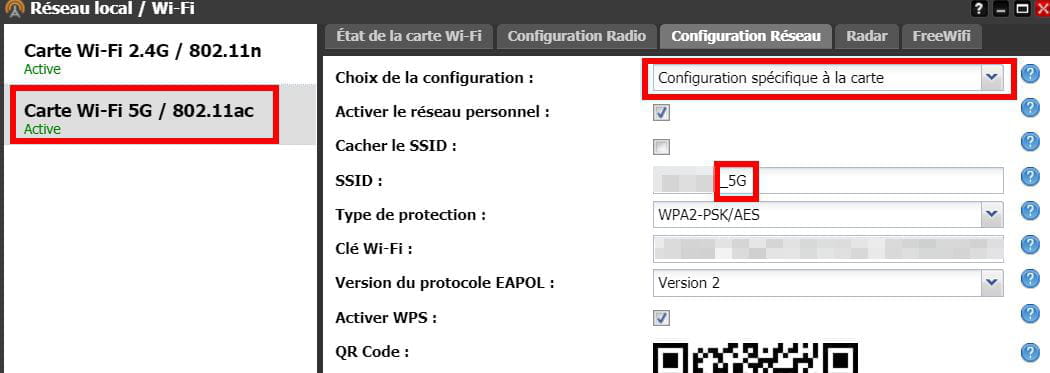
Then go to Freebox Settings > Wifi
Click on the Network Configuration tab.
On the left, you have the 2.4 and 5 GHz cards.

Click on the 2.4 GHz card
Choose Card-specific Configuration
Change the SSID by adding for example 2.4

Do the same for the 5 GHz card. For example:
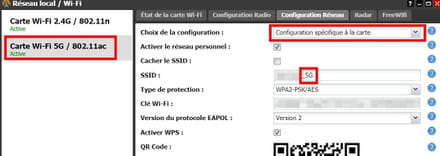
Keep the same password for both cards. Confirm your choices by clicking OK and close Freebox OS.

You may need to restart the box.

Now your computer can see the two networks at 2.4 GHz and 5 GHz with different names.
All you have to do is select the 5 GHz network and connect.
1
Wintice Posted messages 8 Status Member
 
I saw that on a site, but after trying, when I rename one of the two, the other one changes name too.
0
Pierr10 Posted messages 13818 Registration date   Status Moderator Last intervention   5 835 > Wintice Posted messages 8 Status Member
 
It only takes one to have changed its name for us to be able to distinguish them, which is the most important thing. (I only modified the name of the 5 GHz network by adding _5G to the network name.)

Make sure to Specific card configuration.
0
Wintice Posted messages 8 Status Member > Pierr10 Posted messages 13818 Registration date   Status Moderator Last intervention  
 
I tried, and yes, I hadn't set specific configurations for the card, but when I tried, I connected to the 5GHz band and the Wi-Fi was very weak. After restarting my box, the settings were reset and the 5GHz network was gone.
0
Anonymous user > Wintice Posted messages 8 Status Member
 
Let's see if we want to change to a single site or on the move!
Being able to do both is good too, right?
See you!
0
Wintice Posted messages 8 Status Member > Anonymous user
 
"It remains to be seen if we want to switch to a single site or if we prefer to move around!
Knowing how to do both is also good? For now, sticking to a single site works for me."
0
Anonymous user
 
Hello
You need to disable the 2.4GHz mode and enforce the 802.11AC mode on your card.
Open the "Device Manager," expand "Network Adapters"
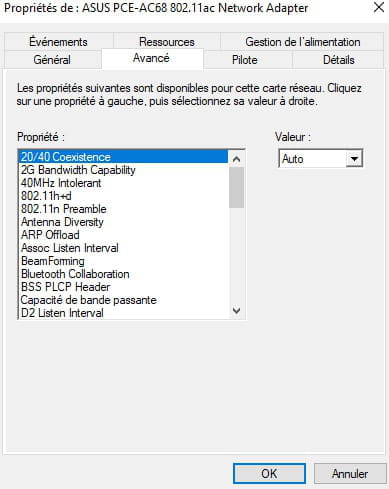
Right-click on your Wi-Fi card, go to the "Advanced" tab, find the 2.4GHz option and set it to off.
List the modes to find 802.11n, g, ac, etc... and select 802.11ac from the list.
Apply the settings and restart the PC
See you later
--
If this response helped you or solved your issue: a quick thank you, if resolved: click the green button at the top ;-)

Let anyone who has never opened a user manual throw me the first mouse.
0
Pierr10 Posted messages 13818 Registration date   Status Moderator Last intervention   5 835
 
Hello,

No! You shouldn't disable the 2.4 GHz network. There are days when we're glad to have it, as the 2.4 GHz signal propagates better in difficult conditions.
0
Wintice
 
How do you mean "list option 2.4GHz and set it to off"? I can't find the 2.4GHz option when I go to advanced.
0
Anonymous user
 
There is a list of options, different from one map to another.
Look for the one that includes the choice 2.4GHz and set the value to off (or a similar option) or 5GHz instead of 2.4GHz, something like that...
Likewise, look for a line where the choice 802.11ac is offered in value.
A+
0
Wintice > Anonymous user
 
All I found is an option that allows me to disable the a or g/b standards, is that it?
0
Anonymous user > Wintice
 
Do you have a choice where n, g, ac appears?
It's ac that needs to be activated!
If ac does not appear anywhere in one of the lists, it means ac is not supported.
Enter netsh wlan show drivers in a command line to check if the ac is supported by the card.
A+
0
Wintice Posted messages 8 Status Member > Anonymous user


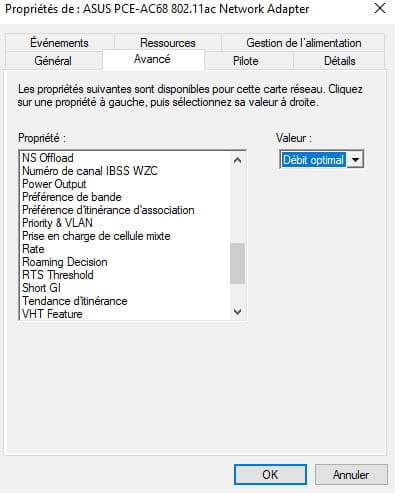
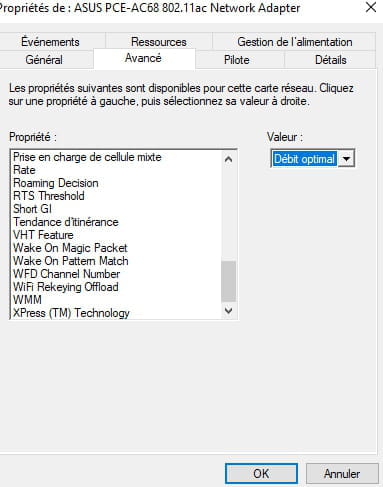
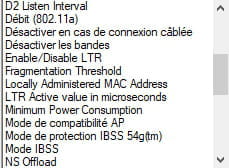
here is everything I can do and yes, my card is compatible after checking.
0
Anonymous user > Wintice Posted messages 8 Status Member
 
Thank you
What values does the "Band Preference" option display?
And also for "2G Bandwidth Capability"?
A+
0
Pierr10 Posted messages 13818 Registration date   Status Moderator Last intervention   5 835
 
I continue to believe that the only setting to be adjusted is that of the Freebox. That’s what I did on my box, and I didn’t have to intervene on the network card settings of my two computers.

It’s strange that you lost the settings when restarting the box. When you changed the SSID, did you click on Apply? (Clicking only on OK may not be sufficient).
You should see the chosen network names on all your devices (computer, smartphone, tablet, or other).

0
Wintice Posted messages 8 Status Member
 
I will try again tomorrow, thank you and good night.
0