GPT partition problem
Solved
Oxzir
-
gugu01 Posted messages 15669 Registration date Status Contributor Last intervention -
gugu01 Posted messages 15669 Registration date Status Contributor Last intervention -
Hello,
I decided to buy a 240 GB SSD (from Crucial) to boost a desktop PC a bit, but I'm encountering a few small problems; I'm used to using a computer and its configuration, but not in the installation.
The physical installation went well, the computer detected it without any issues; I decided to start from scratch rather than cloning the old disk because I didn't want to transfer all the "useless" documents and software (Crucial provided me with a free link for an Acronis True Image account).
But when I tried to install W10 via a USB stick, I got an error: "the selected disk is of the GPT partition style."
While searching online, I found that this problem could be fixed with software (for example, Diskpart)
Is this a viable solution, or are there other options besides using software? I saw that there are several types of software like this, is this the right one?
Thank you in advance for your advice,
Oxzir
Configuration: Windows / Firefox 67.0
I decided to buy a 240 GB SSD (from Crucial) to boost a desktop PC a bit, but I'm encountering a few small problems; I'm used to using a computer and its configuration, but not in the installation.
The physical installation went well, the computer detected it without any issues; I decided to start from scratch rather than cloning the old disk because I didn't want to transfer all the "useless" documents and software (Crucial provided me with a free link for an Acronis True Image account).
But when I tried to install W10 via a USB stick, I got an error: "the selected disk is of the GPT partition style."
While searching online, I found that this problem could be fixed with software (for example, Diskpart)
Is this a viable solution, or are there other options besides using software? I saw that there are several types of software like this, is this the right one?
Thank you in advance for your advice,
Oxzir
Configuration: Windows / Firefox 67.0
10 answers
-
"But when I wanted to install W10 via a USB stick, it gives me an error: "the selected disk is of GPT partition style"."
How did you proceed with the installation? A blank disk cannot already be of CPT partition style. It is at the time of installation that we choose between MBR or GPT formats. If your PC is recent, it is preset for GPT partition type.
Moreover, if you want to do a clean installation, it is preferable to disconnect your HDD during the installation and reconnect it afterward.
--
Misnaming things is adding to the world's misery (Albert Camus) -
For the installation, I proceeded normally; I don't remember exactly, but I don't recall changing the partition style.
My PC is rather recent, but low-end.
I've already received some advice on this issue; I was told to delete all partitions, but that didn't resolve it.
Noted about the disconnection; no one had mentioned it to me ;)-
"For the installation, I proceeded normally; I don't remember exactly; but I don't recall changing the partition style."
Just like a new HDD or SSD, which is unformatted, cannot already have a type of partition scheme. It takes the one chosen in the BIOS. Did you start by formatting your SSD elsewhere before beginning the installation?
Go to Disk Management. Right-click on the root of your HDD (where it says disk 0 or disk 1). Then click on Properties and click on Volume. You will see if your HDD is in MBR or GPT.
PS: "For the installation, I proceeded normally." What exactly did you do?
-
-
- First of all
- 1 > Download the iso /
- 2 > Create the installation USB /
- 3 > Start your PC to repair from the installation USB /
- 4 > Installation of Windows /
- 5 > Once installed, some points need to be verified /
- 6 > We take care of the HDD /
- In conclusion
First of all
Copy your current data from the HDD to another HDD.
This gives you the freedom to empty it and convert it afterwards.
Unplug the HDD while installing on the SSD.
Connect the SSD to the HDD port
(the SSD will be disk 0 in the manager and the HDD will be disk 1. It’s just cleaner and logical to have this order)
.1 > Download the iso /
.
(no matter what PC you use to do it)
An iso is a disk image, but in its current state do not click on it.
It is a resource that we will use to create a USB installation drive. We need to mount this image.
Windows 10 x 64 home and pro iso (link valid for 24 hours)
https://software-download.microsoft.com/pr/Win10_1903_V1_French_x64.iso?t=22a45e0f-80b3-4062-95fa-76bfe0b01e9e&e=1561507518&h=cc327760c3bc0e6f39693402094395c0
.2 > Create the installation USB /
.
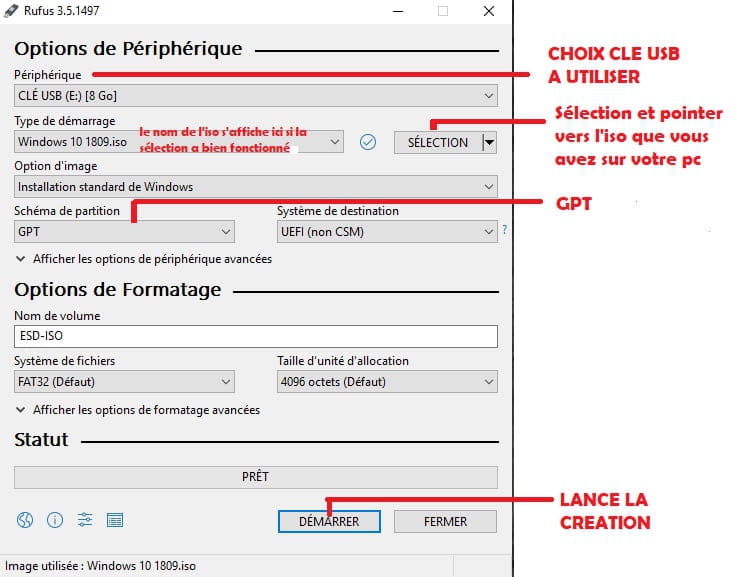
Download the Rufus software:
https://www.commentcamarche.net/telecharger/utilitaires/19615-rufus/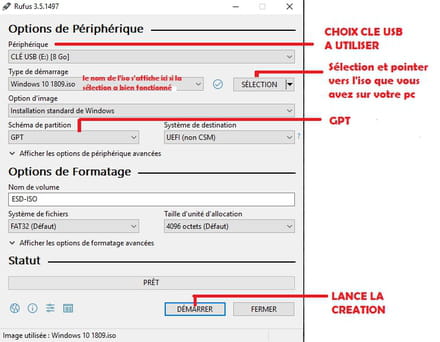
> Basically, point it to the USB stick that you will use (8 GB or more)
Be careful, empty your USB stick first because everything will be erased.
> Point it to the iso file you just downloaded
> Set the partition type (gpt as shown in the image)
> Start the creation and wait for the completion message.
.3 > Start your PC to repair from the installation USB /
.
Bios set to UEFI
(and nothing other than UEFI, no CSM or legacy or inherited mode activated)
and disable secure boot
validate when exiting (F10 and confirm)
Turn off the PC
Plug in the USB
Restart
The PC should boot directly from the USB stick and start installation.
If there are any issues
We will see together.
(sometimes it’s more complicated to start the USB in UEFI, but make sure not to activate the modes mentioned above. A bad shortcut)
.4 > Installation of Windows /
.
Here is an overview for Windows 10 (not really up to date but just an overview)
http://www.windows8facile.fr/installer-windows-10/
License key will not be requested since you have already had Windows 10 on this PC.
If the step appears anyway, skip it without entering anything (it will activate itself later)
You will proceed with a “custom” installation
You will follow the procedure and arrive at a screen that will list locations and ask you “where to install Windows”.
At that moment:
> We will empty and convert the SSD to GPT
Press Shift and F10
(the command prompt opens)
Enter the following commands one by one, validating each with Enter:
diskpart
list disk
sel disk X
(X should be replaced by the number corresponding to your SSD to be erased, as given by the result of the previous command)
clean
convert gpt
exit
exit
You will then return to the installation screen.
You will only have one volume to choose for installation.
The installation will take place.
Remove the USB stick at this restart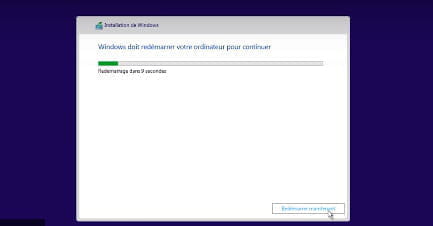
(in the worst case, if it doesn’t face it at that moment and the PC has returned to the USB, you can remove it roughly and the installation will continue)
.5 > Once installed, some points need to be verified /
.
If activation OK
And
If drivers OK and if not, use this
https://www.commentcamarche.net/faq/48455-mettre-a-jour-ses-pilotes-gratuitement-avec-driverscloud
We will see together when you get there.
.6 > We take care of the HDD /
.
Installation OK on the SSD
You reconnect the HDD
Right-click on the start menu
Choose Windows PowerShell (admin) = (admin command prompt)
(the command prompt opens)
Enter the following commands one by one, validating each with Enter:
diskpart
list disk
sel disk X
(X should be replaced by the number corresponding to your HDD to be erased, as given by the result of the previous command. Be careful not to get the number wrong this time as there will be both)
clean
convert gpt
exit
exit
Your HDD will then be empty, in GPT but unallocated.
(not visible in Explorer but visible in Disk Management)
Go to Disk Management
Right-click on the unallocated volume of the HDD
Choose “create a new simple volume”
(leave the default size given, or modify it and make several partitions, it's up to you)
Your HDD will then be visible from Windows Explorer.
.In conclusion
.
You will have the functionalities, performance/advantages of UEFI
Also the advantages of GPT partition tables
(because currently you are only in a mode that emulates the old basic BIOS. It’s silly to run a recent PC in a mode from 10 years ago. And since you were planning to clean everything up, you might as well do it right. It seems long, especially to read, but it’s not much more than an installation, just a few adjustments and commands to make)
----------------------------
BE CAREFUL, at the slightest problem we will see together to find a solution.
(no false shortcuts that would bring you back to square one ;-) )
Auto message
If you're here, it's because you don't know, so... listen and understand ;-)
Mini Code of Conduct for the volunteers who help you: Response, Respect, Politeness,...-
Thank you for this detailed response! Moving all my files takes a lot of time; I’ve downloaded the ISO, it’s on the USB stick, I just need to launch it now. So far, no problem ^^
After that, will it delete all the data on my hard drive? Because there are also the software, in addition to the folders on it. -
"I downloaded the ISO, it's on the USB stick, and all that's left is to launch it."
I'm clarifying just in case that the ISO must be downloaded to the PC and not the USB stick (copy and paste at worst).
It's the Rufus software that creates the USB stick and will put the ISO on it.
"Afterwards, is it going to delete all the data on my hard drive? Because there are also programs, in addition to the folders on it"
It’s possible to convert without loss but it’s not great.
And anyway, since you're going to set up Windows fresh on your SSD, you'll need to reinstall your programs on the new Windows and get rid of the old one.
Otherwise, you'll have two systems running at the same time.
Remember to retrieve your activation keys if you have paid software so that you can reinstall them. -
"Just to clarify, the ISO must be downloaded onto the PC and not onto the USB drive (copy and paste at worst)
It’s the Rufus software that builds the USB drive and will put the ISO on it."
Yes, I expressed it poorly, that's what I did ^^
"And anyway, since you are reinstalling Windows on your SSD, you will need to reinstall your software on the new Windows and get rid of the old one."
Yes, that's true.
3 > Start your PC to repair from your installation USB /
Bios set to UEFI
(and nothing else but UEFI, no CSM or legacy or inherited mode enabled)
and disable secure boot
confirm by exiting (F10 and confirmation)
I didn't understand how to do it: is it at the startup of the PC, or when it is turned on? -
-
-
(I created an account to be able to send images, I hadn't done it before, so it changes my nickname)
Did you start by formatting your SSD elsewhere before starting the installation?
No, I installed it in the PC, then formatted it, and it recognized it right away
What exactly did you do?: I don't remember exactly, when I turned my PC back on it was detected, I just formatted it, then turned off my PC to switch to Windows. Then, since it wasn't working, I deleted all the partitions (to have only one)
The base partition type is NTFS, not MBR or GPT


-
It's surprising, there's no mention of the partition guide type, like there is on my end.

As I suspected, your SSD is formatted. Try this: right-click on it and click on Delete Volume. Then, redo the installation.
--
Misnaming things is adding to the world's misery (Albert Camus)-
-
-
Similar problems are now happening to many people who believe that they need to format the SSD first in order to install Windows 10 on it. They will make unnecessary maneuvers. You need to boot from the Windows media (DVD or USB flash drive). Select the Install option. Apparently, the drives will appear. You choose the SSD. The installation will proceed according to the active partitioning scheme (GPT by default, on recent PCs). Start, as I already mentioned, by going to Disk Management to delete the volume created by your formatting. The SSD will be like new. To avoid certain issues, disconnect your HDD during the installation. After verifying that the PC boots properly from the SSD, you can reconnect your HDD.
-
Good evening epango,
You choose the SSD. The installation will be done according to the activated partition table guide (GPT by default, in recent PCs).
No, it is in MBR, so the installation will be done in MBR.
It is the BIOS mode and the creation of the drive that determines the type of partition table. -
-
-
Good evening,
Partition type = master boot sector
Which means you installed it using MBR by default.
If you have a UEFI, you wrongly followed old tutorials that suggest installing in degraded mode like legacy, legacy or CSM, and so on.
Since you must have created your installation USB on this PC using Microsoft software, by default it creates it for the used PC, so not ideal.
Or I don’t know what you might have done, but you ended up with MBR.
-----------------------------
You should recreate your USB with an ISO and set it up with Rufus in GPT.
Install it on your SSD.
But this may make your current hard drive with Windows invisible under UEFI.
So you would need to put your data on another external hard drive, then empty the current hard drive (of the PC) and convert it to GPT as well.
Ultimately, you should have
UEFI only in BIOS
SSD in GPT with Windows
HDD in GPT
Restore your data
Did you follow along?
Note that Diskpart will be the right program for the conversion (it is integrated into Windows and also in the installation).
Auto message
If you are here, it means you don’t know, so... listen and understand ;-)
Mini note to the volunteers who are helping you: Response, Respect, Politeness,...-
And I forgot... since you said you formatted the SSD from this PC which is in MBR, it's normal that the SSD is in MBR.
When you understand and are okay with it.
You will have to put your data on another hard drive to work and clear the SSD and hard drive you have.
We will need to set the BIOS back to UEFI
Recreate the installation key correctly and manage to boot the PC from it.
Clear your disks and convert them during the installation
Install
-
-
-
Boot mode selection, we see "uefi an..."
It doesn't seem to be on uefi at all, so first set it to uefi
Or the line you're showing remove that legacy.
Only uefi "full stop"
------------------
For secure boot, it either appears after switching to uefi
or
It might be the line Security option, which we see
To be disabled -
-
-
I'm sorry for all my questions, I just don't want to make any mistakes
It's good for secure boot, there's a line below that I hadn't seen, it's already set to disabled
The PC then started up without any problems, I turned it off, then restarted and went to the "boot system" via f12
Is this where I need to select the key? (Verbatim)
-
-
-
Everything is working great! I followed the Windows installation, then I reconfigured the themes/preferences and installed the programs on my PC.
Thanks a lot anyway!
Now all that's left is to restart to see the powwwwwwer of the SSD in action; I bought an SSD not only for its speed, but to lighten my HDD, which was always at 100% usage in the task manager.
I just remembered that there were still some steps left afterwards, just need to get them done! (among other things, step six)-
You completely messed up if you didn't follow the instructions to the letter at step 4 to convert the SSD to GPT just before installation.
Check in Disk Management the properties of your SSD
(you know how to do that)
Give a photo
If it's not in GPT, you will have to reinstall and do everything properly.
----------------------
Forget about your HDD for the moment, step 6
It was running at 100% and seems to have switched to RAW, that's not good, we need to test it.
Reconnect it and test it with this:
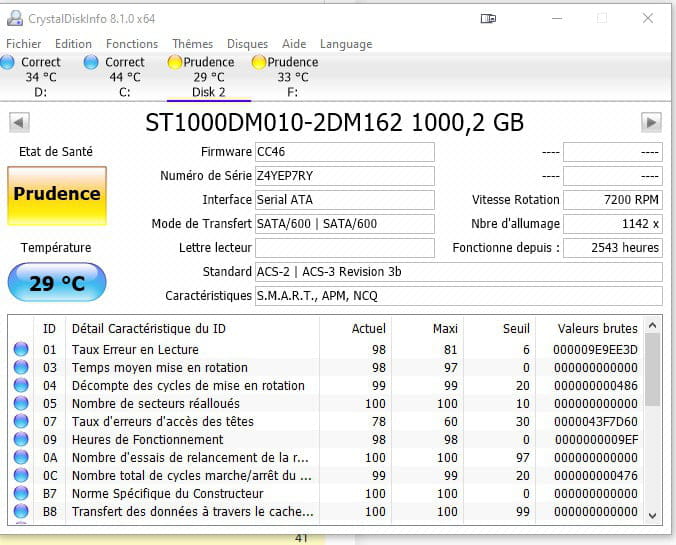
https://www.commentcamarche.net/telecharger/utilitaires/6735-crystaldiskinfo/
Simple, just unzip the folder and run the x64 file.
The test will take place and since you have 2 drives, you will have 2 tabs, one for each.
Give a photo of the result for the HDD. -
-
-
On the other hand, it is disk 1 and not disk 0, so you also did not follow the first paragraph.
(connection still possible now, on the lowest numbered SATA port)
Generally, the hard drive with Windows is set as disk 0. -
-
-
Well indeed, you never know :D
When I start my PC, there are two types of volumes: 3 and 8 (8 by default). Volume 8 is the correct one, having tested both (big difference in the task manager)
However, whether I boot Windows 10 with volume 3 or 8, I can't clean my drive 2 (the old one) with Powershell (admin)
Last night I made a mistake, it is indeed the old HDD that was in warning (it's the only one at 1TB, quite noticeable as a difference)
And here is the 4th tab (F being my backup)
For both, the warning is about the number of unstable sectors & the total number of uncorrectable errors.-
There are two types of volumes: 3 and 8 (8 by default)
I don't quite understand...
Partitions? After, you're the only one who knows what's on them.
------------
Otherwise, the clean command may not work because the Windows on the HDD seems to start partially.
It needs to be unused to remove it.
Does your SSD work well on its own, without the HDD connected?
Maybe your PC boots from the HDD instead of the SSD?
If so, try to randomly delete Windows files on the HDD, just to crash it and then be able to empty it.
Or a standard format if that works
Or disconnect the HDD, boot up, reconnect the PC after it starts, and empty it if it's not active that should work.
Or boot from a installation USB and just partially do step 4 (not installing but just the commands then quit)
Or a failure on a sector where it shouldn't be and that's blocking the process.
However, I don't quite understand because if your disk is 2 in diskpart, it's already in GPT, so you just need to clear it of the old Windows.
You can see disks in GPT under diskpart by the little star at the end of the line.
Disks 1 and 2 in GPT
Disks 0 and 3 in MBR
-------------
Cautious disks
I don't have the lines that are "alerted"
But well, if they are unstable sectors that's not good, it's like writing over holes. And unrecoverable error that matches.
Sign of a physical problem, no repair solution (just fake solutions on the net for pointless patching. Miserable cache)
They can remain like this for a long time, causing errors or a total crash in the very near future.
I would recommend replacing them.
HDDs aren't that expensive anymore.
----------------------------
You will have understood that, between your number of partitions, disks, Windows, you lost me ;-) -
-
You need to explain to me where and how you installed it because if the SSD doesn't boot, it's not good.
Did you follow this before installing?
"Disconnect the HDD while installing on the SSD."
Also disconnect the 2 backup drives. (I wasn't aware of this before)
The SSD needs to be the primary, otherwise the installation tends to partially set the boot on the leftover HDDs.
Approximation or half-done procedure = result 0, starting point.
----------------
Either your PC is set to boot from the Windows on the HDD (boot order) or the first SATA port.
Try temporarily putting the SSD on SATA 0 (it usually starts with 0 on motherboards and not with another HDD), and see what happens; if it works, you don't need to reinstall. -
-
-
-
new iso
(you emptied your USB flash drive, but if the iso is set aside on the PC, it's still good, and it avoids having to re-download)
https://software-download.microsoft.com/db/Win10_1903_V1_French_x64.iso?t=92c54818-b880-4b90-991b-4a291fdc5847&e=1561637641&h=0a9218760a677e8ed3828439c8975e8a
So you will only leave the SSD connected
(3 others or more disconnected)
Go to a custom installation
Arrived at the location choice table.
You highlight the space in blue
You choose below the table, the command "delete"
Be careful to do this for all the present spaces.
Then if necessary "refresh" and you will only have one empty space of the total disk size.
Choose it and install.
Then test the SSD booting alone.
-----------
Afterward, avoid installing anything until we are sure of the proper installation (waste of time)
Step 6 to empty your HDD should come after the SSD starts alone.
The Windows on the HDD will no longer be active.
Auto message
If you are here, it means you don’t know, so... listen and understand ;-)
Mini Regarding the volunteers who are helping you: Respond, Respect, Courtesy,...-
-
-
-
-
It might be because the SSD has Windows and was therefore taken in 0.
Did you see that for your HDDs as a precaution, you need to change them and avoid saving on them?
https://forums.commentcamarche.net/forum/affich-36089411-probleme-partition-gpt#42
Everything seems fine.
Any issues?
Do you have more to do, what have you done, where are you ...?
-