Unable to start the computer - No operating system found
Solved
ByMorgane
Posted messages
43
Status
Membre
-
ByMorgane Posted messages 43 Status Membre -
Hello,
So to explain the problem clearly, I will go through things in order:
My grandfather caught a virus on his Compaq laptop running Windows 8. I wasn't with him at the time, so I had him run scans with antivirus software, apparently it removed some stuff.
Then I went to his place, and to be sure, I wanted to initiate a recovery from a date prior to his problem.
The recovery took a really long time, so I left telling him to let the computer run.
I don't know if he let the recovery finish before turning it off. Apparently, after a while, the computer restarted and landed on the place where he needs to enter his session password to log in.
He entered his password and apparently it was loading indefinitely, so he turned it off "brutally."
After that, he could no longer use it normally. A few seconds after startup (barely enough time to enter the session password), a blue screen appeared with the message "Your computer has encountered a problem and needs to restart :(" The computer restarted. He couldn't turn it off normally either because this blue screen appeared while the computer was shutting down, so it restarted.
So I thought about doing a complete system restore. Before that, I wanted to recover his files, so at startup, I pressed Escape, chose "System recovery," "Advanced options," then I selected restore system image, which opened a file explorer for me to select an image on the computer, but that wasn't what I wanted to do, so I just used it to access the files and save them to a USB drive (which I managed to do).
Then still in the advanced options, I initiated the "factory reset" proposed. So the restoration started but crashed shortly after for no real reason. And when the computer turned back on, I had no access to anything at all, as if Windows had been completely deleted.
The only thing I can access is this, by pressing Escape at startup:
I should note that when I choose F11, I return to my initial error message, it leads nowhere.
From there, I tried several things:
1. Running a disk diagnostic
So I did a quick diagnosis, it passed without error. I also did a slow diagnosis; same result.
2. I tried to boot the computer from a USB drive with a version of Windows
Well, I tried with several different USB drives, on all the USB ports of the computer, and the same initial message always appears. I also tried booting from a Windows 10 version, from a system recovery tool (I tried several programs to make my USB drive bootable, including Rufus, Windows 7 USB DVD Download Tool, etc.), but when I went to F9 (Boot Device Options), there was no listing.
3. I also tried resetting the BIOS settings to default.
4. I tried booting from a Windows XP CD that I had. The startup takes longer, but in the end, the same error always appears.
So, that's it, I don't know what to do anymore.
Do you have any ideas?
Configuration: Windows / Firefox 66.0
So to explain the problem clearly, I will go through things in order:
My grandfather caught a virus on his Compaq laptop running Windows 8. I wasn't with him at the time, so I had him run scans with antivirus software, apparently it removed some stuff.
Then I went to his place, and to be sure, I wanted to initiate a recovery from a date prior to his problem.
The recovery took a really long time, so I left telling him to let the computer run.
I don't know if he let the recovery finish before turning it off. Apparently, after a while, the computer restarted and landed on the place where he needs to enter his session password to log in.
He entered his password and apparently it was loading indefinitely, so he turned it off "brutally."
After that, he could no longer use it normally. A few seconds after startup (barely enough time to enter the session password), a blue screen appeared with the message "Your computer has encountered a problem and needs to restart :(" The computer restarted. He couldn't turn it off normally either because this blue screen appeared while the computer was shutting down, so it restarted.
So I thought about doing a complete system restore. Before that, I wanted to recover his files, so at startup, I pressed Escape, chose "System recovery," "Advanced options," then I selected restore system image, which opened a file explorer for me to select an image on the computer, but that wasn't what I wanted to do, so I just used it to access the files and save them to a USB drive (which I managed to do).
Then still in the advanced options, I initiated the "factory reset" proposed. So the restoration started but crashed shortly after for no real reason. And when the computer turned back on, I had no access to anything at all, as if Windows had been completely deleted.
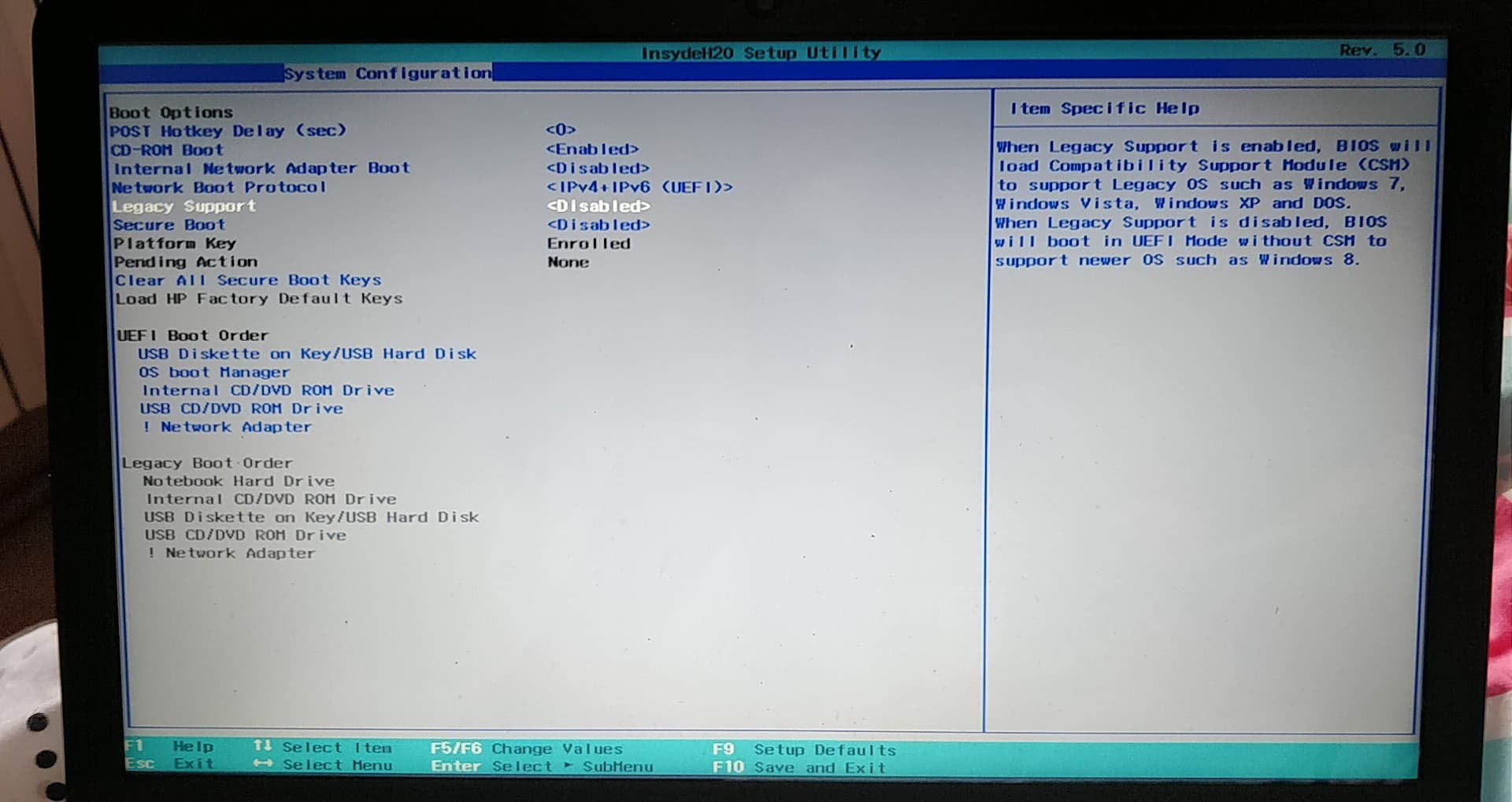
The only thing I can access is this, by pressing Escape at startup:
I should note that when I choose F11, I return to my initial error message, it leads nowhere.
From there, I tried several things:
1. Running a disk diagnostic
So I did a quick diagnosis, it passed without error. I also did a slow diagnosis; same result.
2. I tried to boot the computer from a USB drive with a version of Windows
Well, I tried with several different USB drives, on all the USB ports of the computer, and the same initial message always appears. I also tried booting from a Windows 10 version, from a system recovery tool (I tried several programs to make my USB drive bootable, including Rufus, Windows 7 USB DVD Download Tool, etc.), but when I went to F9 (Boot Device Options), there was no listing.
3. I also tried resetting the BIOS settings to default.
4. I tried booting from a Windows XP CD that I had. The startup takes longer, but in the end, the same error always appears.
So, that's it, I don't know what to do anymore.
Do you have any ideas?
Configuration: Windows / Firefox 66.0
8 réponses
Good evening,
Stay calm and don't look for complicated solutions or fake tutorials from the internet.
We can feel your panic in front of the PC, eager to act and you're going in all directions ;-)
Do you have all these folders readable?
Because soon you won't have a chance to recover them.
Which Windows was on the PC last?
Was it still Windows 8 or had it been upgraded to Windows 10?
As the druid said
> BIOS in UEFI mode, so not legacy
(since you set it to legacy, it's normal that Windows in UEFI is no longer recognized and your USB drive as well if created properly in UEFI)
> Secure Boot disabled
we validate upon exiting
(HP sometimes needs to shut down and restart the PC to take the changes into account)
> your USB drive must be created with the correct ISO corresponding to the last Windows on the PC
> created with Rufus by setting the partition type to GPT for UEFI.
Then you plug in your USB drive, tap F9 at startup, if needed, and choose your USB drive.
Custom installation and reinstall on the main partition (the one corresponding to where Windows was)
Be careful, if you're considering reinstalling, you should know that you'll lose everything.
Ask for details if needed because it would be silly to do it wrong.
Stay calm and don't look for complicated solutions or fake tutorials from the internet.
We can feel your panic in front of the PC, eager to act and you're going in all directions ;-)
Do you have all these folders readable?
Because soon you won't have a chance to recover them.
Which Windows was on the PC last?
Was it still Windows 8 or had it been upgraded to Windows 10?
As the druid said
> BIOS in UEFI mode, so not legacy
(since you set it to legacy, it's normal that Windows in UEFI is no longer recognized and your USB drive as well if created properly in UEFI)
> Secure Boot disabled
we validate upon exiting
(HP sometimes needs to shut down and restart the PC to take the changes into account)
> your USB drive must be created with the correct ISO corresponding to the last Windows on the PC
> created with Rufus by setting the partition type to GPT for UEFI.
Then you plug in your USB drive, tap F9 at startup, if needed, and choose your USB drive.
Custom installation and reinstall on the main partition (the one corresponding to where Windows was)
Be careful, if you're considering reinstalling, you should know that you'll lose everything.
Ask for details if needed because it would be silly to do it wrong.
ah damn... I'm almost at the end of the Debian installation I think
So originally there was Windows 8, but I wanted to switch to Windows 10.
I downloaded an ISO, and yet I created the installation USB in the same way I did for Debian, with the correct settings
But I really don't think it's the USB that's the issue. When I disable Legacy it shows me the first error message.
And when I enable it but don't insert a USB it says
"No bootable device -- insert boot disk and press any key" only
It seems to me that when I disable Legacy there's really nothing I can do.
EDIT: I've already passed the disk partitioning step, so I guess it's too late to go back?
So originally there was Windows 8, but I wanted to switch to Windows 10.
I downloaded an ISO, and yet I created the installation USB in the same way I did for Debian, with the correct settings
But I really don't think it's the USB that's the issue. When I disable Legacy it shows me the first error message.
And when I enable it but don't insert a USB it says
"No bootable device -- insert boot disk and press any key" only
It seems to me that when I disable Legacy there's really nothing I can do.
EDIT: I've already passed the disk partitioning step, so I guess it's too late to go back?
It had Windows 8 64 bits on it, so you need to download the ISO of that version from the Microsoft website and use Rufus to create your bootable USB drive. Don't look for a Microsoft license; it's already registered digitally.
If there are no issues with booting from USB, the installation shouldn't be a problem, but since you've tinkered with Linux, you'll need to clean the partitions using the diskpart tool.
With that, good night.
If there are no issues with booting from USB, the installation shouldn't be a problem, but since you've tinkered with Linux, you'll need to clean the partitions using the diskpart tool.
With that, good night.
@ the druid
She wants to put Windows 10 in its place, so ...
https://forums.commentcamarche.net/forum/affich-35987108-impossible-de-demarrer-l-ordinateur-plus-de-systeme-d-exploitation#7
She wants to put Windows 10 in its place, so ...
https://forums.commentcamarche.net/forum/affich-35987108-impossible-de-demarrer-l-ordinateur-plus-de-systeme-d-exploitation#7
1 > Download the iso /
(no matter which PC you're using to do this)
An iso is a disk image, but don't click on it as it is.
It's a resource that we will use to create an installation USB drive. We need to mount this image.
Iso W 10 x 64 (link valid for 24 hours)
https://software-download.microsoft.com/sg/Win10_1809Oct_v2_French_x64.iso?t=80934da7-d045-4b3a-ba11-a304a5f8ab07&e=1555967592&h=eb41513c12defb63139c43e718918706
2 > Create the installation key /
Download the rufus software:
https://www.commentcamarche.net/telecharger/utilitaires/19615-rufus/
> Basically, point to the USB key that we will use (8 GB or more)
Be careful, empty your key beforehand because everything will be erased.
> point to the iso file you just downloaded
> set the partition type. (gpt as shown in the image)
> Start the creation and wait for the completion message.
3 > Boot your PC to be repaired from your installation USB /
set to uefi with legacy disabled and secure boot disabled
confirm by exiting (F10 and confirmation on the next page)
Turn off the PC
Plug in the USB key
Restart
The PC should boot directly from the USB key, thus starting the installation.
If there’s a problem
Turn off and tap F9 to reach the boot page
you should see and select your key.
4 > Windows Installation /
Here’s an overview for W 10 (not really up to date but just an overview)
http://www.windows8facile.fr/installer-windows-10/
License key should not be requested, as since you already had Windows activated, the installer should find it without asking anything. (or skip the step without entering anything)
You go for "upgrade" if offered.
For it to work, the installation must find traces of your old Windows; otherwise, the process will fail.
This reinstalls on top of the non-functional Windows.
OR
You go for a "custom" installation
You will follow the procedure and come to a screen that will list the locations and ask you "where to install Windows".
You will tell me what’s there or show an image.
(to be more sure of the choice)
At this moment, different choices are possible:
> Reinstall on the main partition (preferable)
In the table, you choose the main partition
(trust its size which should correspond to the space you had while under Windows)
Result -
This keeps the manufacturer's recovery partition (if there is one) and reinstalls only Windows on top of the non-functional old version.
> You can also wipe the entire disk before installing
(preferably if Debian has overwritten all the partitions)
Press Shift and F10
(the command prompt opens)
Enter the following commands one by one, confirming with enter:
diskpart
list disk
sel disk X (replace X with the number corresponding to your hard drive to erase)
clean
convert gpt (in case your HD is not in the right format. Not necessary if already correct)
exit
Result -
In short, we empty the disk, and you then return to the installation screen.
You will have only one volume to choose to install on.
In this case, you lose the manufacturer's recovery partition.
Afterward, recovery can only be done from Windows or installation key.
Windows will be free of manufacturer-installed software (often unnecessary) and the boot partitions will be rebuilt.
5 > Once installed, there are a few points to check /
If activation is OK
And
If drivers are OK, and if not, use this
https://www.commentcamarche.net/faq/48455-mettre-a-jour-ses-pilotes-gratuitement-avec-driverscloud
We will see together when you get there.
(no matter which PC you're using to do this)
An iso is a disk image, but don't click on it as it is.
It's a resource that we will use to create an installation USB drive. We need to mount this image.
Iso W 10 x 64 (link valid for 24 hours)
https://software-download.microsoft.com/sg/Win10_1809Oct_v2_French_x64.iso?t=80934da7-d045-4b3a-ba11-a304a5f8ab07&e=1555967592&h=eb41513c12defb63139c43e718918706
2 > Create the installation key /
Download the rufus software:
https://www.commentcamarche.net/telecharger/utilitaires/19615-rufus/
> Basically, point to the USB key that we will use (8 GB or more)
Be careful, empty your key beforehand because everything will be erased.
> point to the iso file you just downloaded
> set the partition type. (gpt as shown in the image)
> Start the creation and wait for the completion message.
3 > Boot your PC to be repaired from your installation USB /
set to uefi with legacy disabled and secure boot disabled
confirm by exiting (F10 and confirmation on the next page)
Turn off the PC
Plug in the USB key
Restart
The PC should boot directly from the USB key, thus starting the installation.
If there’s a problem
Turn off and tap F9 to reach the boot page
you should see and select your key.
4 > Windows Installation /
Here’s an overview for W 10 (not really up to date but just an overview)
http://www.windows8facile.fr/installer-windows-10/
License key should not be requested, as since you already had Windows activated, the installer should find it without asking anything. (or skip the step without entering anything)
You go for "upgrade" if offered.
For it to work, the installation must find traces of your old Windows; otherwise, the process will fail.
This reinstalls on top of the non-functional Windows.
OR
You go for a "custom" installation
You will follow the procedure and come to a screen that will list the locations and ask you "where to install Windows".
You will tell me what’s there or show an image.
(to be more sure of the choice)
At this moment, different choices are possible:
> Reinstall on the main partition (preferable)
In the table, you choose the main partition
(trust its size which should correspond to the space you had while under Windows)
Result -
This keeps the manufacturer's recovery partition (if there is one) and reinstalls only Windows on top of the non-functional old version.
> You can also wipe the entire disk before installing
(preferably if Debian has overwritten all the partitions)
Press Shift and F10
(the command prompt opens)
Enter the following commands one by one, confirming with enter:
diskpart
list disk
sel disk X (replace X with the number corresponding to your hard drive to erase)
clean
convert gpt (in case your HD is not in the right format. Not necessary if already correct)
exit
Result -
In short, we empty the disk, and you then return to the installation screen.
You will have only one volume to choose to install on.
In this case, you lose the manufacturer's recovery partition.
Afterward, recovery can only be done from Windows or installation key.
Windows will be free of manufacturer-installed software (often unnecessary) and the boot partitions will be rebuilt.
5 > Once installed, there are a few points to check /
If activation is OK
And
If drivers are OK, and if not, use this
https://www.commentcamarche.net/faq/48455-mettre-a-jour-ses-pilotes-gratuitement-avec-driverscloud
We will see together when you get there.
I've already done all that, the problem is that when Legacy is disabled and Security Boot is also off, I run into the error shown in the first photo of my thread.
But I will try again.
So can I abort the Debian installation?
And if I want to wipe the disk, at what exact moment do I press SHIFT + F10?
But I will try again.
So can I abort the Debian installation?
And if I want to wipe the disk, at what exact moment do I press SHIFT + F10?
Yes, we need to start fresh because we don't know if your ISO is good (it's Microsoft who provides them on their site).
The BIOS is no longer good as you've done (I have a passing HP PC with similar BIOS, so ...)
ETC
Booting from a properly made USB is feasible by changing what needs to be changed.
The most complicated part will be making the right installation choice because given what you've done, I don't know what we'll find.
Before doing anything, you will provide an image of the partition table to see what is recoverable (to keep).
License, as I told you, normally no need, Windows 10 will activate without asking anything with the Windows 8 key.
(during installation or if it asks for a key, skip the step without entering anything and it will activate once installed. I'm unsure because you've tinkered with everything).
The BIOS is no longer good as you've done (I have a passing HP PC with similar BIOS, so ...)
ETC
Booting from a properly made USB is feasible by changing what needs to be changed.
The most complicated part will be making the right installation choice because given what you've done, I don't know what we'll find.
Before doing anything, you will provide an image of the partition table to see what is recoverable (to keep).
License, as I told you, normally no need, Windows 10 will activate without asking anything with the Windows 8 key.
(during installation or if it asks for a key, skip the step without entering anything and it will activate once installed. I'm unsure because you've tinkered with everything).
Give photos of each tab of this BIOS so we can see what’s wrong.
(If both of us have the same BIOS and it's OK on my side, it should work for you too)
--
(If both of us have the same BIOS and it's OK on my side, it should work for you too)
--
Automatic message
If there is no regular feedback, I will no longer follow your discussion.
Minimum required from the volunteers helping you: Politeness, Respect...
In your BIOS, you are sure to choose the right parameters for a UEFI installation, because on the System configuration screen there are plenty of options.
--
the druid without the potion.
--
the druid without the potion.
Well, I’m not quite sure how I did it.
I redid the "System Recovery Tool."
It ran for a while with "Attempting repairs," for several hours.
Then I restarted the computer by going into the BIOS settings and setting Legacy Support to "disabled," and this time it booted up from my Windows USB with GPT partitions!
But to get to that point, I had to go through "Legacy Support" enabled, and a Windows MBR USB.
I'm installing Windows 8 (retrieved from the link available for 24 hours) and I’ll keep you posted if I make it through without issues.
I’m at "Preparing files for installation."
P.S.: When I had access to the recovery settings, I tried to initiate a recovery, but it said it wasn’t possible because there was a missing drive partition.
EDIT: When the Windows installation restarted the computer, of course, it booted on the USB again and wanted to redo the installation. I powered off and tried to boot to the OS, but there were two Windows installations. I might have messed up when I chose the partition; there may have already been a version on one partition, and I reinstalled it on another.
Should I format all the partitions?
So, I’m going to start over…
I set the OS as the first in the boot order.
And with F9 I forced it to boot from my USB to install Windows 8.
I have this:
What should I do now?
I redid the "System Recovery Tool."
It ran for a while with "Attempting repairs," for several hours.
Then I restarted the computer by going into the BIOS settings and setting Legacy Support to "disabled," and this time it booted up from my Windows USB with GPT partitions!
But to get to that point, I had to go through "Legacy Support" enabled, and a Windows MBR USB.
I'm installing Windows 8 (retrieved from the link available for 24 hours) and I’ll keep you posted if I make it through without issues.
I’m at "Preparing files for installation."
P.S.: When I had access to the recovery settings, I tried to initiate a recovery, but it said it wasn’t possible because there was a missing drive partition.
EDIT: When the Windows installation restarted the computer, of course, it booted on the USB again and wanted to redo the installation. I powered off and tried to boot to the OS, but there were two Windows installations. I might have messed up when I chose the partition; there may have already been a version on one partition, and I reinstalled it on another.
Should I format all the partitions?
So, I’m going to start over…
I set the OS as the first in the boot order.
And with F9 I forced it to boot from my USB to install Windows 8.
I have this:
What should I do now?
after if you put w 10 and if in addition the manufacturer recovery didn't work...
you can wipe everything from the table or with the command data above (even cleaner and safer)
list disk
sel disk X (x is to be replaced by the number corresponding to your hard drive to erase)
clean
convert gpt (in case your hdd is not in the right format. Not necessary if it's already good)
exit
you can wipe everything from the table or with the command data above (even cleaner and safer)
list disk
sel disk X (x is to be replaced by the number corresponding to your hard drive to erase)
clean
convert gpt (in case your hdd is not in the right format. Not necessary if it's already good)
exit
So, I did as you told me. I deleted everything except the OEM.
However, when I refreshed, only the OEM remained, along with 400 gigabytes of unallocated space. I couldn't do anything with it.
So I clicked on "New" without changing the default size displayed, and it recreated a "System" thing and an "MSR (reserved)" in addition to the main one of 444.2 Go.
I was planning to install it on the main one, but I got a message:
Should I continue?
However, when I refreshed, only the OEM remained, along with 400 gigabytes of unallocated space. I couldn't do anything with it.
So I clicked on "New" without changing the default size displayed, and it recreated a "System" thing and an "MSR (reserved)" in addition to the main one of 444.2 Go.
I was planning to install it on the main one, but I got a message:
Should I continue?
The pro is better with more parameters and settings, but for grandpa...
It's not over, after installation you'll need to check if it's activated properly.
All the settings > update and security > activation tab to see if it's okay
Driver check is okay
Right-click on the Windows icon in the start menu > device manager
No line should be "unknown device" or have exclamation or question marks
Oops, I gave the paths for Windows 10, I don't remember for 8, you'll adapt.
--
It's not over, after installation you'll need to check if it's activated properly.
All the settings > update and security > activation tab to see if it's okay
Driver check is okay
Right-click on the Windows icon in the start menu > device manager
No line should be "unknown device" or have exclamation or question marks
Oops, I gave the paths for Windows 10, I don't remember for 8, you'll adapt.
--
Automated message
Without regular feedback, I will no longer follow your discussion.
Minimum required concerning the volunteers who help you: Politeness, Respect...
Nothing but victory... I can already see the message in the bottom right indicating that your activation is not good.
Do you really not want to install the Windows 10 family version I gave you, and with a bit of luck, it will find the old valid key.
And on top of that, we'll install software so that you can take control of grandpa's PC remotely to help him when he needs it.
Do you really not want to install the Windows 10 family version I gave you, and with a bit of luck, it will find the old valid key.
And on top of that, we'll install software so that you can take control of grandpa's PC remotely to help him when he needs it.
this remains to be verified
pilot verification ok
Right-click on Windows icon start menu > device manager
No line should be "unknown device" or have exclamation or question marks
And add this software on your PC and papy's
https://www.commentcamarche.net/telecharger/communication/21661-teamviewer/
This software will give you access to his PC from yours if he needs help.
Simple, each opens it and the one who needs help gives two "indicated codes" to the other who will then be able to take control of the PC.
Once the session is closed, there is no more access to either without a new code.
Make sure to place the shortcut visibly, easy to find and it will surely be useful.
Free software is enough.
Close the windows that propose the paid version, as everyone does.
Test it with his PC and yours, you'll see it's convenient.
--
pilot verification ok
Right-click on Windows icon start menu > device manager
No line should be "unknown device" or have exclamation or question marks
And add this software on your PC and papy's
https://www.commentcamarche.net/telecharger/communication/21661-teamviewer/
This software will give you access to his PC from yours if he needs help.
Simple, each opens it and the one who needs help gives two "indicated codes" to the other who will then be able to take control of the PC.
Once the session is closed, there is no more access to either without a new code.
Make sure to place the shortcut visibly, easy to find and it will surely be useful.
Free software is enough.
Close the windows that propose the paid version, as everyone does.
Test it with his PC and yours, you'll see it's convenient.
--
Automatic message
Without regular feedback, I will no longer follow your discussion.
Minimum required towards the volunteers who help you: Politeness, Respect...
just this one, start by checking if the Intel software finds it and installs it
https://www.intel.fr/content/www/fr/fr/support/detect.html
Use this software
https://www.commentcamarche.net/faq/48455-mettre-a-jour-ses-pilotes-gratuitement-avec-driverscloud
If nothing better, then give me the device identification number in question that you will find like this:
https://www.commentcamarche.net/faq/35597-trouver-le-numero-d-identification-d-un-peripherique
And I will look it up.
https://www.commentcamarche.net/faq/48455-mettre-a-jour-ses-pilotes-gratuitement-avec-driverscloud
If nothing better, then give me the device identification number in question that you will find like this:
https://www.commentcamarche.net/faq/35597-trouver-le-numero-d-identification-d-un-peripherique
And I will look it up.


“Operating System Boot Mode Change
A change to the operating system Source Boot mode is pending. Please enter the pass code displayed below to complete the change. If you did not initiate this request, press the ESC key to continue without accepting the pending change.
Operating System Boot Mode change (201)
6197 + ENTER - to complete the change
ESC - Continue without change
”
Of course, I entered the code and pressed enter, but nothing happens at all. If I press Escape, it cancels the modifications and restarts the computer.
I read that this needs to be done with a USB keyboard, but same result.
EDIT: I hadn't activated the numeric keypad on the USB keyboard. I can now save the changes.
And apparently, it is reading the Windows CD I had inside.
EDIT 2: I activated Legacy Support and disabled Secure Boot.
I plugged in a USB stick with Debian on it, and it seems to boot from it.