Système d'exploitation manquant
Solved
Big problem... I put my PC (tower) into safe mode yesterday, and upon restarting, Windows asked me for the Microsoft code which I entered several times, but I received the message that the code was incorrect... impossible to restart!
I took my last system image backup, booted into the BIOS from my USB drive where I have Windows, went to advanced options, system image recovery, and selected my last system backup which I have on an external hard drive, but at the end of the operation, I got a message "error code 0800..." indicating that the backup had failed!
Now, when I restart my PC, I get the message Missing Operating System, so I restart into the BIOS, boot from my Windows USB drive, go to reset my PC, choose the option to keep my files, and I get the message "the drive where Windows is installed is locked, unlock the drive and then try again..."
I checked the drive, but I am not competent to unlock it!
Does anyone know how to do it?
A big thank you in advance for your help.
I took my last system image backup, booted into the BIOS from my USB drive where I have Windows, went to advanced options, system image recovery, and selected my last system backup which I have on an external hard drive, but at the end of the operation, I got a message "error code 0800..." indicating that the backup had failed!
Now, when I restart my PC, I get the message Missing Operating System, so I restart into the BIOS, boot from my Windows USB drive, go to reset my PC, choose the option to keep my files, and I get the message "the drive where Windows is installed is locked, unlock the drive and then try again..."
I checked the drive, but I am not competent to unlock it!
Does anyone know how to do it?
A big thank you in advance for your help.
32 answers
-
ModeratorHello,
This may be related to a hard drive issue.
Reinstall Windows 10 without formatting:
The principle is to create a Windows 10 installation USB drive and boot the computer from it to reinstall Windows without formatting.
Since the computer is frozen, you need to create this from another working computer.
To create the USB drive:- Create a USB drive with Media Creation Tool: https://www.malekal.com/windows-10-media-creation-tool/
- Boot from it by changing the boot sequence and indicating the USB drive or DVD: How to boot the computer from USB drive
If the USB drive does not work, try creating one again with Rufus: how to download Rufus.
Download the ISO file, for example with Adguard: Download Windows ISO
Launch Rufus and specify the ISO file
In partition type, choose GPT.
For more details, refer to this tutorial for details: how to create a bootable USB installation drive for Windows
The Windows 10 setup program should then start:
Follow this tutorial that explains how to install Windows 10: how to install Windows 10.
All steps are provided from A to Z with advice at the end to secure Windows 10.- Let yourself be guided to install Windows 10.
- Choose customize (not upgrade)
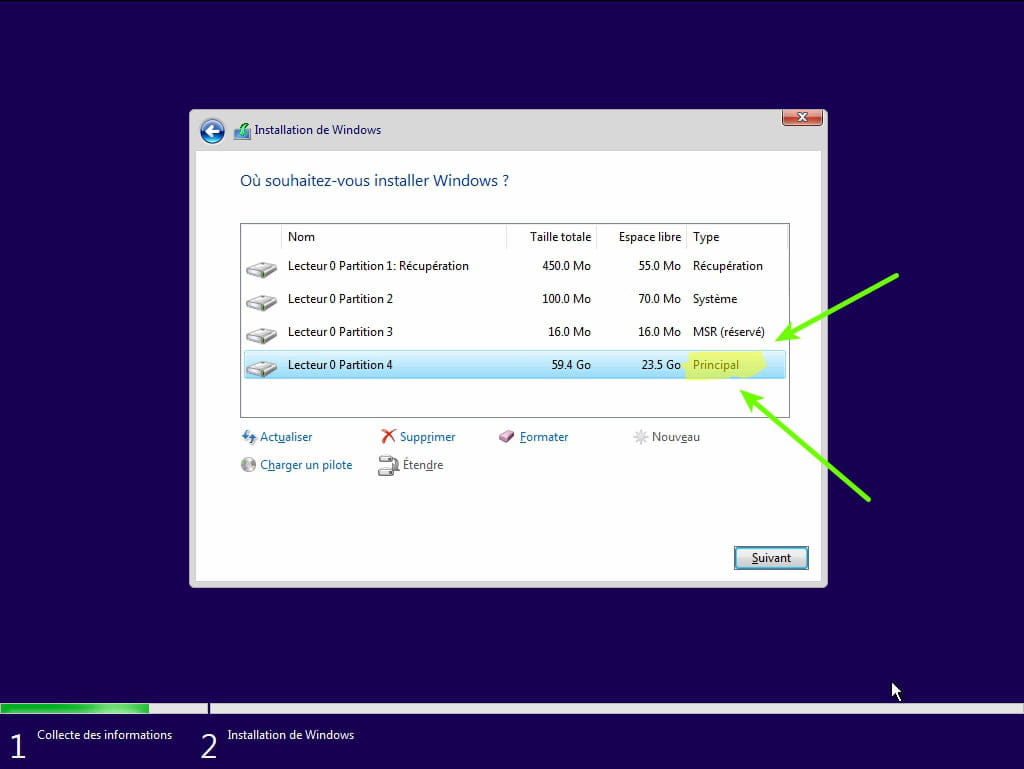
- During the partition phase, select the main partition and click next.
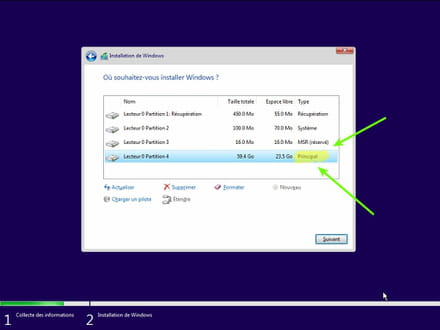
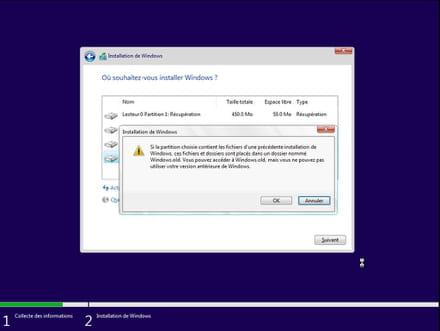
- The installer will tell you that Windows is already present and offer to move it.
- Follow the Windows installation procedure using the tutorial above.
Do not format, especially.
Your user data will be copied to the Windows.old folder.
Once Windows is installed, I recommend following these tips to properly configure and use Windows: Tips after reinstalling Windows.
--
Please press a key to continue the disinfection...