"Recovery environment not found"
Solved
MiSter_OutFox
Posted messages
207
Status
Member
-
Malekal_morte- Posted messages 178136 Registration date Status Moderator, Security Contributor Last intervention -
Malekal_morte- Posted messages 178136 Registration date Status Moderator, Security Contributor Last intervention -
Hello,
I would like to restore my Asus PC to its factory state (which would delete my personal files and others, but not the pre-installed programs by Asus, like Geforce Experience, Audio Wizard...). I followed the instructions provided on the Asus website: https://www.asus.com/fr/support/FAQ/1013065/
The problem is that it shows me this (after selecting "remove everything"):

After researching, I executed the following commands: reagentc /info ; reagentc /enable
And: dir /a /s c:\winre.wim ; dir /a /s d:\winre.wim (-> not finding any file named winre.wim)

My question is how to fix this to restore my PC to factory settings (with the previously mentioned requirements)?
Config: Asus ROG G551JW-DM370T (laptop), Windows 10 Home 64-bit, Intel I5, Geforce GTX960m, 8go RAM, SSD + HDD
Thank you in advance for your answers,
Best regards
I would like to restore my Asus PC to its factory state (which would delete my personal files and others, but not the pre-installed programs by Asus, like Geforce Experience, Audio Wizard...). I followed the instructions provided on the Asus website: https://www.asus.com/fr/support/FAQ/1013065/
The problem is that it shows me this (after selecting "remove everything"):

After researching, I executed the following commands: reagentc /info ; reagentc /enable
And: dir /a /s c:\winre.wim ; dir /a /s d:\winre.wim (-> not finding any file named winre.wim)

My question is how to fix this to restore my PC to factory settings (with the previously mentioned requirements)?
Config: Asus ROG G551JW-DM370T (laptop), Windows 10 Home 64-bit, Intel I5, Geforce GTX960m, 8go RAM, SSD + HDD
Thank you in advance for your answers,
Best regards
4 answers
-
Hi,
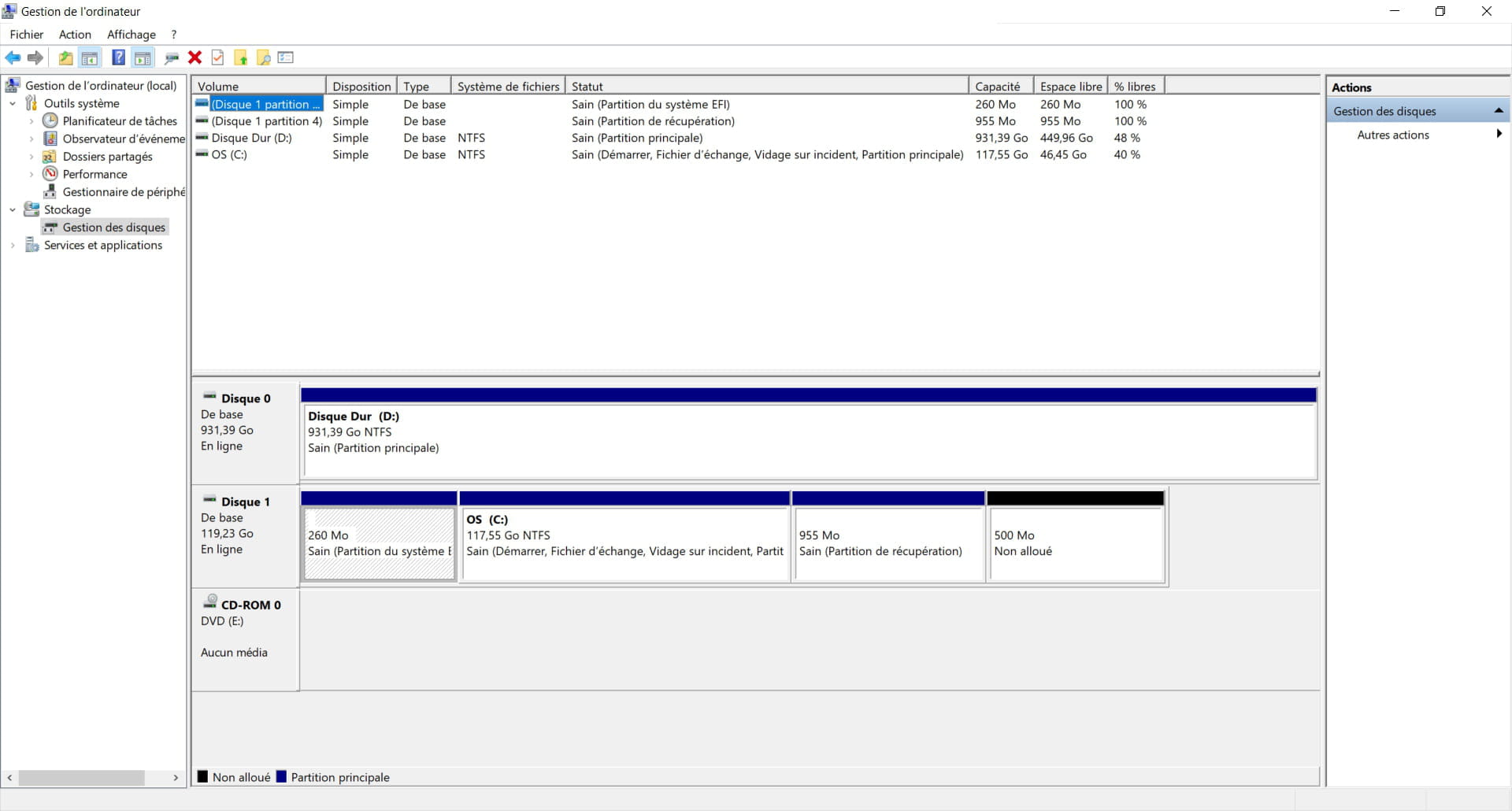
The Windows 10 recovery partition has been lost.
Config: Asus ROG G551JW-DM370T (laptop), Windows 10 Home 64 bits, Intel I5, Geforce GTX960m, 8GB RAM, SSD + HDD
Did you not clone the disks when switching to SSD?
If so, the partition must have been lost at that moment.
You have two options:- we can try to recreate the recovery partition and you reset it. For this, a screenshot of the disk management in Windows would be needed.
- reinstall Windows 10 from an installation media and take the opportunity to delete the partitions and recreate them, this will set everything right.
Choose what suits you best.
~~
The procedure to reinstall Windows 10:
Back up important documents.
Follow this tutorial explaining how to install Windows 10: how to install Windows 10.
All steps are provided from A to Z with tips at the end to secure Windows 10.
The steps are basically:- Create a USB stick with Media Creation Tool: https://www.malekal.com/windows-10-media-creation-tool/
- Boot from it by changing the boot sequence and indicating the USB stick or DVD: How to boot the computer from USB stick
If the USB stick doesn't work, try making another one with Rufus: how to download Rufus - see this tutorial for details: how to create a Windows installation USB stick- Let yourself be guided to install Windows 10.
- Choose custom (not upgrade)
- Delete the system partition, MSR, and main partition
- Select the unallocated space then new at the bottom right to recreate a main partition then continue to start the installation.
- Follow the Windows installation procedure using the tutorial above.
Your user data will be copied to the Windows.old folder.