
Problem after terminating an ongoing formatting.
Hello
I wanted to format an external Seagate 2 TB hard drive to NTFS
Seeing that it was taking forever (I had unchecked "quick format"), I stopped the process.
It's been two hours now and my drive is still running and I can't access it.
Can you explain or help me?
Thank you
I wanted to format an external Seagate 2 TB hard drive to NTFS
Seeing that it was taking forever (I had unchecked "quick format"), I stopped the process.
It's been two hours now and my drive is still running and I can't access it.
Can you explain or help me?
Thank you
5 answers
-
Welcome to the community, papymoujo1 :)
I presume that if you decided to format the HDD, it does not contain essential data (formatting is data-destructive).
If you stopped the formatting process, did you notice if the green arrow at the bottom of the screen indicating that you can safely remove the HDD appeared?
Another possible avenue would be to use DISKPART and its commands to completely wipe the HDD and then format it. If you choose this option, the steps to follow are:
click Start > Run > type CMD in the text box > Enter > type diskpart > Enter > type list disk > Enter > type: select disk # (where # should be replaced by the number that the HDD has in Disk Management. Caution: be careful not to choose the wrong number > Enter > clean > Enter
All contents on the HDD would be erased following this operation, and it would be necessary, once the procedure is complete, to return to Disk Management to Initialize the HDD and create a New Simple Volume.
Keep me posted on the next steps, please :)
I'm crossing my fingers!
-----
If you found the answer to your question, feel free to click on Resolved to help other members with the same issue ;) -
Hello
Thank you for your interest in my case.
I have followed your instructions to the letter but nothing works
DOS then indicates the following:
Virtual disk service error:
There is no media in the device...... -
Thank you for getting back, papymoujo1 :)
Check the behavior of the hard drive on another USB port and with another USB cable (I understand that the hard drive is brand new, but you never know). The best thing would be to try this hard drive on another computer (another version of Windows, if possible).
Can you safely disconnect this hard drive from your PC? If you plug it back in, what information does the hard drive display in Disk Management (a screenshot would be greatly appreciated)?
A look at Device Manager might give some ideas: press Windows+R simultaneously > type devmgmt.msc > Enter: the hard drive may show up as "Unrecognized Device" or "Unknown Device" > right-click on this hard drive > click on Uninstall > unplug the drive from the USB port > turn off/restart the PC (not just a simple restart but unplug the power supply from the PC, then plug the power back in and start the PC) > then reconnect the hard drive.
Let me know what happens next, please!
--
-----
If you found the answer to your question, feel free to click on Resolved to help other members with the same issue ;) -
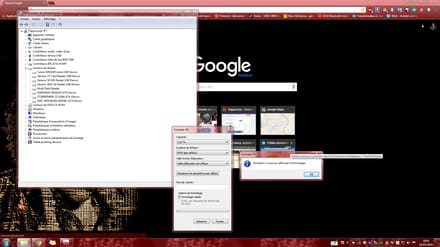
I followed your instructions to the letter... still nothing
I still can't format.
I had already tried on my son's computer. -
Hi @papymoujo1 and thanks for your feedback :) Have you tried a different USB cable? It would be important to eliminate any possible issues related to the connection.
Another possible approach would be to completely wipe the hard drive using DISKPART and then format it. Here's how to do it: click on Start > Run > type CMD in the text box > Enter > type diskpart > Enter > type list disk > Enter > type: select disk # (where # should be replaced by the number the hard drive appears with in Disk Management – Disk 2, for example). Note: be careful not to select the wrong number > Enter > clean > Enter
Once the procedure is complete, it will be necessary to go back to Disk Management to Initialize the hard drive and create a New simple volume, then :)
@papymoujo1, if after all these tests the situation still persists, and since the hard drive was recently purchased, I would suggest contacting the reseller directly to see what options are available.
Fingers crossed!
A+
--
-----
If you found the answer to your question, please click on Resolved to help other members with the same issue ;)

