External hard drive access denied
SolvedPenndu Posted messages 227 Registration date Status Member Last intervention -
I can’t open a DDE anymore, see attached file. PC running Windows 11.
Please kindly inform me.
6 answers
-
Good evening,
Have you looked at Disk Management. Try changing the E drive letter, sometimes that helps.
-
Hello,
In addition to my initial message, the DDE is recognized by the system, and the same is true on a Windows 7 PC and another Windows 8 PC. Attached (photo 2) is what I get when I click Properties.
- I checked the drivers
- I tried without success a tutorial on aomei.fr "Check security permissions and access rights". But I must have messed up at one step…
- I ran CHKDSK in the command prompt, result
“Windows has analyzed the file system and found no problems. No further action is required.”
- I did not change the DDE drive letter because I get the message in the attachment (photo 3) and I’m hesitant to confirm.
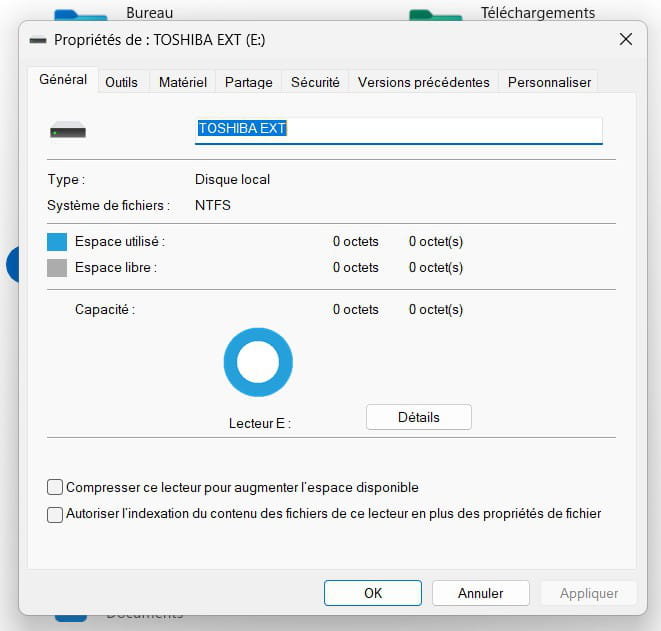
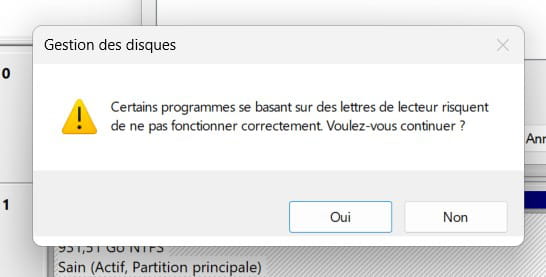
-
At least in a first instance, and these are NTFS rights, we should not try to seize them through a complicated command-line syntax.
being understood that I am logged in under an administrator account, the Security tab will tell me if I have full control over this drive, otherwise I can obtain it by checking Modify.
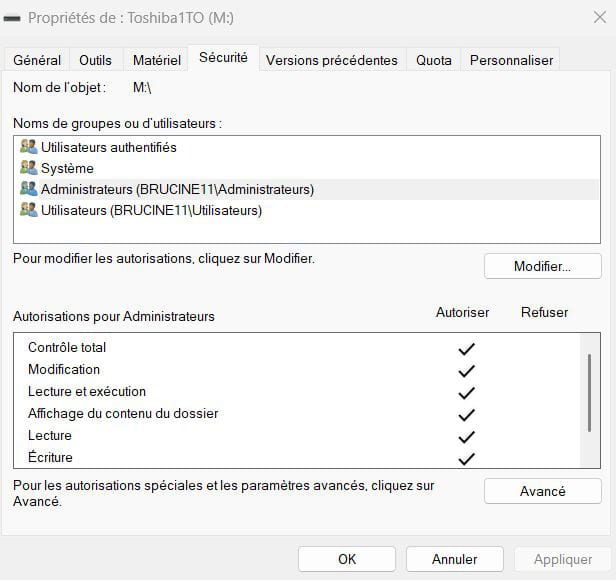
If that is not enough, and in the scenario I mentioned of a drive moved from one PC to another, the real owner as it appears in Advanced is not you but most often something like S-XXX, which is the code the PC assigns to a user who exists on another PC or who existed but does not exist on the current computer
You must then change this owner by selecting the local administrator in Advanced, Search.
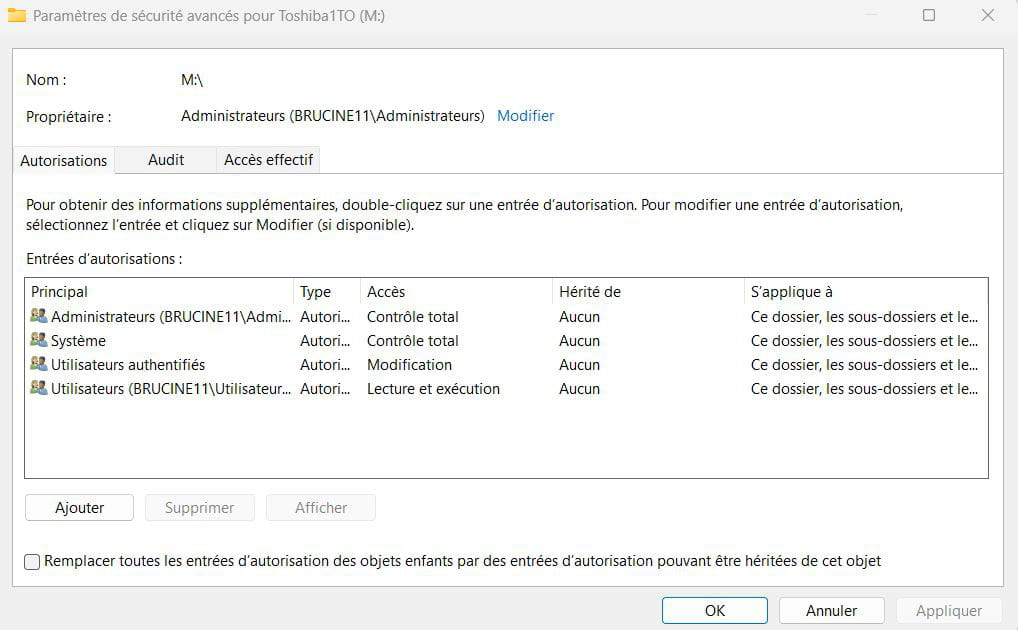
If you really want to fight with the command line (still in administrator mode), see ICACLS and TAKEOWN there, but in principle for the same result in simple scenarios.
-
-
-
Hello,
I followed a tutorial to fix permissions and access rights .
At the step "Replace owner of subcontainers and objects" and after clicking OK, I get a "change of owner" window where I see the folders on the D: drive scrolling by, and then the "Properties of TOSHIBA EXT (E:)" window opens, and if I click Advanced it restarts the procedure...
I don’t know if my explanations are understandable; IT and I aren’t…-
Hello,
I didn’t see the Confirmation steps, Yes, which may have been skipped?
Are you sure you followed all the steps in the exact order and as indicated, otherwise start over? (Or proceed with the command line as indicated afterwards, which is ultimately simpler).
By the way, the existence of a Program Files folder on the disk to recover shows that it was a system disk, hence the NTFS permissions denial which is probably the reason for the problem.By the way, and even if it wasn't an old Windows system disk but a backup disk (the usefulness for Program Files is not certain since it will have to be reinstalled), Windows is not clever.
If I try the experiment of copying the desktop to an external drive, because of the name and the ini files, Windows will automatically consider it a system disk and assign it its icon.
For the future, the workaround is to create on the backup medium a new folder with a different name, for example PF, and in which you copy only the contents of the Program Files folder (without desktop.ini, so you must choose to show hidden files and not select it).
-
-
Hello
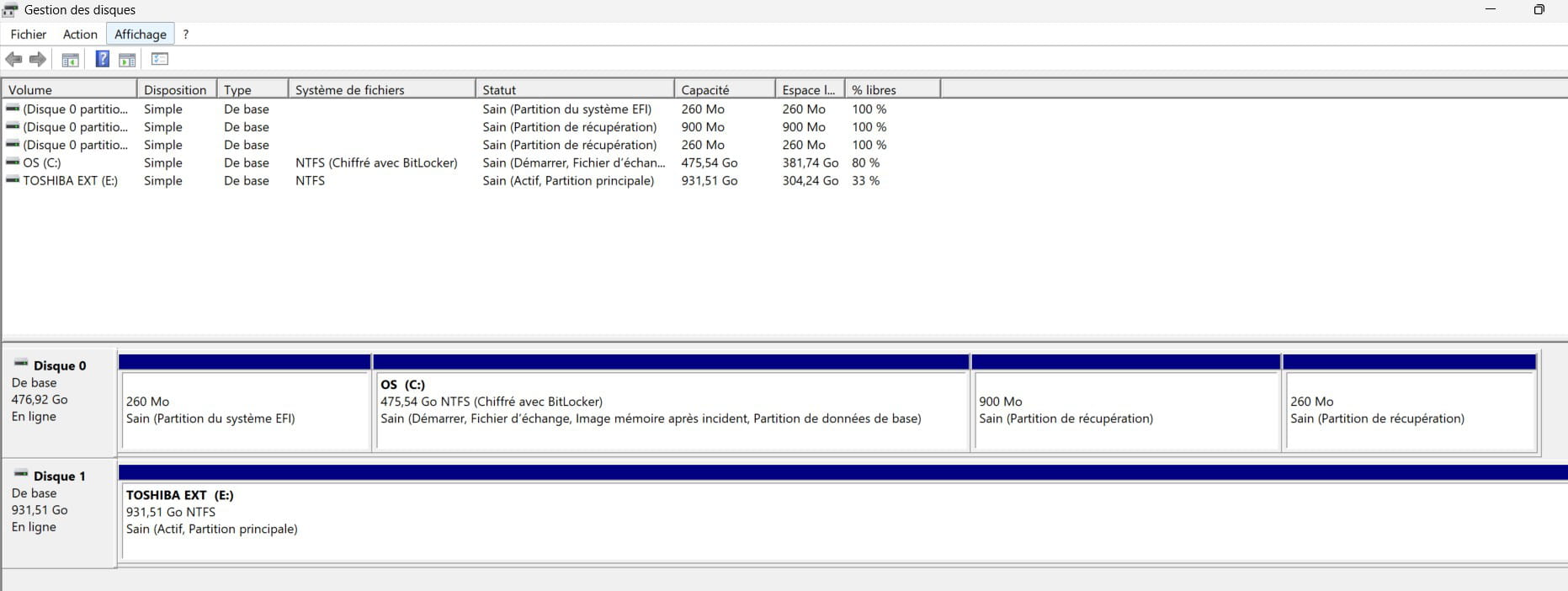
External drive connected, please provide a screenshot of Disk Management.
If my answer helped you, click the Thank you button.
Mark as resolved if your problem is resolved.-
Hello,
It “exists” for sure and it is connected correctly since an attempt to appropriate its rights that failed shows part of the content.
I persist in my analysis: this is not a connection problem (and where the “message” would be different) but a matter of NTFS permissions that we do not have on the disk in question which is considered a system disk.
-
-
Hello,
Disk Management screenshot
-
Hello,
I finally entrusted my DDE to a friend much more skilled than me in IT. He managed to fix it by "resetting NTFS permissions," which Brucine had suggested.
Thank you for your help.