
Invisible internal SSD hard drive to be wiped formatting
jfmimi Posted messages 13642 Registration date Status Contributor Last intervention -
Hello,
I want to format my MSI Raider PC via a boot key to reinstall Windows 11. I create my boot key without issues, I power the PC with the boot key, the Windows 11 installation startup menu launches correctly except that when it comes to selecting the disk on which to install Windows 11 I do not see my SSD hard drive in the list of available disks for writing Windows 11.
I think it might be a BIOS setting issue, but I’m a bit lost there.
Does anyone have any idea?
Thanks in advance for your help
3 answers
-
Hello,
It is generally a problem of an SSD driver not integrated into Windows 10 or 11.
https://axorys.com/guides-windows/ssd-invisible-installation-windows-intel-rst-driver-
I’m stuck at the state “extract the driver on Windows 10” the CMD prompt C:Users\Generationcloud.fr\Documents doesn’t work
Why under Windows 10 while I understand that it might be Windows 11?
Generally, you cannot just take any file from the Intel link (generation and processor type, etc.); if you want to be sure you don’t get it wrong, it’s better to download this RST driver from the computer manufacturer or motherboard manufacturer site.
To get back to our topic, the syntax ./ is supposed to give the command prompt the path to the executable you just downloaded, not necessarily in Documents; for me I set the download target to the Desktop in the browser, under Windows it’s hit-or-miss.
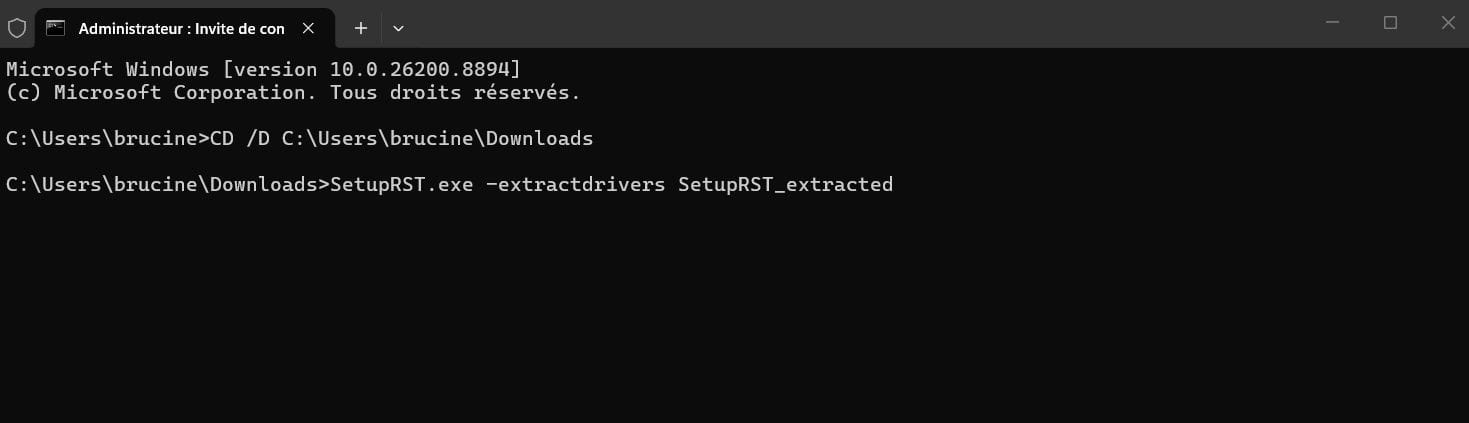
You just need to use SetupRST.exe -extractdrivers SetupRST_extracted provided that this file is on the same path as the command prompt.
The machine by default recognizes the System32 folder, so you can copy this exe there; otherwise the default path of the command prompt may be variable and can be obtained by launching it from the Start menu, for me it returns
C:\Users\brucine
Show hidden files if not already the case:
https://www.pcastuces.com/pratique/astuces/4563.htm
Copy the exe into the folder in question and the command, now it will work.
Assuming now that this folder remained in Downloads, the path is C:\Users\brucine\downloads (or note the exact path if it’s different).
Now at the command prompt I type the first command to give the path and then the second, the files will be extracted into the indicated folder (here Downloads).
Thanks for the information, I will study it ;)
-
Hello
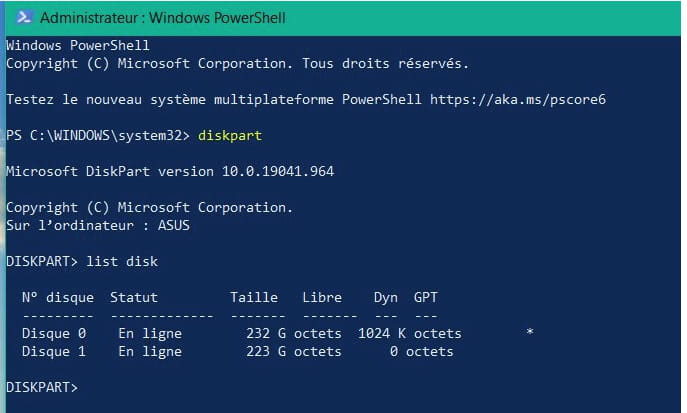
check if the SSD is recognized by "diskpart"
for that, at the very beginning of the Windows installation startup, look at the bottom left
you have "recover" you click on it then you search for the command console
you open it in " Administrator " mode and you type " Diskpart "
then type " list disk "
you will see if the SSD is recognized
see example below :
I can't test my hard drive because the PC stays stuck on the startup logo and doesn’t offer me anything at all
-
