Windows 10 to 11 + BIOS change
Anar45 Posted messages 9 Registration date Status Member Last intervention -
Hello,
I’m taking the liberty of writing to you because I’m a bit out of solutions and I hope you can help me.
To be transparent, I’m not very comfortable with anything related to BIOS, partitions, or advanced PC manipulations.
For some time now, I have been experiencing several problems with my computer: some games refuse to start because Secure Boot is not enabled, I also have recurring crashes, and I would like to take the opportunity to move to Windows 11.
I had already attempted to switch the BIOS from CSM to UEFI, but Windows wouldn’t start. The PC would reboot in a loop directly into the BIOS.
From that, I deduced that my Windows installation might not be configured correctly. Looking a bit, I noticed that I had several partitions on my drives, and since I don’t really master the subject, I prefer to avoid making further manipulations.
I also tried to convert my disk so that it would be compatible with UEFI (GPT), but that ended with a blue screen. So it’s very likely I made a mistake along the way.
I’m therefore asking for your help to put everything back in order: correctly switch to UEFI, enable Secure Boot, and, if possible, install Windows 11 without risking data loss.
I’m available for a call if that’s easier for you.
Thanks in advance for your time and help!
- Reinstall Windows 10 after hard drive replacement
- Switching from Windows 10 Pro to Windows 10 Home?
- How to install Windows 10 via BIOS on a Gigabyte B450M DS3H motherboard
- Boot Windows 10 only in OVERRIDE in the BIOS
- I have Windows 10 and I want to upgrade to 11.
- Win 10 to 11 = unable to connect to the internet
2 answers
-
Hello,
The games are the cherry on the cake; some are documented to fail for a reason that belongs to them even when the startup is secured.
Obviously we cannot simply switch the BIOS to UEFI or convert the disk to GPT.
Assuming the PC is Windows 11 compatible, otherwise the problem becomes more complex and it must be forced, you must have prepared a Windows 11 installation key (Media Creation Tool, Rufus), switch the BIOS to UEFI and ensure that the computer will reboot first on the key, then reinstall Windows on itself hoping that the option to keep data is offered.
In case of partitioning, only the system partition is affected; additional data partitions are not involved in the operation and do not have to be GPT if they are not system partitions (unless by extraordinary chance one exceeds 2 To).-
Hello ,
Currently the PC is not compatible with Windows 11 because the BIOS is still Legacy + disk not converted, when I switch the BIOS to UEFI the PC boots into a BIOS loop and I have to switch to CSM
If I’m not mistaken I have several partitions on my drives.
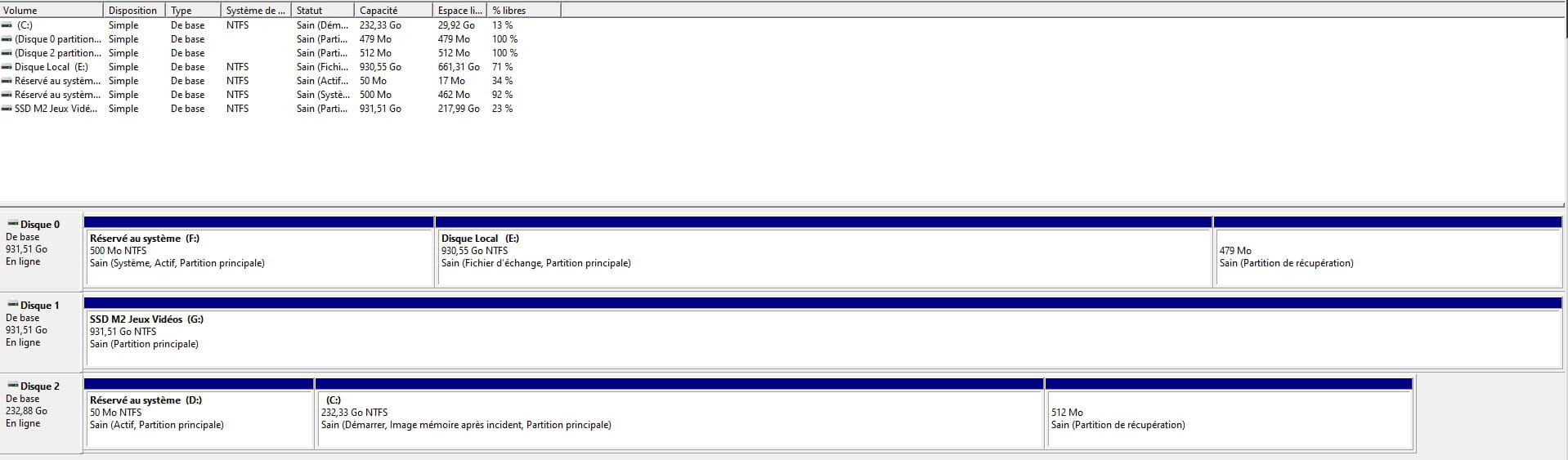
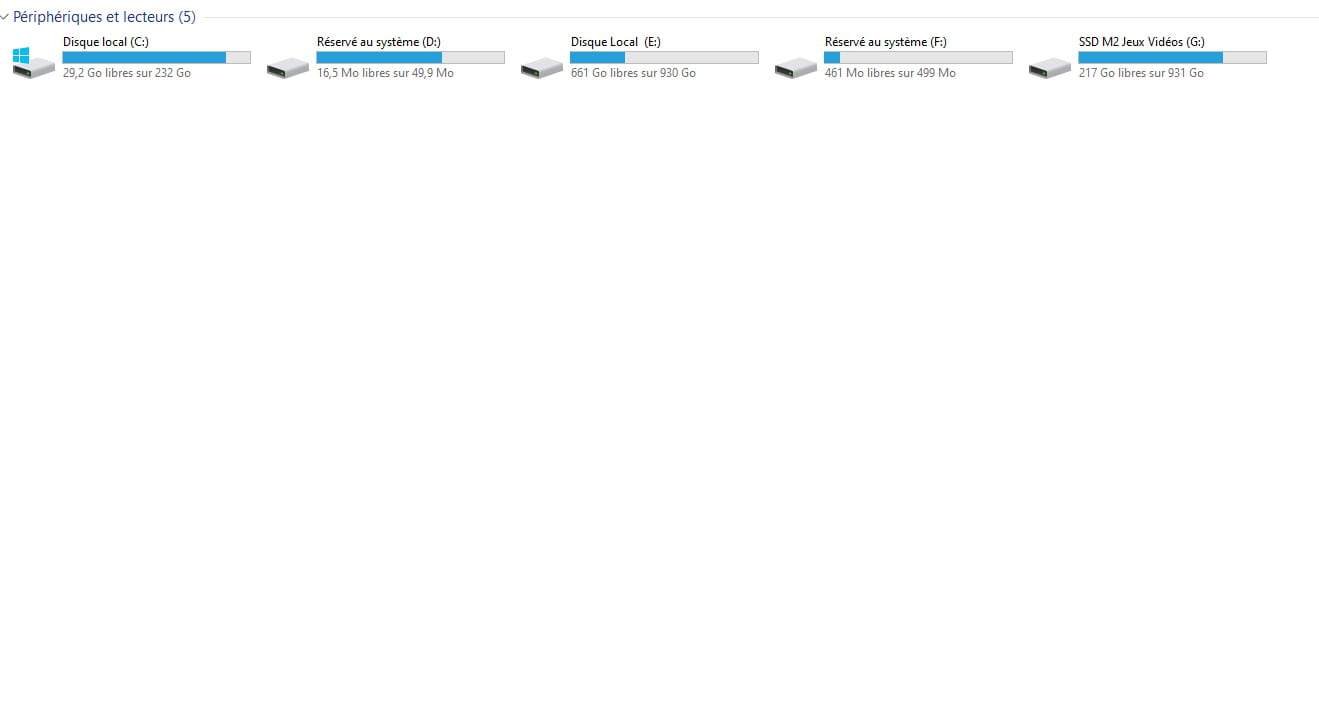
Hello,
We understood it is a configuration issue, not compatibility.
To check before modifying whether the PC itself is Windows 11 compatible, see here (and do not consider RAM quantity if the PC is old):
https://lecrabeinfo.net/telecharger/whynotwin11/
Drive 2 is also a system drive; there is another version of Windows on it and a dual-boot, otherwise neither of the drives is partitioned—there is only the main partition plus the Windows reserved partitions when they are system?
I don't know why it's like that, to be honest
For the Whynot render: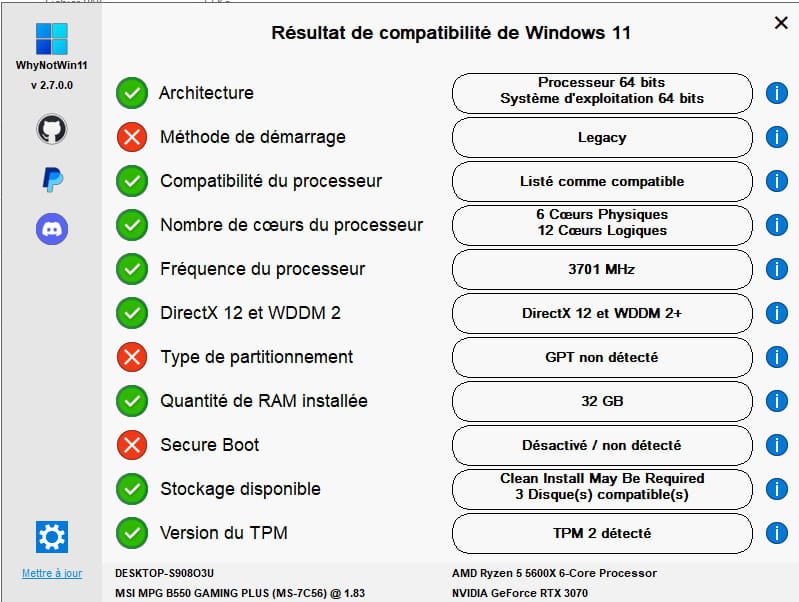
Hello,
First, what is your PC to know if it is compatible with games that use kernel-level critical anti-cheat and require an updated TPM and the rest.
Currently you are using a Windows configuration as well as legacy BIOS, so it is therefore impossible to play like this on these games and to install Windows 11 without restrictions.
-
-
-
-
It would be nice to give the name of your processor and motherboard, just to avoid messing things up.
Otherwise you create a bootable USB key with Windows 11 Media Creation Tool from the Microsoft site.
Then you configure your BIOS in UEFI as you did and failed, and you boot from the USB key, you install by deleting all partitions on your old small SSD that previously had Windows 10.
-
-