
Blue Screen: Windows 11 OS Won't Boot
SolvedWinux -
Hello,
I am seeking your help as I am stuck despite numerous attempts to reinstall Windows 11 (without data loss and with data loss) on my gaming desktop PC. Since this morning, when restarting my PC, I noticed that the Windows 11 Pro system no longer boots. I only have access to the BIOS (via Delete) or to the command prompt (via F11).
Here is a point-by-point summary of what I have already done:
1. Created a bootable USB drive for Windows 11 using Rufus (with official ISO, GPT / UEFI).
2. Booted from this USB, but the classic repair screen did not appear, and I had two strange options: "Install Windows 11" or "Repair my personal computer."
3. Complete backup of my data (Documents, photos, user folders) to an external hard drive. (via notepad with SHIFT+F10)
4. Clean installation of the SSD impossible:
> Error during formatting or automatic deletion of partitions (partition format crashed).
> The system disk never progressed to the installation step.
5. Used diskpart from the installer (Shift+F10):
> select disk 0 (1.9 TB), clean, convert gpt
Result: unallocated space of 1.9 TB, ready for installation.
6. Attempted installation:
* Selected the unallocated space, then clicked Next → error:
“An error occurred while selecting this partition for installation.”
7. Full cleanup in the BIOS (MSI Click BIOS 5):
No other SATA disks detected, the M.2 SSD is alone on M2_1.
No external devices connected except for the bootable USB drive.
8. Recreated the USB drive with a second blank key containing only the ISO, still without
success. (I had added files from my old PC to the first USB drive in case of data loss)
Thank you very much for your help.
I am ready to provide screenshots, logs for list disk, or any additional details if needed.
Have a great day everyone.
Config;
Motherboard: MSI B-650M-A WIFI PRO
CPU: AMD RYZEN 7 7800X3D 8-core processor
Memory: 32768MB
RAM: DDR5 32GB KINGSTON FURY BEAST RGB 2X16GB
Graphics Card: AMD RADEON RX 7800XT 16 GB SAPPHIRE PULSE GAMING (serial number: A233900007553)
SSD: M.2 NVME 2000GB Solid State Disk ADATA XPG Gammix S70 Blade
(P.S.: I want to point out that when I turned on my PC this morning, I was able to browse the web before experiencing a crash where the Windows system stopped responding, and I had to force shutdown via the button on my case)
12 answers
-
Yes, I like helping resourceful people, but a bit inexperienced, where some IT concepts can't be understood directly with a simple search.
That's totally normal.
-
Thank you anyway for your help, since this morning I've been at it and as you read above, I've really tried a lot of things most of which are completely new to me. (I didn't mention it, but I even tried restoring to a previous restore point, or the update tabs (in troubleshooting) but even with that, I get an error message. It's true that it matters to me to find a solution given that it's my work tool.
-
-
Alright,
Here's the report, the SSD is most likely dead, only its memory controller may still be alive, if it's possible to diagnose it, but some cells must be dead.
-
Yes, that's the SSD, I've just created other tools, I'm sending you:
3]HD Tune or Check Disk GUI: To test for bad sectors
Tool 1: COMPLETE SCAN with HD Tune
SSD has bad sectors > red sector
Tool 2: CheckDisk GUI (Based on Windows CHKDSK)
7.6% Damaged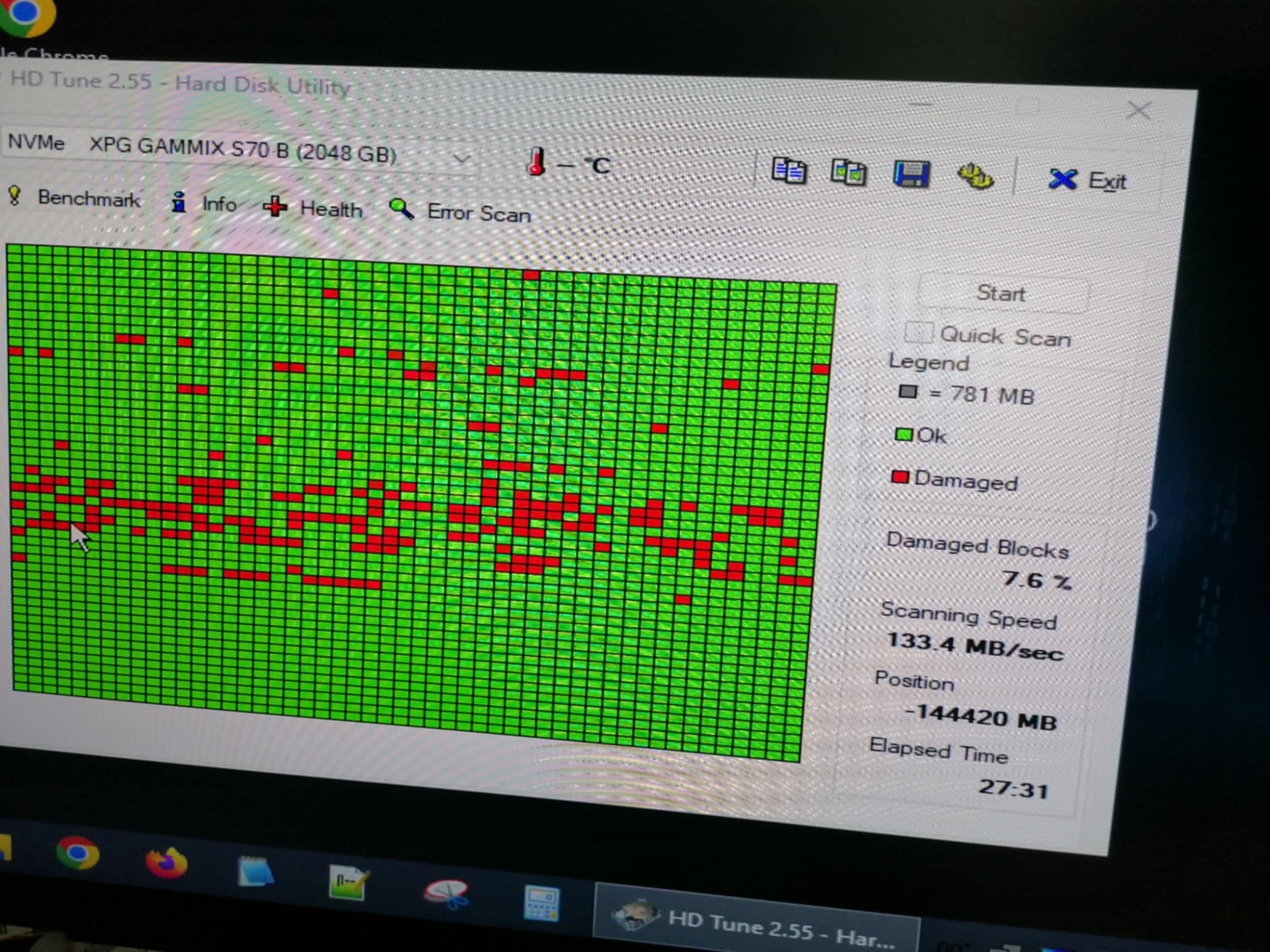
You will need to reinstall it using the same method with the Ventoy USB key.
You need to go download Windows 11 in ISO format from the official Microsoft website, don’t worry it’s free, the license key is already integrated into your motherboard and will be activated again after connecting to the Internet.
This afternoon I will be hardly available, sorry.
Good evening,
Can you boot from a diagnostic liveUSB like Hiren's Boot or Malekal Live to check if your SSD is working properly and, at the same time, the PC.
Good evening, I will try since I've never done it. I just downloaded it, should I use Rufus with it?
Not really, so far I've been using the internet to help me, but I'm struggling. I'm placing my hopes on nice people like you.
For recent Windows 11-based PCs, you need to check with Rufus that the ISO is installed in GPT, UEFI non-CSM.
Okay, in the partition scheme I have GPT and UEFI destination system (non-CSM). However, when I hit start a message appeared. I searched for the meaning:
UEFI bootloader which has been blocked (revoked) by Microsoft as it is considered vulnerable.
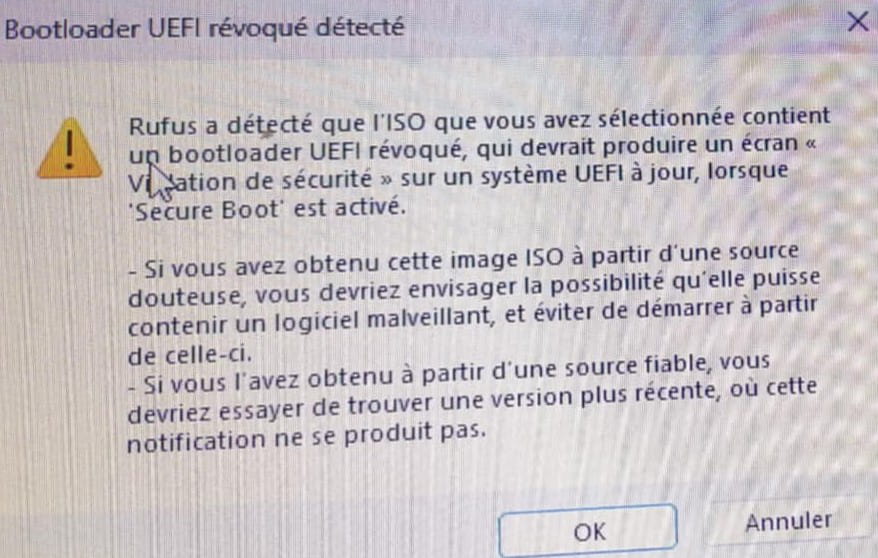
If you boot with this USB on a recent PC with Secure Boot enabled, you will probably get a "Security Violation" error screen, and the PC will refuse to boot from it.
I have already downloaded the latest official version (v1.0.8).
(I still installed it on a blank USB, I don’t know what I should do next on my broken PC to get the information you are asking for)
-
Did you download the ISO from the official site with the latest version?
If not, use Ventoy on your USB drive, insert your ISOs, and when booting the PC from the USB, highlight the uppercase text while navigating on Ventoy so that Secure Boot accepts it, then reboot and you're good to go; you can boot from the ISO you want.
Yes, I downloaded it from the official site with the latest version.
I'm trying Ventoy, so I'll keep you updated.
I installed Ventoy on my USB stick (with GPT) and I slid the ISO of Hiren's Boot. Once done, I plugged the USB into my broken PC, booted from the USB, and hit Secure Boot; I clicked continue but I'm still stuck at this point. (I don't have the Ventoy menu that appears when I boot from the USB; did I make a mistake? I didn't understand your advice about "enrolling the uppercase text by navigating on Ventoy for Secure Boot to accept it").
I also use YTB, but I'm getting a bit lost in some explanations.
-
When using Ventoy for the first time on a motherboard with secure boot, an alert window will appear.
You need to click continue, enroll keys, find the key to enroll in the directory that appears; it is in uppercase with English explanations describing it well as the key you need to enter to bypass secure boot so that when you restart the UEFI BIOS, you can boot into Ventoy and access the dropdown menu with the ISOs.
After that, I am not familiar with the latest UEFI of the newest motherboards; maybe the process is different.
-
Otherwise, at worst, locate and temporarily disable secureboot yourself to start ventoy.
The purpose of secureboot is to prevent someone who has physical access to your machine, even without access to your Windows session, from injecting a rootkit with malicious code into your system behind your back.
There you go, now you know everything, do as you wish.
I'm going to try to do what you told me, as you can see from the images I was only able to access this. Is this what it's about, the key? (fingerprint)
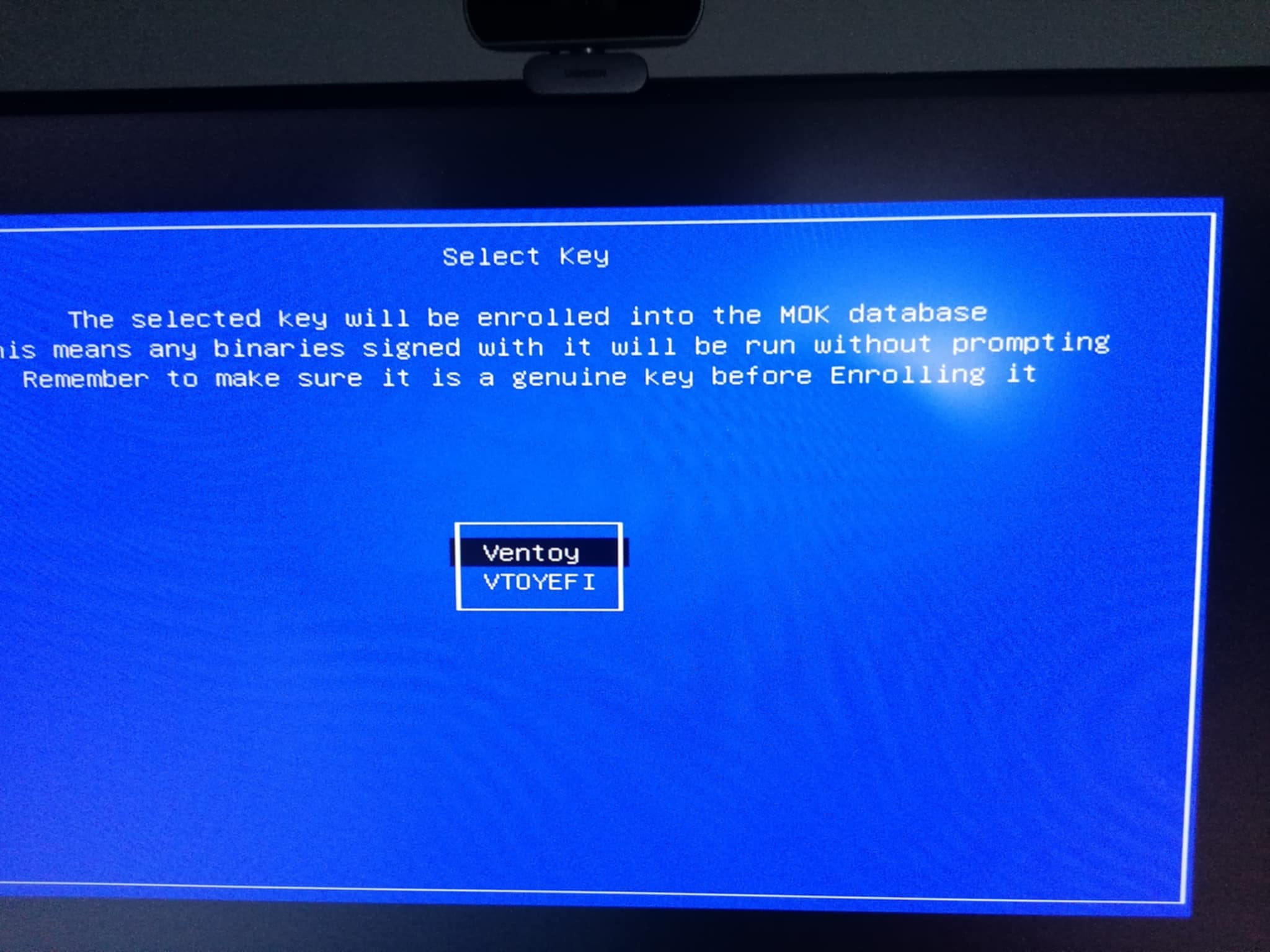
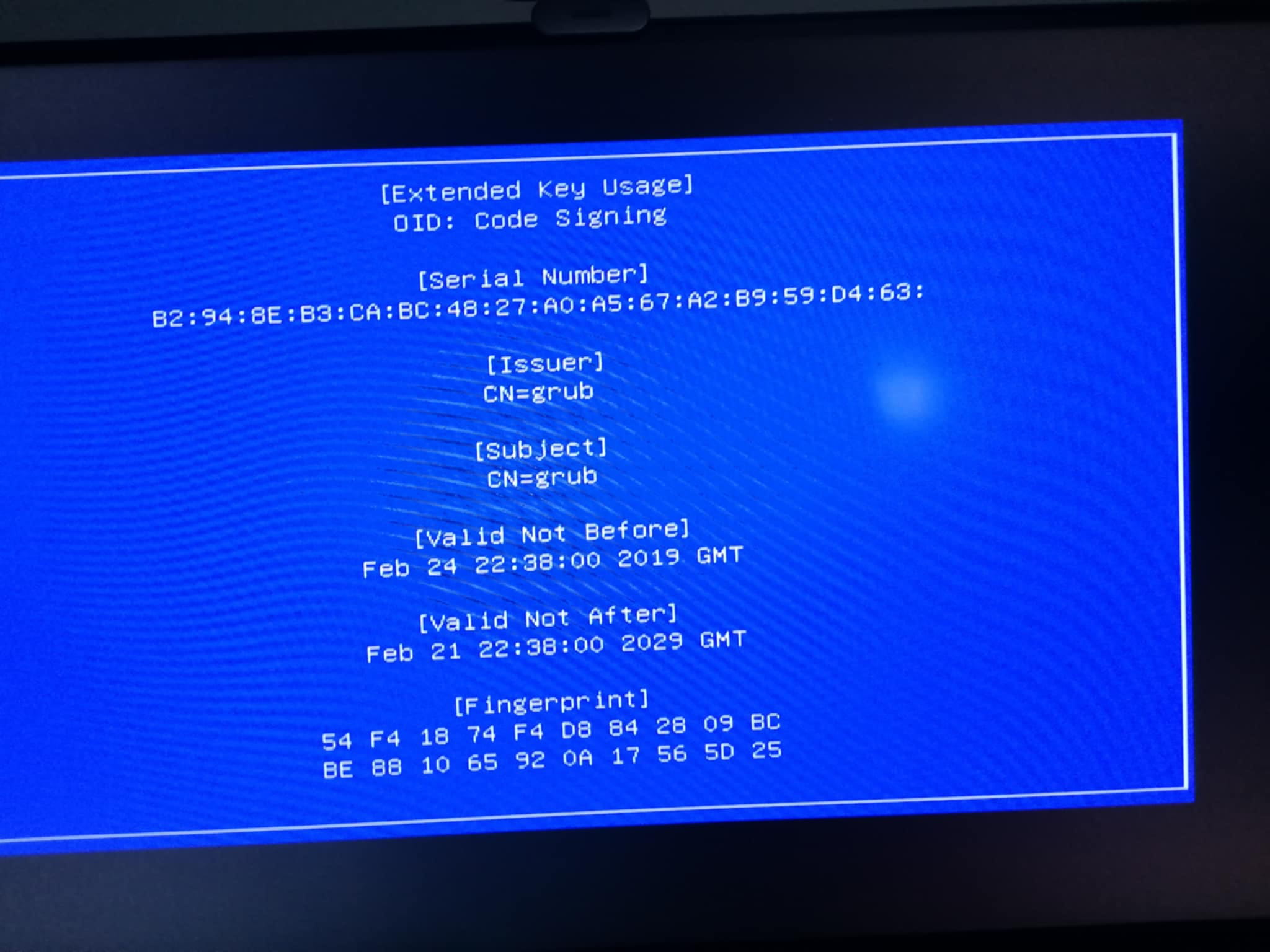
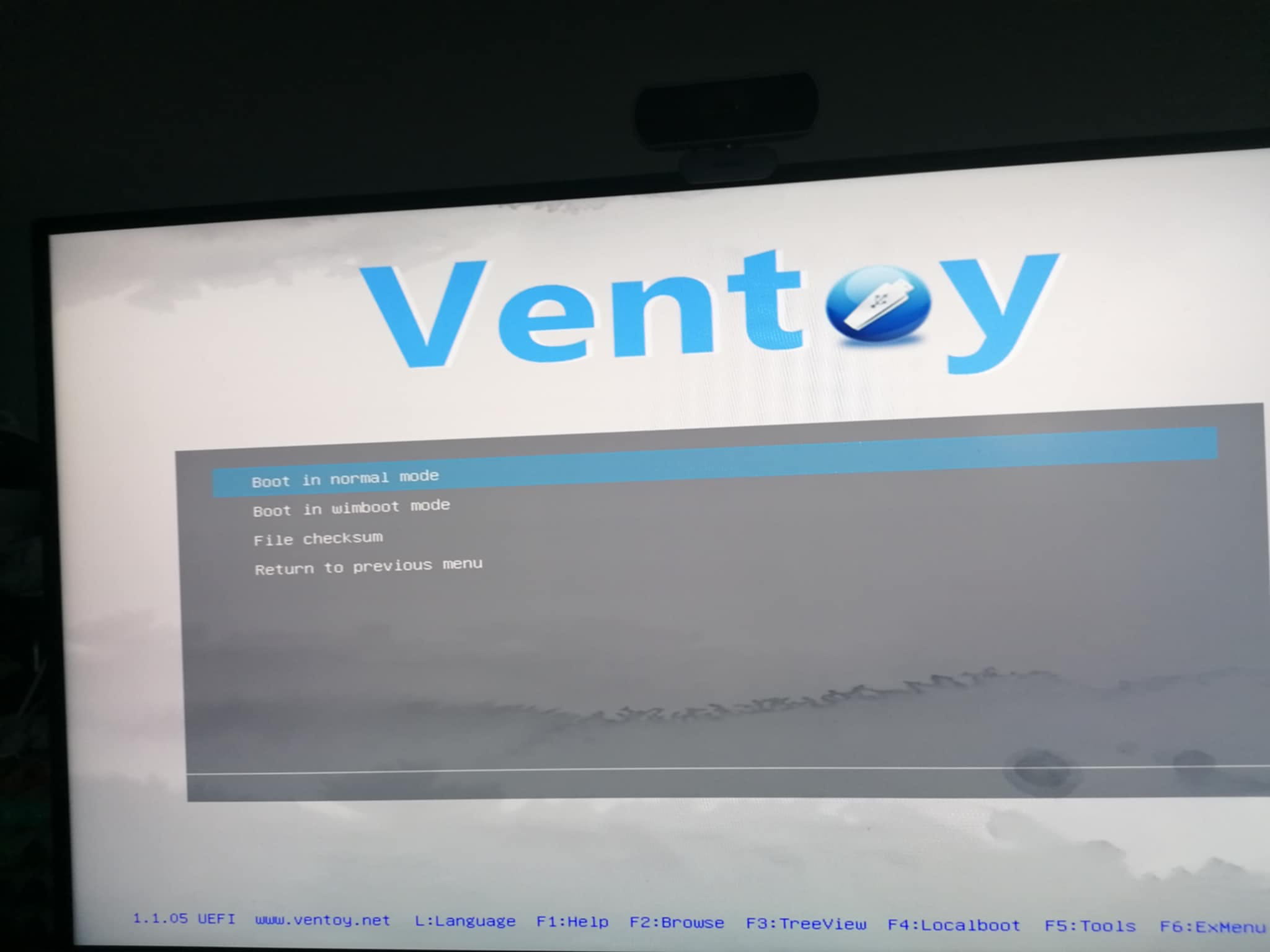
Actually, I found it. I hadn't set VTOYEFI; I rebooted and I am at the Ventoy menu where the list of ISOs is displayed. Once at the Ventoy menu, I admit I don't know what I should do to get the information. While waiting for your reply, I'll keep looking, and if I make progress, I'll send you my updates in a second message to make sure I'm not making any mistakes :)
-
Once in Hiren's Boot PE, the steps I took:
1]
*Boot in normal mode* This PC (check if SSD is detected)
What appears: Ventoy + Boot + HBCD
Conclusion: Internal SSD is not detected*No trace of an internal disk (no C, D, E linked to my SSD)
Conclusion: SSD dead?*Disk Management (to check if SSD is recognized by the system)
(Photos attached)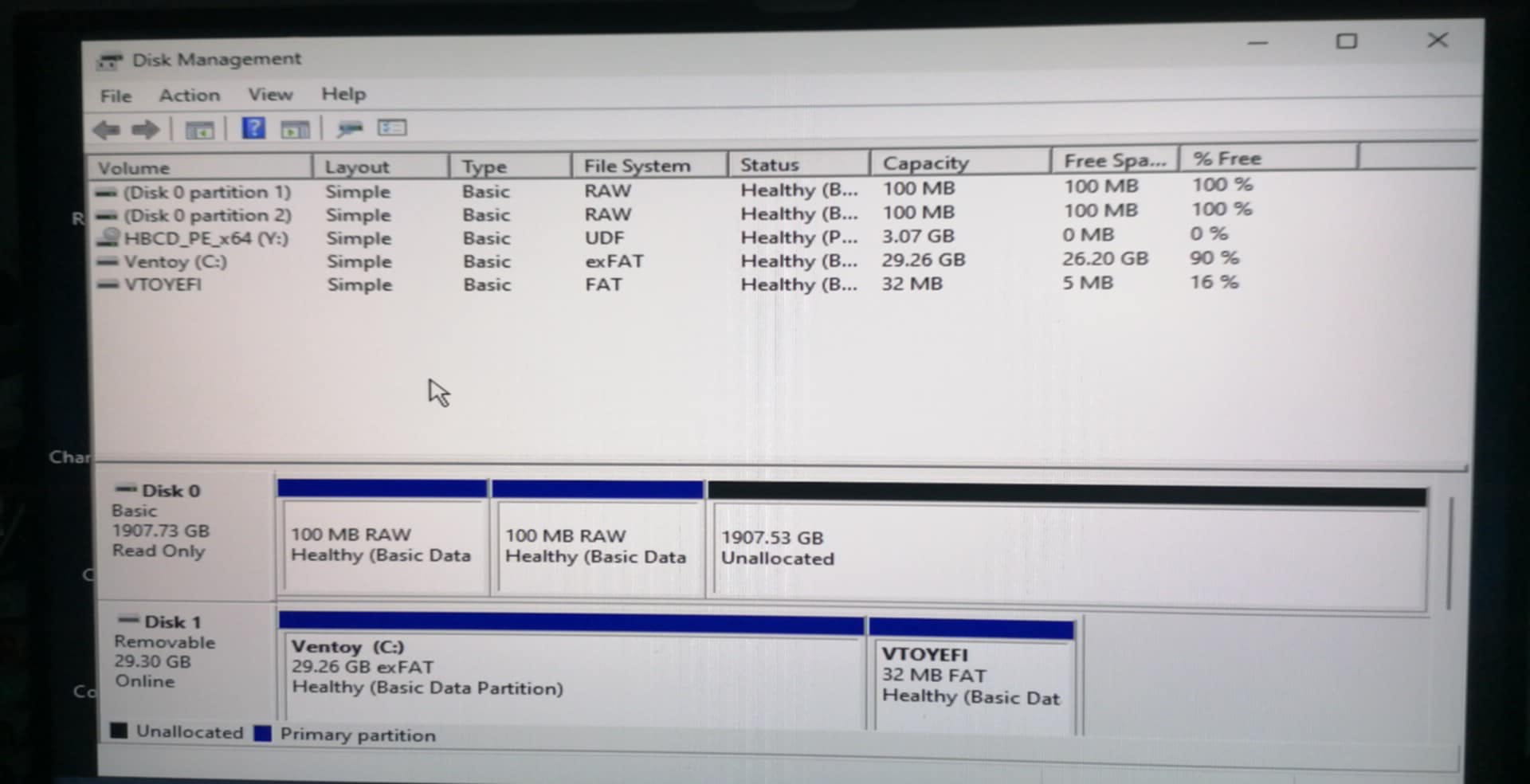
>SSD detected DISK 0- 1907.73 GB
Status: Read Only
2 small partitions in RAW (100 MB each)
One large partition of 1907.53 GB unallocated= SSD physically works but in read only and raw =
unreadable and invalid format for Windows.
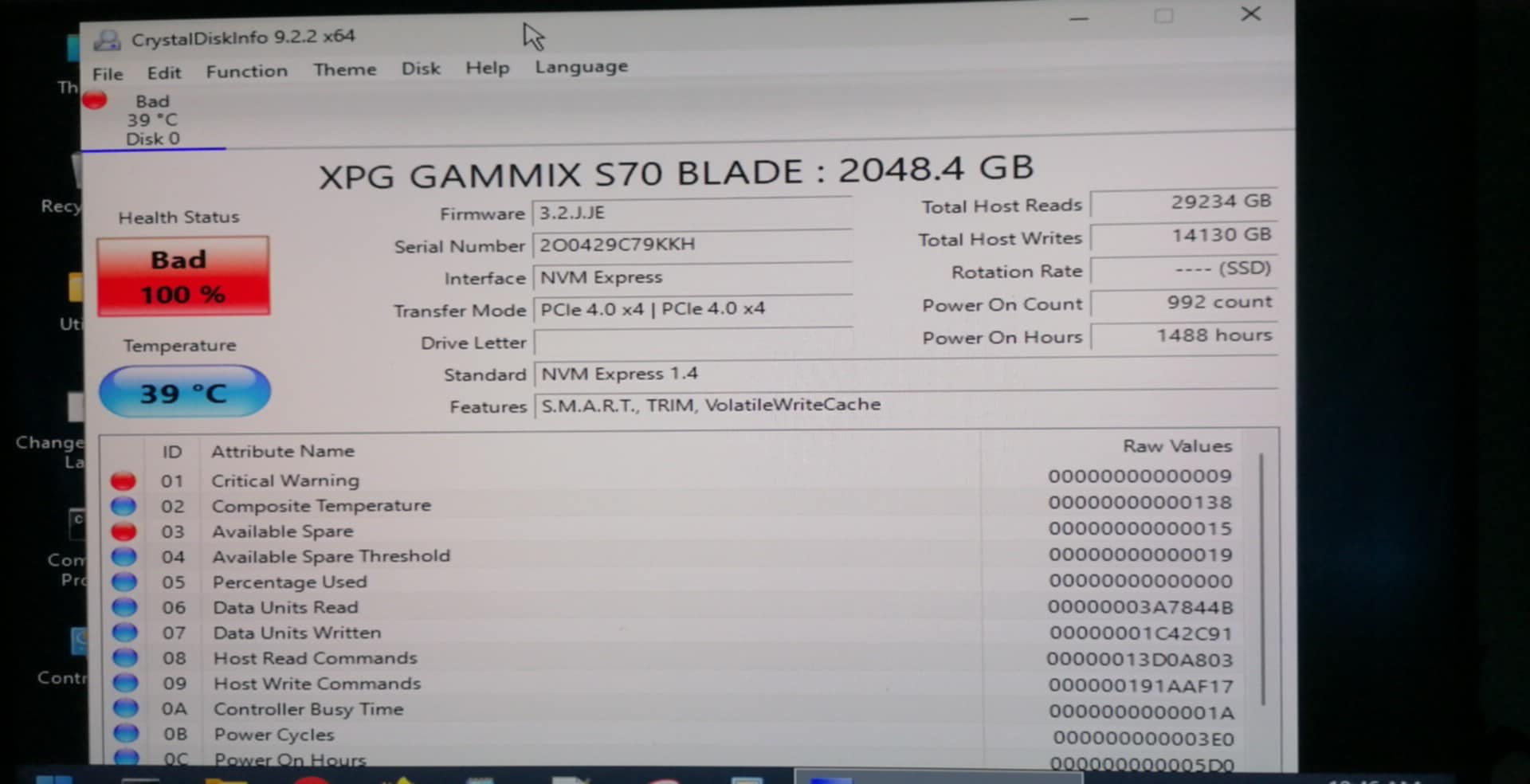
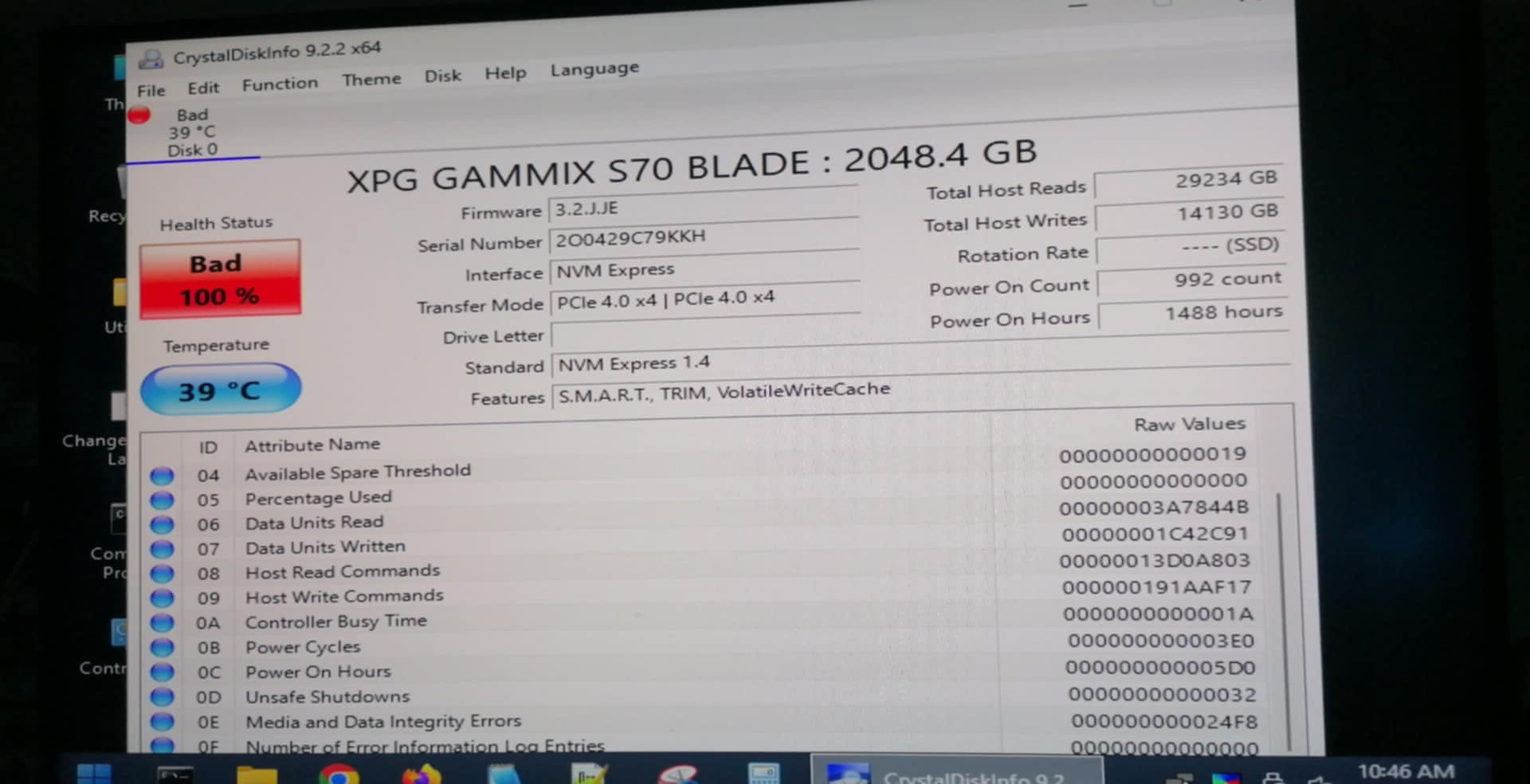
"Unallocated" → No usable file system or partition present.2] CrystalDiskInfo: Health status of my SSD (2 Photos attached)
(photo 1)
(photo 2)
1)
= Health status BAD 100% > Failed (damaged or end of life)
*Critical Warning (ID 01): Critical value indicating a serious problem detected by the SSD controller.*Available Spare / Threshold (ID 03 & 04): Spare blocks are almost or completely exhausted.
*Percentage Used (ID 05): Shows that the SSD has likely reached or exceeded its maximum endurance (number of supported writes).
*Overall status: CrystalDiskInfo displays BAD 100%, which is an absolute red flag for reliability.
39 ° > Normal temperature = internal storage hardware issue
2)
Power On Hours: 1488 hours (≈ 62 days of cumulative operation).Power On Count: 992 startups.
Total writes (Host Writes): 14 TB, which is reasonable for this SSD — it’s not excessive wear.
Conclusion: Unreadable + No usable partitions (file system lost) + Cannot store or reinstall an OS
Hello, Adata offers a 5-year warranty, see here.
-
