Bluetooth and Wi-Fi inactive after a wired connection
kaneagle Posted messages 86302 Registration date Status Moderator Last intervention -
Hello,
My Bluetooth and Wi-Fi are no longer working and their respective settings are even unavailable on my laptop.
Context:
I recently needed to back up large files to my NAS server, so I prioritized a wired connection to speed things up. I don't have an RJ45 port on my laptop, so I connected it via an RJ45/USB3.0 adapter. I'm not sure if this caused the issue since I didn't need the internet right after, but the next day or the day after, I noticed I had no network, the button to activate Wi-Fi disappeared from the taskbar, as well as from the settings. The same goes for Bluetooth.
The only connection that works is through this cable, which I had to connect to the box.
If I unplug this cable, the connection icon in the taskbar (or the Wi-Fi icon, as the case may be) is then replaced by the "no internet access" icon, and a right-click / "troubleshoot problems" on this last one gives me the following response:
“You are connected using a virtual network adapter that we cannot test.”
Should I disconnect/deactivate/uninstall this network adapter then? If so, where and how?
Does anyone have a solution?
Thank you, and thanks in advance to those who can help me or even try.
- Bluetooth sending/receiving issue from my laptop
- Epson XP-305 Printer - WiFi Connection Issues
- Asus X205TA - No more Wifi connection
- Connection issue with a Wi-Fi network: "we couldn't connect"
- The Bluetooth driver and the Wi-Fi driver are not responding.
- No more WiFi driver on a Thomson N4C4WH64 after a reset
26 answers
- 1
- 2
-
Hello,
what do you have in the device manager under wifi (network adapters).
Haven't you disabled the wifi using the keyboard?
Paste here the result of the command ipconfig/all to see the output file for transferring it.
And there you go, there you go, there it is ....
But misery, those line breaks are so annoying !! -
Hello, sorry for the late reply.
I will try to be thorough
Here is the list of devices displayed with the cable unplugged:
Network adapters
- WAN Miniport (IKEv2)
- WAN Miniport (IP)
- WAN Miniport (IPv6)
- WAN Miniport (L2TP)
- WAN Miniport (Network Monitor)
- WAN Miniport (PPPOE)
- WAN Miniport (PPTP)
- WAN Miniport (SSTP)
To which the following line must be added when I plug in the cable:
- Realtek USB GbE Family Controller
Other details that might be relevant: two other devices appear with an attention panel:
Other devices
- Network Controller
(with right-click/properties, I am told:
“The drivers for this device are not installed. (Code 28)
There are no compatible drivers for this device.
To find a driver for this device, click on Update Driver.”)
Bluetooth card
- Intel® Wireless Bluetooth®
(with right-click/properties, I am told
“This device cannot start. (Code 10)
STATUS_DEVICE_POWER_FAILURE”)
for the command ipconfig/all without the cable:
Microsoft Windows [version 10.0.26100.3476]
(c) Microsoft Corporation. All rights reserved.C:\Users\luceh>ipconfig/all
Windows IP Configuration
Host Name . . . . . . . . . . : DESKTOP-88GFRIR
Primary DNS Suffix . . . . . . :
Node Type . . . . . . . . . . : Hybrid
IP Routing Enabled . . . . . . . . : No
WINS Proxy Enabled . . . . . . . . : NoC:\Users\luceh>
The same command with the cable plugged in:
Microsoft Windows [version 10.0.26100.3476]
(c) Microsoft Corporation. All rights reserved.C:\Users\luceh>ipconfig/all
Windows IP Configuration
Host Name . . . . . . . . . . : DESKTOP-88GFRIR
Primary DNS Suffix . . . . . . :
Node Type . . . . . . . . . . : Hybrid
IP Routing Enabled . . . . . . . . : No
WINS Proxy Enabled . . . . . . . . : NoEthernet Ethernet Card:
Connection-specific DNS Suffix. . . :
Description. . . . . . . . . . . . . . : Realtek USB GbE Family Controller
Physical Address . . . . . . . . . . . : 00-11-22-68-2C-4F
DHCP Enabled. . . . . . . . . . . . . . : Yes
Autoconfiguration Enabled. . . : Yes
Link-local IPv6 Address. . . . .: fe80::8288:c884:cfee:bc4f%7(preferred)
IPv4 Address. . . . . . . . . . . . . .: 192.168.1.31(preferred)
Subnet Mask. . . . . . . . . . . . . . : 255.255.255.0
Lease Obtained. . . . . . . . . . . . . . : Wednesday, March 26, 2025 9:32:31 PM
Lease Expires. . . . . . . . . . . . . : Thursday, March 27, 2025 9:32:32 PM
Default Gateway. . . . . . . . . : 192.168.1.1
DHCP Server . . . . . . . . . . . . . : 192.168.1.1
DHCPv6 IAID. . . . . . . . . . . : 402657570
DHCPv6 Client DUID. . . . . . . . : 00-01-00-01-24-13-36-2F-48-A4-72-87-68-BF
DNS Servers. . . . . . . . . . . . . : 192.168.1.1
NetBIOS over Tcpip. . . . . . . . . . . : EnabledC:\Users\luceh>
I hadn't thought to check the keyboard shortcuts, but upon checking, I can’t activate Wi-Fi or Bluetooth with the function keys, only airplane mode. So I switch from airplane mode to "no internet access" without the cable; or from airplane mode to internet access with the cable, but still no little button to turn Wi-Fi on/off, nor Bluetooth settings.
I hope I’ve covered everything?
Thanks again for your time
-
OK, thanks,
it seems that your Wi-Fi card is not recognized properly and the driver is not installed. You should remove the Wi-Fi card listed under other devices and restart to trigger a reinstallation.
And there you go, here it is ....
But oh my, how annoying are the line spacing!! -
Hello @Simon6948 StatusMember
Windows + R
Type --> devmgmt.msc and OK.
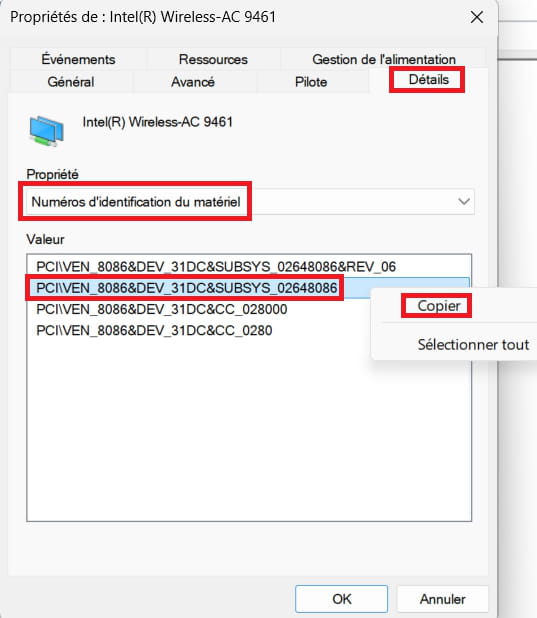
Please post the hardware IDs of the 2 problematic devices
--> Network Controller
--> BluetoothRight-click each device
Properties
Details tab
In Property, select --> Hardware Ids
In Value, right-click on the hardware ID number and copy
Paste this number in your next message.
Example image:
-
Edit: If you have resolved the issue, please share the solution with us and don't forget to mark the topic as resolved.
-
Hello everyone,
For Brupala
When you talk about removing it, are we really referring to "uninstalling the device" from the device manager? I had already tried, but without success. I have either disabled it or uninstalled it, and upon restarting, it reappears, still with the same little attention logo and the same message in the properties.
For Kaneagle
I would have liked to, but no, the problem is still not solved, it's just that I can only look at this after my workday.
Here are the numbers I find for the different hardware:
Network controller
PCI\VEN_8086&DEV_9DF0&SUBSYS_00008086&REV_30
PCI\VEN_8086&DEV_9DF0&SUBSYS_00008086
PCI\VEN_8086&DEV_9DF0&CC_028000
PCI\VEN_8086&DEV_9DF0&CC_0280
Bluetooth
USB\VID_8087&PID_0AAA&REV_0000
USB\VID_8087&PID_0AAA
Any ideas?
-
@Simon6948 StatusMember
Download and install --> 7Zip 64 bits
For the network controller, download this driver --> Intel
Right-click on the driver --> WirelessProset_Intel.......zip
Select --> 7Zip
Choose --> extract to "WirelessProset_Intel.......\"Go to Device Manager
Right-click on the network controller
Update driver
-->> Browse my computer for drivers <<–
-->> Let me pick from a list of drivers... <<–
-->> Have Disk <<–
-->> Browse <<–
Go to the unzipped driver folder --> WirelessProset_Intel......
Select the file --> ProSetExtension.INF and OK.
----------------------------------------------------------------------------------------------------------------For bluetooth, download this driver --> Intel Bluetooth
Right-click on the driver --> 180063e9........cab
Select --> 7Zip
Choose --> extract to "180063e9.......\"Go to Device Manager
Right-click on the network controller
Update driver
-->> Browse my computer for drivers <<–
-->> Let me pick from a list of drivers... <<–
-->> Have Disk <<–
-->> Browse <<–
Go to the unzipped driver folder --> 180063e9........
Select the file --> ibtusb.inf and OK.
Restart the PC. -
@Simon6948 StatusMember
Does it work or not? -
No, still not...
I struggled for a while, here’s the status of the operations:
Strangely, I didn't have access to -->>provided disk<<-- it took me a moment to understand, the computer first asked me to select a type of device; -->>provided disk<<-- was on the next menu. Except that... The device type "network controller" was not listed among the types of devices.
In doubt, I first took care of the Bluetooth (since the device type "Bluetooth" was in the list) and here’s the message at the end of the installation:
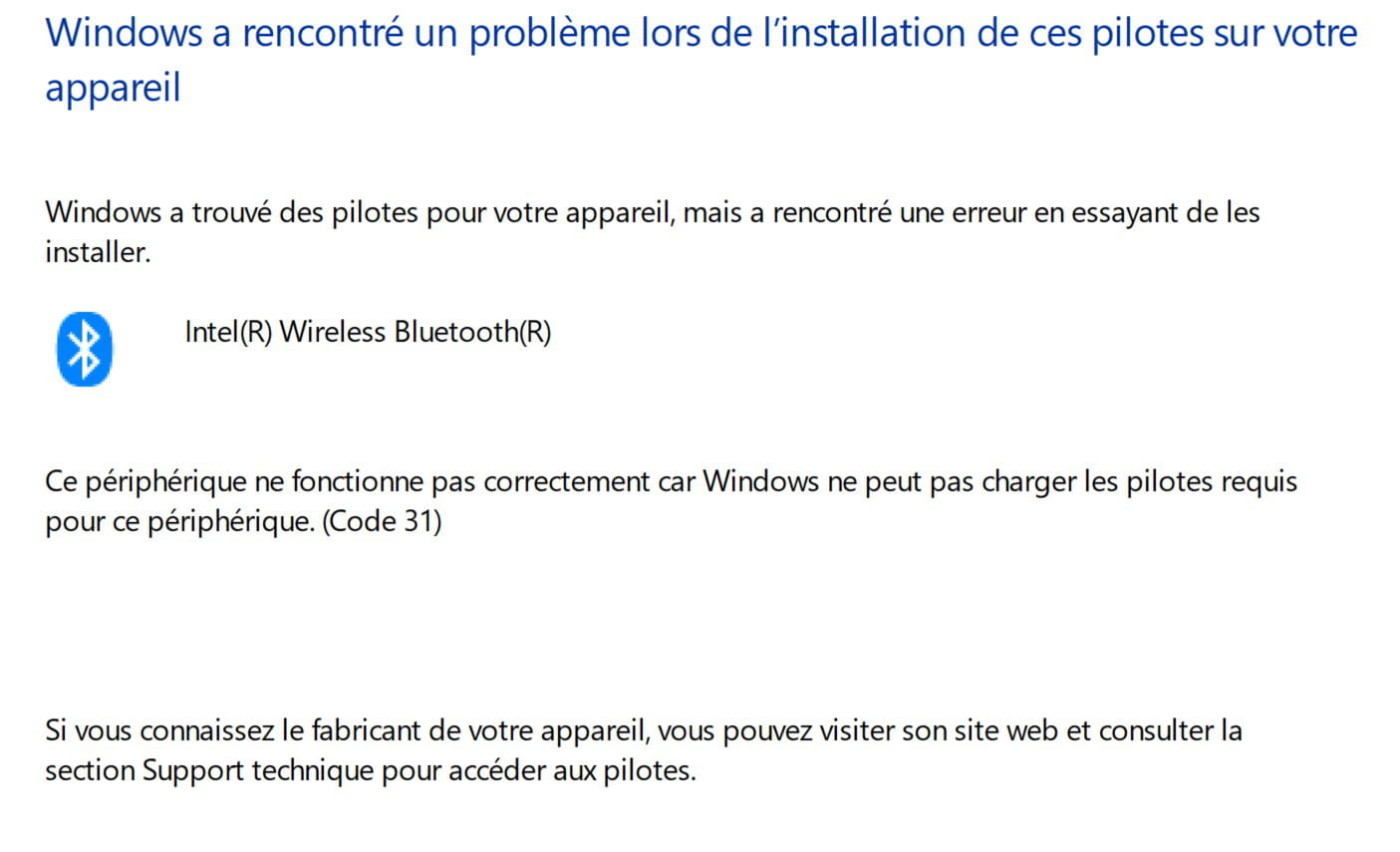
I now have two "Intel(R) Wireless Bluetooth(R)" devices, the second has the same "warning" logo but with a bit more detail in the properties:
"This device is not working properly as Windows cannot load the required drivers for this device. (Code 31)
{The operation failed}
Is this progress? Should I try to delete both as Brupala suggested, hoping that one or the other installs correctly this time on restart?
As for the network controller, it gets even more complicated: since I took care of the Bluetooth part, the "network controller" device has completely disappeared, along with the "other devices" section it occupied.
I attempted "add drivers" in the device manager menu bar, and here’s the message at the end of the operation:
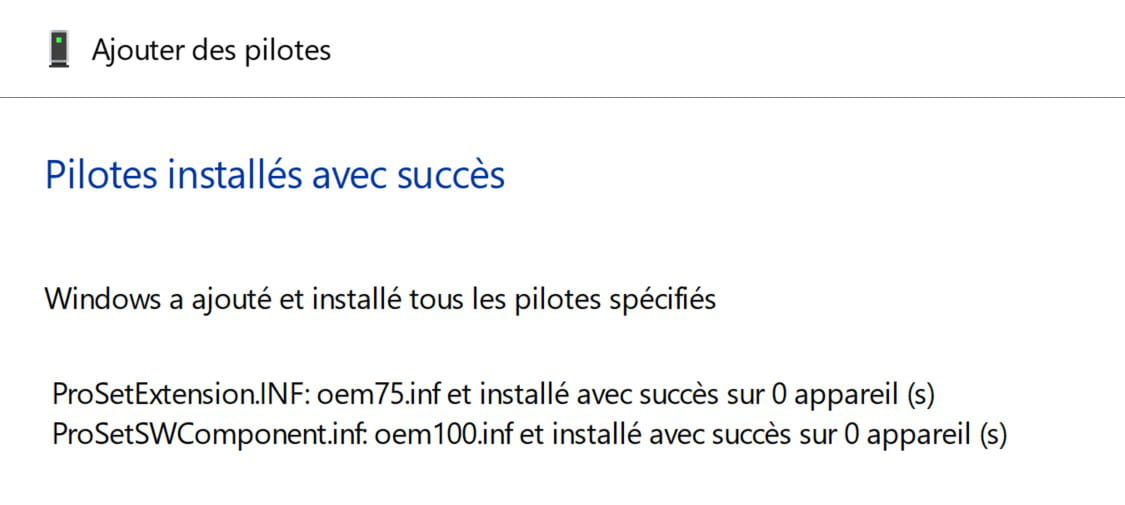
And nothing has changed in the device manager :(
This computer is definitely getting lighter and the window is getting closer!!!
-
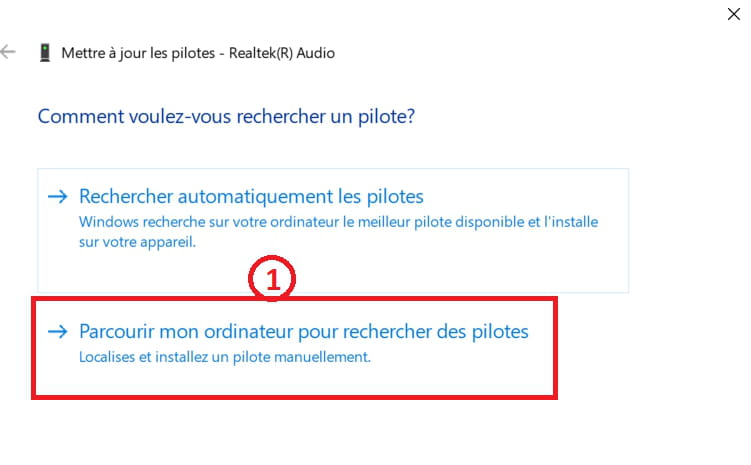
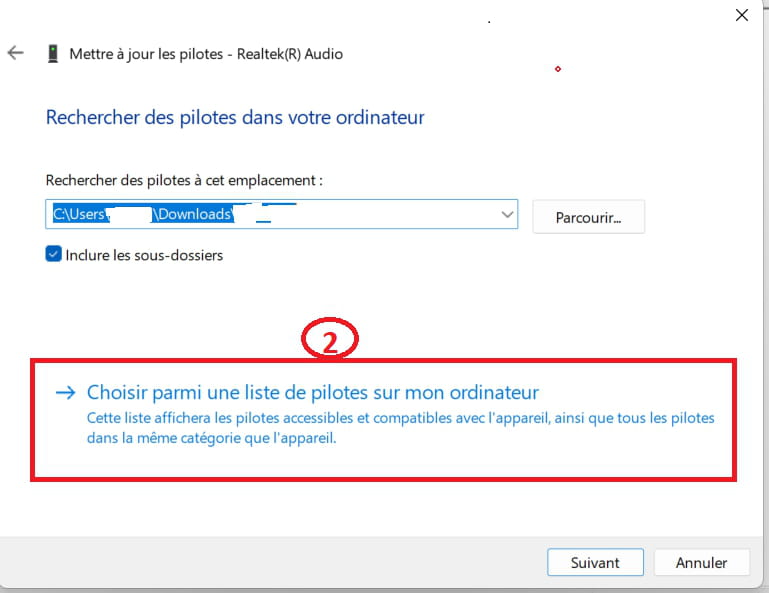
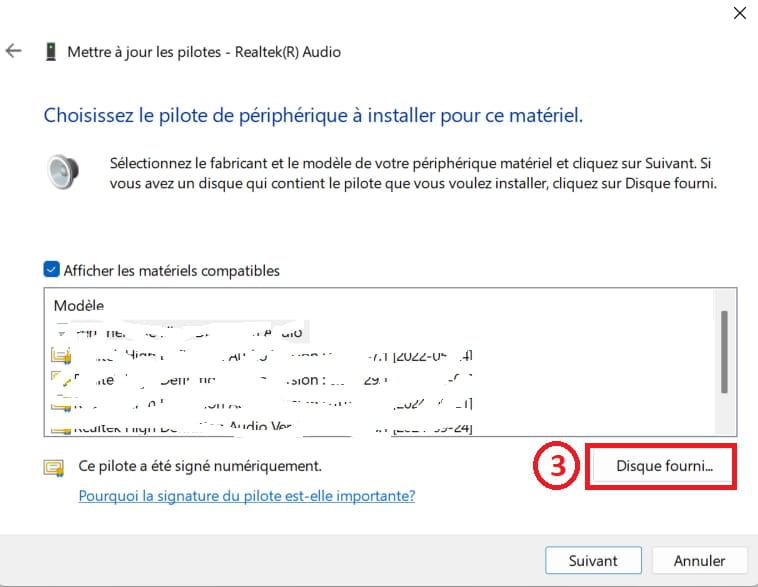
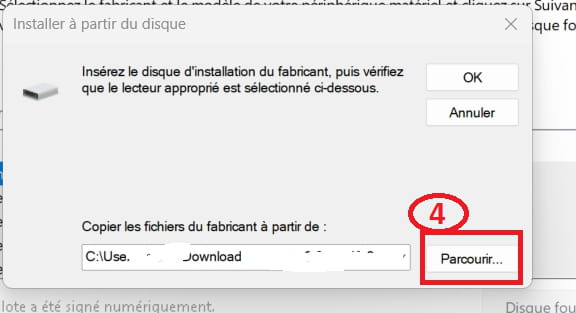
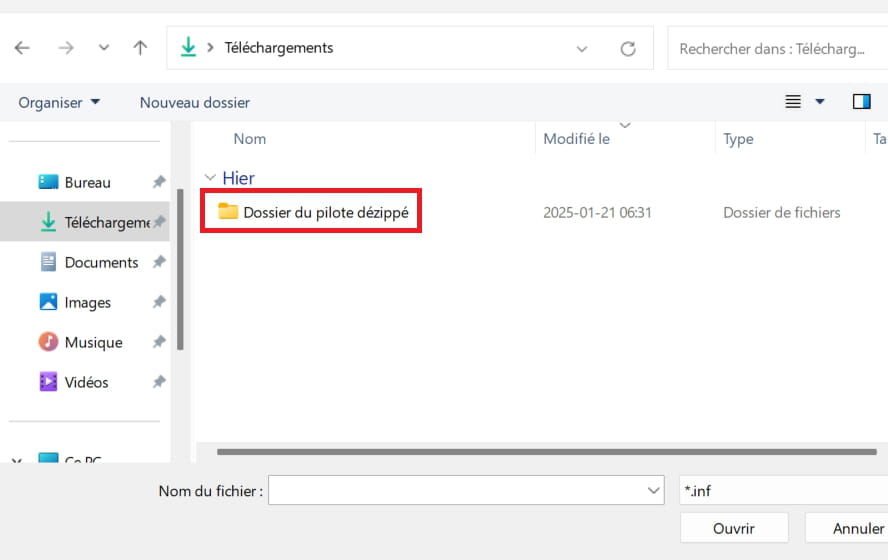
Strangely, I didn't have access to -->>provided disk<<--The equipment type "network controller" was not listed among the equipment types.Weird, usually you don't have anything to select??
Look at image 3, there is no device selection.
Example images:
--------------------------------------------------------------------------------------------------------------
---------------------------------------------------------------------------------------------------------------
---------------------------------------------------------------------------------------------------------------
--------------------------------------------------------------------------------------------------------------
----------------------------------------------------------------------------------------------------------------
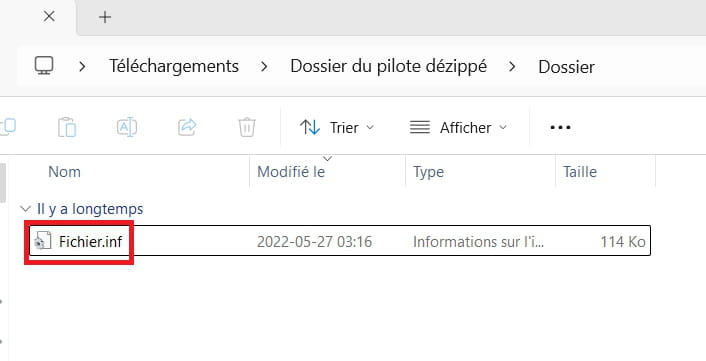
-----------------------------------------------------------------------------------------------------------------
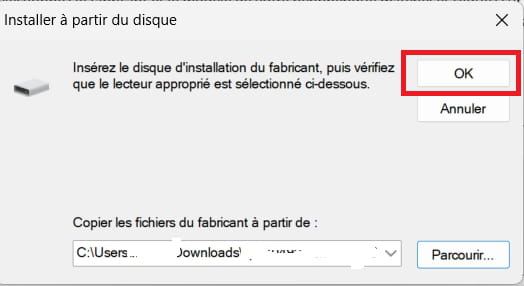
-----------------------------------------------------------------------------------------------------------------
I'm trying to understand:
Go to Device Manager
More categories --> Other Devices?
What do you have in Bluetooth and Network Adapters?
Example image: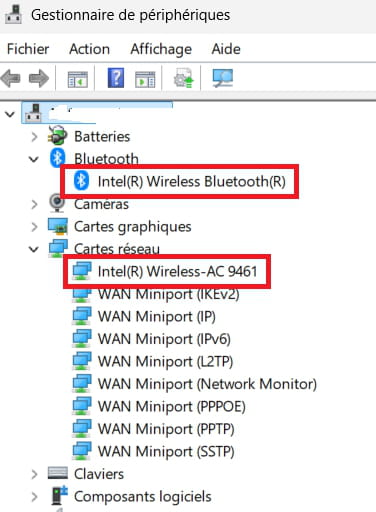
--------------------------------------------------------------------------------------------------------------
Try this:
Click on --> Action
Search for hardware changes.Example image:
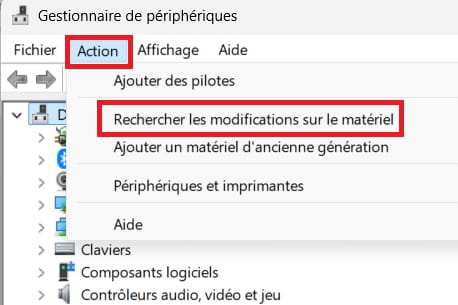
-
Yes, I had exactly the procedure you describe for all the other devices except for the two in question. I discovered that later when I tried to see what it was like for other devices. At first, I thought it was precisely "provided disk" that I was supposed to find among the list of "device types".
It was when I tried with the others that I realized these two had an "extra" menu.
And now, the menu in question no longer appears for Bluetooth.
I no longer have a "other devices" section, and in the "Bluetooth" section, I have "Intel(R) Wireless Bluetooth(R)", but doubled (two devices with the same title, but with different error messages).
I don't believe I have "more sections," nor the line you highlighted in network adapters (only WAN, etc.). I'm telling you this from memory because I'm not at home today. I will try to do the search you described tonight.
-
In the "bluetooth" section, I have "Intel(R) Wireless Bluetooth(R)", but in duplicateRight-click on each bluetooth device
Uninstall
Check --> remove the device
UninstallClick on --> Action
Scan for hardware changes.
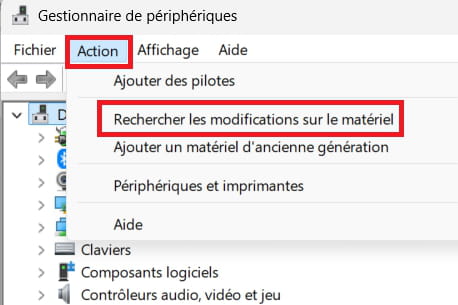
---------------------------------------------------------------------------------------------------------------
After that, post a screenshot of the device manager.
Example image: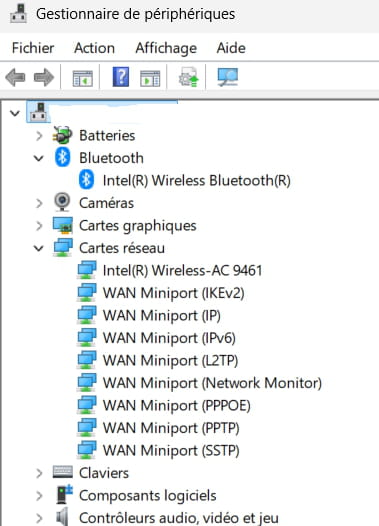
-
Hello kaneagle
WOW!
I removed the two Bluetooth devices, followed the procedure you mentioned, and I found my network controller \o/ and a Bluetooth device.Well, they are still in error, but I guess that's something.
So here is my device manager:
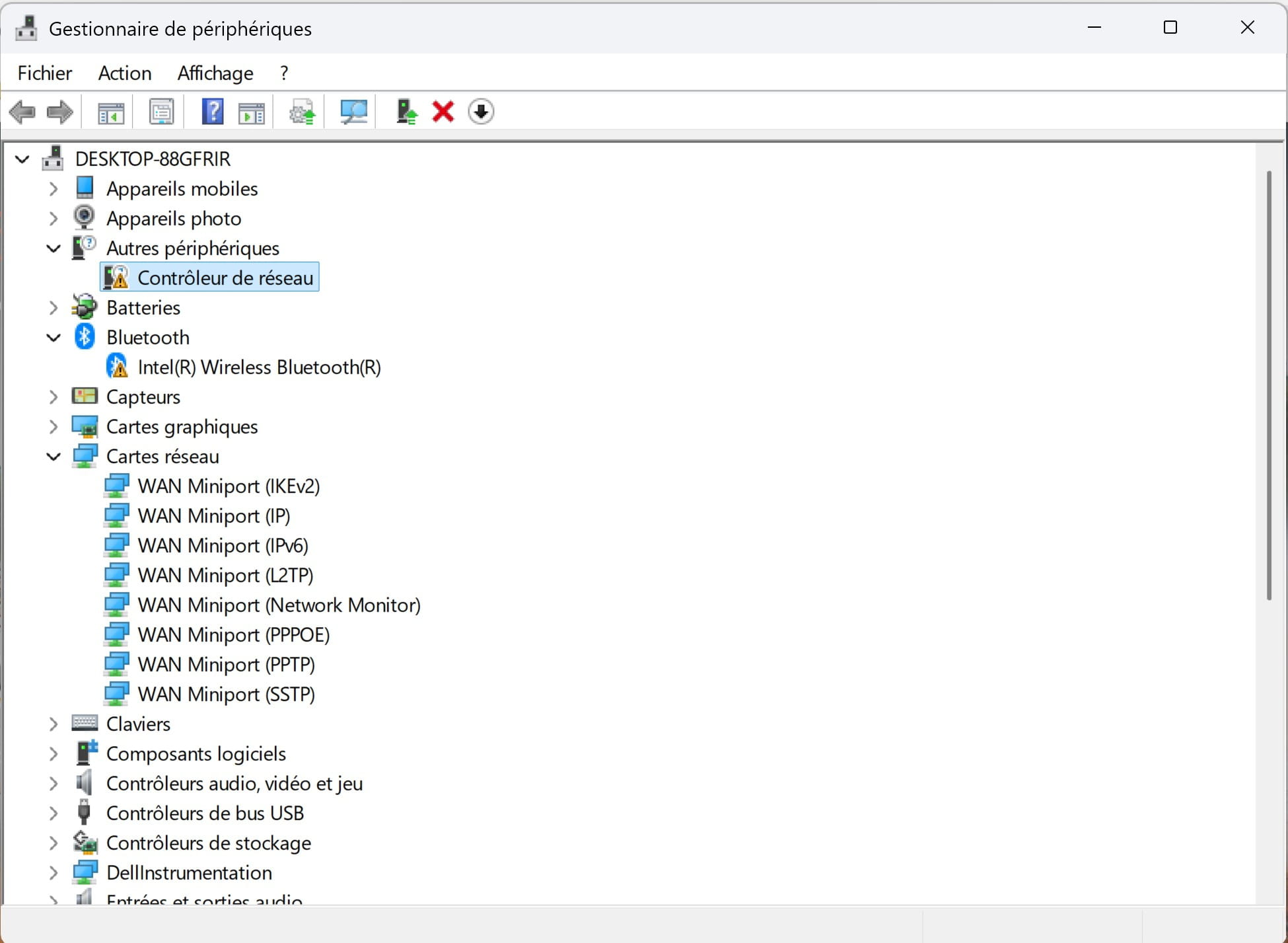
For your information, I tried the update procedure you gave me again:
-->Right-click on network controller / update driver<--
-->Browse my computer for drivers<--
-->Select from a list of available drivers on my computer<--And here’s the infamous device type selection window.
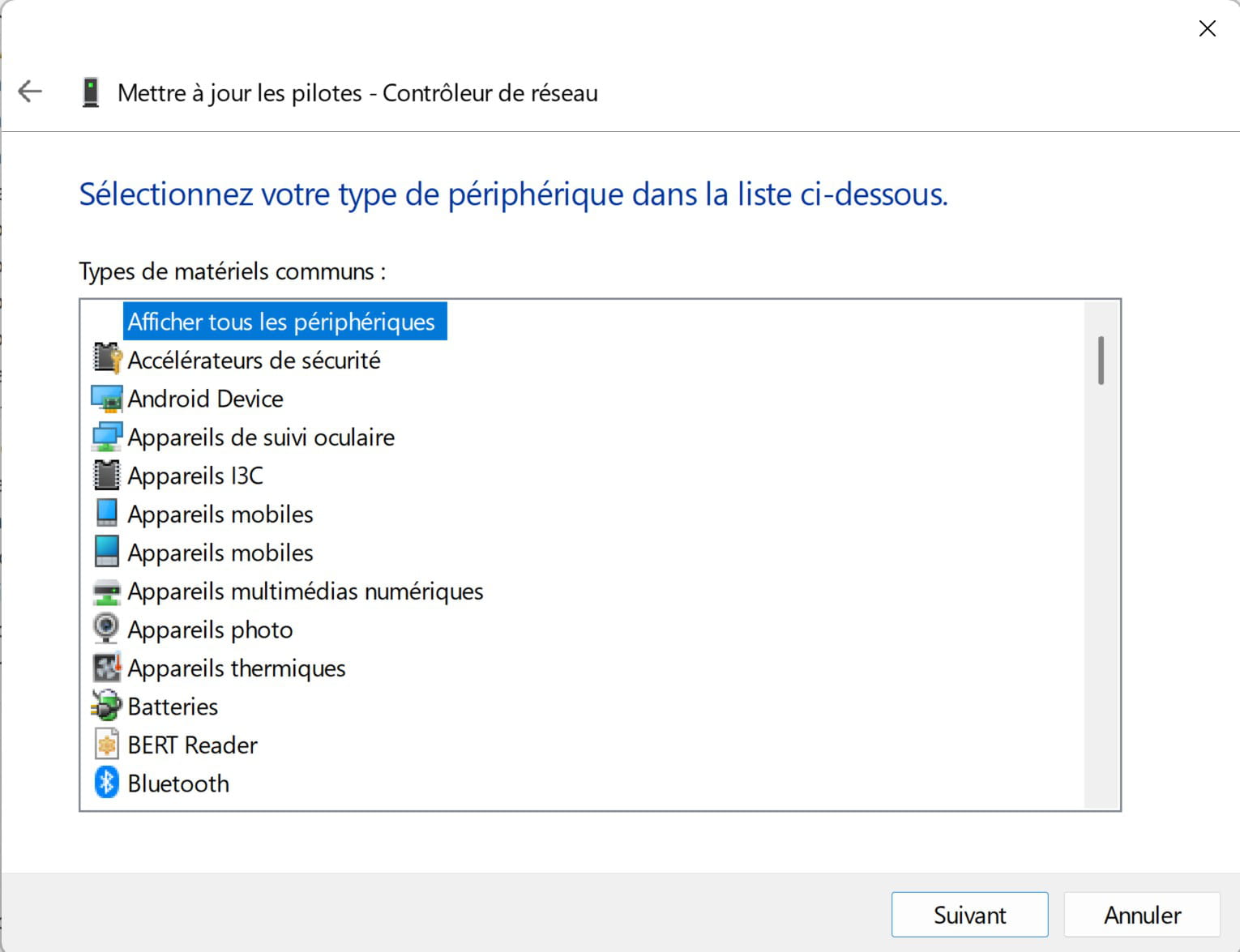
This window now only appears for the network controller.
Should I redo the update procedure for Bluetooth, now that I no longer have the "extra" step?
Should I try again for the network controller, and if so under what type? I have "network cards", "network services", "universal network drivers", among others.
Do you want me to post the list of all available types (there are quite a few)? -
@Simon6948 StatusMember
Try this procedure:
Go to Device Manager
Right-click on Network Controller
Update Driver
–>> Browse my computer for driver software <<–
–>> Browse <<–
Select the extracted driver folder--> WirelessProset_Intel_.......
OK
NextExample images:
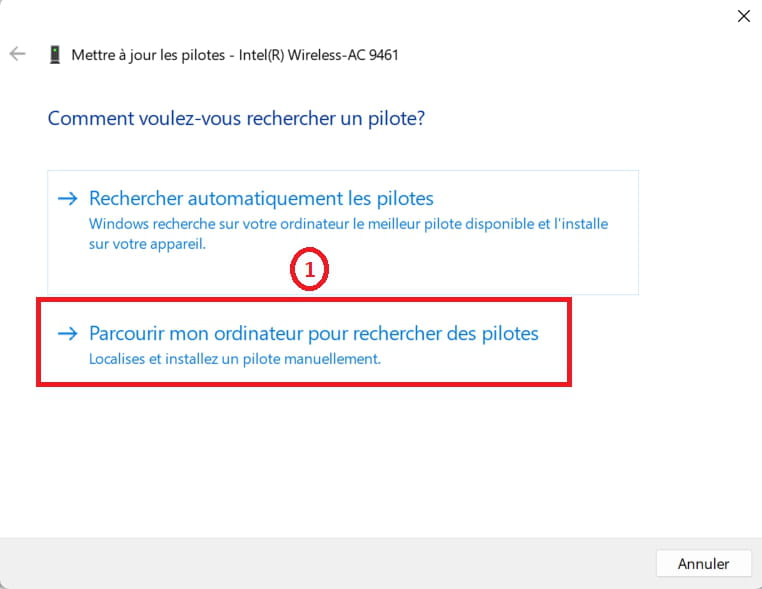
-------------------------------------------------------------------------------------------------------------
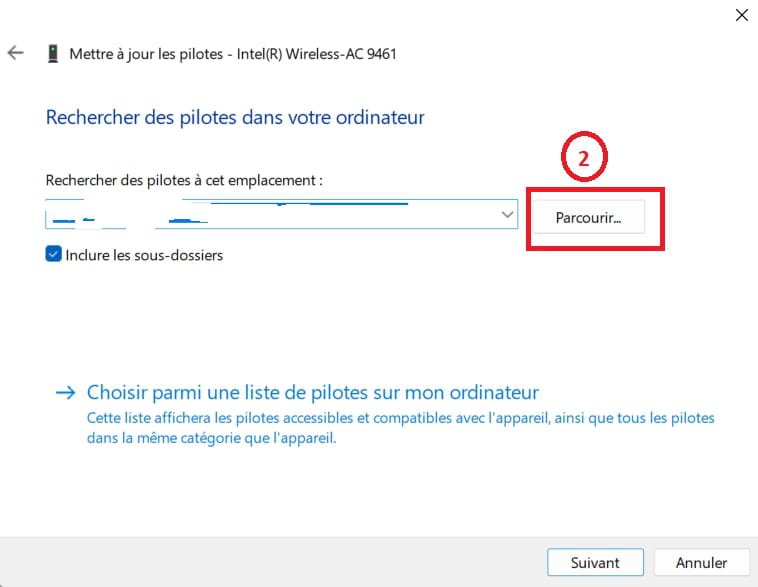
------------------------------------------------------------------------------------------------------------
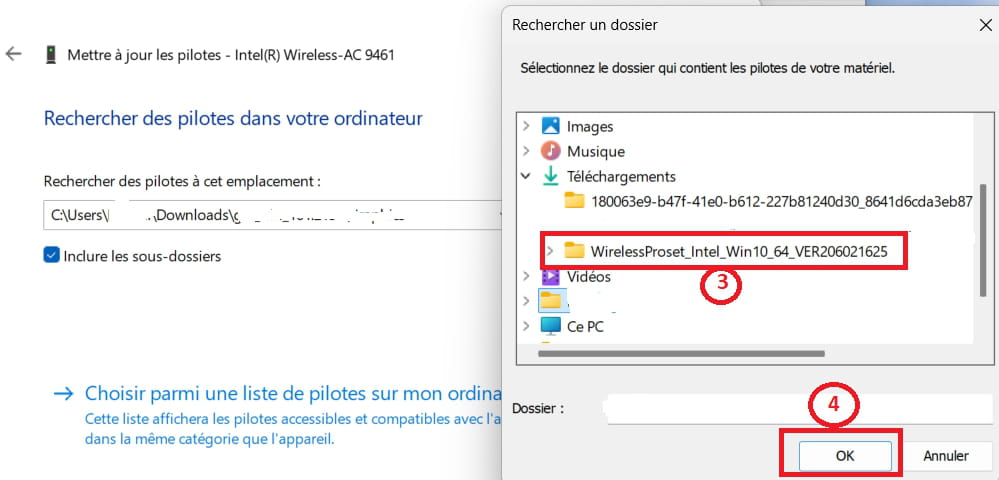
-------------------------------------------------------------------------------------------------------------
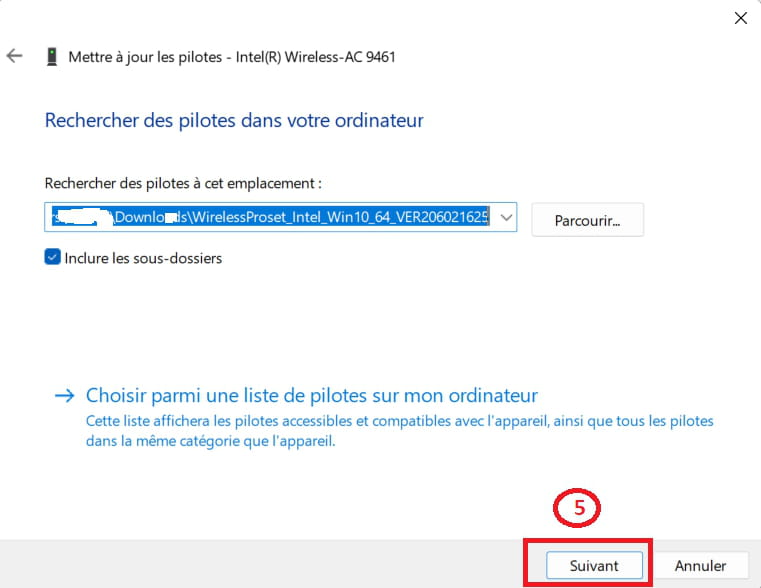
-------------------------------------------------------------------------------------------------------------
Same procedure:
Go to Device Manager
Right-click on Intel wireless Bluetooth
Update Driver
–>> Browse my computer for driver software <<–
–>> Browse <<–
Select the extracted driver folder--> 180063e9-b47........
OK
Next -
For the network controller
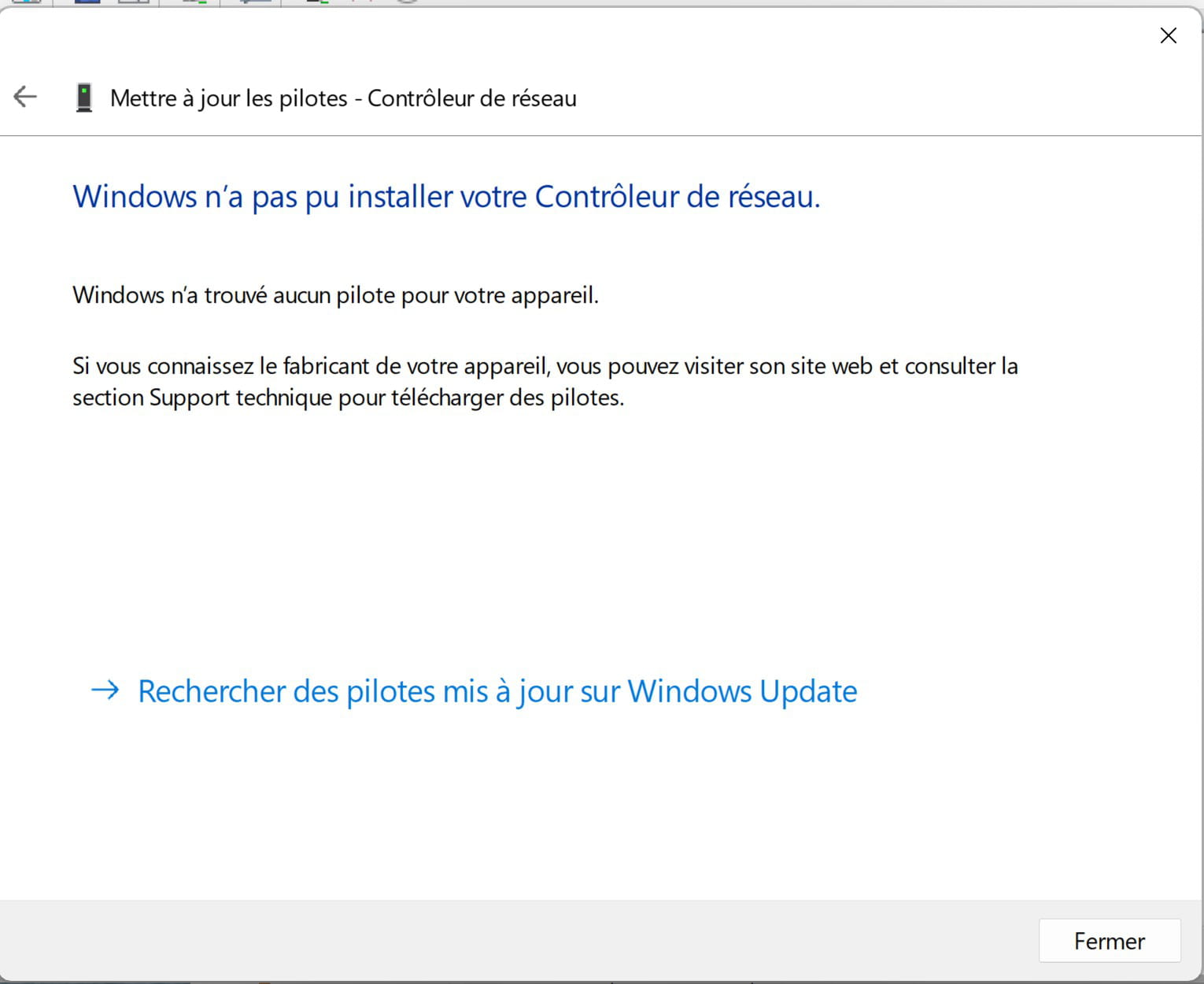
For Bluetooth
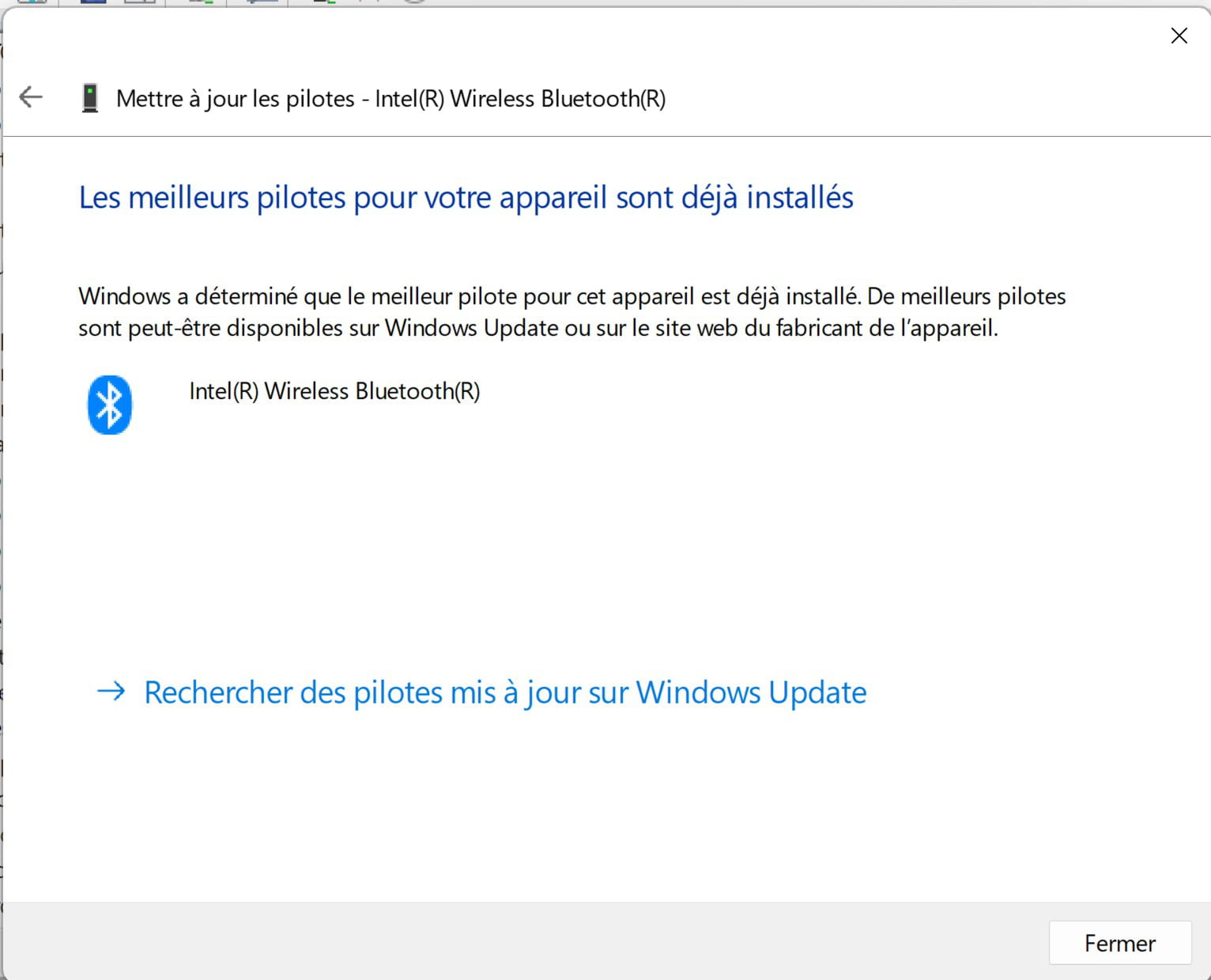
And here is what it looks like with the first procedure, the one with the "provided disk" (for Bluetooth)
-
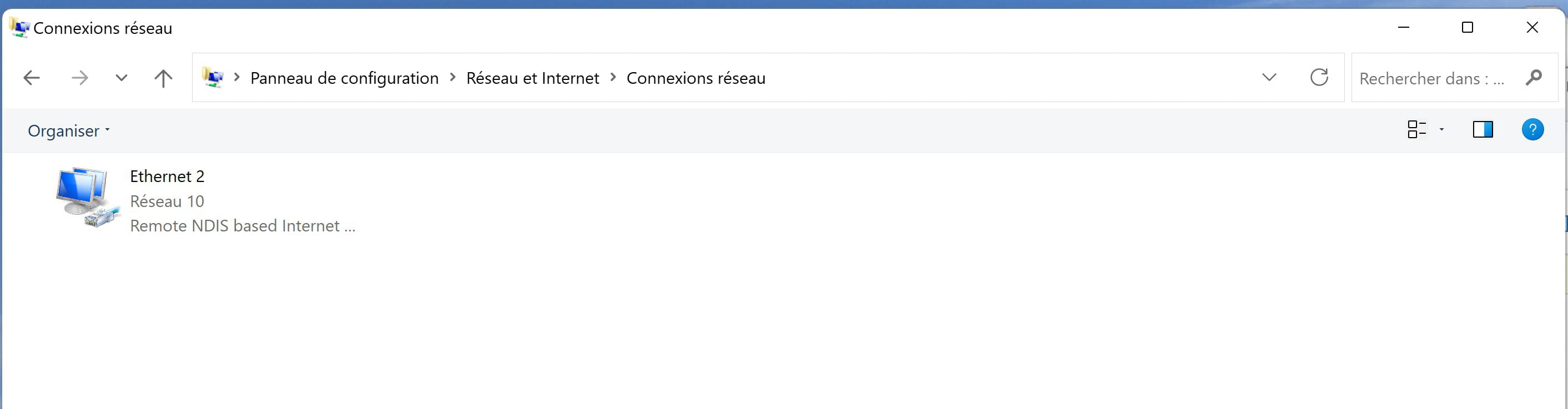
Thanks Redbart for your suggestion, this menu does allow me to choose from the different available networks, my problem being that the networks in question are simply not available.
The only network that appears is my phone that I have plugged in for tethering so I can respond (or the RJ45 adapter which is probably responsible for all this mess, and I'm hesitant to reuse it)
-
PS: sorry for the spam, I didn’t see my reply showing up, and I rewrote it 3 times before realizing that it’s actually the site that displays Redbart's message AFTER my reply to the said message… Strange
-
@Simon6948 StatusMember
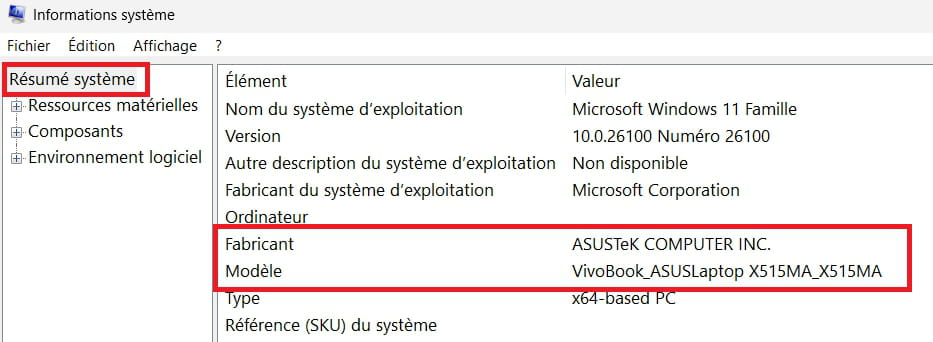
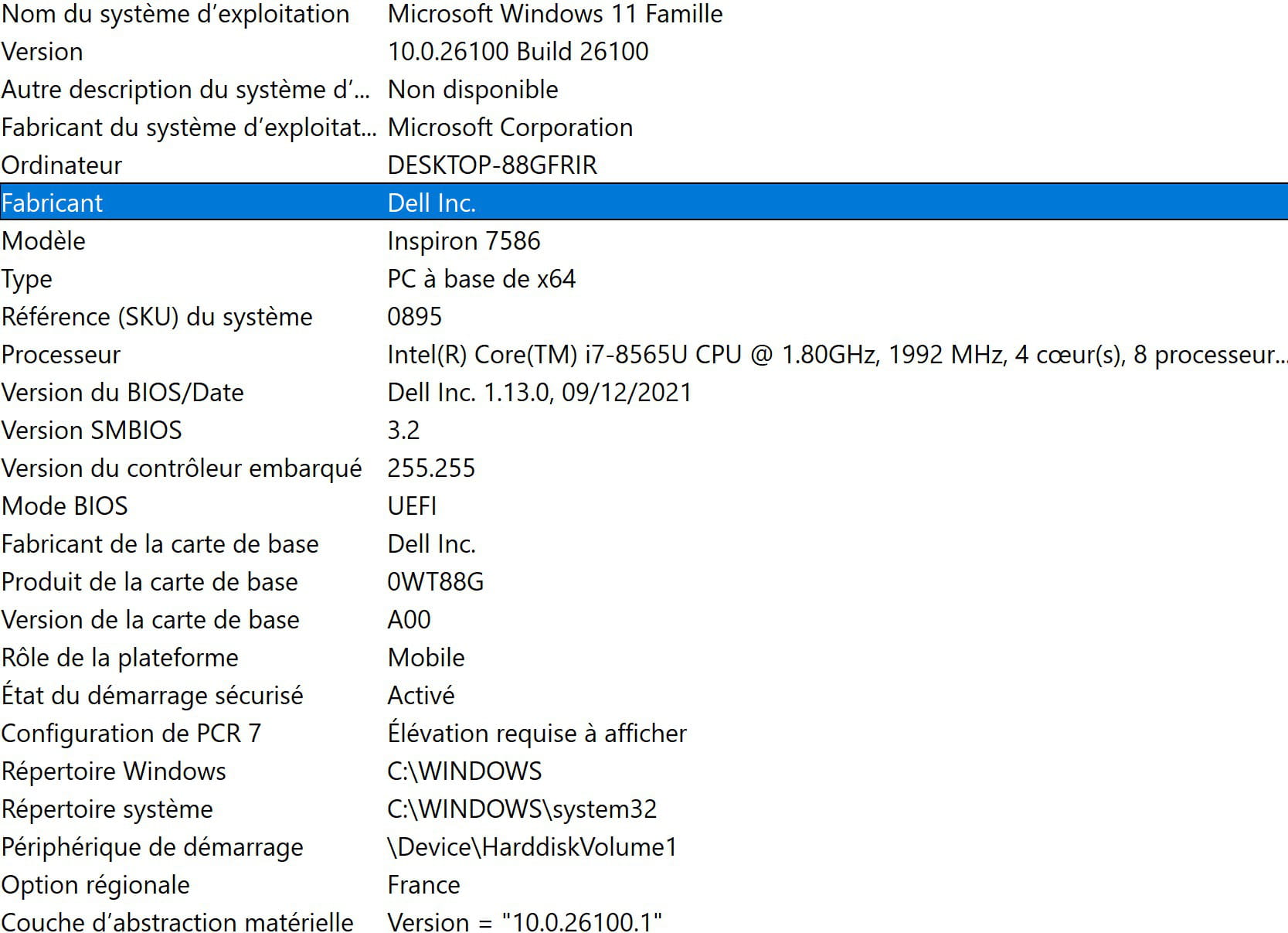
Brand and model number of the PC?
Windows + R
Type --> msinfo32.exe and OK
Look in Manufacturer and Model
Example image:
-
This is a Dell
Manufacturer Dell Inc.
Model Inspiron 7586
If you need more:
Try these 2 drivers from the Dell website according to the model number:
-->> Intel Wireless
-->> Bluetooth
Hello Kaneagle,
I'm sorry, it must be frustrating to be faced with a case like mine, but I promise, it's not a lack of willingness. I have exactly the same rejection messages as last time.
- 1
- 2
Next
-