Black screen, no wifi and network controller malfunctioning
kaneagle Posted messages 86294 Registration date Status Moderator Last intervention -
Hello!
When I turned on my PC today, it couldn't connect to Wi-Fi. The network connection options have disappeared, as well as Bluetooth, and the "airplane mode" checkbox is grayed out. I also have this kind of information on each line of the connection settings:

Thinking it might be a faulty driver issue, I went to the device manager. Here are the two alerts I found there:

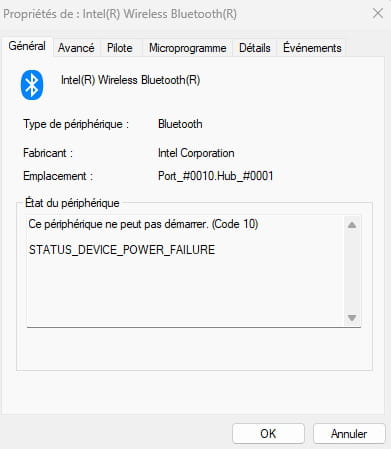
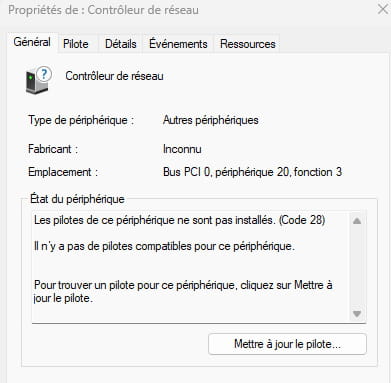
Then I plugged my PC into Ethernet. And then disaster struck: when I restarted it, the screen gave out too! It remains black despite several reboots with Win + Shift + B. I connected the computer via HDMI to another monitor and there it works (nothing goes right for the poor thing).
I then went to the Intel website to diagnose which drivers to install. It indeed offers me 3 drivers: one for Wi-Fi, one for Bluetooth, and a graphics driver (maybe for the screen? I don’t know).
I installed all 3, restarted the PC and...
Nothing.
The same issues persist and now I don't know what to do :(
Does anyone have a solution?
Here are the details about my computer:
Asus ZenBook UX333F
Processor Intel(R) Core(TM) i7-8565U CPU @ 1.80GHz 1.99 GHz
Installed RAM 8.00 GB (7.82 GB usable)
System type 64-bit operating system, x64 processor
Edition Windows 11 Home
Version 23H2
Thank you in advance for your help and have a nice day :)
5 answers
-
Hello @macago StatusMember
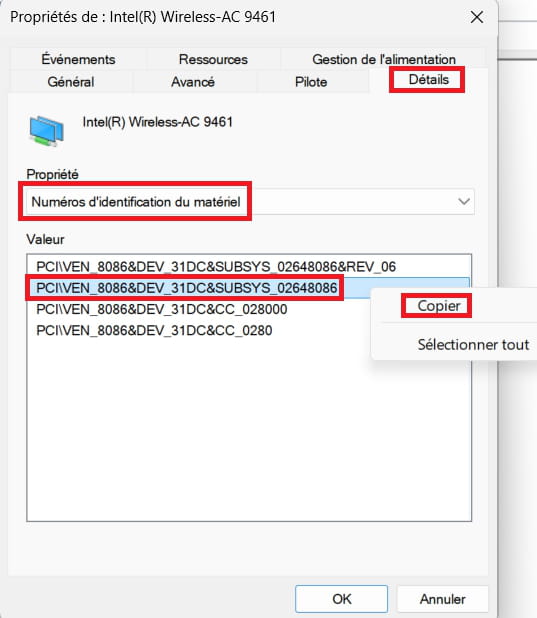
Post the hardware identification numbers of the 2 problematic devices:
--> Network controller
--> BluetoothExample image:
---------------------------------------------------------------------------------------------------------
Go to Graphics cards
Post the number of the problematic video card -
Hello and thank you for your response!
Here are the concerned devices:
- For the network controller: PCI\VEN_8086&DEV_9DF0&SUBSYS_00008086
- For Bluetooth: USB\VID_8087&PID_0AAA- For the graphics card: PCI\VEN_8086&DEV_3EA0&SUBSYS_15711043 (it is indicated that this device apparently has no problem)
Thank you very much for your help :)
-
@macago StatusMember
Download and install --> 7Zip 64 bits
For the network controller, download this driver --> Intel
Right-click on the driver --> WLAN_Intel_CFL_W10_64_V206022.zip
Select --> 7Zip
Choose --> extract to "WLAN_Intel_CFL_W10_64_V206022\"Go to Device Manager
Right-click on the network controller
Update driver
-->> Browse my computer for drivers <<–
-->> Choose from a list of drivers... <<–
-->> Have Disk <<–
-->> Browse <<–
Go to the extracted driver folder --> WLAN_Intel_CFL_W10_64_V206022
Folder --> PROSet
Select the file --> ProSetExtension.INF and OK.
-----------------------------------------------------------------------------------------------------------For bluetooth, download this driver --> Bluetooth
Right-click on the driver --> 180063e9-.....cab
Select --> 7Zip
Choose --> extract to "180063e9-.......\"Go to Device Manager
Right-click on the bluetooth
Update driver
-->> Browse my computer for drivers <<–
-->> Choose from a list of drivers... <<–
-->> Have Disk <<–
-->> Browse <<–
Go to the extracted driver folder --> 180063e9-.......
Select the file --> ibtusb.inf and OK.--------------------------------------------------------------------------------------------------------
For the Intel graphics card, download this driver --> Intel
Right-click on the driver --> gfx_win_101.2134.exe
Select --> 7Zip
Choose --> extract to "gfx_win_101.2134\"Go to Device Manager
Right-click on the Intel card
Update driver
-->> Browse my computer for drivers <<–
-->> Choose from a list of drivers... <<–
-->> Have Disk <<–
-->> Browse <<–
Go to the extracted driver folder --> gfx_win_101.2134
Folder --> Graphics
Select the file --> iigd_dch.inf and OK.
Restart the pc.-------------------------------------------------------------------------------------------------------
If it doesn’t work with the driver for the network controller:
Try this one, newer version 22.1120.0.1 --> IntelRight-click on the driver --> WirelessLan_PIE_DCH_Intel_Z.......exe
Select --> 7Zip
Choose --> extract to "WirelessLan_PIE_DCH_Intel_Z......\"Go to Device Manager
Right-click on the network controller
Update driver
-->> Browse my computer for drivers <<–
-->> Choose from a list of drivers... <<–
-->> Have Disk <<–
-->> Browse <<–
Go to the extracted driver folder --> WirelessLan_PIE_DCH_Intel_Z......
Folder --> PIE
Select the file --> PieExtension.INF and OK. -
Thank you very much for this detailed response.
Unfortunately, none of that worked. The only thing that has changed is that the network controller no longer appears in the device manager list. This happened when I installed the latest version, the first one not having worked.
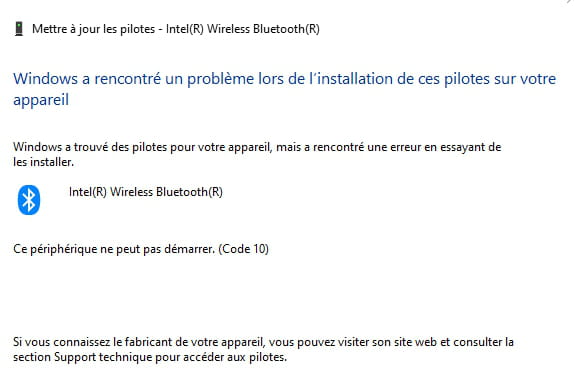
For Bluetooth, there was an error message after installing the driver:
For the graphics driver, it installed normally but my screen is still off.
Thank you again and have a good evening :)
-
@macago StatusMember
Try this driver --> Bluetooth