PC stuck on PIN code
Solvedmadmyke Posted messages 52304 Registration date Status Moderator Last intervention -
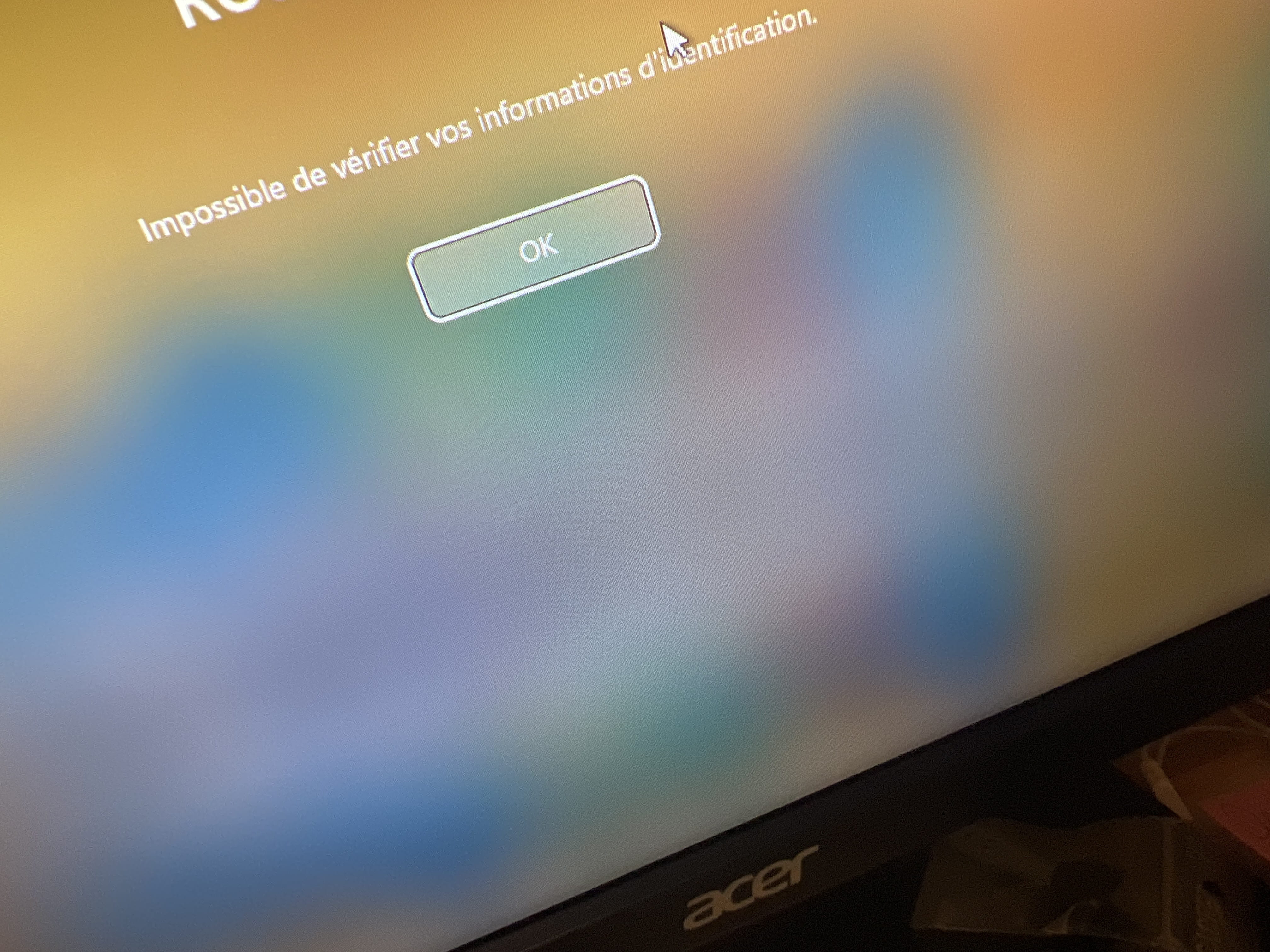
Hello, my PC was working fine with no issues (I use it for leisure and to watch Netflix, etc.) and last night when I turned it on, it asked for the code which I entered correctly, but it won't unlock. Even entering the password that I changed on my iPhone doesn’t work. I don’t understand anything, I think I have Windows 10 or 11? And my PC is a small HP HP M01-F1006nf
Thank you for your help ????
6 answers
-
In fact, this whole manipulation that I described will allow replacing the accessibility tools (the small figure symbol located at the bottom right of the login screen)

with a command prompt. And through this command prompt, to change the password of the session at will.
This part:
Make a copy of Utilman.exe with this command:
copy Utilman.exe Utilman.exe.old then press Enter.
allows you to back up the accessibility tools so that you can restore them once you've completed the manipulation.
And regarding the error that occurs when you enter the command, it's because you forgot the : after the c
You need to type c: and not just c by itself.
And after that, the other commands will work
-
Hello, it's not working???? I bought this piece of junk PC less than 3 years ago and now it's telling me there's not enough disk space (all the time actually) even though there’s a large internal hard drive, which I believe is on D. So I can’t use it; I'm at the end of my rope here????

"I bought this piece of ... crap less than 3 years ago and now it keeps telling me insufficient disk space (all the time actually) even though there's a big internal hard drive in D."
Additionally, this PC is not a ... PC.
But if you have filled up the C: drive because you haven't saved anything on D:, and especially if you've been getting this error message for a while, it is completely normal that Windows is no longer working.
Good evening,
You can do this to reset the password if you cannot log in:
https://www.malekal.com/reinitialiser-de-passe-oublie-perdu-windows-utilman-exe/
In short:
- Restart Windows in recovery mode: Hold down the SHIFT key and restart the computer.
- Once on the recovery screen (blue screen with options), choose "Troubleshoot", then "Advanced options", then "Command Prompt".
- In the command prompt that opens:
- Type c: and press Enter to confirm.
- Type cd Windows and press Enter.
- Type cd System32 and press Enter.
Make a copy of Utilman.exe with this command:
copy Utilman.exe Utilman.exe.old and press Enter.
Then, type this command:
copy cmd.exe Utilman.exe and confirm with Y then Enter.
4.Close the command prompt, restart the PC.
- Once back at the login screen, click on the accessibility option (the symbol in the bottom right that represents a little person)
- A command prompt should open.
To change the password, type:
net user followed by your username, then your new password.
For example: net user example test123 (be careful to include spaces in the command)
The password will then be changed, and you can use this new password to log in.
To restore the accessibility options as before, open a command prompt (you can do this once logged into your session), running it as "administrator", and then type:
del Utilman.exe
ren Utilman.exe.old Utilman.exeHoping this will help.
Good evening and thank you for your help. I didn't understand everything, but I'm getting back up to try ???? However, I don't quite understand what I need to do exactly. I'm afraid of messing something up... all of this part is a bit confusing to me ???? "
Make a copy of Utilman.exe with this command:
copy Utilman.exe Utilman.exe.old then press Enter.
Then, type this command:
copy cmd.exe Utilman.exe and confirm with Y then Enter." Thank you for your response.

I see this while trying to type the beginning of your solution ????
So if it doesn't work in command mode, we'll try to do it in a more "visual" way.
Redo the steps to open the command prompt.
Once the prompt is open, without typing anything else, type notepad.exe and hit Enter.
It will open a Notepad.
Go to "File" and then "Save As".
You will see a file explorer open. We will use it to perform the steps you should have done in the command line.
First, at the bottom, in "Type", choose "All Files"
Then, on the left, click on "This PC", then double-click on your C: drive, then on the "Windows" folder and finally "system32". Make sure to select the C drive.
Navigate through the folder until you find the Utilman file (it's a file represented by a blue icon). Rename this file to Utilman.old or Utilman1, whatever you want (right-click on the file --> Rename)
You may not see the change immediately.
Then, navigate through the folder until you find the cmd file (black icon).
Make a copy of this file (click on the file and use CTRL and C to copy, then CTRL and V to paste, or right-click on the file --> Copy then Paste)If the copy of the cmd file is not visible, navigate to another random folder, then return to the previous folder to refresh the changes.
Once the cmd file is copied, you will have two files: cmd and cmd - Copy. Rename cmd - Copy to Utilman. Again, you may not see the changes right away.
Once done, you can close everything and choose "Continue" to start Windows normally.
After this, you can continue with what I explained earlier from here:
- Once you are back on the login screen, click on the accessibility icon (the symbol in the bottom right that represents a little man)
- A command prompt should open.
To change the password, type:
net user followed by your username, then your new password.
For example: net user example test123 (be careful to include the spaces in the command)
The password will then be changed, and you can use this new password to log in.
To restore the accessibility options, we'll see later, if you manage to change the password.
-
If only a few bytes are left on the C: drive, Windows corrupts with every attempt.
Repair will only be possible if, for example, the Windows Temporary directory is emptied. Or move "My Documents" to the D:
Maybe (suggestion) it would be better to try to free up some space and once that's done, run a CHKDSK; with a bit of luck, that will be enough.
Hello, thank you so much to sudorm-rf (what does that mean?) and thanks to madmyke, as I was getting nowhere and was afraid he would leave me for good, I took him to someone more competent than me - it wasn't hard to find. He told me it was due to a Windows update problem that had crashed because of a lack of space on the C drive ;( … so there you go, he's back like new. Thank you for your patience and if you have any tips on maintaining a PC for beginners, I’m all ears :)
-
So in terms of advice, I recommend you:
1) Use the D: drive to store your "documents"; it's quite easy to move it if your contact hasn't already done so.
2) Monitor the disk space from time to time on C: and D: (but we also ignore the size of this drive which contains both C: and D:
3) Plan for an automatic backup solution, IF your documents (files, videos, audios, texts, etc.) are either on an external drive and backed up daily, or via the cloud.
You can't imagine how many people have come to me because they've lost everything, often permanently (I couldn't do anything).
-