Strange skylight in the taskbar
Solved
poupart0742
Posted messages
130
Registration date
Status
Member
Last intervention
-
Mo -
Mo -
Hello everyone!
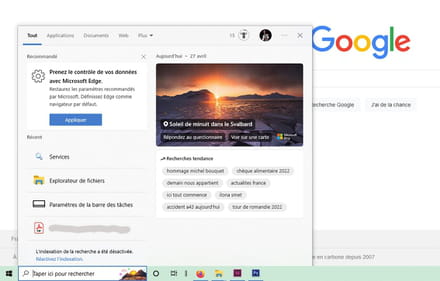
For the past few days, an image appears in the taskbar and I can't remove it: I can't find its source in the apps. Below are two screenshots of this phenomenon: first, the small icon in the taskbar, marked by the red arrow; then the window that appears when I click on it.
Could you help me identify the offending application and how to remove it? Thank you very much!

Configuration: Windows / Firefox 99.0
For the past few days, an image appears in the taskbar and I can't remove it: I can't find its source in the apps. Below are two screenshots of this phenomenon: first, the small icon in the taskbar, marked by the red arrow; then the window that appears when I click on it.
Could you help me identify the offending application and how to remove it? Thank you very much!


Configuration: Windows / Firefox 99.0
5 answers
-
pistouri Posted messages 19011 Registration date Status Contributor Last intervention Ambassadeur 8 723
Hello,
Search Highlights (Search Highlights).
KB5011543(April 12, 2022) or KB5012599 Windows 10 quality update adds search highlights to the Start menu.
Also under W11.
New interface with search highlights
Microsoft seems to have added search icons on the right side of the field on certain devices.
In one word, Search Highlights is how Microsoft displays trending searches, holidays, birthdays, important days in your region, etc., directly in the search application window.
Disable Search Highlights on Windows 10
-1-
Right-click the Windows 10 taskbar
Select Search.
Disable "Show search highlights".
Or
Right-click the taskbar
Uncheck "show search highlight"
Or
Right-click on the taskbar --► Search--► Disable search highlights
Or
Right-click on the taskbar.
Search -► (uncheck) Show search
-2-
Settings --► Privacy & security --► Search settings --►Show search highlights to enable or disable the feature.
-3-
There is another way to disable search highlights using a new policy available in Windows 10 from Group Policy Editor.
With Gpedit.
--► activate gpedit.msc on Windows 10
--► Install gpedit.msc on Windows 11 Home
Run the tool Gpedit.msc and go to:Computer Configuration > Administrative Templates > Windows Components > Search.
In the right pane, select ''Allow search highlights'' and set its value to ''Disabled''.
@+
-
- A little penguin has appeared next to my taskbar

Right-click on the taskbar -> search -> show search highlights -> uncheck
Source
PS :
It's also because that day was World Penguin Day......
See you later
-
-
-
-