Wipe a hard drive completely WITHOUT Windows
Gesoriac
-
Gesoriac -
Gesoriac -
Hello to you. I would like to completely erase a hard drive WITHOUT going through Windows. I cannot do this because I have an error message that keeps saying "your device needs to restart because it encountered a problem" (nsft.sys) etc. I cannot use Windows at all and therefore I would like to remove it completely from the PC to reinstall it anew. I want to specify that I cannot currently use a USB drive with Windows on it because strangely it gives me the exact same error message, even though I have set it to boot first in the BIOS. So I would like to try to delete, as I mentioned, Windows completely from the hard drive by using ONLY the Asus command prompt. Could you please guide me on how to proceed? Thank you in advance.
5 answers
-
Hello
use a live linux
Create a bootable USB stick
that contains a Linux system (ZORIN)
Since the computer is frozen, you need to create it from another computer.
download Zorin
then let's create the USB stick using Rufus
follow the tutorial below to create the bootable USB stick with " Rufus "
Tutorial
The preparation and copying to the USB stick is done.
start the PC from the USB stick
here is what you should see on the screen
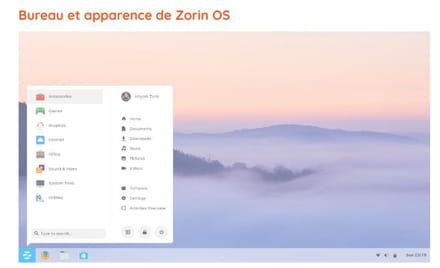
--
If my response helped you, click the Thank You button.
Mark as resolved if your issue is fixed. -
Hello,
There is no disk wipe function in the BIOS.
So you need something on a USB key to boot; in any case, you'll have to resolve this to reinstall Windows. Remove the boot from the disk, take out the disk to test, ...
--
a foreigner is a friend we haven't met yet.-
Thank you for your response. Unfortunately, I literally can't do anything except from the back. With a key that has a Windows installer, I strangely encounter exactly the same error message. Yet I have already deleted the boot directly from the disk... I disabled it... I don't understand the logic of this... I can really only access the ASUS BIOS.
-
-
Hi,
You can erase it with Active@ KillDisk Freeware on a bootable USB drive
http://killdisk.com/killdisk-freeware.htm
(If you want a total wipe, with disk reset) -
If you see it either with the Windows key or KillDisk, you can get out of trouble.
Use KillDisk if Windows doesn't see anything.
Use the tool to create a USB drive to update, repair, or reinstall Windows
Windows 11 if compatible.
Windows 10 https://www.microsoft.com/fr-fr/software-download/windows10/
Windows 11 https://www.microsoft.com/fr-fr/software-download/windows11
If you already have the Windows ISO file that you can download from the tool, you can create your USB drive with Rufus
If the PC is old, you need to create the drive in MBR mode
If it is recent (Windows 8 or higher) in GPT mode > For Windows 11 GPT
Boot from it using the PC's Boot Menu
https://www.malekal.com/liste-touches-acces-bios-boot-menu-constructeur/
If you don't see it, you can search on Google "[Brand Model] Boot Menu Key"
Choose "Custom Installation" (Not upgrade)
You don't have to format if there is space; if there are data, they will be found in a Windows.old folder
Install on the same partition, or alternatively, delete all system partitions and create a new one (This will delete the data).-
-
-
-
Test your RAM with a Memtest86 Free bootable USB
https://www.memtest86.com/download.htm
Your drives with CrystalDiskInfo
https://crystalmark.info/en/software/crystaldiskinfo/ -
-
-
Otherwise, you can find a giveaway for AOMEI Partition Assistant Pro
https://www.google.com/search?q=aomei+partition+assistant+pro+giveaway
and create a USB drive with it.