Screen not recognized after SSD installation

Zed-95
Posted messages
9
Status
Member
-
Duno59 Posted messages 876 Registration date Status Member Last intervention -
Duno59 Posted messages 876 Registration date Status Member Last intervention -
Hello,
A little explanation of my problem:
I bought a 1TB SSD (Crucial MX500) a week ago, I looked for some tutorials to do the installation properly and I installed it yesterday on my desktop PC following the tutorial from the Crucial website and then used their cloning application.
At the end of the cloning, the tutorial said to turn off the PC, disconnect the HDD, and restart the PC with the SSD.
I did that, except that when booting the PC without the HDD connected, I have no output on the screen, meaning I get the message "NO SIGNAL" on the screen, as if the screen weren't connected.
The issue wasn't with the screen since when I unplug the HDMI cable, the screen reacts. I checked the connections just in case.
Assuming the issue was with the SSD or a bad installation, I turned off the PC using the power button (I couldn't do it any other way since there was no display), reconnected the HDD, and restarted the PC.
When starting up, the HDD shook my desk, it was spinning so loudly. It lasted a few seconds, then nothing and still nothing on the screen.
I waited a few minutes to see if there was any change, then when I pressed the space bar (a habit to wake the PC from sleep mode), the PC turned off.
I restarted the PC several times to see if there was anything, I tried with both drives connected, with the HDD alone, and the SSD alone, I swapped the SATA cables too, but nothing works.
I only got one response once, it was a Windows error message with the sad face ":( " to tell me that "it seems there is a problem" (which I suspected but still).
There was a data collection and then loss of signal again.
I tried several more times and gave up.
I tried to access the BIOS to see if it displayed anything, but nothing either.
I wonder if the problem comes from the graphics card, but if there was an issue with the GPU, I normally wouldn't have been able to see the error report. Or maybe I just don’t understand anything and that's where the issue lies.
Could it be that the display settings weren't copied to the SSD and since I disconnected the HDD without notifying the SSD, it bugged?
Or something similar perhaps. Or something entirely different.
For the config, I'm not sure what info is needed.
Processor AMD A10 4x3.7GHz,
graphics card GeForce GTX 1660 Ti.
Thanks for your help ????????????????
A little explanation of my problem:
I bought a 1TB SSD (Crucial MX500) a week ago, I looked for some tutorials to do the installation properly and I installed it yesterday on my desktop PC following the tutorial from the Crucial website and then used their cloning application.
At the end of the cloning, the tutorial said to turn off the PC, disconnect the HDD, and restart the PC with the SSD.
I did that, except that when booting the PC without the HDD connected, I have no output on the screen, meaning I get the message "NO SIGNAL" on the screen, as if the screen weren't connected.
The issue wasn't with the screen since when I unplug the HDMI cable, the screen reacts. I checked the connections just in case.
Assuming the issue was with the SSD or a bad installation, I turned off the PC using the power button (I couldn't do it any other way since there was no display), reconnected the HDD, and restarted the PC.
When starting up, the HDD shook my desk, it was spinning so loudly. It lasted a few seconds, then nothing and still nothing on the screen.
I waited a few minutes to see if there was any change, then when I pressed the space bar (a habit to wake the PC from sleep mode), the PC turned off.
I restarted the PC several times to see if there was anything, I tried with both drives connected, with the HDD alone, and the SSD alone, I swapped the SATA cables too, but nothing works.
I only got one response once, it was a Windows error message with the sad face ":( " to tell me that "it seems there is a problem" (which I suspected but still).
There was a data collection and then loss of signal again.
I tried several more times and gave up.
I tried to access the BIOS to see if it displayed anything, but nothing either.
I wonder if the problem comes from the graphics card, but if there was an issue with the GPU, I normally wouldn't have been able to see the error report. Or maybe I just don’t understand anything and that's where the issue lies.
Could it be that the display settings weren't copied to the SSD and since I disconnected the HDD without notifying the SSD, it bugged?
Or something similar perhaps. Or something entirely different.
For the config, I'm not sure what info is needed.
Processor AMD A10 4x3.7GHz,
graphics card GeForce GTX 1660 Ti.
Thanks for your help ????????????????
3 answers
-
Hello.
What stands out to me is that you specify that when trying to boot with the HDD alone, which should still contain the data it had before the purchase of the SSD, you were unable to start. Logically, cloning a hard drive does not erase its content. Therefore, you should be able to restart your computer as it was before.
However, you would need to enter the BIOS and check the boot order of the drives. You could verify that your SSD is indeed listed in the drives used to boot the computer, placing it at the top. Since your PC only had one hard drive, it will be the HDD that is at the top. It is likely followed by the DVD drive in second position. Switching the cables on the drives does not change anything for the BIOS. It will always attempt to start from the first declared one, then the second if it cannot boot from the first, until it finds a bootable disk containing an operating system.
Best regards.-
Good evening.
Thank you for your response.
My concern comes from the fact that I don't see what's happening because there is no feedback on the screen.
It's like the tower is not connected to the screen.
I’ve reconnected everything as it was before, only plugging in the HDD, but it doesn’t do anything.
I contacted some computer shops, but an appointment is required for repairs.
I’m looking for a VGA cable to see if it changes anything. Maybe it's just a display issue.
I’ll get back to you as soon as I’ve tested the cable.
Thank you anyway for the response. -
-
-
I tinkered a bit with the PC and when I removed the graphics card, I noticed there were two HDMI ports that belonged to the graphics card. I had forgotten about them, and they weren't visible given their position unless you looked at the back of the case straight on.
So I plugged the monitor into them and it works again, I can now see what I'm doing on the PC.
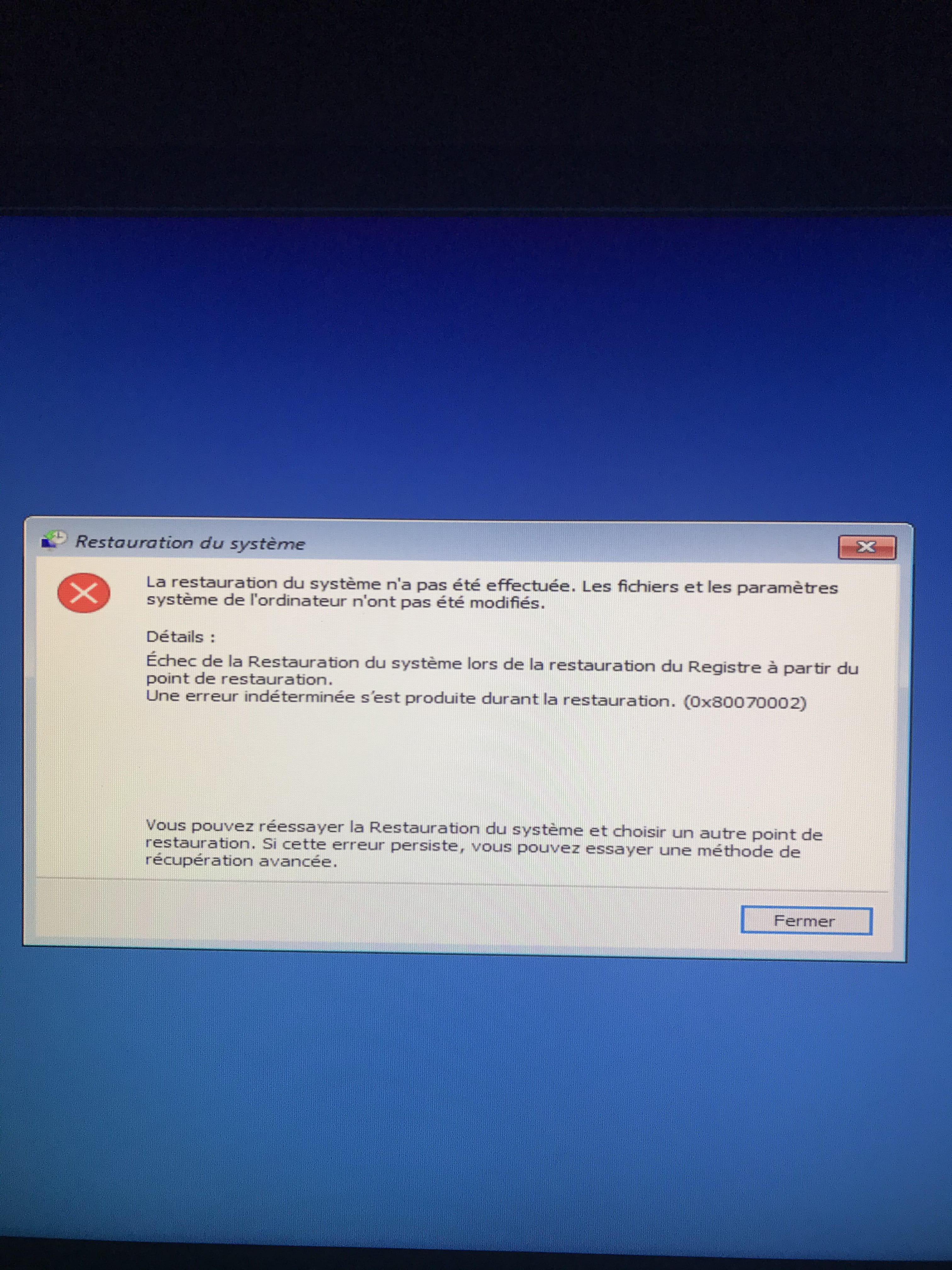
I checked the BIOS boot order for the drives, the HDD is indeed first but Windows doesn't start. It attempts an automatic repair and suggests restarting, and then it restarts.
I found an automatic restore point that is right before all my tinkering.
I’ll see how that goes and I'll go back.
In any case, the screen issue is resolved. I thought it might have been fixed by unplugging the graphics card, but no, because on the HDMI port of the motherboard, I still have no output.
So probably due to the wrong manipulations I must have made while installing the SSD.
To be continued after the system restore. -
Hello.
I'm afraid it's the hard drive that's at fault.
Since you can write to us, I hope it's from another computer you have access to and not from your smartphone. If that's the case, I suggest you visit this site: https://www.malekal.com/malekal-live-cd-reparer-depanner-pc-windows/, download the proposed file, and burn it onto a DVD. By booting your PC from the DVD, as indicated on the site, you will find the Crystal Disk Info software which will give you the health status of your hard drive. Blue means it is in good health. Yellow means caution, there are bad sectors. But I'm afraid your drive is in the red: it's on its last legs.
Unless the other computer you have access to (if that's the case) is also a tower. In that case, dismantle your drive and connect it to the other tower. Install the Crystal Disk (free) software on it and run it. It will give you the health status of the hard drives. Crystal Disk can be found at this address: https://crystalmark.info/en/software/. If you take the portable version, there's no installation required. The downloaded files can even be used directly from a USB stick.
Best regards.