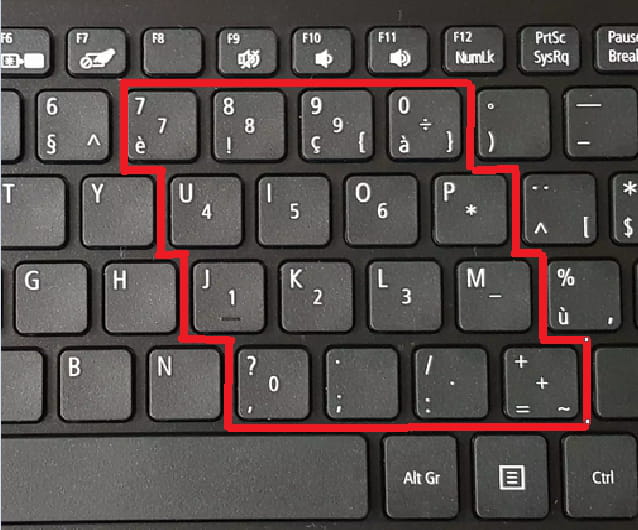
Very complicated keyboard
Solved
taharqa
Posted messages
219
Status
Member
-
taharqa Posted messages 219 Status Member -
taharqa Posted messages 219 Status Member -
Hello,
if you can see my keyboard layout, you'll quickly realize that it doesn't make my life easy.
I have different kinds of keys;
- those with only one letter = great
- those with one key featuring 3 characters, how do I type the one at the top left, the one at the bottom left, and the one at the bottom right?
- those with 4 characters, how do I type the one at the top left, the one at the bottom left, the center one, and the one at the bottom right?
Thank you very much to anyone who can lend a hand!
Good night

Configuration: Windows / Edge 91.0.864.48
--
"It is always by chance that we fulfill our destiny, but chance never strikes at random"....
if you can see my keyboard layout, you'll quickly realize that it doesn't make my life easy.
I have different kinds of keys;
- those with only one letter = great
- those with one key featuring 3 characters, how do I type the one at the top left, the one at the bottom left, and the one at the bottom right?
- those with 4 characters, how do I type the one at the top left, the one at the bottom left, the center one, and the one at the bottom right?
Thank you very much to anyone who can lend a hand!
Good night
Configuration: Windows / Edge 91.0.864.48
--
"It is always by chance that we fulfill our destiny, but chance never strikes at random"....
4 answers
-
Hello,
In general
The character in the bottom left is obtained directly by pressing the concerned key
The character in the top left is obtained by holding down the "Shift" key and pressing the concerned key.
As for the keys with 3 characters printed, the character in the bottom right is obtained by combining the Alt Gr key (to the right of the space bar) held down and the key that has this character in the bottom right.
As for characters on 4-character keys (rare),
I assume that you have to combine 3 keys
Alt Gr held down, Shift pressed, and the key that has the desired character printed in the top right.
Note: a photo or a link to this uncommon keyboard would be a plus.
--
Very difficult to catch a black cat in a dark room.
Especially when it’s not there... -
Hello,
Everything is explained for example here
--
--------------------------------------------------------------------------------
Reading the responses is nice… Responding to them afterwards, for the sake of politeness, is better… -
Hello
Actually, you have a Belgian keyboard, a laptop keyboard with a "Numeric keypad" where the characters are printed in the center of the keys...
See this keypad outlined in red in the image below:
So in the center of these keys are the numbers 0 to 9, the plus, the minus, the multiply, the divide, and the point to separate the decimals.
To enable the functionality of this keypad, unless I'm mistaken:
Hold down the Fn key and press the NumLk key (below F12)
The same to disable the numeric keypad
It's very difficult to catch a black cat in a dark room.
Especially when it isn't there...-
Hello
The specifications.
https://www.acer.com/ac/en/BE/content/model/NX.GVZEH.008
Download the manual in pdf, the keyboard usage starts on page 15.
https://manuall.fr/acer-aspire-1-a114-32-laptop/
Thank you baladur13 for asking the right question, I didn’t expect to find the reference in the keyboard photo :)
-
-
In any case, a HUGE THANK YOU to YOU for your kindness, it really helps me out!
Take care of yourself!
--
"It is always by chance that one fulfills their destiny, but chance never strikes by chance"....