
No image display during my Word-Excel mail merge
iBrindille
-
Nesa95 -
Nesa95 -
Hello to you :)
I’m using Office 2019 for your information.
So I want to proceed with a mail merge of players from countries around the world. I've created a folder DOCTEST in my documents with a subfolder DRAPO in which I’ve placed my flags. I've created my Excel database which looks like this as an example:
NAME COUNTRY PHOTO LINKS
Truc Afghanistan C:\\users\\MyName\\Documents\\DOCTEST\\DRAPO\\AFGAN.png
Machin France C:\\users\\MyName\\Documents\\DOCTEST\\DRAPO\\FRANCE.png
Bidule Sweden C:\\users\\MyName\\Documents\\DOCTEST\\DRAPO\\SWEDE.png
I then create my labels page in Word => select recipients - use an existing list - select my database and then open.
NAME COUNTRY FLAG
I position myself under NAME and do insert merge field - same for COUNTRY.
For FLAG, I open insert - Quickpart - Field - I select "IncludePicture" name it temporarily IMAGES - I check "The data is not saved with the document" then I confirm with OK. Then I get an error message telling me that it is impossible to link the image because it has been moved, deleted, renamed, etc.
I press Alt+F9 which shows me: { INCLUDEPICTURE "IMAGES" \d \* MERGEFORMAT }
Here I select IMAGES go to Mailings - insert a merge field, I choose PHOTO LINKS which gives me:
{ INCLUDEPICTURE "MERGEFIELD PHOTO LINKS" \d \* MERGEFORMAT } << Here I delete \* MERGEFORMAT which gives me in the end:
{ INCLUDEPICTURE "MERGEFIELD PHOTO LINKS" \d }
I press Alt+F9 to close then I do CTRL+A to select all and finally I press F9 to update and display my flags and there... Pfff NOTHING! Everything else works but no image and I've repeated CTRL+A then F9 and I always get the same error message. I think I must be missing a step but I don't know which one... I also checked in the options that "Show spaces for images" is not checked. So please... can you enlighten me?... A big THANK YOU in advance.
I’m using Office 2019 for your information.
So I want to proceed with a mail merge of players from countries around the world. I've created a folder DOCTEST in my documents with a subfolder DRAPO in which I’ve placed my flags. I've created my Excel database which looks like this as an example:
NAME COUNTRY PHOTO LINKS
Truc Afghanistan C:\\users\\MyName\\Documents\\DOCTEST\\DRAPO\\AFGAN.png
Machin France C:\\users\\MyName\\Documents\\DOCTEST\\DRAPO\\FRANCE.png
Bidule Sweden C:\\users\\MyName\\Documents\\DOCTEST\\DRAPO\\SWEDE.png
I then create my labels page in Word => select recipients - use an existing list - select my database and then open.
NAME COUNTRY FLAG
I position myself under NAME and do insert merge field - same for COUNTRY.
For FLAG, I open insert - Quickpart - Field - I select "IncludePicture" name it temporarily IMAGES - I check "The data is not saved with the document" then I confirm with OK. Then I get an error message telling me that it is impossible to link the image because it has been moved, deleted, renamed, etc.
I press Alt+F9 which shows me: { INCLUDEPICTURE "IMAGES" \d \* MERGEFORMAT }
Here I select IMAGES go to Mailings - insert a merge field, I choose PHOTO LINKS which gives me:
{ INCLUDEPICTURE "MERGEFIELD PHOTO LINKS" \d \* MERGEFORMAT } << Here I delete \* MERGEFORMAT which gives me in the end:
{ INCLUDEPICTURE "MERGEFIELD PHOTO LINKS" \d }
I press Alt+F9 to close then I do CTRL+A to select all and finally I press F9 to update and display my flags and there... Pfff NOTHING! Everything else works but no image and I've repeated CTRL+A then F9 and I always get the same error message. I think I must be missing a step but I don't know which one... I also checked in the options that "Show spaces for images" is not checked. So please... can you enlighten me?... A big THANK YOU in advance.
16 answers
-
Good evening
Alt+F9 is just a display issue.
CTRL+A then F9 is done AFTER the merge, once it’s done, otherwise it’s useless.
So the preview of the results from a photographic standpoint doesn’t work.
TO SEE THE PHOTOS, you need to MERGE then UPDATE.
Can we see your two files?
with at least a little extract from the database.
m@rina
--
Can we read my answers in full???? -
Hello
https://www.faqword.com/index.php/word/19-publipostage/93-publimage
m@rina
--
From now on, if a user tells me "it's not working" without any further info..., I'm giving up! -
Good evening,
Thank you M@rina for taking the time to read me.
So yes, it's because I had already tested your link and literally I don't understand where my problem lies... I've tried and retried countless times, then followed other tutorial videos, I'm going crazy it's driving me nuts :( I absolutely have to succeed... What's wrong with the step I followed? What additional information should I provide? I'm desperate here... -
Hello,
I wrote this tutorial 15 years ago, which has been copied from here and there. And for 15 years, users have not been following the procedure correctly and come to ask the question here or elsewhere. Here elsewhere:
https://forums.commentcamarche.net/forum/affich-37177426-publipostage-image-qui-se-repete#p37184007
So, I can't answer. You say what you did, but I can't know if it was really done this way, and I don't know what you didn't do.
Example:
You say: "this gives me in the end:
{ INCLUDEPICTURE "MERGEFIELD LIENSPHOTOS" \d }"
And I can say that's not correct, because you should have this:
{ INCLUDEPICTURE "{MERGEFIELD LIENSPHOTOS}" \d }
So true error or error in copying the field on the forum???
Another example:
You say "I press Alt+F9 to close then I press CTRL+A to select everything and finally I press F9 to refresh and display my flags and there... Pfff NOTHING!"
You say "I press F9".... But when?? Nowhere did you mention the merge!
Then you say "I repeated CTRL+A then F9 I still have the same error message." What error message?
If it’s an error that says the image is not found, it means the image address in Excel is wrong and I can't verify that either...
m@rina
-
Hello M@rina,
I was reading your reply and going through the procedure step by step when I received the other email. I will keep you updated after I have retested everything. -
Re M@rina,
Regarding my database (which I placed in "My data sources") in my Documents, I have 3 tabs:
NAME - COUNTRY - PHOTO LINKS
My links are (2 examples):
C:\\Users\\First Name Last Name\\Documents\\FLAGS\\AFGHAN.png
C:\\Users\\First Name Last Name\\Documents\\FLAGS\\FRANCE.png
etc...
The FLAGS folder was created in My documents to hold all the photos.
Well, in response to the first example: Yes, there was indeed an error in copying the field to the forum.
Response to the second example: I press ALT+F9 after correcting the temporary access path in the Quickpart code line to return to normal mode.
Right after that, I press CTRL+A to select everything and F9 to refresh, this to see a preview of the results <== I hadn't mentioned that, sorry.
But still, the preview of the results only works for NAME and COUNTRY.
I "Finish & merge" despite this, then I do CTRL+A and F9 again, only to end up with the same disappointment... What have I missed...? Thank you for your attention. :) -
re M@rina,
Here is an "example" of what I wish to accomplish; the actual database being too large, I have significantly simplified it. I hope I have included the essentials.
Thank you for your help :)
https://www.dropbox.com/sh/nnx6ffx2guexnr5/AADTRS0hm8lkdD4aU72iZwdIa?dl=0 -
Hi,
What is the purpose? To create personalized PDF pages, to send a personalized email? Is it only local on your computer?
I saw that you posted on the HFR forum. Since there can be issues due to spaces in a file name, try renaming them without spaces. You can use a character like the underscore _.
While looking for how to create a publication image with LibreOffice Writer, because I don't have Word, I read that it is not recommended for sending emails. However, I find that absurd since we are still sending an image whether it is directly in an email or as an attachment. -
Hello,
Sorry for my delayed response, I haven't been very available.
Well, I’ve looked at your documents. If the image paths are correct, the Excel file is fine.
As for the Word file, there are no fields, so I can't say anything about it.
I completed it and did the merge without any problem.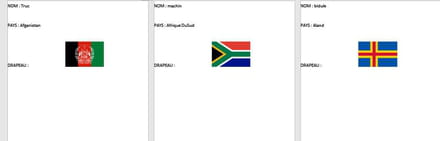
m@rina
--
From now on, if a user tells me "it doesn't work" without further information..., I'm done!-
Good evening,
On my side, I would like to create labels to display images in a mail merge. I followed your tutorial while trying to apply the same procedure. Indeed, the images do not show up in my mail merge labels.
My links are correct, where could the issue come from...
Thank you for your replies.
Nicolas
-
-
Good evening :) Sorry for the delayed response. Anyway, thank you for your answers.
To Dachiasse, I would reply that the goal is to create labels locally on my computer. I've made lots of attempts and I feel like my problem lies after the insertion of the QuickPart codes. But I'm only partially convinced of that.
To M@rina, I would say that my paths are correct, I take them directly from the source using the address bar. I also followed your tutorial, even the video tutorials online follow the same procedures but it gets stuck after the merge when I press CTRL+A and F9 I still have no images. That said, sometimes after pressing F9 I get a "speaker" or "sound bar" icon that appears, this happens when I have a video waiting on a page. I don’t know if that’s related...
I will keep searching, I'm not giving up yet. :)-
Hi,
Here's a little tip: redo all the mail merge gradually. Start with 2 simple text fields, then add 1 image from the same folder.
I wanted to try it with the free Office Online on the MS site, but I didn't see the mail merge option.
After that, at a level much higher than Word, you have the LaTeX language (pronounced Lay-tech). It's a language that separates content and form. It's very difficult, but if you do a lot of office work, it allows you to create awesome documents. -
-
-
Good evening :)
I hope you had a beautiful sunny Sunday! XD
Well, I've gone through the process again up to the insertion of the "fields." Then I proceeded to save it to link it in order to see these fields, and there... the first flag is displayed. I continue with the merge despite everything, and here I have the same flag on all my records. I press CTRL+A to select everything and then F9 to refresh... and I still have the same flag everywhere.
For M@rina: https://www.dropbox.com/sh/nnx6ffx2guexnr5/AADTRS0hm8lkdD4aU72iZwdIa?dl=0
In the links, I've included 2 Word files. the first one not merged and the other one merged.
We already have a flag showing... it's evolving a bit :)
But still, it all seems a little strange to me...
Thank you for your insights in any case ^^ -
Thank you Dachiasse for your advice! :)
As for your LaTeX, which I pronounce as Latèque (funny name for a language) lol um.. well, that will be another time, huh XD
My use of Office is really occasional, and I'm just fine with that :) I only use the basic functions for secretarial work, and that suits me just fine.
When everything works and you understand, it's wonderful, but the opposite could lead to a lengthy stay in a psychiatric hospital haha! there it is :) And if I really have to violently shake up my neurons, it will only be for music XD. But I remain open and am ready to test out the few reasonable possibilities for me :) Thank you ^^-
Please.
You said you followed Marina's tutorial. In your first message, you don't respect the symbols. In a computer instruction, you must respect them character by character.
As a reminder (from Marina):
You say: "it gives me in the end:
{ INCLUDEPICTURE "MERGEFIELD LIENSPHOTOS" \d }"
And I can tell you that this is not correct, because you should have this:
{ INCLUDEPICTURE "{MERGEFIELD LIENSPHOTOS}" \d }
-
-
Re,
Yes, but that was the copy that did not reproduce exactly here. There are characters that do not display in the "paste," I understood that, but in any case, I do not insert them by hand, the whole line displays when I press ALT+F9 to correct the temporary access path in the Quickpart code line. And it's only after correcting the path that I made the copy that gives:
{ INCLUDEPICTURE "{MERGEFIELD LIENSPHOTOS}" \d \* MERGEFORMAT } }
Regarding the temporary name, I delete it by carefully respecting the quotation marks and insert the LIENSPHOTOS field between those same quotation marks.
I hope we agree on that..
Then the only modification I make is when I delete the end of the line:
\* MERGEFORMAT }
Is there an error somewhere?
:'( -
Good evening to you,
Here is a video titled "MyProcedure" where you will see my progress regarding this merger. Thank you for kindly explaining where my mistakes are.
https://www.dropbox.com/sh/nnx6ffx2guexnr5/AADTRS0hm8lkdD4aU72iZwdIa?dl=0
Best regards.-
Hi,
Try replacing "image" with the absolute path of your images.
In the video, you say that you use image as a temporary name, the label of the field is the URL (=the path) of the image. When you make the change, there's a mergefield that gets added, I believe. Well, try it without that.
Also, you use quick something to insert your image. But I didn't see Marina using it.
-
-
Good evening,
Thank you Dachiasse for your interest in my problem.
It is true that I have tested a lot of things without success. But tonight I can say that I finally managed to achieve something.
A few posts earlier I said:
"Well, I redid the manipulation up to the insertion of the "fields". Then I proceeded to save it to link these fields, and there... the first flag shows up. I continue the merge anyway, and here I have the same flag on all my files. I press CTRL+A to select everything and then F9 to refresh... and I have the same flag everywhere. " <<== I delved deeper into this issue, and thanks to that, the light dawned on me and it is HERE:
https://www.dropbox.com/sh/nnx6ffx2guexnr5/AADTRS0hm8lkdD4aU72iZwdIa?dl=0
It is valid for both Word 2007 and 2019, I tested it and it's confirmed. If it can help, I would be delighted.
A big THANK YOU to M@rina and Dachiasse for their contribution and sorry for being so lengthy... -


