Unable to change the location of a system folder source
Solved
grumffy
-
pistouri Posted messages 19011 Registration date Status Contributor Last intervention -
pistouri Posted messages 19011 Registration date Status Contributor Last intervention -
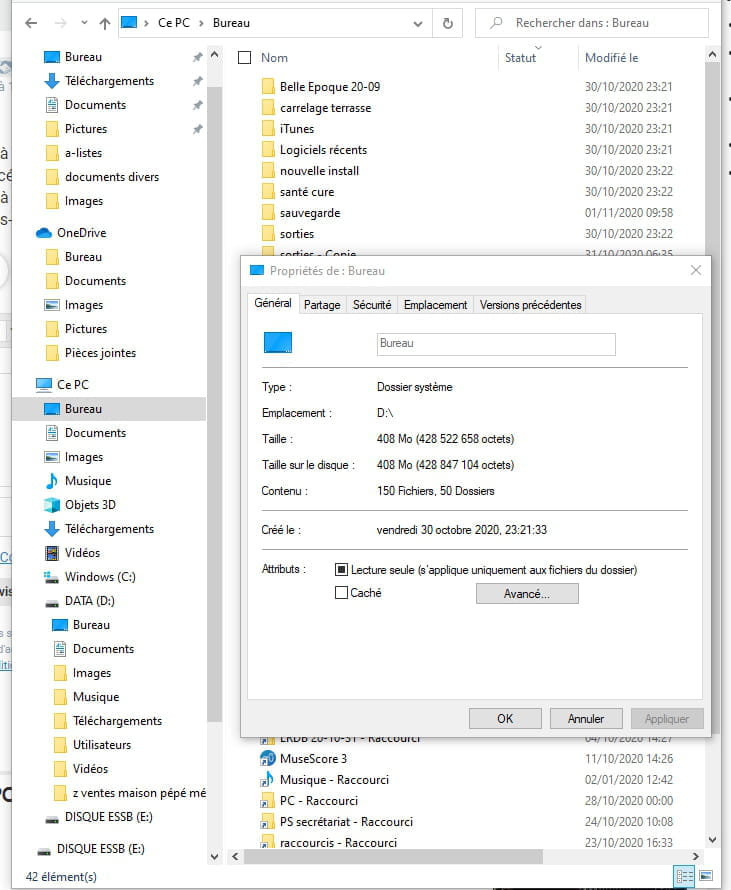
Hello. I ventured into OneDrive, backing up Desktop-Documents-Pictures-Downloads-Videos, and I wanted to abandon OneDrive, too quickly paywalled. I created a partition on my C drive to make a Data partition, in which I copied my Desktop-Documents-Pictures-Downloads-Videos folders. I managed to redirect the system folders Desktop-Documents-Downloads-Videos to this Data location. I can't do it for the Pictures folder; every time I try, I get the message: "We cannot move the folder because a folder that cannot be redirected is located in the same location. Access denied." Can someone help me manage this problem? And yesterday I had the OneDrive icon in the taskbar, with which I planned to stop the Pictures synchronization, and this morning, I no longer see it. I have a backup of all my data on an external hard drive. Thank you for your help.
10 answers
-
Hello.
I'm having a bit of trouble following you.
If you have already moved the folders: Desktop, Video documents, I don't see why the "images" folder couldn't be transferred, unless you already have a folder named "Images" on your Data partition.
How do you proceed? -
You already have an "images" file on your Data.
If it does not contain any pictures, delete it and restart the transfer operation. -
How was the "images" folder created on the Data?
Try renaming it to "photos" for example and see if you can then move your "images" folder with only the address: \Data

However, I don't remember if I did cut/paste of subfolders because the old location still contains 3 subfolders that I didn't want to transfer. -
Hello,
Have you ever tested another location other than your D: for example C:\temp, just to give it a try? -
Have you ever tried to create a new User account (as an administrator)? Then redo your redirection of your desktop, pictures, documents, etc. to your DATA partition?
And at the same time, this will remove your sync with OneDrive or any little bug that might have occurred with your current account (mipe2).-
No, I don't know how to do it and I'm quite scared, because the more I mess around, the worse my PC works. That's how I ended up buying the one I'm writing to you from in the spring, because the previous one was completely frozen and I didn't know how to reinstall Windows without losing the data that was on it. If you have a well-explained link, I'm interested; otherwise, I'll look for it myself.
-
I found the page in the settings to create another one. Do you think I can take the risk without danger?
https://www.commentcamarche.net/informatique/windows/117-creer-et-gerer-des-comptes-utilisateurs-avec-windows-10/
Should I add a member or an organizer?
Thank you. I get lost quickly, I don't know the consequences of what I'm doing. -
-
-
-
-
Yes, it's never very simple...
Have you tried cutting and pasting folders from your "images" directory to the "photos" folder you created on your Data?
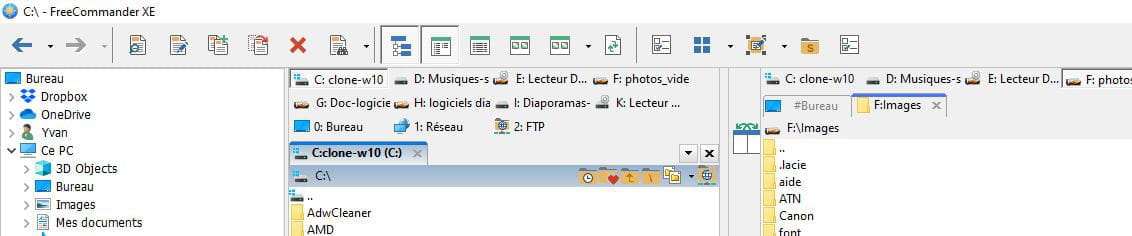
A file explorer opening 2 windows like Free Commander XE is perfect for this:
https://freecommander.com/fr/telechargements/
It also allows you to compare folders from one disk to another.

-
I think I can cut, copy, and paste quite well by opening as many windows as necessary
my Images folder on OneDrive is empty
my Images folder on This PC is empty
the Photos folder on DATA (D:) (that I created) is empty
the Pictures folder in mipe2 in Users in Windows (C:) is also empty
my images are still on my backup on my external hard drive
oh, I found Windows/ mipe2/ onedrive/ Images empty folder and I deleted it
I also deleted the Images folder that was under OneDrive in the window
in Data, I renamed Photos to Images
I am trying the redirection again and still the same message
I will restart, maybe that will recalibrate everything
-
-
So copy and paste from your DDE to the folder you created on Data.
If you're on W10, then add this created folder to the "Quick access" in Windows Explorer so that you can access it quickly. -
OK, I'll be around tomorrow.
There’s really something I don’t understand.
- You've created a partition labeled D. OK
- On this disk, you have a folder called "Images" with a subfolder: 2020. OK
- Furthermore, you have your photos backed up on an external hard drive (E, I think)
There’s no reason why a copy/paste of your externally saved photos can't go into the D\images directory
- Forget about the transfer procedure for the "images" folder from your C: drive that no longer contains any photos.
- Forget about creating a second account.
- Just copy/paste the images from E to D.
Have a good evening.-
Yes, I could adapt to a "makeshift" solution, but I would have liked the regular links to work properly as they do for bureau-docs-musi-vidéos, which currently lead correctly to my external hard drive. I will transfer these folders to D when this is resolved (maybe one day? :-). I will try the manipulations indicated in the following post by Pistouri.
-
-
pistouri Posted messages 19011 Registration date Status Contributor Last intervention Ambassadeur 8 723
Hello
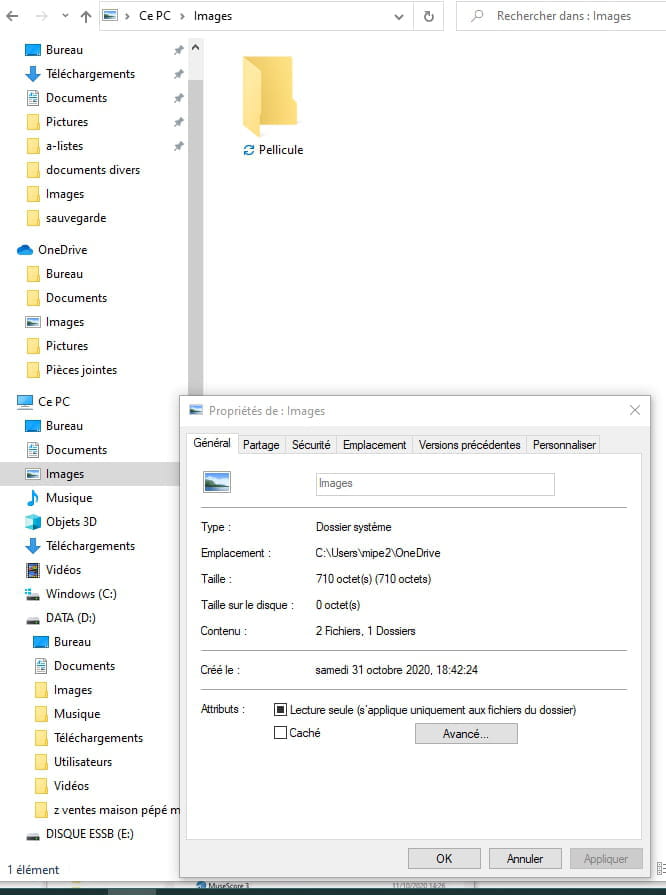
I'm wondering if the problem is rather on the OneDrive side (which I no longer want, therefore)

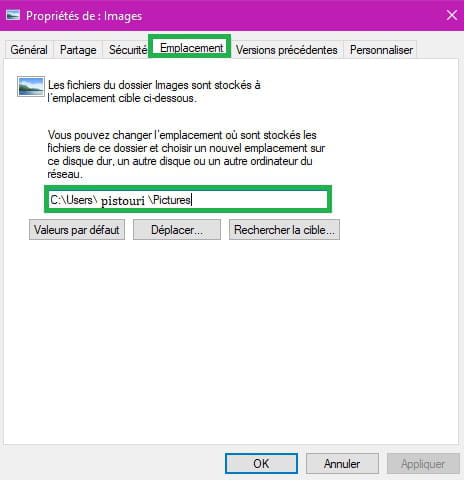
The location points to OneDrive in the screenshot.
1- You could repair/reinstall OneDrive ==► Repair OneDrive on Windows 10
And resume moving the image folder.
You would need to stop the synchronization ==► Disable synchronization of the documents folder on OneDrive
Uncheck the boxes.
2- Restore the default location of the Images folder.
==► Restore the default location of the libraries
Save the BAT file ==► Folder images
Run it.
Restart the PC.
Check as you did that it points to C:\Users\ your username\Pictures
Create a restore point before you get started with the procedures.
A+
--
pistouri-
-
I created a restore point. I repaired OneDrive and disabled synchronization. I believe everything is okay. The only folder that pointed to OneDrive now points to the external hard drive (E). The others point to E or D, and I should be able to easily redirect them. I just need to update all my data, which is also backed up on another external hard drive. Many thanks for this crucial help. Have a good week.
-
-
pistouri Posted messages 19011 Registration date Status Contributor Last intervention Ambassadeur 8 723
1- If you need to reinstall OneDrive, check that it hasn't disappeared.
Type OneDrive in the search box on the taskbar.
And you can check what you have in your photo folder in OneDrive online
Method to reinstall OneDrive.
In the search box on the taskbar, type --► cmd
Right-click on --► Command Prompt
Then --► Run as administrator
Depending on your system architecture (64 or 32 bits), copy/paste the following command:
Windows 10 64 bits:
%SystemRoot%\SysWOW64\OneDriveSetup.exe
Then press the Enter key.
Windows 10 32 bits:
%SystemRoot%\System32\OneDriveSetup.exe
Then press the Enter key.
Wait during the reinstallation of OneDrive.
Click on the OneDrive icon in the notification area and log in with your Microsoft account to start the synchronization between your PC and your OneDrive account.
2- Stop OneDrive synchronization.
Right-click on the OneDrive icon in the taskbar.
In the context menu, click on Settings.
In the window that appears, click on the Account tab.
Then click on Unlink OneDrive
3- Do not delete OneDrive, just disable it.
At Windows startup in the Task Manager.
4- Uninstall OneDrive if you wish.
Using the Command Prompt (CMD).
32-bits:
%systemroot%\System32\OneDriveSetup.exe /uninstall
64-bits:
%systemroot%\SysWOW64\OneDriveSetup.exe /uninstall
The tutorial in images.
A+
--
pistouri