My computer can't be reset.
Glyock
Posted messages
6
Status
Member
-
ThaBestGamer Posted messages 12 Registration date Status Member Last intervention -
ThaBestGamer Posted messages 12 Registration date Status Member Last intervention -
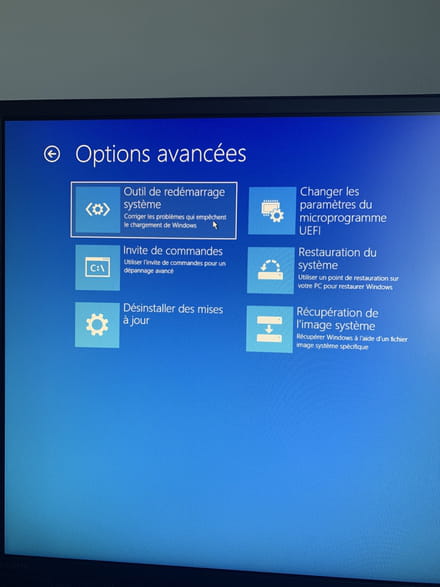
Hello, I just restarted my computer to update Windows 10, and now it's showing a loading screen with "Preparing Automatic Repair." Then, it goes to a blue screen asking me to "Choose a Keyboard Layout." Once that's done, it prompts me to "Choose an Option," with the only two options being "Troubleshoot" and "Turn off your PC." When I click on Troubleshoot, it takes me to another blue screen with six options, including "System Restore Tool," and 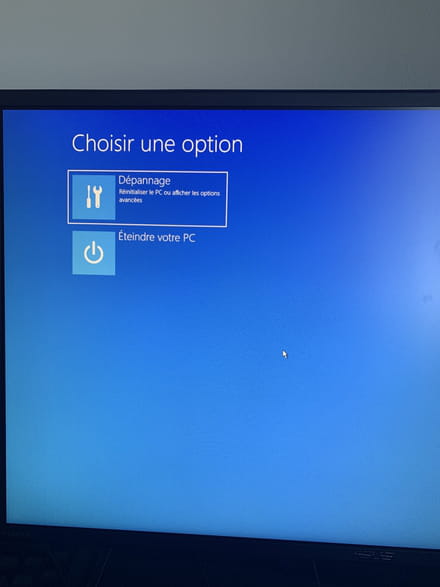
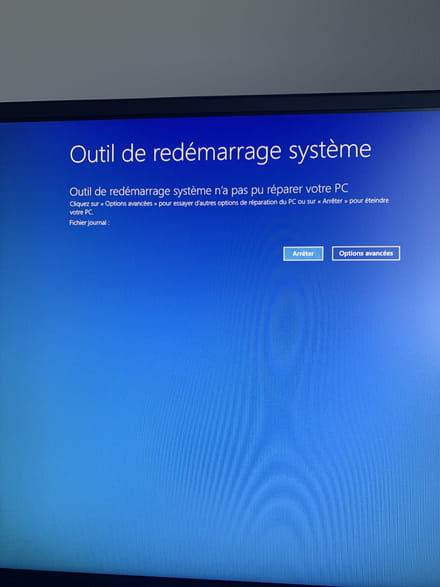
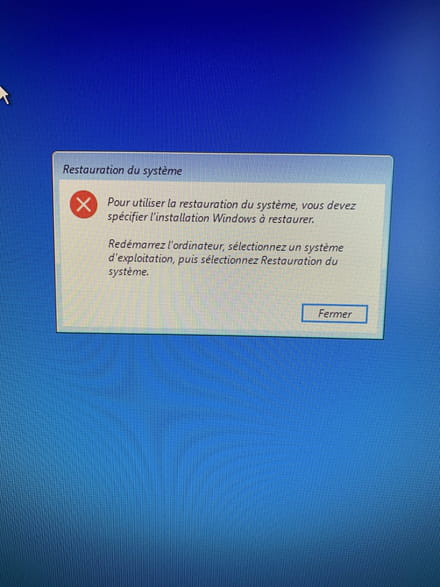
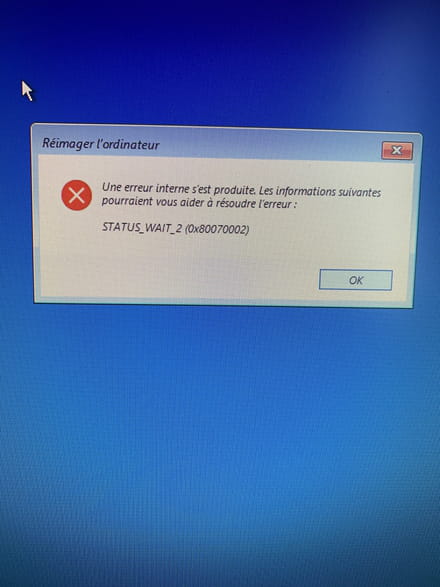 when I click on it, it shows loading with "Diagnosing your PC," and when it's finished, it says on a blue screen "System Restore Tool could not repair your PC..." can you help me?
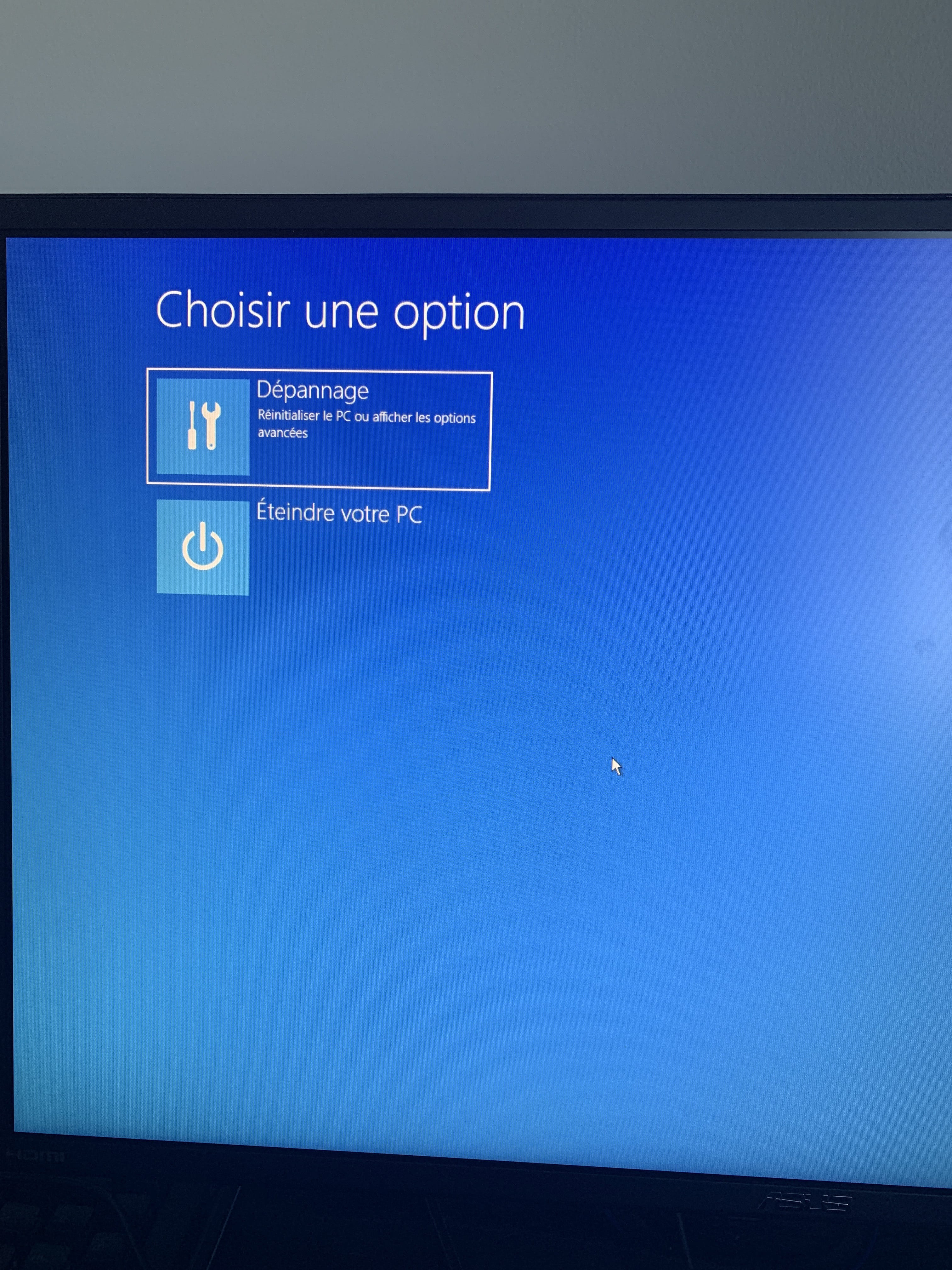


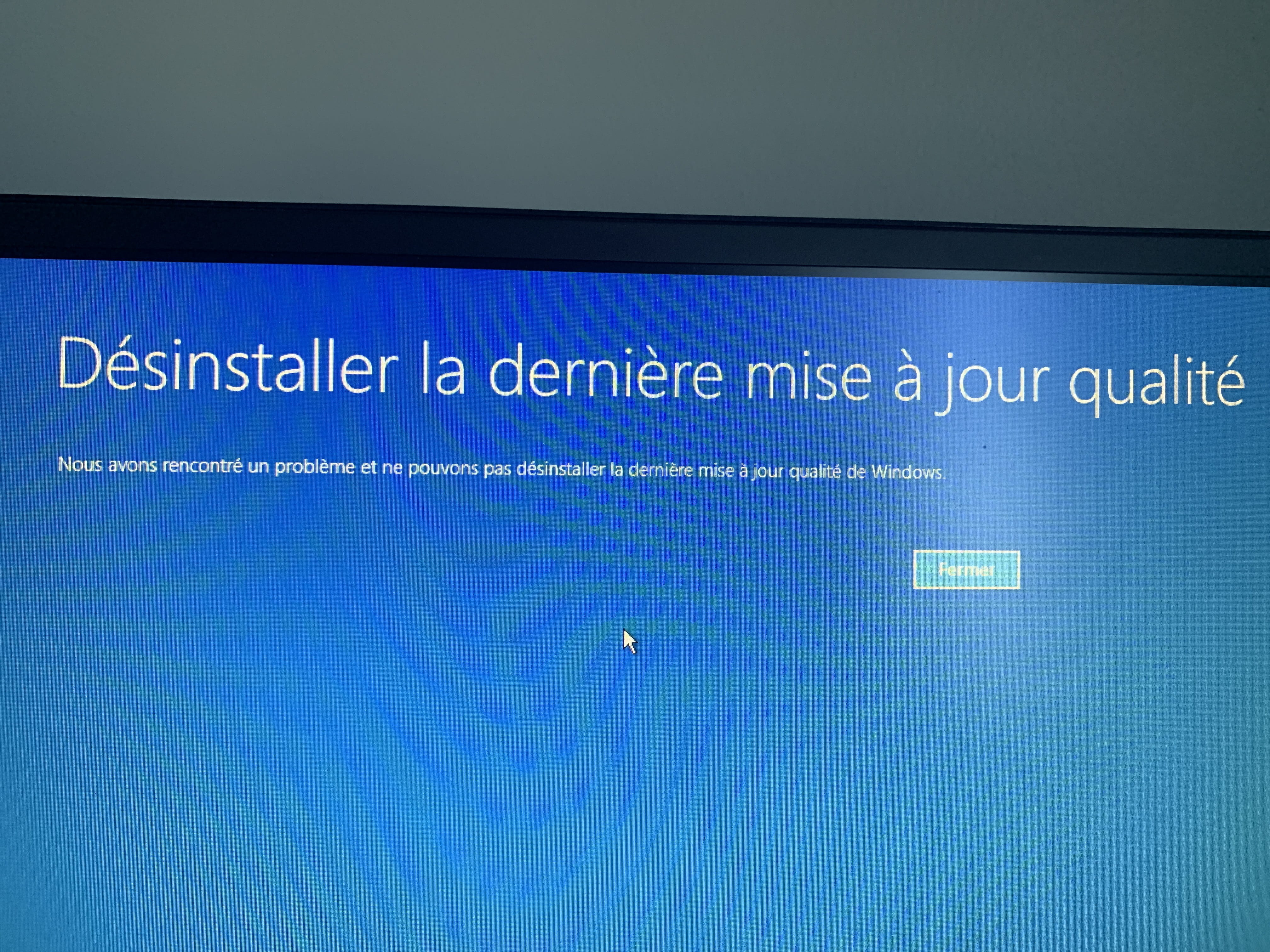
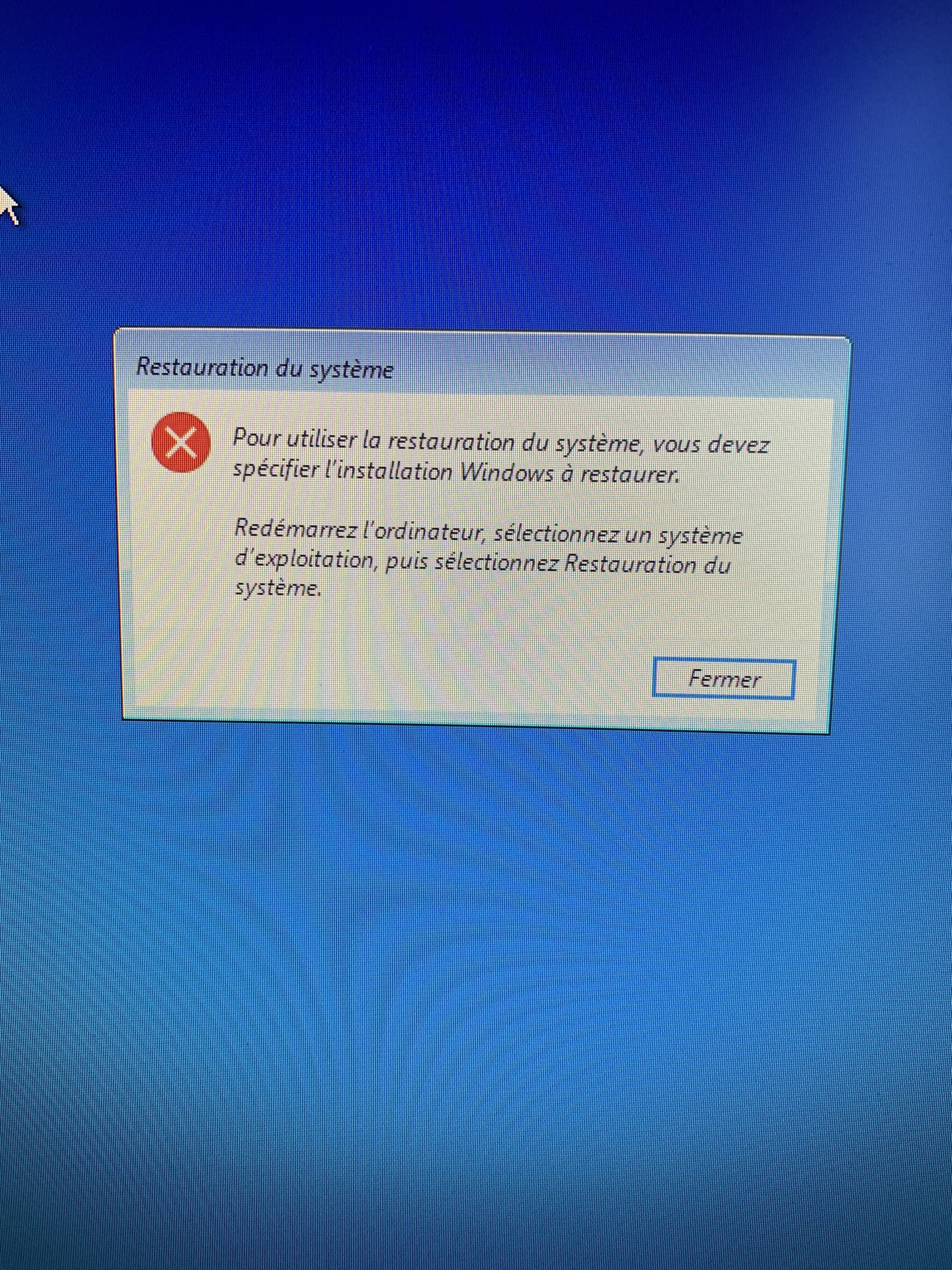
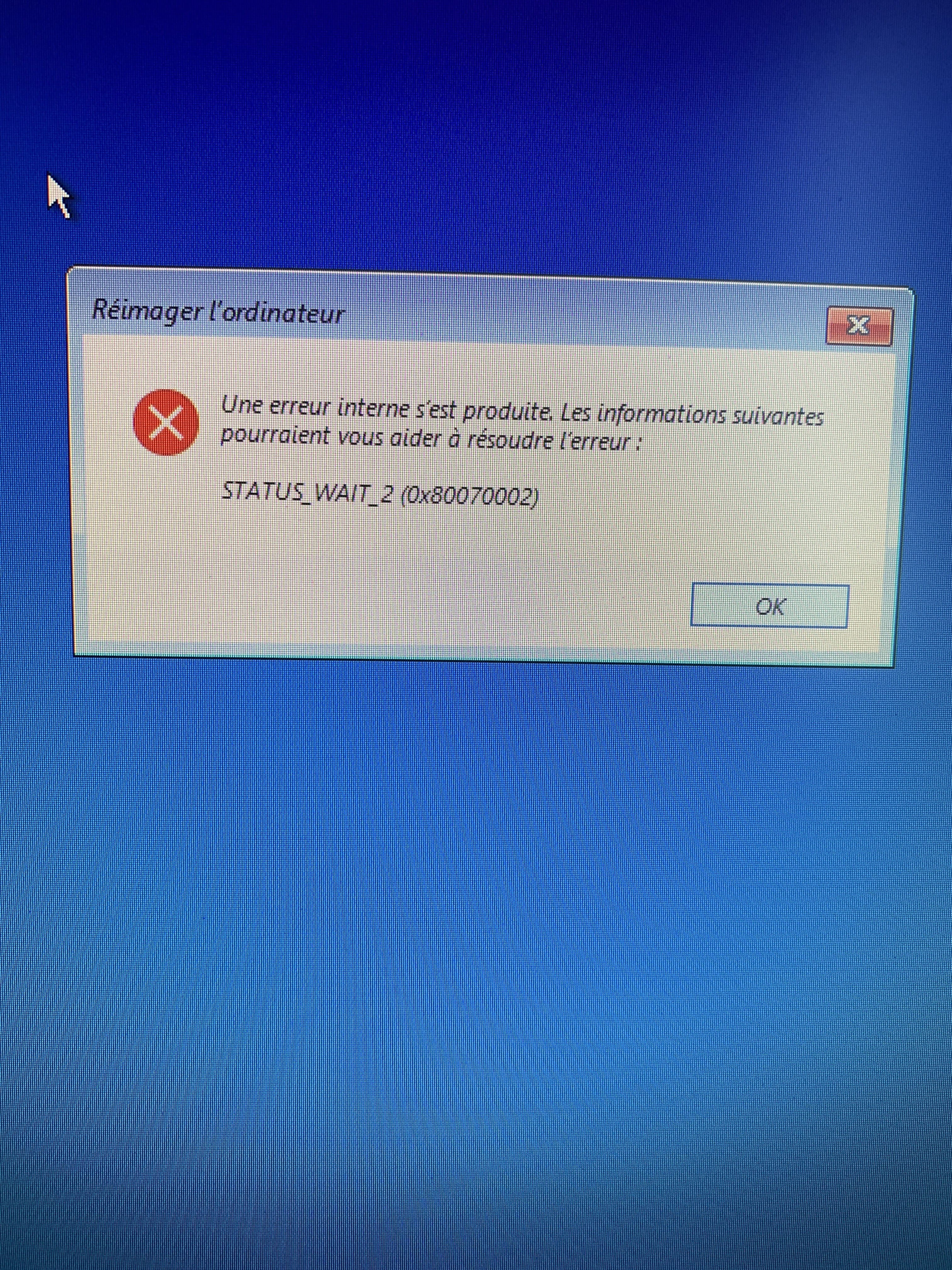 when I click on it, it shows loading with "Diagnosing your PC," and when it's finished, it says on a blue screen "System Restore Tool could not repair your PC..." can you help me?
4 answers
-
Hello,
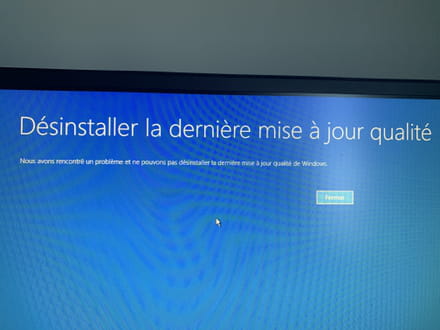
Try the option to uninstall updates.
If that doesn't help:
Reinstall Windows 10 without formatting:
The principle is to create a Windows 10 installation USB stick and boot the computer from it to reinstall Windows without formatting in order to keep the data.
Since the computer is frozen, you need to create it from another functional computer.
To create the USB stick:
You need a USB stick of at least 8 GB.- Create a USB stick with Media Creation Tool: Download and create a Windows 10 USB stick with Media Creation Tool
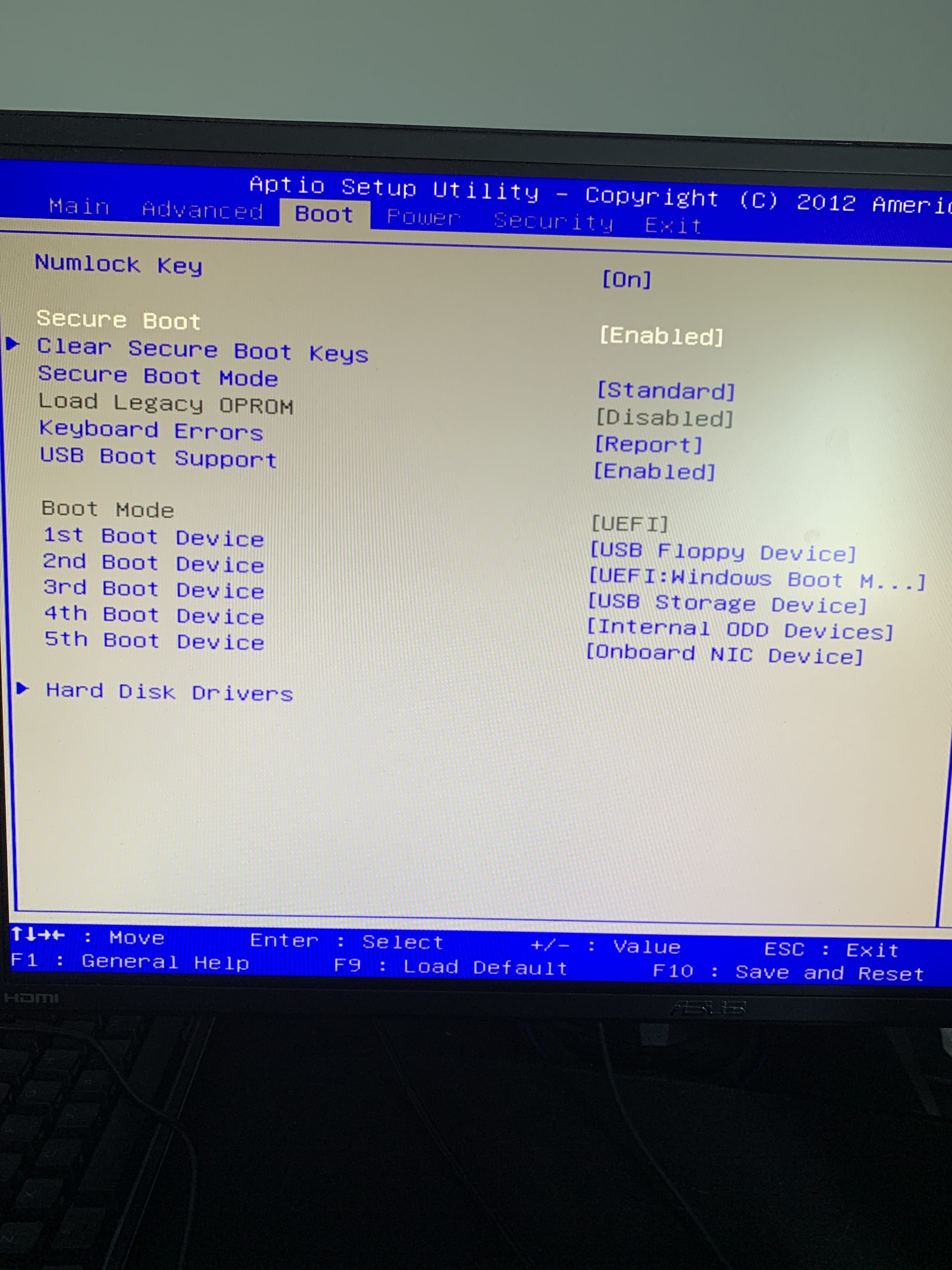
- Boot from it by modifying the boot sequence and indicating the USB stick or DVD: How to boot the computer from a USB stick
If the USB stick doesn't work, try making a new one with Rufus: how to download Rufus.- Download the ISO file using direct links or from Rufus: Download Windows ISO
- Launch Rufus and then specify the path to the ISO file
- In partition scheme, choose GPT.
- For more details, refer to this tutorial for instructions: how to create a Windows installation USB stick
The Windows 10 installer should then start:
Follow these tutorials that explain how to install Windows 10:
All steps are provided from A to Z with tips at the end to secure Windows 10.- Let yourself be guided to install Windows 10.
- Choose customize (not upgrade)
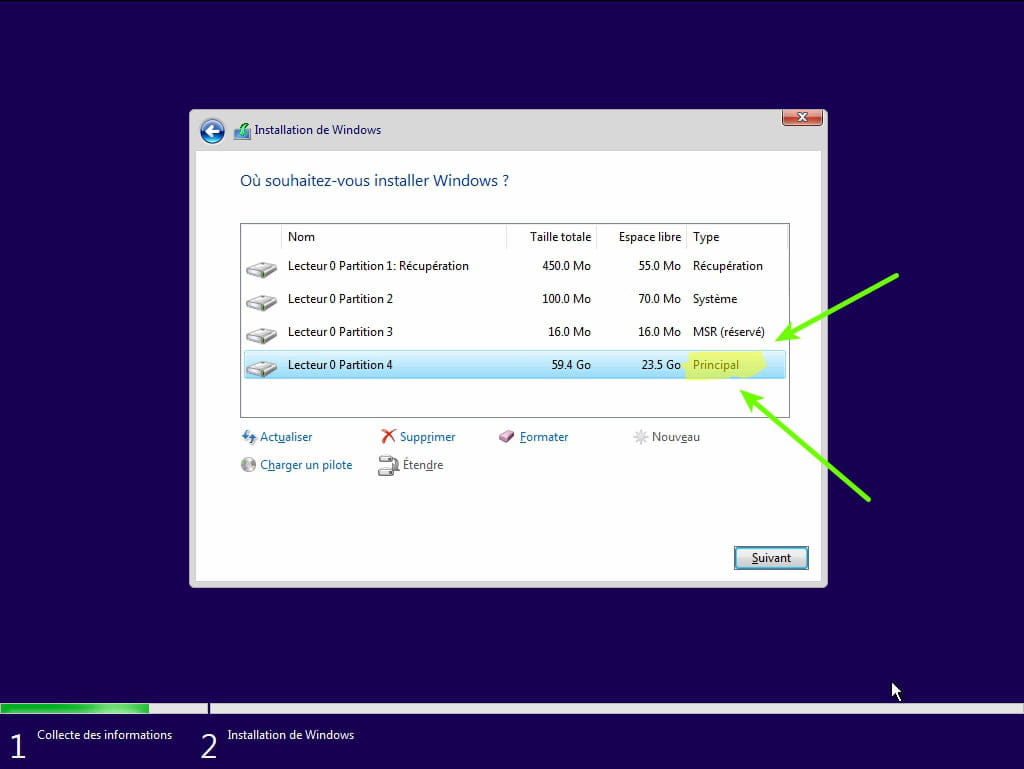
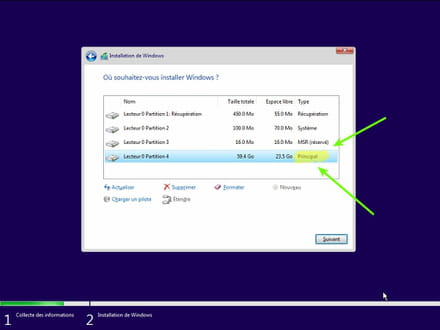
- During the partition phase, select the main partition and click next.
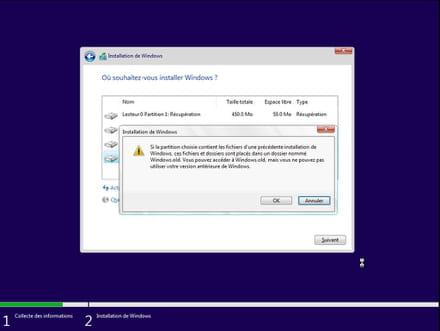
- The installer will tell you that Windows is already present and offer to move it.
- Follow the Windows installation procedure using the tutorial above.
Above all, do not format.
Your user data will be copied to the Windows.old folder.
You can then recover bookmarks, passwords from internet browsers, etc.
Read this tutorial: Recover deleted applications when resetting your PC to Windows 10
Once Windows is installed, I advise you to follow these tips to configure and use Windows well: Tips after reinstalling Windows.
--
Please press a key to continue the disinfection...-
-
-
In the command prompt, when I type diskpart, and then list disk, it shows me There are no fixed disks to display.
- That would explain why you don't have the reset option.
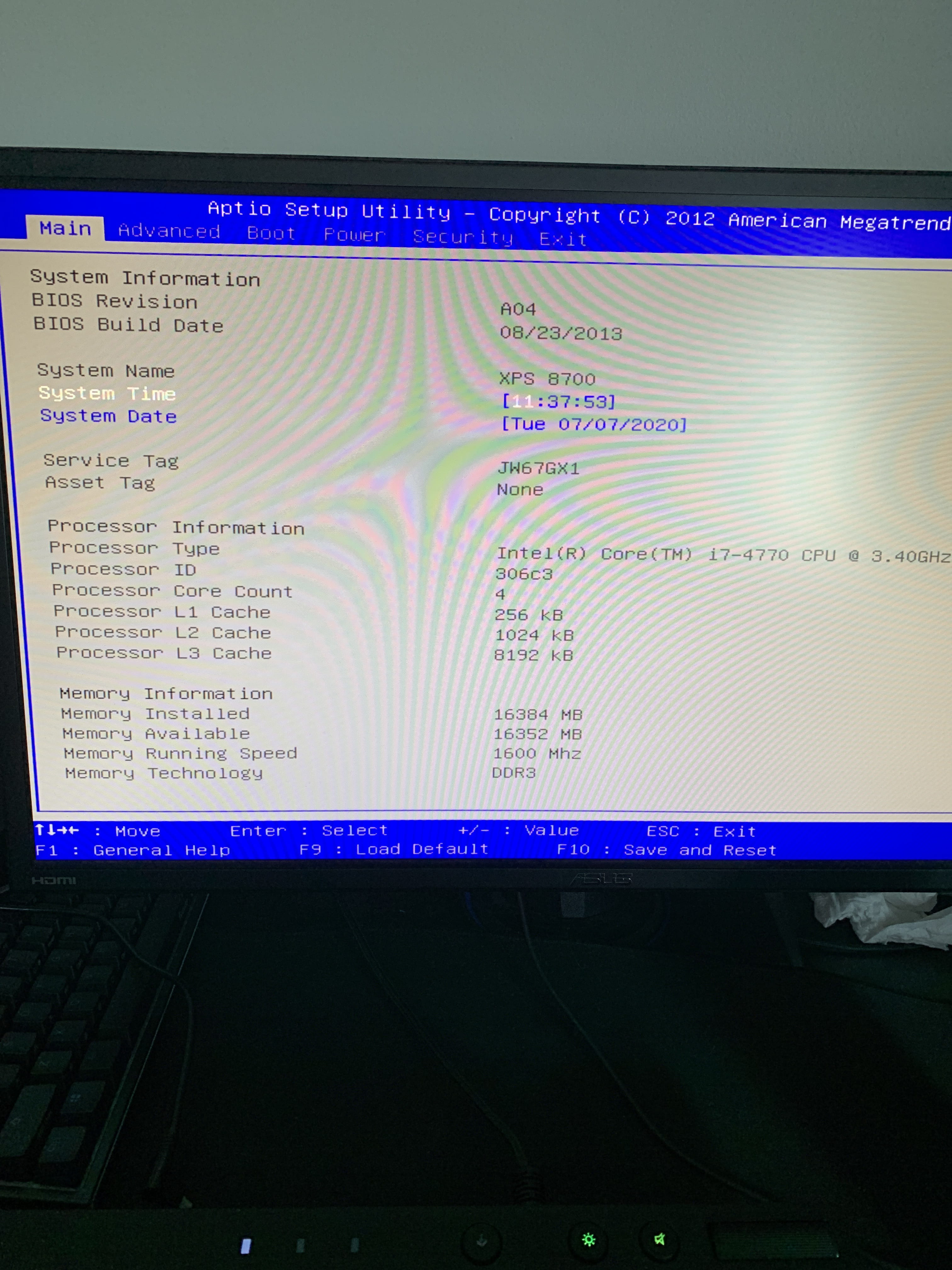
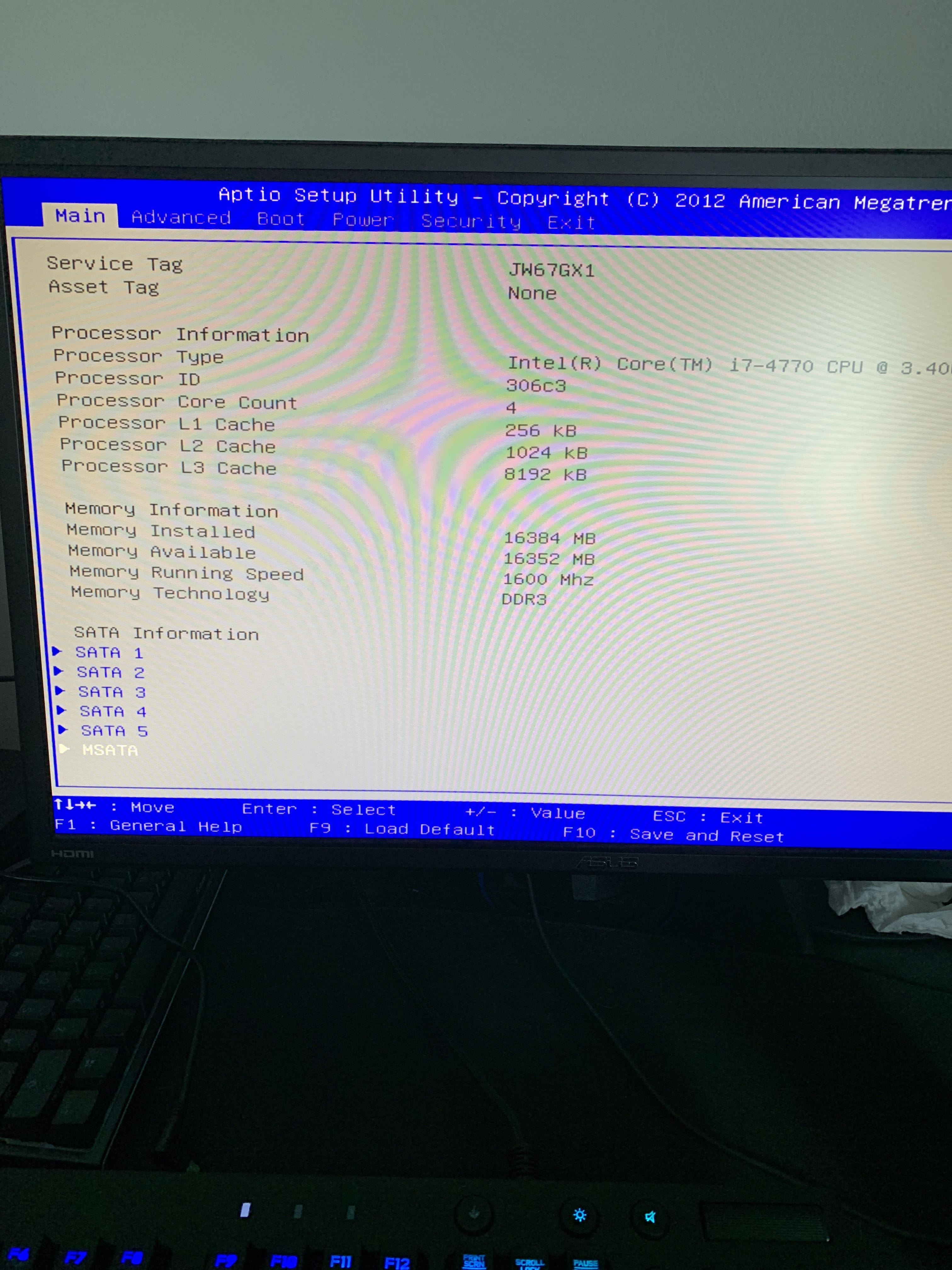
Check if the hard drive is detected in the BIOS; if so, it is probably damaged.
If not present, check the connection and/or test it on another PC with a USB dock.
Here’s how to access the BIOS:- How to access the BIOS (UEFI or legacy)
- BIOS - Access the BIOS setup
-
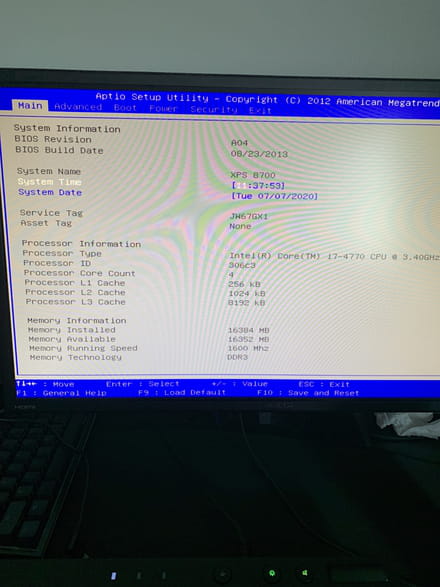
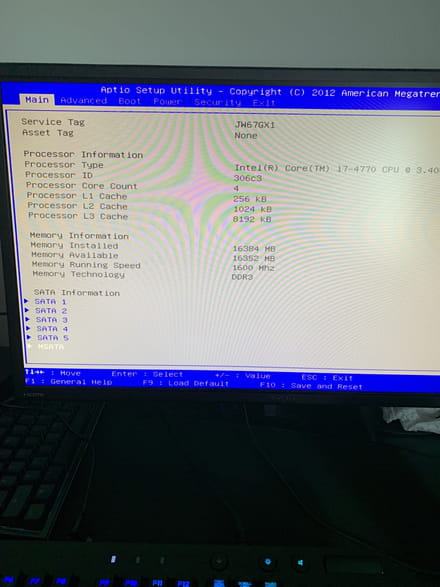
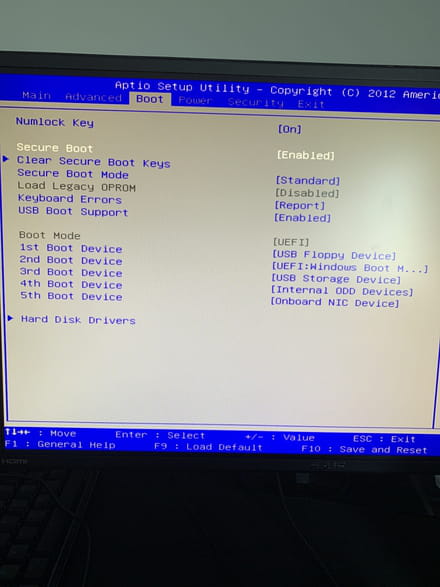
This is in the boot and main tab of the BIOS and I don't understand anything. -
Hello,
Your System32 folder has missing files, making it impossible to start your PC until it's repaired.
You need a bootable drive to reinstall Windows. -