Drive D:\ with blue question mark, inaccessible

Hello/Good evening,
To begin with, I have an ASUS R556L that I've had for about 4 years. I've always had problems with the File Explorer application; when I was in Quick Access and right-clicked on a recent file, the File Explorer application would close and the icons on the desktop and taskbar would disappear and then reappear. Until now, I hadn't worried about it.
But for a few weeks now, I've had a problem with a drive named D:\. First, I only discovered this significant memory source after about two years of using my computer. There was only one folder on it named DATA. I created new folders to organize my many video files, photos, music, documents, etc. In the meantime, my right-click problem in Quick Access was resolved. Everything was working fine, and despite my many files, the storage space was only very lightly used.
However, for the past few weeks, my D:\ drive has appeared with a blue question mark, and I cannot open it. Right-clicking provided very few options, but there was still "Scan with Windows Defender..." so I selected it and did a quick scan. Then I closed everything, turned off my computer, waited 5 minutes, and turned my computer back on. The D:\ drive was accessible again until I turned off my computer again. At that point, I regretted not copying most of my folders to USB drives because for the past few days, this technique hasn't worked anymore.
I searched for a solution on forums, but nothing has helped me; however, I did find access to Disk Management and Device Manager, which I explored without success. I am desperate; I had everything stored on this drive, and I absolutely need to recover what’s on it. So I’m posting this question hoping to find a solution through you!
Thank you in advance!
Sofi Hatta.
To begin with, I have an ASUS R556L that I've had for about 4 years. I've always had problems with the File Explorer application; when I was in Quick Access and right-clicked on a recent file, the File Explorer application would close and the icons on the desktop and taskbar would disappear and then reappear. Until now, I hadn't worried about it.
But for a few weeks now, I've had a problem with a drive named D:\. First, I only discovered this significant memory source after about two years of using my computer. There was only one folder on it named DATA. I created new folders to organize my many video files, photos, music, documents, etc. In the meantime, my right-click problem in Quick Access was resolved. Everything was working fine, and despite my many files, the storage space was only very lightly used.
However, for the past few weeks, my D:\ drive has appeared with a blue question mark, and I cannot open it. Right-clicking provided very few options, but there was still "Scan with Windows Defender..." so I selected it and did a quick scan. Then I closed everything, turned off my computer, waited 5 minutes, and turned my computer back on. The D:\ drive was accessible again until I turned off my computer again. At that point, I regretted not copying most of my folders to USB drives because for the past few days, this technique hasn't worked anymore.
I searched for a solution on forums, but nothing has helped me; however, I did find access to Disk Management and Device Manager, which I explored without success. I am desperate; I had everything stored on this drive, and I absolutely need to recover what’s on it. So I’m posting this question hoping to find a solution through you!
Thank you in advance!
Sofi Hatta.
23 answers
-
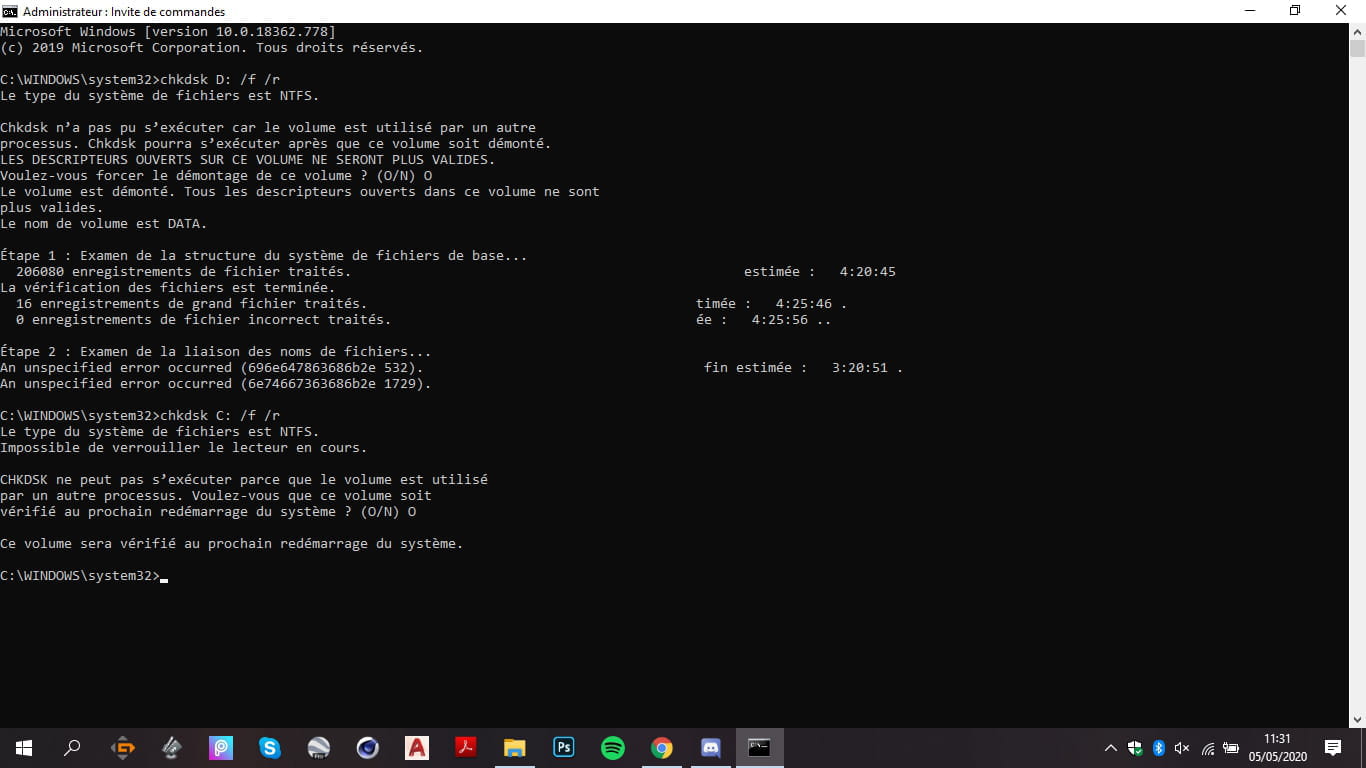
seb77150Hello, run this command in cmd
chkdsk D: /f /r -
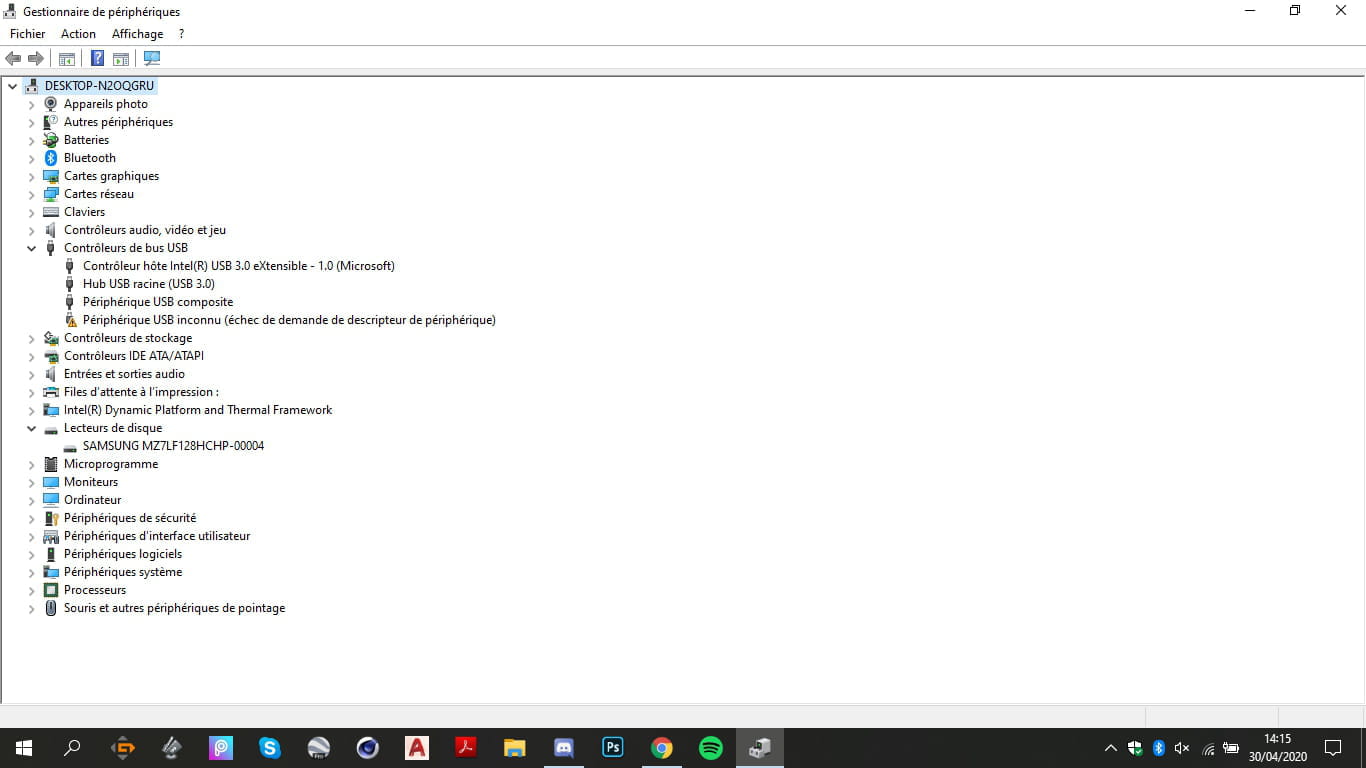
Sofi-Hatta AuthorOh alright, great we're starting to have a clearer picture, what do I need to develop to find an error code/an alert? In my previous screenshot, you can see that there is an unknown USB device but I don't think that’s it, plus I also have a USB port that hasn't been working for a little while, maybe that's related, I don't know.
-
-
-
Sofi-Hatta Author
-
seb77150
-
gugu01 Contributor@seb77150No, too long and little chance that it will happen.
-
-
Sofi-Hatta AuthorHe tells me "Unable to open the volume in direct access."
-
-
Sofi-Hatta Author@seb77150Sure. Yes, of course! I made 4 that I have attached here, but I’m not exactly sure what you want to see, let me know.
-
-
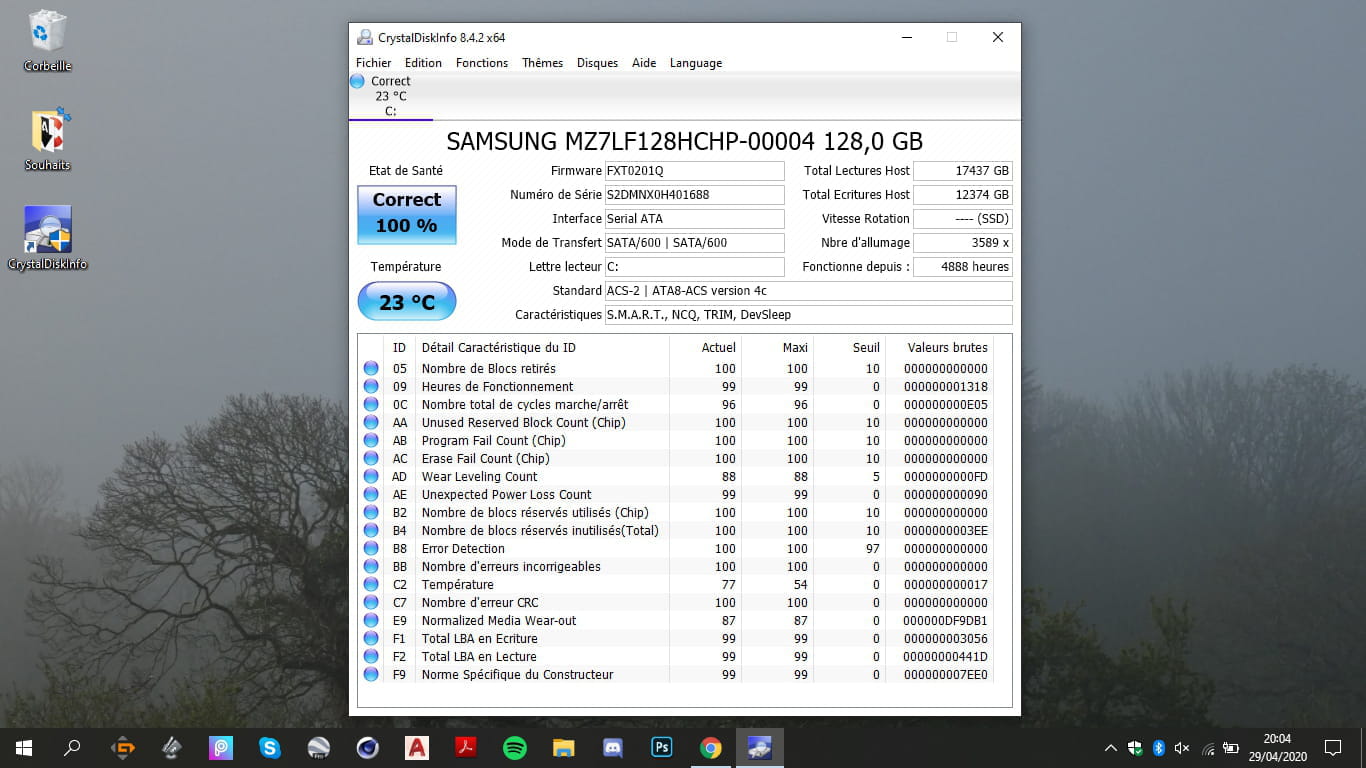
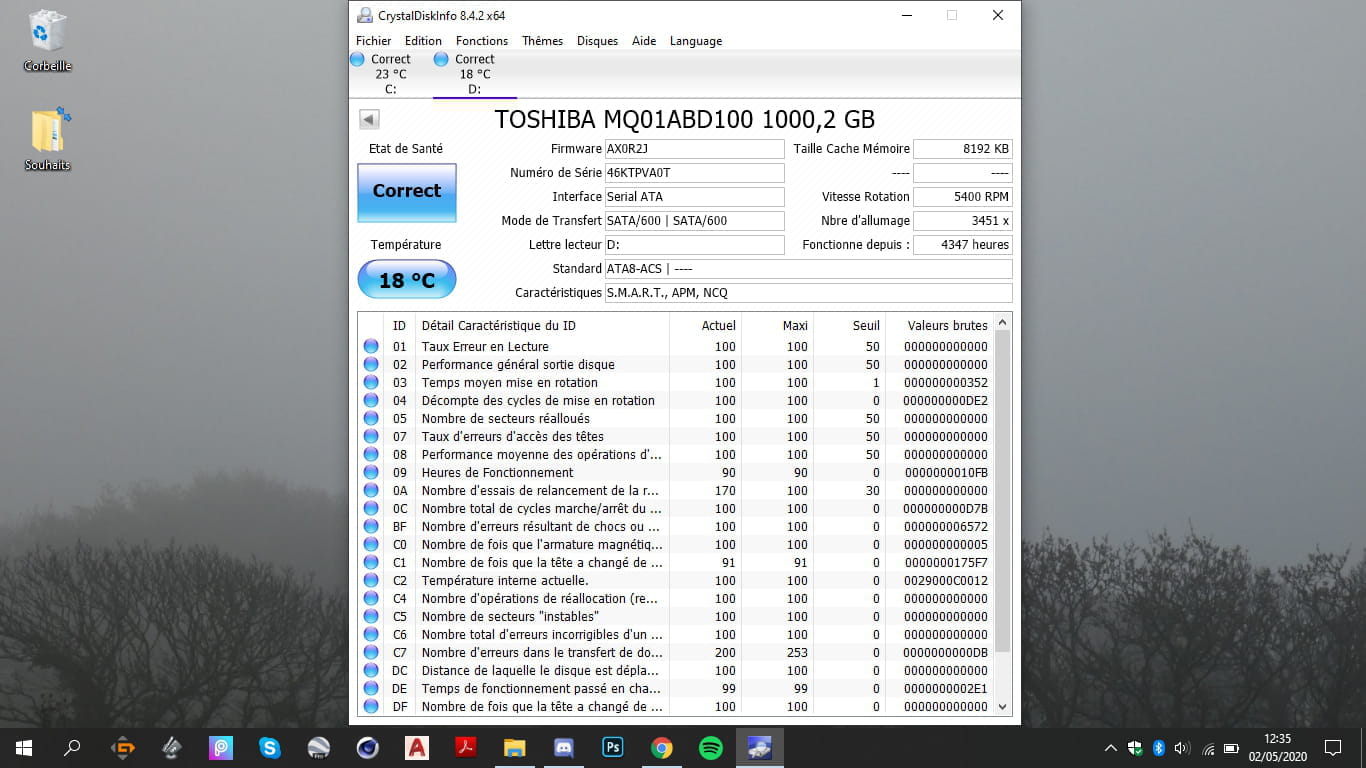
seb77150Hi, that's perfect ;), download CrystalDiskInfo to check the status of your hard drive and then give me the results :)
-
Sofi-Hatta AuthorHi, I had already installed this software before but lacking enough knowledge on the subject, I couldn't go further, maybe this time it will work :) Here are the results:

-
-
seb77150@seb77150I see that yes, what bothers me is that in quick access it says D:/USB key
Wouldn't you have a USB key with those files on it? -
Sofi-Hatta Author@seb77150Yes, I had absolutely everything on my D:\ drive to leave enough space for the software on my C:\ drive, which was completely full.
No, it's just my high school classes that I had put on a USB stick. A few months before the lockdown started, I created a folder to put all my classes on my D:\ drive for quicker access and to make sure I wouldn't lose that data. So, well, it was a big mistake since my drive isn't responding at the moment. I don't know if that's clear enough. -
Sofi-Hatta Author@seb77150I also forgot to mention in my very first message that when my computer shuts down, it emits a high-pitched sound as if the shutdown is forced, as if something is preventing it. And why, when I use the software CrystalDiskInfo, is there no trace of the D:\ drive? Is the D:\ drive really my hard drive? Why was there a DATA folder? What is the C:\ drive with the little Windows logo? Please.
-
seb77150@Sofi-HattaJust to be sure, it's really an SSD that you have in your PC and not a hard drive?
The C: drive is simply where Windows is installed.
-
-
gugu01 ContributorHello to both of you!
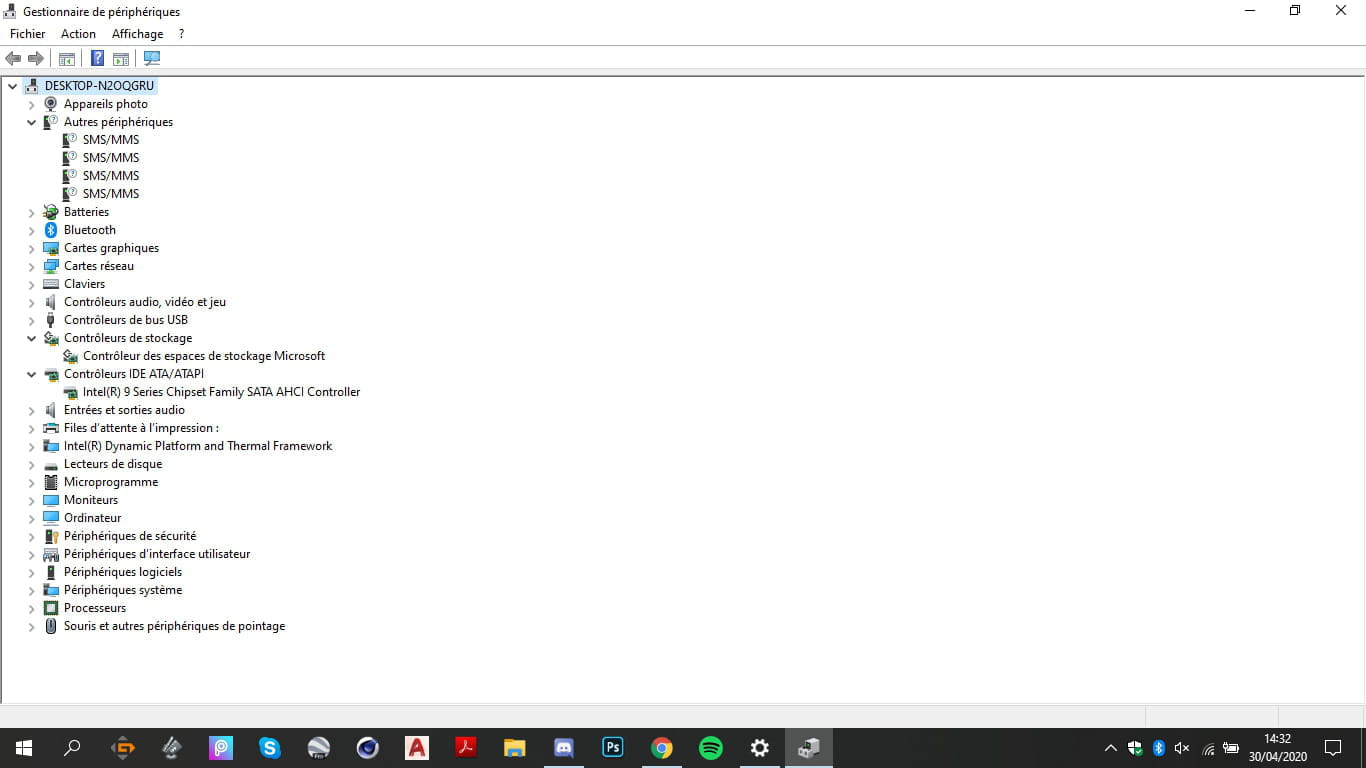
Sofi-Hatta, could you provide a screenshot of the device manager (D drive connected)?
--
Auto message
If you are here, it means you don't know, so... ;-P
Mini Regarding the volunteers who help you: Respond, Respect, Politeness,...-
-
Sofi-Hatta Author@seb77150Ahah yes, it's really a mystery. I can still send you a screenshot of the Device Manager, but personally, I haven't found anything corresponding to my D:\ partition.
-
seb77150@Sofi-HattaWhat was the capacity of your D: partition?
-
gugu01 Contributor@seb77150After reviewing, yes it is an internal drive.
If we cross-reference this statement with the crystaldiskinfo test, his pc should have a 128 GB SSD and the D drive should be an HDD.
Moreover, crystal does not see it because Windows does not see it.
So there might be a possible ATA driver issue that has failed or a bad update.
We should check for any alerts on a line or an unknown device present in the manager. -
gugu01 Contributor@seb771501 I would say ;-)
-
-
Sofi-Hatta AuthorSo, I’m not very familiar with the concepts of SSD and hard drive. However, here are some elements that might help, let me know

-
gugu01 ContributorMany drivers are missing.
Use this program that will detect your hardware and suggest and install the drivers.
https://www.commentcamarche.net/faq/48455-mettre-a-jour-ses-pilotes-gratuitement-avec-driverscloud
Tutorial on the link
Then either everything is okay, no more alerts or unknown devices, or there are some left and you'll need to check them one by one manually.
For each remaining malfunctioning line, you will need to follow the instructions below to provide us with the identification.
https://www.commentcamarche.net/faq/35597-trouver-le-numero-d-identification-d-un-peripherique
Give the name of the line and its number
(so we don’t get lost)
Then we will manage to find you the corresponding drivers.
(you are using Windows 10 64 bits, right?)
Auto message
If you're here, it's because you don't know, so...;-)
Mini Consideration for the volunteers helping you: Reply, Respect, Politeness,...-
-
Sofi-Hatta Author@gugu01For the HDD, you're right, it's written on the plate where my keyboard is "HDD 1TB-128G(SSD)"
I'll do that! -
gugu01 Contributor@Sofi-HattaAfter scanning, repairing Windows, changing the level of your hard drive, updating and drivers?
-
Sofi-Hatta Author@gugu01The installation of the drivers won't delete my data, right?
-
seb77150@Sofi-HattaNo, no risk :)
-
-
Sofi-Hatta AuthorWill the advanced restart cause me to lose my data?

-
gugu01 Contributorunresolved issue, do you have a problem again?
-
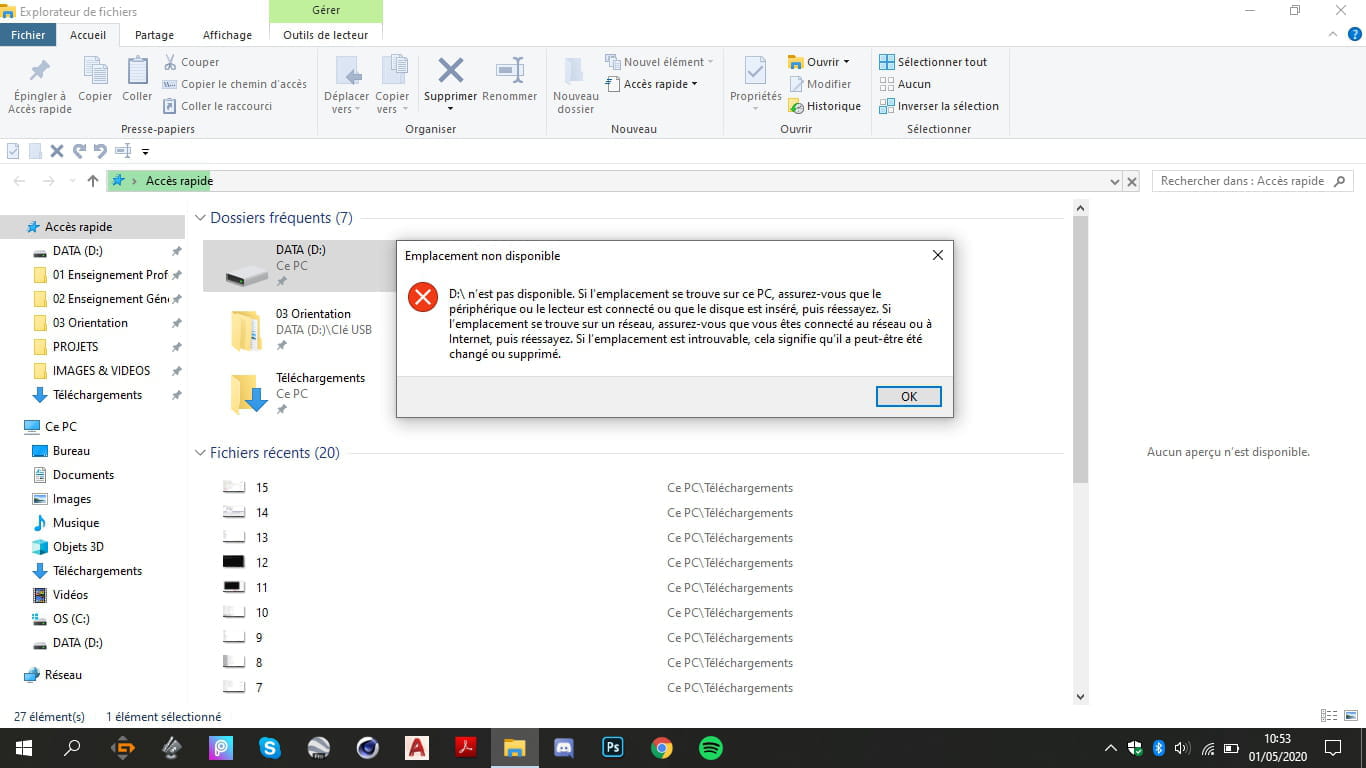
Sofi-Hatta AuthorYes, nothing serious but it still happens that drive D:\ becomes inaccessible and appears with a blue question mark. Right now, I just turned on my computer, I go to File Explorer, I click on D:\, it doesn't respond, I right-click "Open" and there:

I close File Explorer, I reopen it:
So I understand that I have to click on it and right-click "Open" again, to ignore the error message and close File Explorer again and then after several minutes, drive D:\ opens by itself, looking totally functional but when I try to move a file, File Explorer becomes unresponsive, closes, and opens again by itself:
I didn't touch it right away since I was writing this message, but now I decide to see if everything works and no, when I click on the icon in the taskbar, my window does not appear and everything eventually crashes:
And while I was writing this, drive D:\ reopened by itself, I tried moving a file again but more carefully using Cut-Paste and it worked, I am now trying by dragging the file, well I clicked on one of my folders and it is unresponsive once again:
This time, it didn’t try to respond in vain because after loading, File Explorer works correctly again, I move a file again to see. It's good, it works, we'll see if after several minutes of use I encounter other problems.
-
-
gugu01 ContributorWe still have a problem, it's not normal.
Restart crystaldisk info.
You should have one tab for each drive
(last time it was SSD, but now you should have the HDD as well)
Give its health status or a screenshot.
Your HDD may have received, we'll see.
----------
If D is okay for a moment, copy your documents to another storage device if possible.
(just in case)
Auto message
If you are here, it's because you don't know, so... ;-)
Mini Regarding the volunteers who are helping you: Reply, Respect, Politeness,... -
Sofi-Hatta AuthorOkay, let me know if you want additional screenshots

Okay, I'll do that, thanks -
ninarainbowHello,
The best you can do with this partition is to run a chkdsk /f but offline by booting with a Windows recovery CD to see if it has any issues.-
-
ninarainbow@seb77150Well, if she has a drive letter, which is the case, it's definitely a partition, unless it's a DVD drive or a USB stick, it's definitely a partition. You have two partitions on a PC if you haven't touched it, the C partition which is your operating system drive, and the D partition which is the Data drive. To repair it under Windows, you can right-click on it, then properties, then tools, then check the drive.
-
seb77150@ninarainbowYes, I'm sorry, I made a mistake.
-
-
Sofi-Hatta AuthorI think this is interesting:

-
-
gugu01 Contributor@Sofi-HattaAll pilot level lines are okay, no more unknowns or alerts?
For your check, do one on C.
It will be longer and a restart may be requested (you won’t be able to use the PC during the check). -
gugu01 Contributor@Sofi-HattaAdditionally, he is asking you to unmount drive D, as he cannot perform the requested check if the drive is in use, and right now it is by Windows (access), so say yes.
For C, he will ask you for a restart, say yes, and he will perform the check on startup. -
Sofi-Hatta Author@gugu01Yes, everything is fine in the device manager.
Okay, I'm doing that.
But if I remove the D disk, nothing will be deleted? -
ninarainbow@Sofi-HattaNo, they are not erased at all. Don't worry about that, disassembling a hard drive has absolutely nothing to do with formatting.
-
-
Sofi-Hatta Author

-
Sofi-Hatta Author

-
-
Sofi-Hatta Author@gugu01Hmm, I'm not sure I understood the part about D: and for C: it's fine, I just restarted it, the "analysis" took 5 minutes and here we are.
What should I do? -
ninarainbow@Sofi-HattaYou need to understand one thing when you're doing this kind of maneuver, it’s that it's not necessarily the letter C that corresponds to your Windows drive (yours is indeed C:\OS your Windows root drive). So you need to find the correct letter for your Windows root drive, for example, you type d: then dir, (DIR is an MSDOS command that allows you to display the contents of a drive) to see if you can see your files and especially the Windows folder, and the correct drive letter, it could be d: or e: or even f: because when you're in this recovery console, there is very often a shift between your usual drives that you see when you are in Windows. Once you have found the correct letter of your Windows root drive, normally the correct letter of your D (DATA) drive is the one that comes right after. For example, if your root drive C corresponds to, let's say, the letter E due to the shift in the recovery console, your drive D will be the letter F. Then you go back to x: and you do chkdsk "the correct letter of your D drive followed by two points" /f. There you go, if Windows finds errors it will tell you and fix them automatically.
On the other hand, there was one thing I hadn’t seen, which are the images you posted at the very top first, and I’m a bit concerned about this one.....What is your D drive normally, a hard drive or a USB stick?? No because normally, I can see your C drive (OS), but normally just below if it's really a hard drive, you should have something like D:\DATA...... -
Sofi-Hatta Author@ninarainbowFor me, the letters are the right ones, thank you.
-
Sofi-Hatta Author@ninarainbowWhen I try other letters, it says "Unable to open the volume in direct access."
-
-
gugu01 Contributorwhere to execute this command and give the result:
sfc /scannow
https://www.commentcamarche.net/informatique/windows/25-verifier-et-reparer-des-fichiers-systeme-avec-windows-10/-
-
Sofi-Hatta Author@gugu01Where can I find the results?
-
gugu01 Contributor@Sofi-HattaJust read, at the end of a test it indicates what it has done ;-)
For example, for the sfc /scannow requested (message 86), it will end with one of the following messages:
Windows Resource Protection found no integrity violations.
Windows Resource Protection failed to perform the requested operation.
Windows Resource Protection found corrupt files and was able to repair them. Details are included in the CBS.Log %WinDir%\Logs\CBS\
Windows Resource Protection found corrupt files but was unable to fix all of them. Details are included in the CBS.Log %WinDir%\Logs\CBS\ -
Sofi-Hatta Author@gugu01The Windows Resource Protection program found no integrity violations.
Following the command sfc /scannow -
gugu01 Contributor@Sofi-Hattaok this would mean that your Windows system is fine.
For your D, we won't know the result.
So, do you still have problems with D?
Regarding drivers, have you checked if there are alerts or unknown devices in your device manager (as requested)?
-
-
seb77150Salut, essaie de taper ceci eventvwr dans exécuter (Windows + R) puis regarde si tu as des erreurs correspondant à ton disque dur.
-
-
seb77150@Sofi-HattaAh xD, if you go to error or critical error or warning you don't see any error message related to the hard drive?
-
-
gugu01 ContributorGive me a screenshot of your disk management to see.
Afterwards, I don’t know if you have a lot on D, but we could consider copying everything to an external hard drive for example, empty D, see if it works or not.
(a file or something that could be useful)
Then restore your data
Is it just simple storage on D or do you have possible system files from another PC on it?
(like copying data from an old PC, with bits of Windows)
--
Auto message
If you are here, it means you don't know, so... ;-)
Mini Reminder to the volunteers who are helping you: Respond, Respect, Politeness,...-
gugu01 Contributorif there is an issue with the partition:
back up your data elsewhere,
then empty the disk (complete wipe that deletes the partition, formatting or clean in command prompt),
recreate the partition
and see what happens.
If it’s still the same, you should check if this hard drive is properly connected
Otherwise, there may be a malfunction with this hard drive. -
-
Sofi-Hatta Author@gugu01Oh okay, I’ll check that but I need to have access back to D.
-
-
ninarainbowYou know, I highly recommend that you get yourself a USB drive to back up all your data from your D drive if you can, so you never lose it again!! A USB drive hardly costs anything, and you'll realize over time, when these kinds of problems arise, that it's really handy to have one to find all that data intact!!
-
-
ninarainbow@Sofi-HattaLol....I see....Well, you can always buy an external hard drive or a large USB stick like 256 GB, it doesn't cost that much, and at least you'll have a good backup.
-
gugu01 Contributor@Sofi-HattaYes, as mentioned, you should invest in an external hard drive and make backups.
Useful in cases like yours
If you regain access to D, you'll need to quickly copy everything elsewhere.
(temporarily a borrowed hard drive or online storage, but if it's a lot, that will probably be a cost)
D we'll see if everything is recovered with a new partition, and if not, as mentioned, check its connection as it seems to be faulty.
-
-
- 1
- 2
Next