Failed Reset (HP OMEN)
Hello everyone,
I performed a reset on my OMEN 870-212nf due to its slowness to start fresh with this PC.
However, I cannot complete the reset and it shows me the following error on Recovery Manager: “The attempt to restore failed. Please select one of the following buttons: Save log; Details; Retry.”
I then tried again, without a reset CD and later with one that I ordered after a call with HP, and it was the same thing.
The hard drives are intact, I don't know where the problem comes from and especially how to fix it (without sending the tower to HP for an outrageous sum).
I do not have access to Windows, as I get the same error message at startup/reboot.
I am turning to you, internet!
I performed a reset on my OMEN 870-212nf due to its slowness to start fresh with this PC.
However, I cannot complete the reset and it shows me the following error on Recovery Manager: “The attempt to restore failed. Please select one of the following buttons: Save log; Details; Retry.”
I then tried again, without a reset CD and later with one that I ordered after a call with HP, and it was the same thing.
The hard drives are intact, I don't know where the problem comes from and especially how to fix it (without sending the tower to HP for an outrageous sum).
I do not have access to Windows, as I get the same error message at startup/reboot.
I am turning to you, internet!
2 answers
-
ModeratorHi,
Check if you have a key to check the hardware and particularly the disk at startup.
Otherwise, use CrystalDiskInfo from the Malekal Live CD.
See: https://www.malekal.com/tester-diagnostic-materiel-de-ordinateur-live-cd-malekal/
--
Please press any key to continue the disinfection... -
Moderatorok,
Reinstall Windows 10 from a USB drive in this case.
The principle is to create a Windows 10 installation USB drive and boot the computer from it to reinstall Windows without formatting in order to keep the data.
Since the computer is crashed, you need to create it from another functional computer.
To create the USB drive:
You need a USB drive with at least 8 GB.- Create a USB drive with Media Creation Tool: Download and create a Windows 10 USB drive with Media Creation Tool
- Boot from it by modifying the boot sequence and indicating the USB drive or DVD: How to boot the computer from USB drive
If the USB drive does not work, try making another one with Rufus: how to download Rufus.
Download the ISO file, for example with Adguard: Download Windows ISO
Launch Rufus and then specify the path to the ISO file
In partition scheme, choose GPT.
For more details, refer to this tutorial for the details: how to create a Windows installation USB drive
The Windows 10 installer should then start:
Follow these tutorials that explain how to install Windows 10:
All the steps are given from A to Z with advice at the end to secure Windows 10.- Let yourself be guided to install Windows 10.
- Choose customize (not upgrade)
- During the partitioning phase, select the main partition and click next.
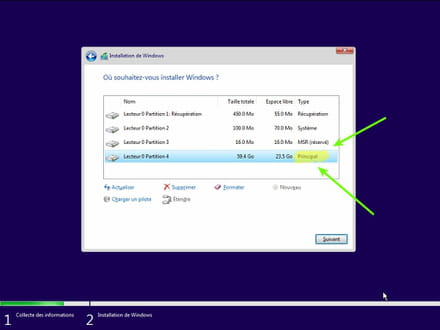
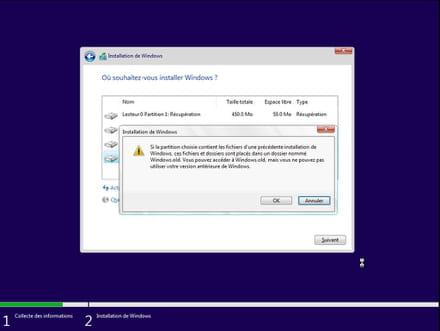
- The installer will tell you that Windows is already present and offer to move it.
- Follow the Windows installation procedure using the tutorial above.
Just don’t format.
Your user data will be copied to the Windows.old folder.
Once Windows is installed, I recommend following these tips to properly configure and use Windows: Tips after reinstalling Windows.
--
Please press any key to continue the disinfection...