Black screen during PC reset
Solved
Owiide
-
Malekal_morte- Posted messages 178136 Registration date Status Moderator, Security Contributor Last intervention -
Malekal_morte- Posted messages 178136 Registration date Status Moderator, Security Contributor Last intervention -
Hello,
I am reaching out to you regarding a problem that I cannot resolve. I have already seen a post about this, but it did not help my issue.
I built my PC a few weeks ago and after a few mistakes, I decided to reset it.
I should note that Windows 10 has not been activated on it.
When I initiate the reset, everything goes smoothly, the loading completes, and the PC tells me it will restart. It shuts down and then restarts, but the screen stays black indefinitely. I waited over an hour, thinking the problem would not last, but not at all.
I can hear the fans running, so it is active, but nothing happens.
I then tried to turn it off by pressing the power button for a few seconds and restarting it, and it displays an error message telling me that the reset could not be completed.
I really don't know where the problem is coming from.
Thank you in advance for your replies.
Config:
Motherboard: Asus TUF Z390-PLUS GAMING
Processor: I5 9600k
I am reaching out to you regarding a problem that I cannot resolve. I have already seen a post about this, but it did not help my issue.
I built my PC a few weeks ago and after a few mistakes, I decided to reset it.
I should note that Windows 10 has not been activated on it.
When I initiate the reset, everything goes smoothly, the loading completes, and the PC tells me it will restart. It shuts down and then restarts, but the screen stays black indefinitely. I waited over an hour, thinking the problem would not last, but not at all.
I can hear the fans running, so it is active, but nothing happens.
I then tried to turn it off by pressing the power button for a few seconds and restarting it, and it displays an error message telling me that the reset could not be completed.
I really don't know where the problem is coming from.
Thank you in advance for your replies.
Config:
Motherboard: Asus TUF Z390-PLUS GAMING
Processor: I5 9600k
3 answers
-
Thank you for taking the time to help me!
I found the (extremely silly) solution earlier.
In fact, my screen was plugged only into my GPU and not into my motherboard, so the BIOS (which displays via the motherboard) wasn't showing up on the screen, and everything stayed black. By switching to the motherboard, I was able to install Windows and reset my PC. -
Try to format all the partitions of your hard drive to delete all corrupted files, then try to install Windows again.
--
geekalaa . -
Hello,
Reinstall Windows 10 without formatting:
The principle is to create a USB installation drive for Windows 10 and boot the computer from it to reinstall Windows without formatting in order to keep the data.
Since the computer is crashed, you need to create it from another working computer.
To create the USB drive:
You need a USB drive of at least 8 GB.- Create a USB drive using Media Creation Tool: Download and create a Windows 10 USB drive with Media Creation Tool
- Boot from it by changing the boot order and selecting the USB drive or DVD: How to boot the computer from USB drive
If the drive does not work, try creating another one with Rufus: how to download Rufus.
Download the ISO file, for example with Adguard: Download Windows ISO
Launch Rufus and specify the path to the ISO file
In the partition scheme, choose GPT.
For more details, refer to this tutorial for further instructions: how to create a Windows installation USB drive
The Windows 10 installer should now start:
Follow these tutorials that explain how to install Windows 10:
All steps are provided from A to Z with tips at the end to secure Windows 10.- Let yourself be guided to install Windows 10.
- Choose customize (not upgrade)
- During the partition phase, select the main partition and click next.
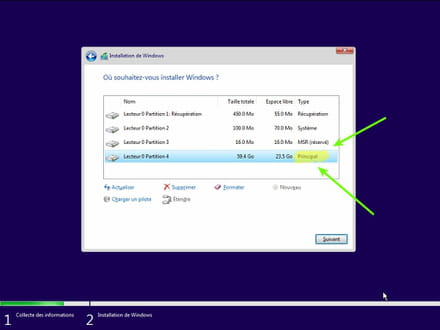
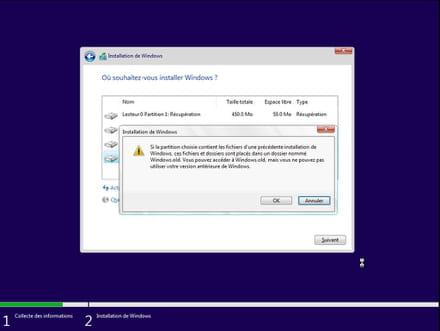
- The installer will tell you that Windows is already present and offer to relocate it.
- Follow the Windows installation procedure using the tutorial above.
Just do not format.
Your user data will be copied to the Windows.old folder.
Once Windows is installed, I recommend following these tips to configure and use Windows properly: Tips after reinstalling Windows.
--
Please press a key to continue the disinfection...