How to widen the scrollbar

Hello,

Is it possible to widen this scrollbar because I have trouble pointing my mouse at it; in older Windows versions I didn’t have any issues. I have to go slowly, it’s too thin. I have a 17-inch Asus laptop with Windows 11. It’s a new PC. I went into display settings, but I can't find anything.
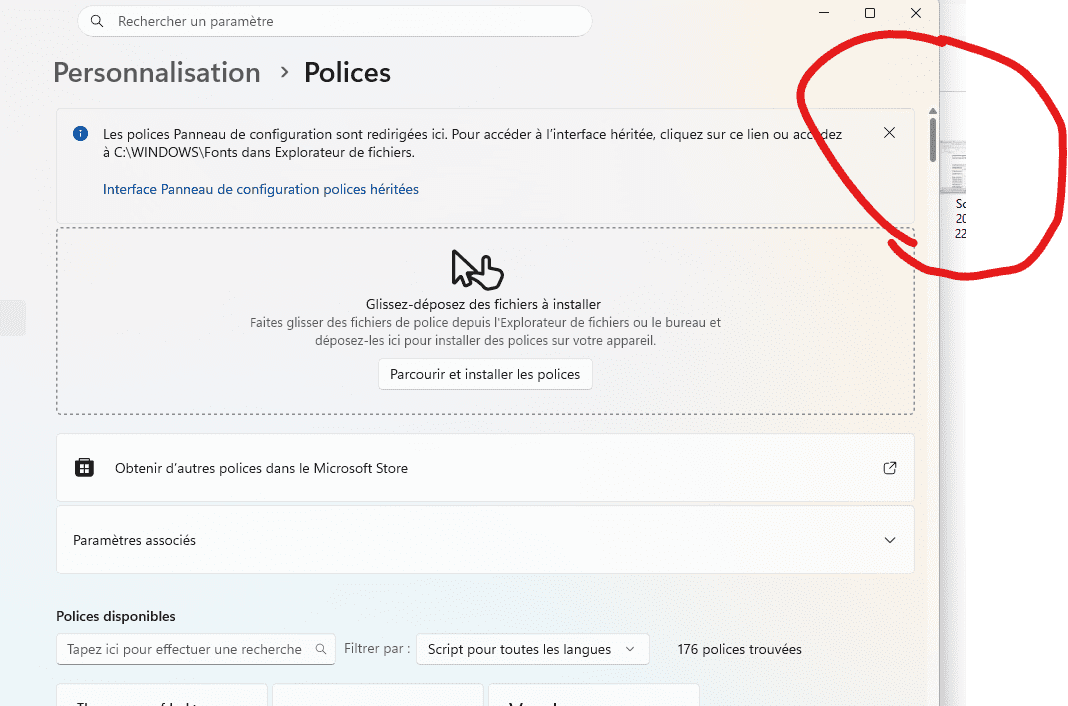
Thanks for the good advice.


3 answers

  1. Hello,

    By keeping the mouse pointer inside the active page there is the action of the mouse wheel to scroll up and down.

    In the settings, click in a neutral area of the right page and use the arrows to scroll down or up.

    On one can also avoid retracting the bar with a simple wire.

    Open the Settings, go to Accessibility, open Visual Effects, enable Always show scroll bars.

    Best regards
    1. Hello and thank you

      I don't use a wireless mouse; it's not convenient on the go when I don't have space to place it, especially in train stations or other places. I've always used laptops and never had an external mouse, and this is the first time I have a problem with such a thin scrollbar: is there any way to widen it?

      Regarding

      "Open Settings go to Accessibility, open Visual effects, enable Always show scroll bars."

      that was already done and the screenshot I posted at the top of my thread already had this setting.

    2. @gertrude51

      Hello,

      is there any possibility to widen it?

      yes, you can double it, triple it and even more, but you have to go through the Registry editor, see at <3> and at <1>.

    3. @spiralio

      "Note:
      The default value for the scroll width is -255.
      You can enter -500 to make it about twice the width.
      However, you can enter any value up to -1500.
      The higher the value, the wider the scrollbar.

      default value:
      The default value "ScrollHeight" for the Scroll Height is -255.
      The default value "ScrollWidth" for the Scroll Width is -255"

      at the end of this link

  2. Hello, an option as follows:

    There is no direct option in Windows 11 settings to widen the scroll bar, but you can modify the Windows Registry.

    Registry modification

    • Press Windows + R on your keyboard.
    • Type regedit and press Enter.
    • Go to the folder: HKEY_CURRENT_USER\Control Panel\Desktop\Window Metrics.
    • Find the keys ScrollWidth (width) and ScrollHeight (height).
    • Double-click each key and enter a larger negative value (for example -400 instead of -255).
    • Restart your computer to apply the changes.

    Regards.
    Le Pingou

    1. Hello and thank you for the reply. Okay, is it risky? Because I'm not used to doing this. Should I create a restore point first?

  3. Hello,

    Unfortunately, with Windows 11 it isn’t straightforward!

    There may be a utility that can perform this operation, but I haven’t found anything yet.

    Via the Registry:

    https://www.tutoriels-info.com/viewtopic.php?t=16188

    Back up the registry before any intervention....

    https://lecrabeinfo.net/tutoriels/windows-sauvegarder-et-restaurer-le-registre/
    1. Hello and thank you

      I hate Windows 11, it’s really because I had to buy a PC otherwise I wouldn’t have used it.

      When you write "backing up the registry" is it the same as creating a restore point?

    2. @gertrude51

      No, a restore point backs up everything, a registry backup only a “tiny” part.

    3. @gertrude51"Rest assured," many users had a hard time adapting to Windows 11!
    4. @spiralio

      Hello,

      To my knowledge there aren't any other direct solutions described, for example in <3>.

      But if you don't want to dirty your hands with the registry, Winaero Tweaker allows, among other things, to adjust this parameter graphically and reversibly.