Access cmd to change DPI scaling
Solved
Hello,
I would like to know if it is possible to access CMD from the Windows 10 login screen because I have stuck my PC at 500% scaling and the login screen is the only place that is normal on my PC, and if so, how to do it.
Thank you in advance,
I would like to know if it is possible to access CMD from the Windows 10 login screen because I have stuck my PC at 500% scaling and the login screen is the only place that is normal on my PC, and if so, how to do it.
Thank you in advance,
6 answers
-
ModeratorHello,
Do what is on this page paragraph 4 you will be able to access the advanced options by clicking on troubleshoot and launch the command prompt.
--
bazfile
Moderator/Contributor security.
click here-
-
Moderator@Anonymous userYou asked to have access to CMD (Command Prompt), so I told you how to do it. Now you're asking for something else. To access the registry in the Command Prompt, you type the command regedit, and the registry window should open. You can also use the command rstrui.exe to launch System Restore, which will allow you to revert to a restore point from a date prior to your bad setting. You can also access System Restore via the advanced options.
-
@bazfileI think so too, but I wasn't looking for system restore otherwise I would have done it in the recovery options.
-
-
ContributorHello,
Try to bring up the magnifying glass on your screen to reduce the display.
Nothing too complicated:
Press the Windows key and the + key
Once you see the magnifying glass, click on the minus -
The - key to zoom out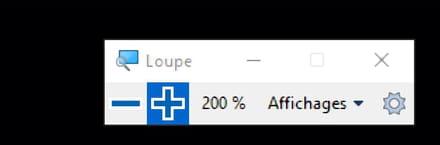
In Microsoft Settings, it says the same: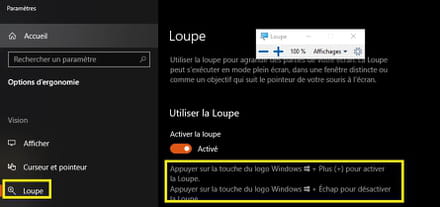
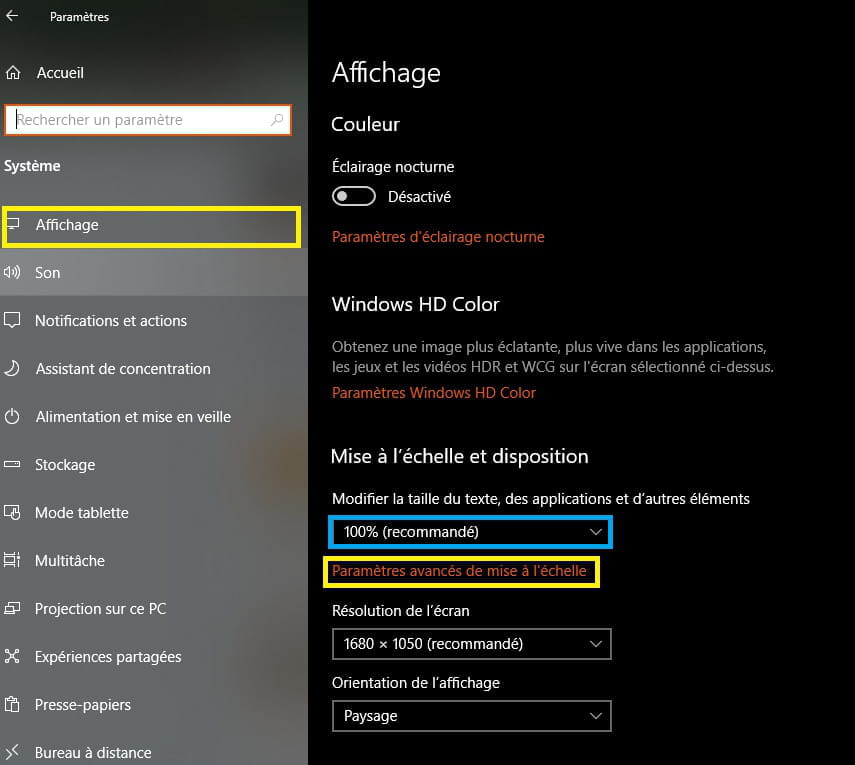
If the screen gets smaller, go to Settings → System → Display
Set the recommended values.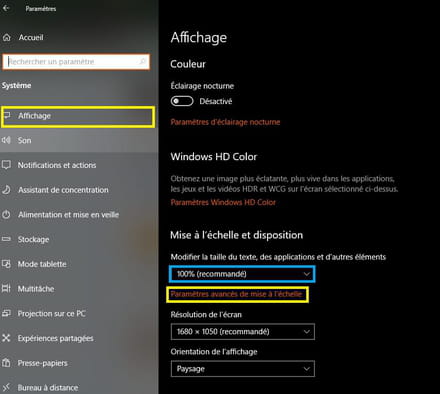
Or go to Advanced Display Scaling Settings.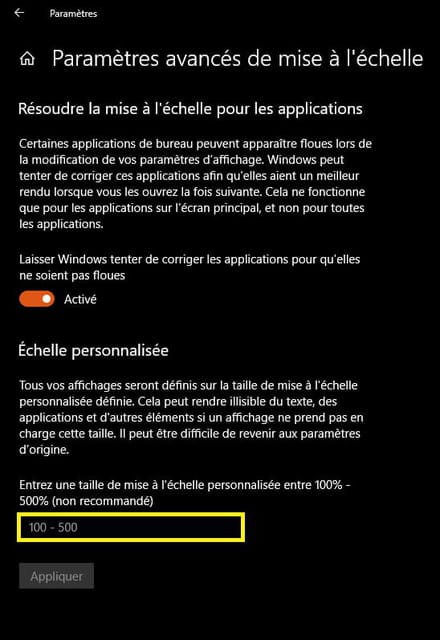
Ps: It seems to me that you have already asked a question about your display issue.
I greet bazfile by the way.
Good luck.
-
-
Contributor@Anonymous userI can't find her anymore. (not even in your profile)
If you could provide the link to see what was proposed.
How's the magnifying glass? -
@pistouriI haven't tried it yet because I don't have my PC at hand for the moment.
-
-
Contributor@Anonymous userAlright, waiting for the magnifying glass.
-
-
ContributorHello,
1- You can restore the default DPI Scaling Level for display using a REG file
Download/save from another PC → Restore_Default_DPI_in_Windows_10.reg
Disable your ad blocker if you can't download it.
Copy/paste to a USB drive.
You can run it from the USB drive on your W10 PC or copy/paste it to the Desktop.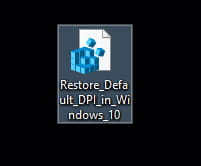
Remove your USB drive, with W10 there's no need to click "Eject device" next to the clock.
Restart the PC.
2- Manual solution from the registry.
This is what the reg entry "Restore_Default_DPI_in_Windows_10" does.
Backup the registry.
Part 1
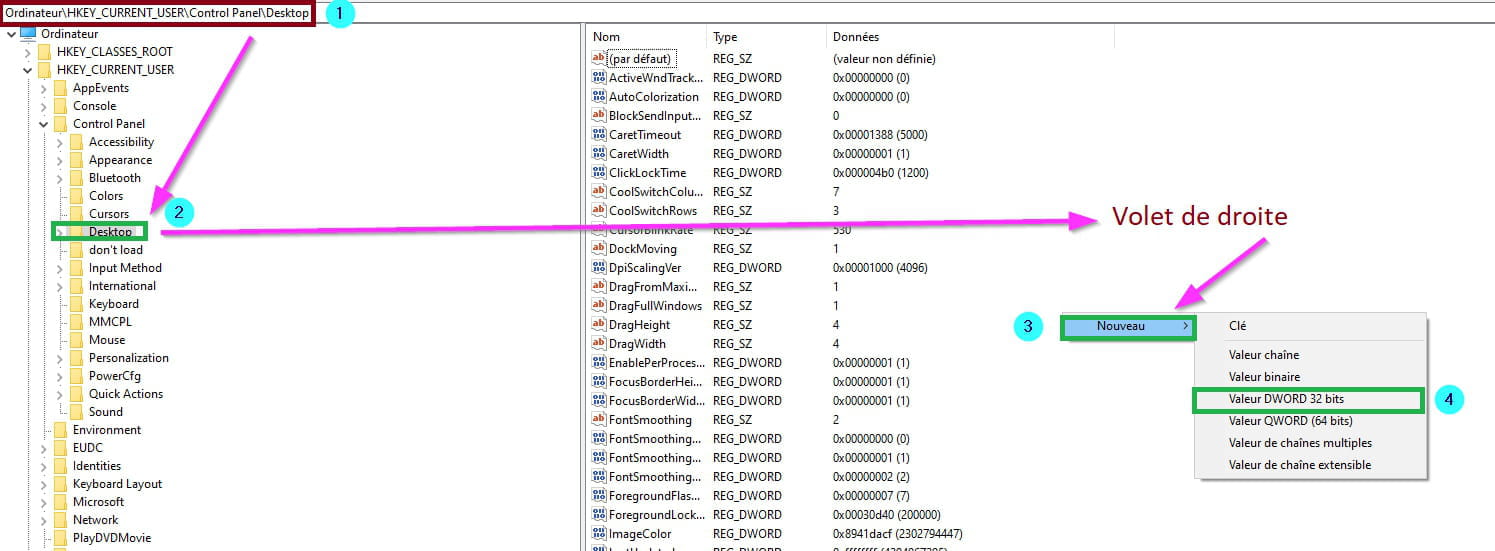
Go to this registry key:
HKEY_CURRENT_USER\Control Panel\Desktop
Select the Desktop key, double click on LogPixels DWORD to modify.
If LogPixels DWORD does not exist, right-click a blank space in the right pane.
Click on New → DWORD (32-bit)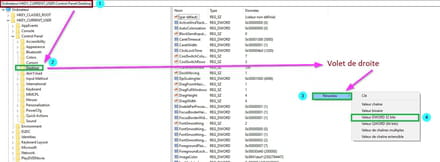
Right-click on → New Value #1
Then Rename
Type →LogPixels
Now double click on → LogPixels
Check →Decimal
In the "Value data" box type →96
This is the default value.
Click OK to finish.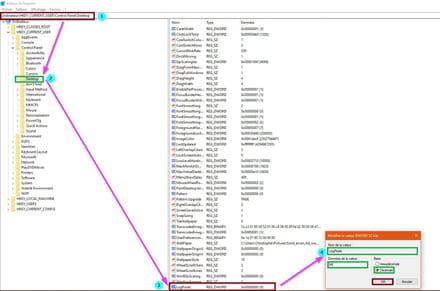
Part 2
In the right pane, go to the key → Win8DpiScaling
It already exists.
Now double click on → Win8DpiScaling
Check →Decimal
In the "Value data" box type →0 (zero)
This corresponds to the default value.
Click OK to finish.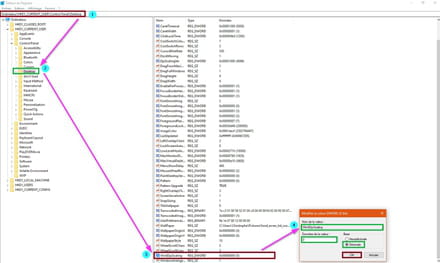
If Win8DpiScaling DWORD does not exist, right-click a blank space in the right pane.
Right-click a blank space in the right pane.
Click on New → DWORD (32-bit)
Right-click on → New Value #1
Then Rename
Type → Win8DpiScaling
Now double click on → Win8DpiScaling
Check →Decimal
In the "Value data" box type → 0 (zero)
This corresponds to the default value.
Click OK to finish.
Source
3- Windows 10 DPI fix
Download or save → Windows 10 DPI Fix
From another PC place it on a USB drive that you can launch directly.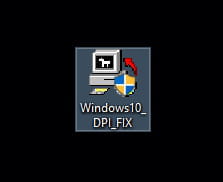
The main window includes 2 options:
One to use Windows 8.1 DPI scaling
And the other to switch to the default display scaling in Windows 10
Check the desired option and press the button → Apply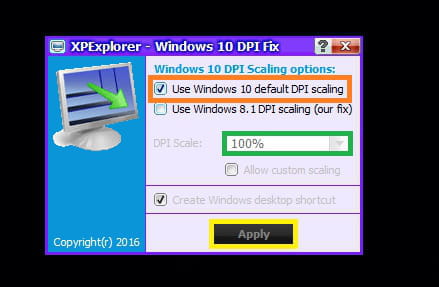
Info:
Useful for high-resolution wide screens.
Windows 10 DPI Fix is very handy for users of computers with large high-resolution displays (1920x1080 or higher) who want to enlarge icons and text, but the content of many windows becomes blurry when trying to adjust the DPI scaling manually to 125% or more.
Its purpose is to provide a simple way to return to the default value of Windows 10.
This is the DPI scaling method used in Windows Vista, 7, 8, and 8.1
It simply applies the changes and then closes, without interfering.
A simple way to solve DPI scaling issues.
Source
4- Scaling factor system scale:
Table of LogPixels values in → HKCU \ ControlPanel \ Desktop \ LogPixels
96 → scaling of 100%
120 → scaling of 125%
144 → scaling of 150%
192 → scaling of 200%
Other> * → 100/96
A+
-
-
Contributor@Anonymous userWhat does it give? (REGEDIT procedure).
-
-
Hello.
Another way to zoom out is to hold down Ctrl and scroll with the mouse wheel. One way zooms out, the other way zooms in. Try this to see if it helps you reach the settings. -
What does it mean when the login screen is bigger than usual?
-
ContributorHello LePikaDuCoin,
You have opened a new topic ''login screen is bigger.
Here it is.
Wait for any responses.
I don’t know if it’s related to your current display, I don’t have the answer to help you.
And we don’t know where you stand on this ongoing post, so avoid mixing things up, your message could be deleted by moderation because you are posting a new question.
--
pistouri-
-
Contributor@Anonymous userAdd the link to this post to clearly explain the situation.
A repair of Windows 10 might be beneficial. -
@pistouriThe post is [url]https://www.commentcamarche.net/forum/affich-36451676-les-elements-de-l-ecran-de-connexion-sont-plus-gros-que-d-habitude-windows-10#0] HERE[/url]
-
Contributor@Anonymous userNo.
Add the link to this current post → https://forums.commentcamarche.net/forum/affich-36406148-acceder-a-cmd-pour-changer-la-mise-a-l-echelle-dpi#p36451867
Copy/paste it into your new post
Otherwise, do nothing, but it could be useful.
Where are you at in this current post ''la mise à l’échelle DPI''?
That's what we're interested in.
-