Gmail in the taskbar
Solved
gbko
Posted messages
578
Registration date
Status
Member
Last intervention
-
Kheira. -
Kheira. -
Hello*
The grandpa who just set up his new all-in-one PC doesn't know how to get the Gmail shortcut to appear on the taskbar?
Just to let you know, I am on Win10 Pro with Edge.
Thanks for any help.
The grandpa who just set up his new all-in-one PC doesn't know how to get the Gmail shortcut to appear on the taskbar?
Just to let you know, I am on Win10 Pro with Edge.
Thanks for any help.
3 answers
-
Hello,
I will guide you to create a Gmail icon that will initially be on your desktop.
1) On the desktop, right-click and choose New > Shortcut
In the window that opens, type https://accounts.google.com/ServiceLogin?service=mail&passive=true&rm=false&continue=https://mail.google.com/mail/?tab%3Drm&scc=1<mpl=default<mplcache=2&emr=1&osid=1#inbox
Click on Next; name the shortcut Gmail and click Finish.
2) You need to give your shortcut the Gmail icon. It's not easy to retrieve.
Go to this site: https://icon-icons.com/fr/recherche/icones/gmail
Click on the first icon at the top left.
Then click on ico (under the icon) to start downloading the icon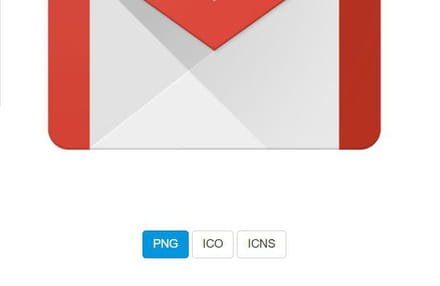
The icon is now in the Downloads folder
3) On the desktop, right-click on the shortcut you just created and then click on Properties.
In the Web Document tab, click on Change Icon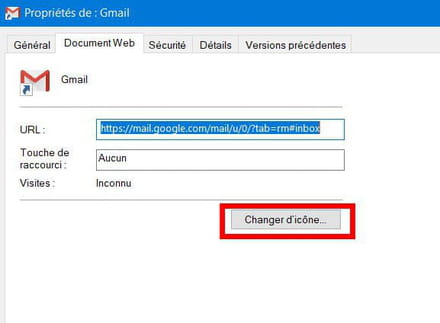
Then click on Browse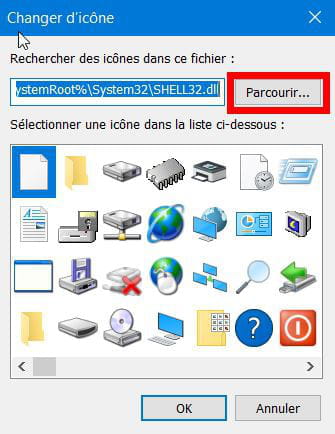
A File Explorer window will open: go to the Downloads folder and find your icon named: Gmail_29991. Click on Open.
In the Change Icon window, confirm the selection by clicking OK. Close the Properties window by clicking OK.
4) You now have a functional icon. Drag it to the taskbar (bring the mouse cursor over the icon, press the left mouse button and while holding it down, move the icon to the taskbar).