
Too Many Windows Boot Managers???
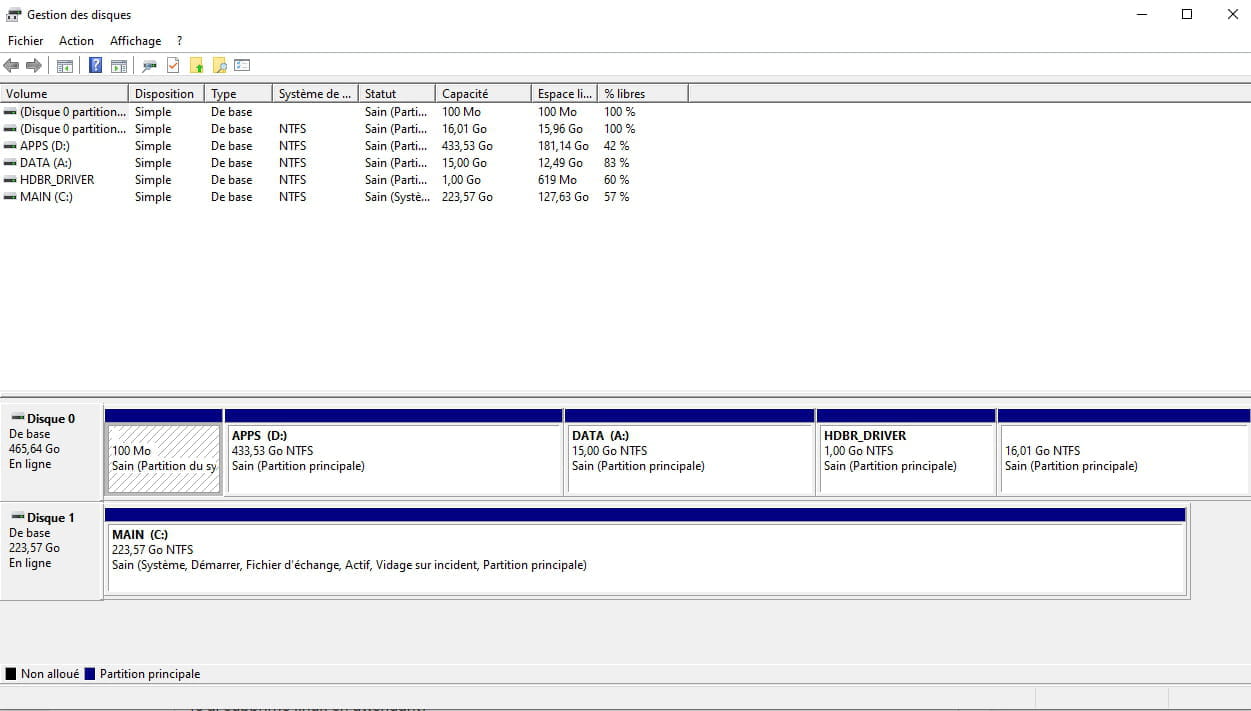
Hello, I recently built my new PC with an old hard drive from a Windows XP PC (and an SSD for Windows 10), but I wanted to add Linux Mint and when I boot, the dual boot offers either Linux or Windows Boot Manager... At the moment of launching, I thought "Windows Boot Manager" was my Windows 10, but actually it’s the remnants of Windows XP from the old PC (which obviously doesn’t work). So the advantage is that the Windows Boot Manager is not on the same disk as Windows 10. I think I can do something about this but I don't know what... I thought about going into the Disk Management and deleting the EFI partition from the Windows XP disk, but it's impossible... I know there's a way through the command prompt to navigate to the EFI partition (by assigning it a letter and opening a task with administrative privileges to delete the OS file to be removed) but I no longer remember how to assign a letter to the EFI partition on the disk containing Windows XP...
Thus deleting this partition would force, when I boot LINUX, to have the choice between Mint and Windows 10.
TO SUM UP:
I have an "extra Windows Boot Manager" when I go into the BIOS from an old Windows XP PC.
I want to delete it without affecting my current Windows 10.
Why is the EFI partition on the Windows Boot Manager disk and not in my OS disk? (the disk containing Windows Boot Manager was not connected during the Windows 10 installation)
(I have removed Linux in the meantime)
(Here’s an image of my partitions if it helps)
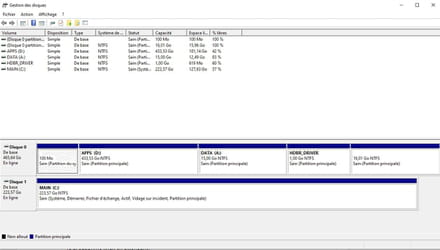
Thus deleting this partition would force, when I boot LINUX, to have the choice between Mint and Windows 10.
TO SUM UP:
I have an "extra Windows Boot Manager" when I go into the BIOS from an old Windows XP PC.
I want to delete it without affecting my current Windows 10.
Why is the EFI partition on the Windows Boot Manager disk and not in my OS disk? (the disk containing Windows Boot Manager was not connected during the Windows 10 installation)
(I have removed Linux in the meantime)
(Here’s an image of my partitions if it helps)
4 answers
-
Format the hard drive of the old XP PC.
--
“Take your chance, seize your happiness, and go towards your risk. By looking at you, they will get used to it.” René Char -
ModeratorHi,
What is the XP disk and what is the SSD?
Name them with sizes or numbers so we don't get it wrong.
It seems your C is in MBR...
On Disk 1, right-click and properties.
Volumes tab.
In partition type, do you have master boot record?
-
The SSD is C: and the XP drive is the other one
Yes, it says "Primary boot sector" I suppose it's the same thing -
-
The command delete partition override is not working, it tells me that no partition is selected...
But I finally managed to eliminate the Windows Boot Manager issue, and the extra partitions are gone! So all that's left is to install Mint and my problem will be solved. And I know how to do that well xD.
Thanks for all the advice anyway!
-
-
ModeratorOkay, so your hard drive on Windows 10 is in MBR.
Your Windows XP disk is in GPT (by the way, I doubt it's actually Windows XP..)
The EFI partition is therefore completely useless because you need to boot in MBR mode.
Read all this first to make it clear before you get started.
If you have any questions beforehand, go ahead.
To start fresh.
Start by cleaning up the partitions on the XP disk.- Delete the driver partition, it’s no longer useful since it was for the old PC
- Delete the EFI partition.
- The 16 GB one at the end should also be removable.
- Resize the data partitions with the free space created by deleting these partitions.
You can do this with Minitool Partition Wizard: https://www.malekal.com/tutoriel-minitool-partition-wizard-free/
Set the BIOS to UEFI.
Here’s how to access the BIOS:- How to access the BIOS (UEFI or legacy)
- BIOS - Accessing the BIOS setup
In the boot settings.- CSM disabled. Optionally see: How to disable CSM in the BIOS
- Remove the old Windows XP disk from the computer.
~~
With only the SSD connected.
Reinstall Windows 10 on the SSD.
For that:
Boot from the installation USB and once there:
Press Shift + F10 to open the command prompt.
Type diskpart
list disk <= In the result, make sure that disk 0 is indeed the SSD
because the next steps will delete all content.
sel disk 0
clean
convert gpt
Start the installation
Create the main partition with enough size to allow space for Linux alongside if you want to install Mint on the SSD.
However, at least 100 GB for Windows 10, otherwise you will have space issues.
It will create the EFI partition, recovery, etc.
Finish the installation of Windows 10.
Then reinstall Mint in dual-boot.
Check that you can boot into Windows 10.
Finally, reconnect the old disk.
-
After reflection, it might have been a Vista; actually, I'm not sure anymore... I cleared out the partitions and all the other info, and it seems to be working! (at least no more Windows Boot Manager in the BIOS)
I'll do the other manipulations and install Mint; the rest should be simpler since I’m more familiar with it.
Thanks for all the advice, by the way! -
Moderator@BastiansmnYes, you should be able to manage, I think :)
-
Hi,
Make a boot-info report once your Linux Mint is installed....
I'm curious to see the result of this mess that combines a DOS disk and a GPT disk. Also, please specify the brand and model of the PC... We will add it if necessary to the Ubuntu site list.-
The PC is handmade, that's why I added the hard drive from an old PC myself. But everything seems to be working well now! I will make the boot-info report
For the PC config:
- AMD Ryzen 5 2600X
- HyperX Fury 8GB 2666Hz
- ASRock B450M-HDV R4.0
- Kingston SSD A400 240 GB (Windows 10 drive)
- And a "Toshiba mk5076gsx" (old one that I recovered)
- The rest, in my opinion, doesn't really matter :)
-

