
How to boot from a USB drive on a PC purchased without an OS?
Solved
Fivel51
Posted messages
510
Status
Member
-
AluMinioume Posted messages 3107 Registration date Status Member Last intervention -
AluMinioume Posted messages 3107 Registration date Status Member Last intervention -
Hello,
I just bought a MSI GL73 8RC laptop that doesn't have an OS.
I created a bootable USB drive with Windows 10 on it and I would like to boot from this USB drive to install Windows 10.
However, when I turn on my laptop, I end up in front of command lines that I don't understand.
You can see it in this image:
Please, how do I boot from my USB drive?
Thank you :)
I just bought a MSI GL73 8RC laptop that doesn't have an OS.
I created a bootable USB drive with Windows 10 on it and I would like to boot from this USB drive to install Windows 10.
However, when I turn on my laptop, I end up in front of command lines that I don't understand.
You can see it in this image:
Please, how do I boot from my USB drive?
Thank you :)
4 answers
-
Hello,
You can create the USB drive from another PC.
The idea is to create a Windows 10 installation USB drive and boot the computer from it to reinstall Windows without formatting.
Since the computer is crashed, you need to create it from another functional computer.
To create the USB drive:
You need a USB drive with at least 8 GB.- Create a USB drive with Media Creation Tool: https://www.malekal.com/windows-10-media-creation-tool/
- Boot from it by modifying the boot sequence and selecting the USB drive or DVD: How to boot the computer from USB drive
If the USB drive doesn't work, try making another one with Rufus: how to download Rufus.
Download the ISO file, for example using Adguard: Download Windows ISO
Launch Rufus and then specify the path of the ISO file
In partition type, choose GPT.
For more details, refer to this tutorial for details: how to create a Windows installation USB drive
The Windows 10 installer should then start:
Follow this tutorial that explains how to install Windows 10: how to install Windows 10.
All steps are provided from A to Z with tips at the end to secure Windows 10.- Let yourself be guided to install Windows 10.
- Choose custom (not upgrade)
- During the partition phase, create the main partition and click next.
- Follow the installation procedure for Windows using the tutorial above.
Just don’t format.
Your user data will be copied to the Windows.old folder.
Once Windows is installed, I recommend following these tips to properly configure and use Windows: Tips after reinstalling Windows.
-
Hello
to access the BIOS, normally you need to press the "delete" key repeatedly when starting the PC
otherwise try the "F3" key -
Hello,
thank you for your help :)
I managed to boot from the USB key.
I have an MSI GL73 8RC, it has an SSD (of 128GB) inside and a regular disk.
I would like to install Windows on the SSD. However, I don't know which drive to select. Can someone help me please? Thank you
Here is what I see: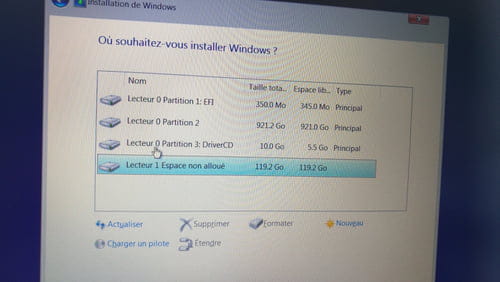
-
-
-
-
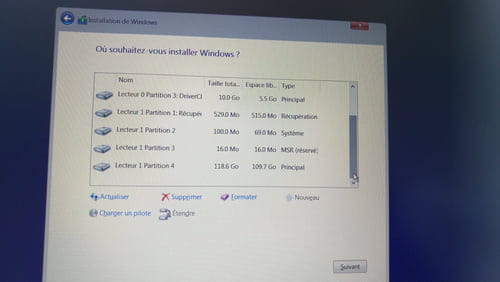
I selected the 119GB drive 1, clicked next. It processed for a bit, then rebooted the PC, I didn't touch anything and it brought me back to the screen from my first post. (black screen with lines and Shell commands).
I repeated the process, but now there are new partitions.
I don't understand why this is happening. Do you have any idea?
Here is the new list of available partitions: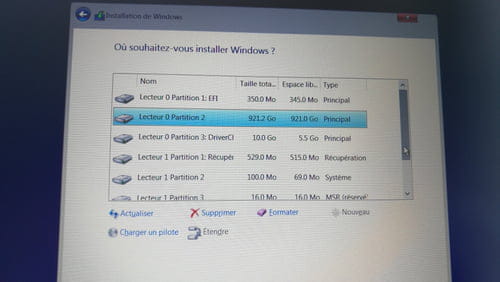
+
-
Hi,
Try this:
Delete all possible partitions, so that you only have two unallocated spaces, corresponding to the 120 GB SSD and the 1 TB HDD.
Then select the unallocated space of the SSD and proceed. At the moment the installation finishes and the PC is about to reboot (during the loading bar for a few seconds at the end that we can skip), unplug your USB drive and let the PC reboot.
-
-
Ok, you need to click the delete key: https://www.youtube.com/watch?v=ERItRaJUKQs


