
The Sleep option in the Start menu has disappeared in Windows 10.
Solved
ptilouis47
Posted messages
59
Status
Membre
-
pistouri Posted messages 19008 Registration date Status Contributeur Last intervention -
pistouri Posted messages 19008 Registration date Status Contributeur Last intervention -
Hello everyone
Since the last major update of Windows 10 (version 1803), the sleep option in the Start menu has completely disappeared.
Is there a way to make it reappear without uninstalling the update?
Thank you in advance
Since the last major update of Windows 10 (version 1803), the sleep option in the Start menu has completely disappeared.
Is there a way to make it reappear without uninstalling the update?
Thank you in advance
6 réponses

pistouri
Posted messages
19008
Registration date
Status
Contributeur
Last intervention
Ambassadeur
8 719
Hello,
Add "Sleep button action" to power options with a .reg file.
Start by creating a restore point like this
Save this file on the Desktop.
Double-click the downloaded .reg file to merge it.
Click Run, Yes (UAC), Yes, and OK to approve the merge.
Restart the PC.
P.S.: You can also right-click on the reg file Add_Sleep_button_action_to_Power_Options
then → Merge

Repeat the process to check if Sleep appears.
If not, right-click on the Start button → Device Manager
Graphics card
Select your graphics card, then right-click on it → Properties
Go to the → Driver → Roll Back Driver tab

If the box is grayed out, go to the manufacturer’s site and see if they offered you a driver
Or detect with DriversCloud
Be sure to check the certified drivers box and uncheck the beta version box.
Another solution
If you have a laptop
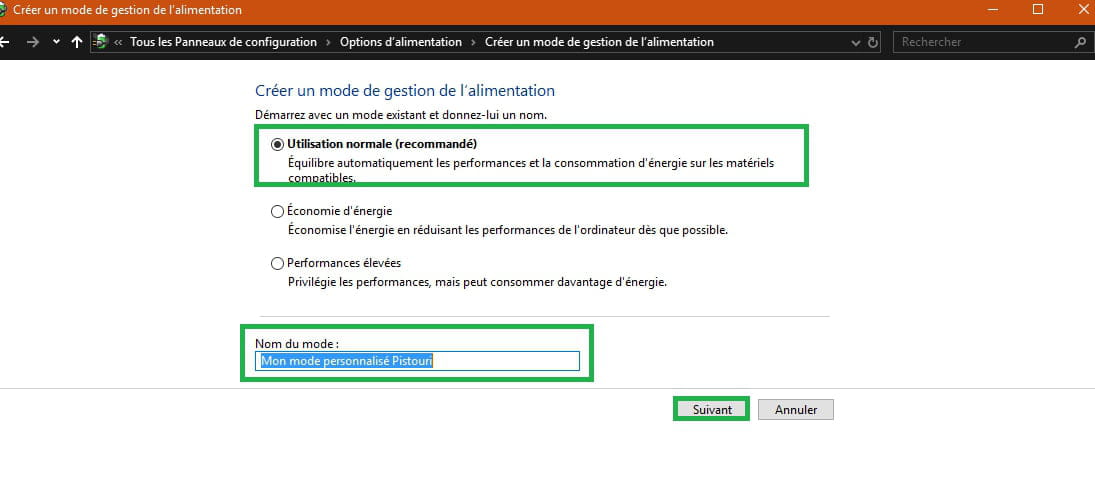
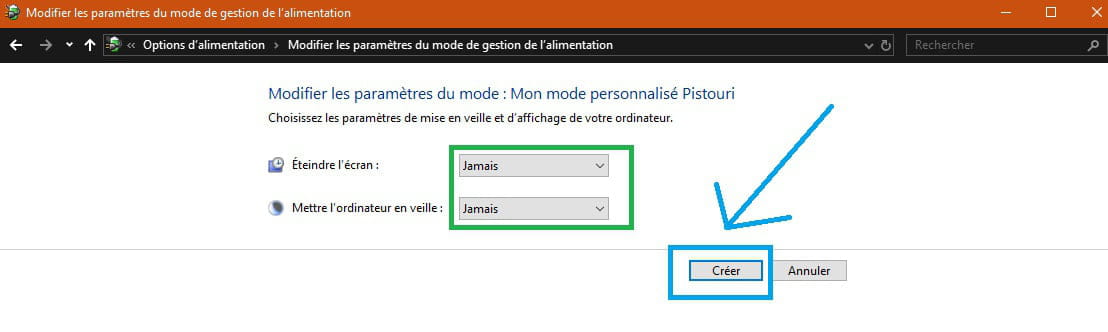
Right-click on the battery icon > power options --> create a power management plan (this is found on the left)
Give it a name.
If you have a desktop PC, go through Control Panel → Hardware and Sound → Power Options.
P.S.: Type in the Cortana search box → control panel to bring up
the control panel


A+
--
surgery knife
Add "Sleep button action" to power options with a .reg file.
Start by creating a restore point like this
Save this file on the Desktop.
Double-click the downloaded .reg file to merge it.
Click Run, Yes (UAC), Yes, and OK to approve the merge.
Restart the PC.
P.S.: You can also right-click on the reg file Add_Sleep_button_action_to_Power_Options
then → Merge
Repeat the process to check if Sleep appears.
If not, right-click on the Start button → Device Manager
Graphics card
Select your graphics card, then right-click on it → Properties
Go to the → Driver → Roll Back Driver tab
If the box is grayed out, go to the manufacturer’s site and see if they offered you a driver
Or detect with DriversCloud
Be sure to check the certified drivers box and uncheck the beta version box.
Another solution
If you have a laptop
Right-click on the battery icon > power options --> create a power management plan (this is found on the left)
Give it a name.
If you have a desktop PC, go through Control Panel → Hardware and Sound → Power Options.
P.S.: Type in the Cortana search box → control panel to bring up
the control panel

A+
--
surgery knife

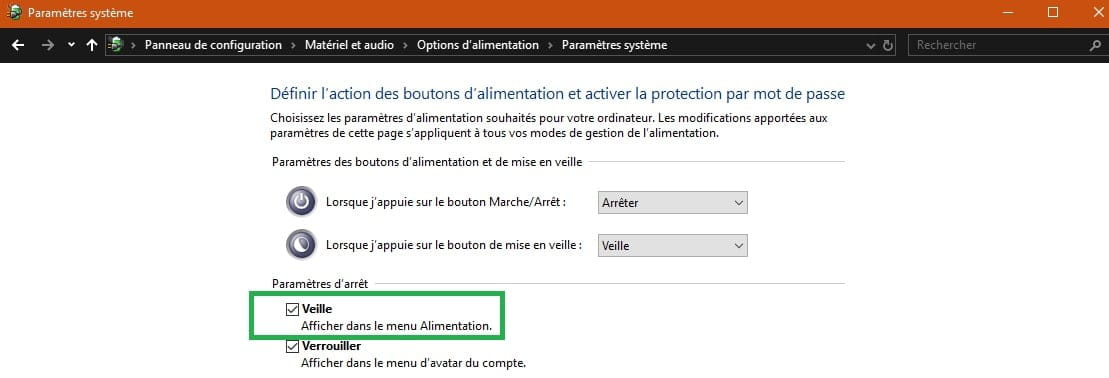


Everything is good, the sleep mode is back.
I used the second solution, namely updating the graphics card (Intel(R) Graphics 620), and it worked perfectly.
I did not use the first solution because I don't know what a "reg" file is or where to find it; but the important thing is that it worked.
Thank you for your help.