Windows installation Error code: 0x8007025D
Solved
Hello, I’ve looked at other topics with the same problem, I’ve tried everything… But nothing works, when I try to reinstall the Windows 10 ISO via a bootable USB drive, I always get this error message: “Windows cannot install the required files. Make sure all the files necessary for installation are available, and restart the installation. Error code: 0x8007025D”
Already, I’m not comfortable in this area, and now I don’t know what to do, especially since I can’t even use my PC because when I turn it on without the USB drive, I automatically go into the BIOS. I assume I no longer have an OS.
Hoping to resolve this issue as soon as possible!
Thank you in advance!
Configuration: Windows / Chrome 66.0.3359.117
Already, I’m not comfortable in this area, and now I don’t know what to do, especially since I can’t even use my PC because when I turn it on without the USB drive, I automatically go into the BIOS. I assume I no longer have an OS.
Hoping to resolve this issue as soon as possible!
Thank you in advance!
Configuration: Windows / Chrome 66.0.3359.117
2 answers
-
ModeratorHello,
This error is quite common and often related to an issue with the installation media: Error 0x8007025D during the installation of Windows 10
It could also come from the USB drive used.
~~- Create a USB drive with Media Creation Tool: https://www.malekal.com/windows-10-media-creation-tool/
- Boot from it by modifying the boot sequence and select the USB drive or DVD: How to boot your computer from a USB drive
If the USB drive doesn't work, try creating another one with Rufus: how to download Rufus.
Download the ISO file for example with Adguard: Download Windows ISO
Launch Rufus then specify the ISO file
In partition type, choose GPT.
For more details, refer to this tutorial for details: how to create a Windows installation USB drive
The Windows 10 installer should then start:
Follow this tutorial which explains how to install Windows 10: how to install Windows 10.
All steps are provided from A to Z with tips at the end to secure Windows 10.- Let yourself be guided to install Windows 10.
- Choose custom (not upgrade)
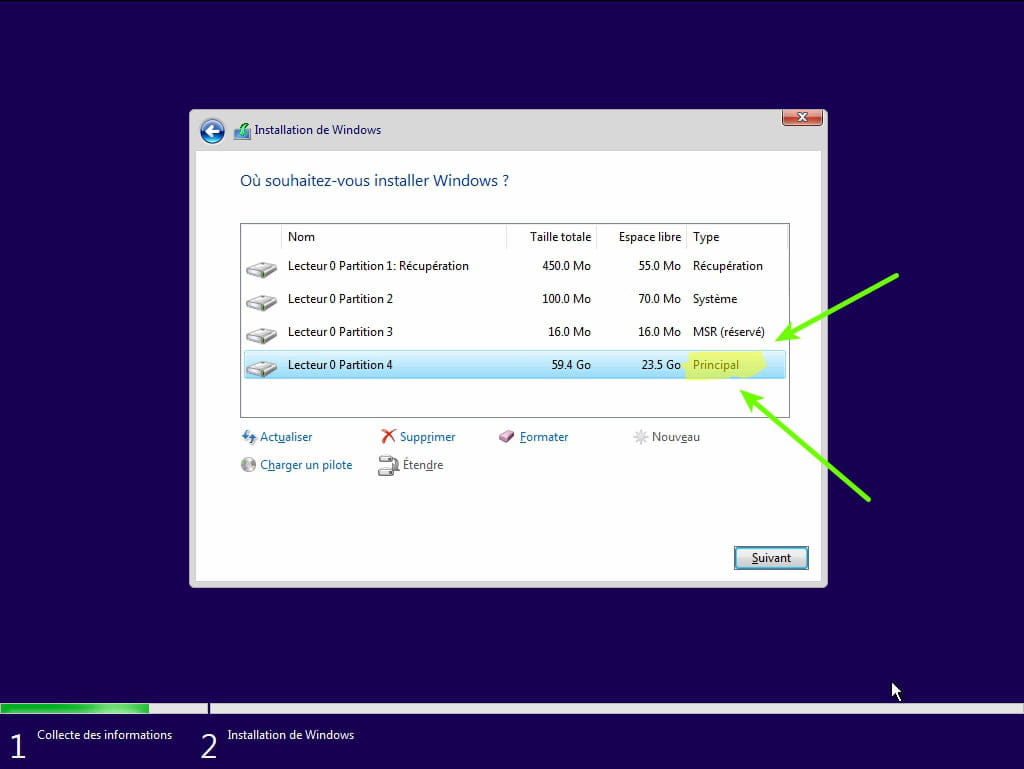
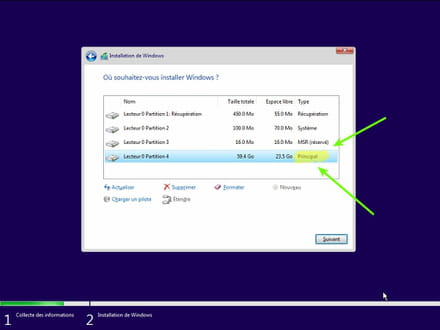
- During the partition phase, select the main partition and click next.
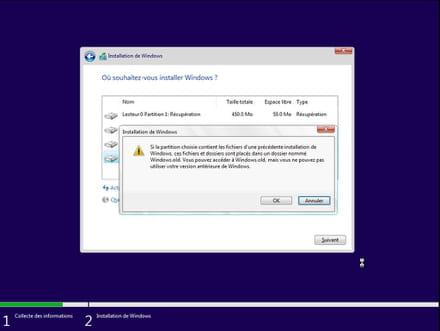
- The installer will tell you that Windows is already present and offer to move it.
- Follow the Windows installation procedure using the tutorial above.
Just don't format.
Your user data will be copied into the Windows.old folder.
Once Windows is installed, I recommend following these tips to properly configure and use Windows: Tips after reinstalling Windows.